Frappe
Products
Helpdesk
Progressive Web App
Frappe
Products
Insights
features
Progressive Web App (PWA)
Frappe Helpdesk works on your phone. Open your Helpdesk site in your phone’s browser, add it to your home screen, and it opens like an app.
There’s nothing to download from an app store. It’s the same Helpdesk your team uses on the computer, so you can check tickets, reply and keep things moving when you’re away from your desk.
1.
Add it to your home screen
2.
See your tickets
3.
Reply and update tickets
4.
Keep up with what needs you
5.
Customers can use it on their phone too
Add it to your home screen
On an iPhone, open your Helpdesk site in Safari, tap Share and then Add to Home Screen. On Android, open it in Chrome, tap the menu and choose Add to Home screen.
Helpdesk then gets its own icon and opens full screen, without the browser bar. It updates on its own whenever your site is updated.
On a computer, Chrome and Edge show an install button in the address bar if you’d like Helpdesk in its own window there too.
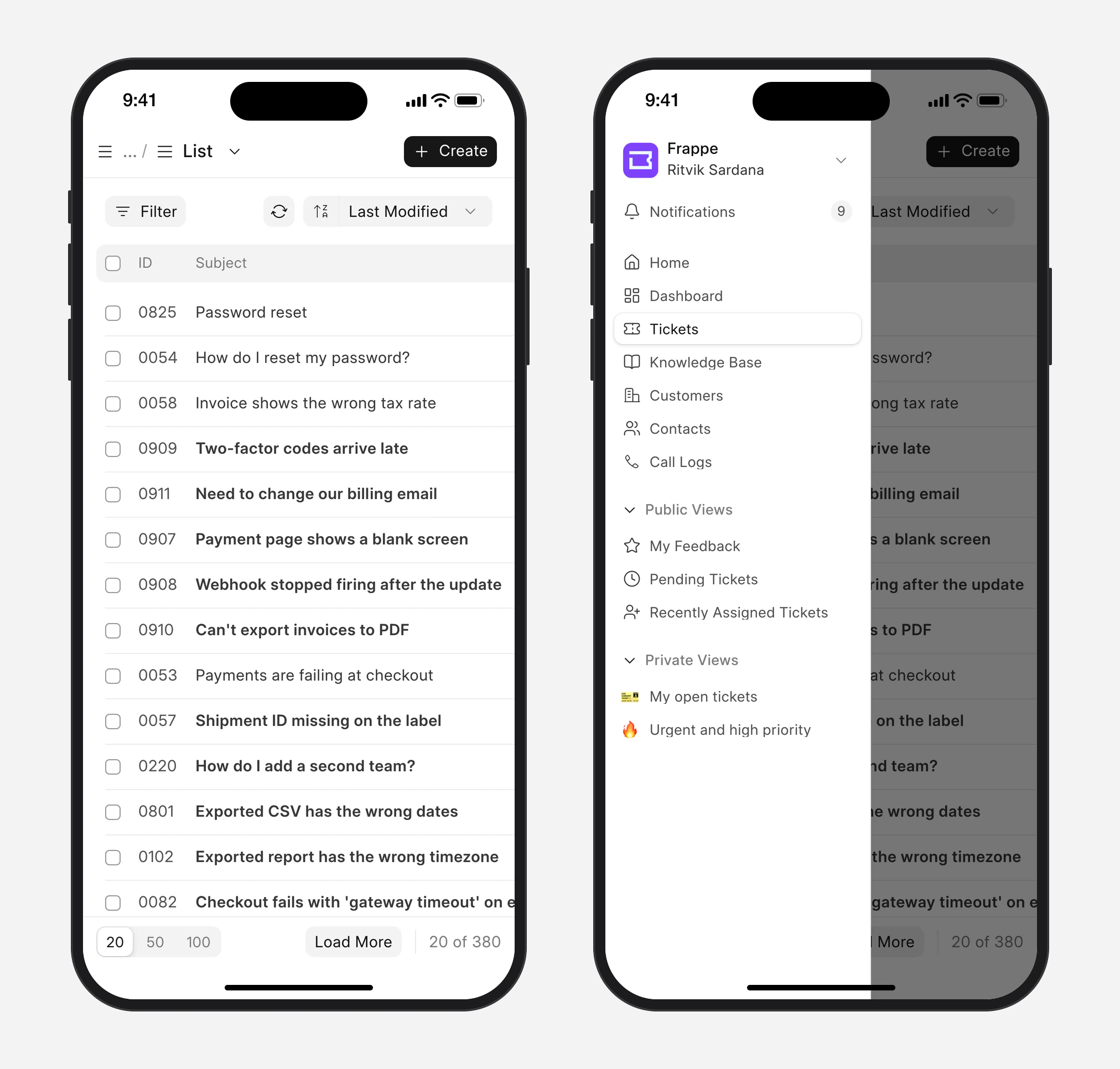
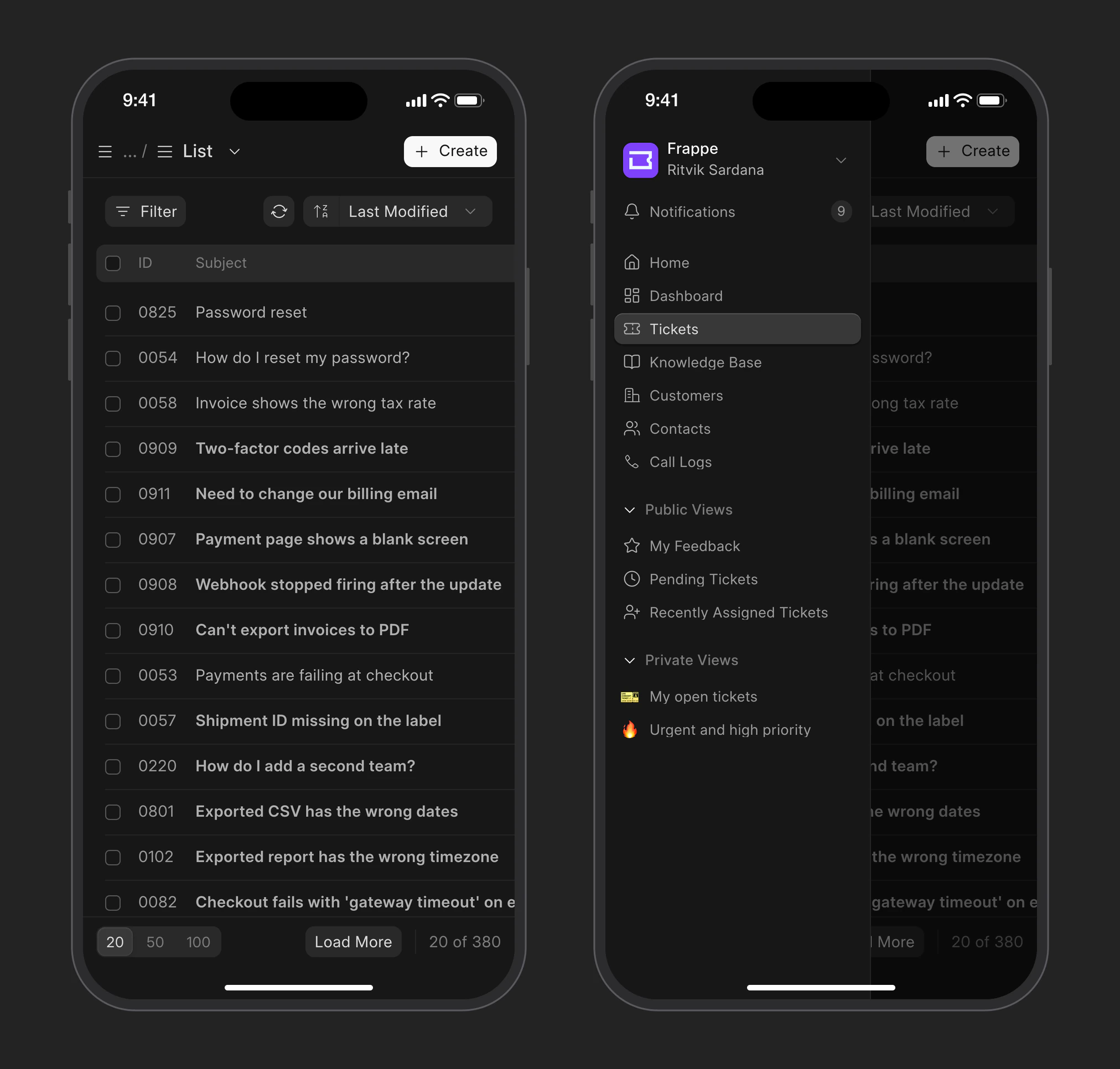
See your tickets
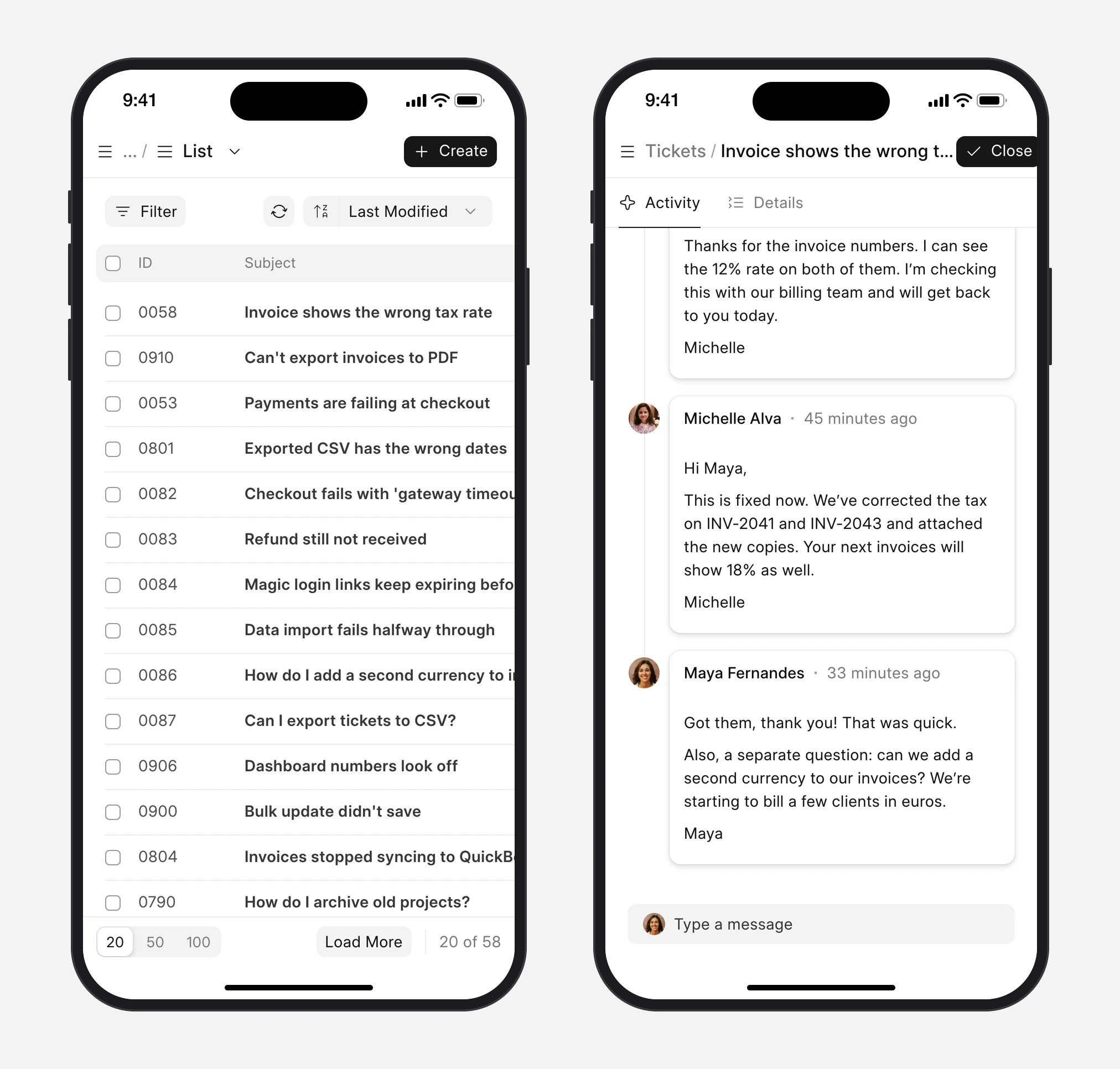
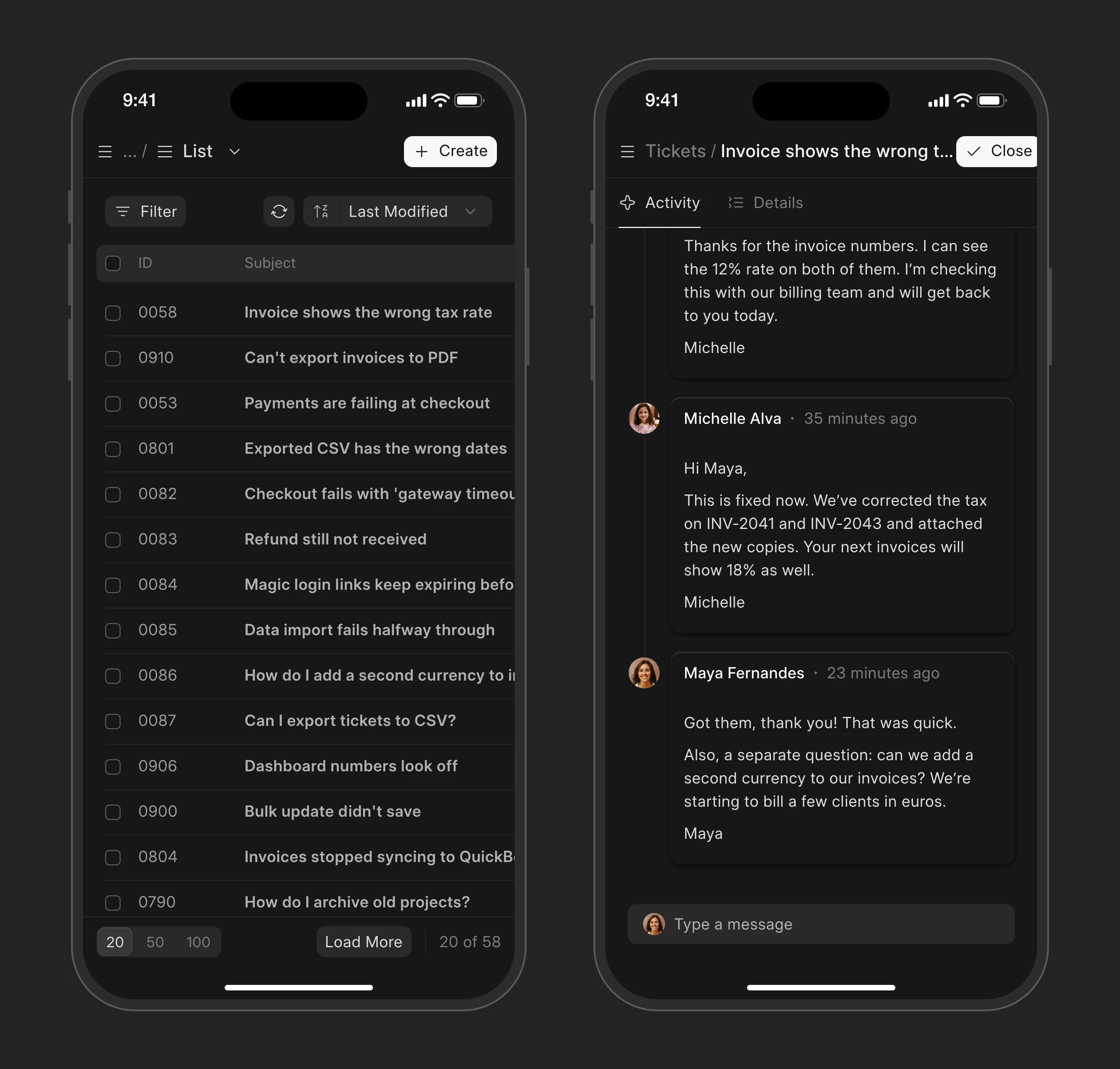
The ticket list works the same as on the computer. You can filter and sort it, and your saved views are in the menu.
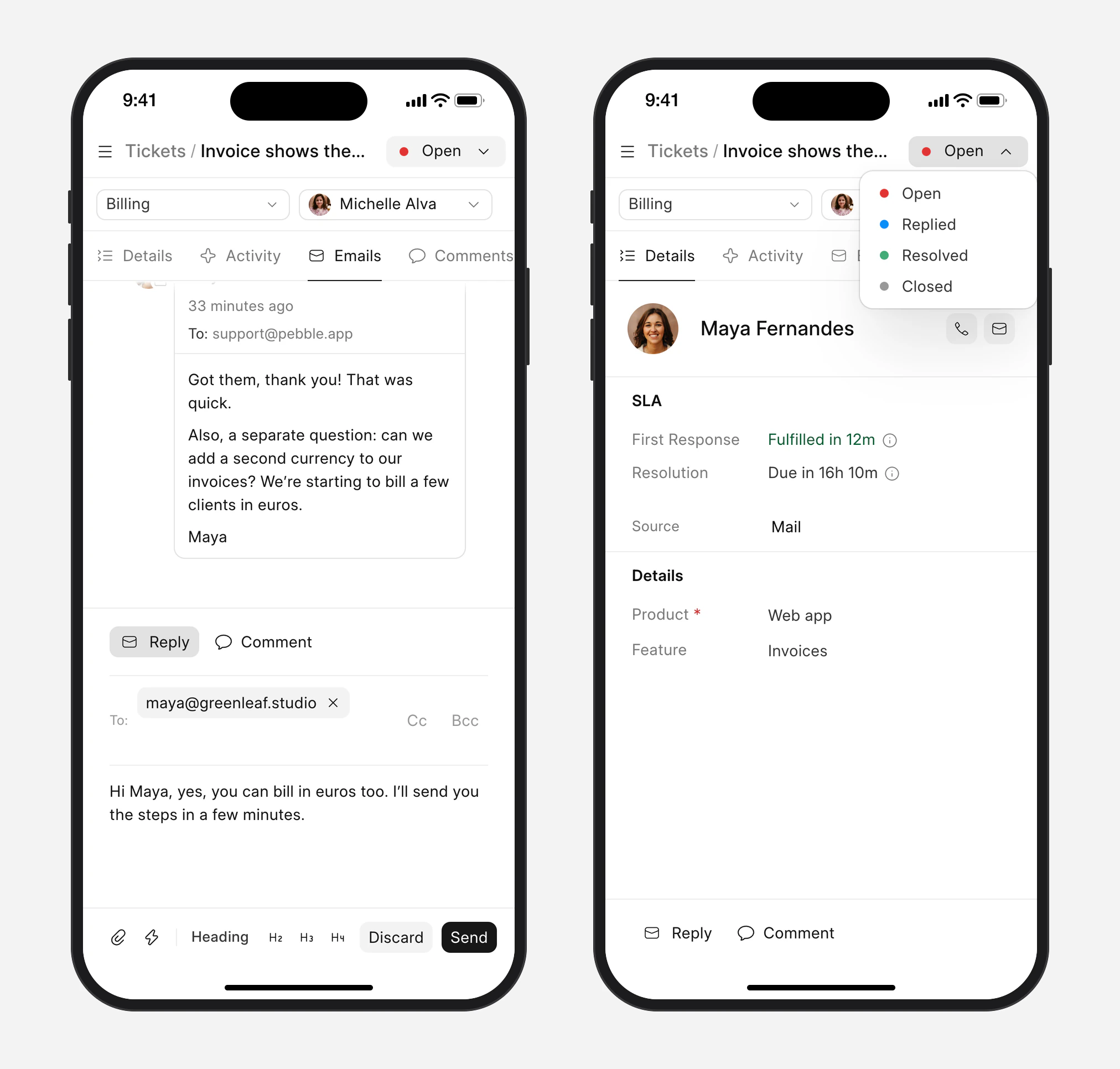
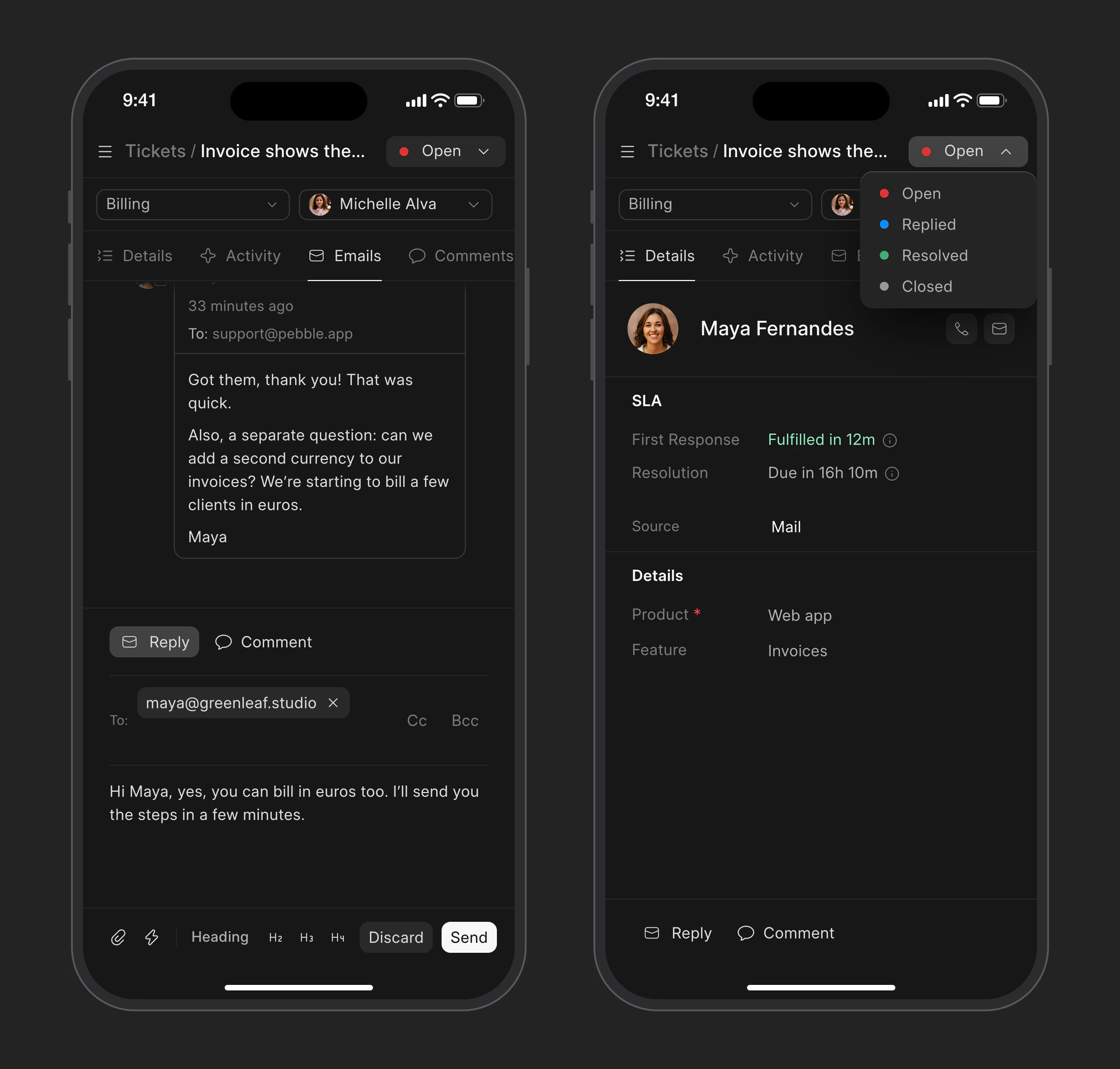
Open a ticket to see the customer, the SLA and the ticket details, and switch tabs to read the emails, comments and activity.
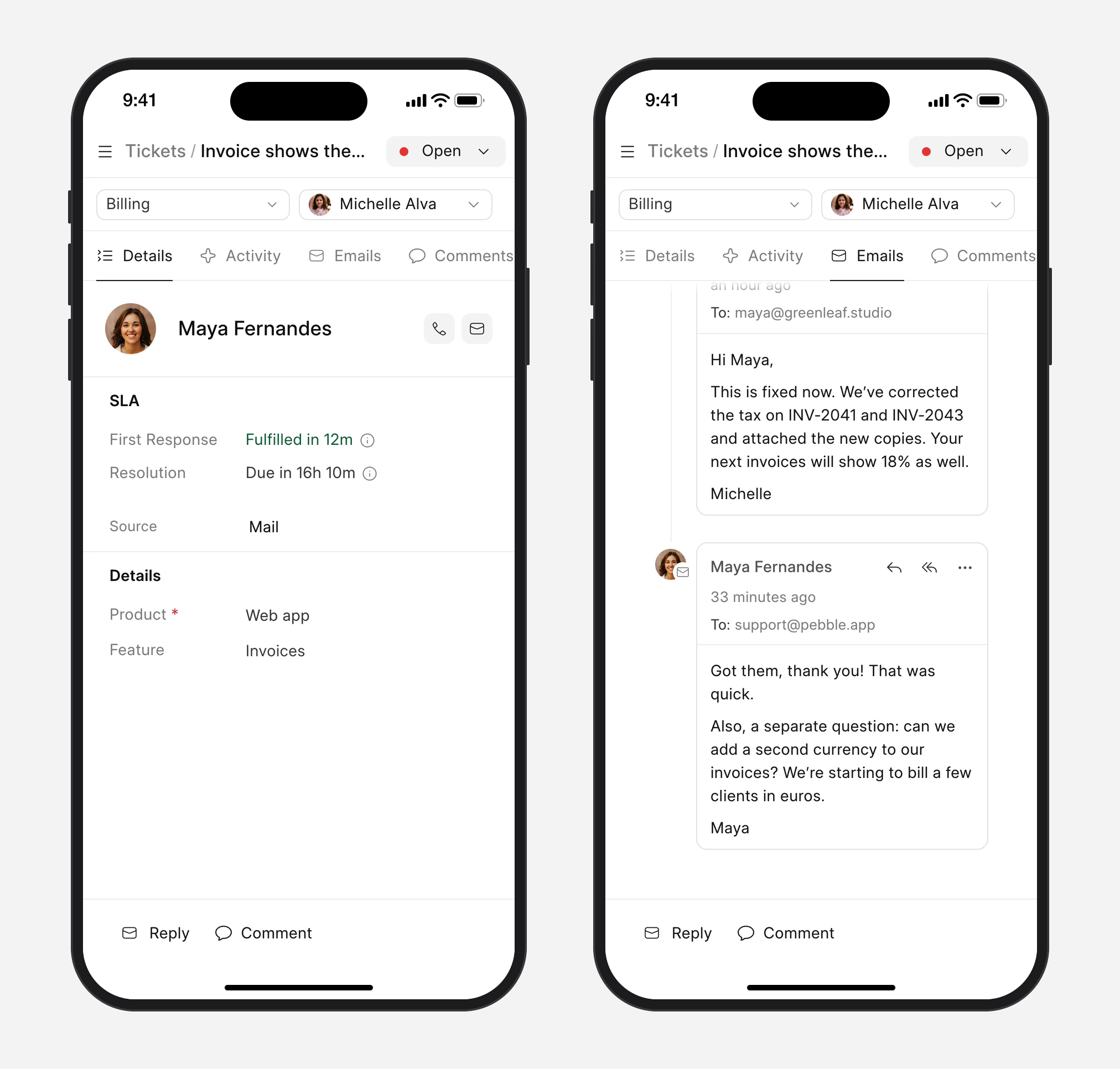
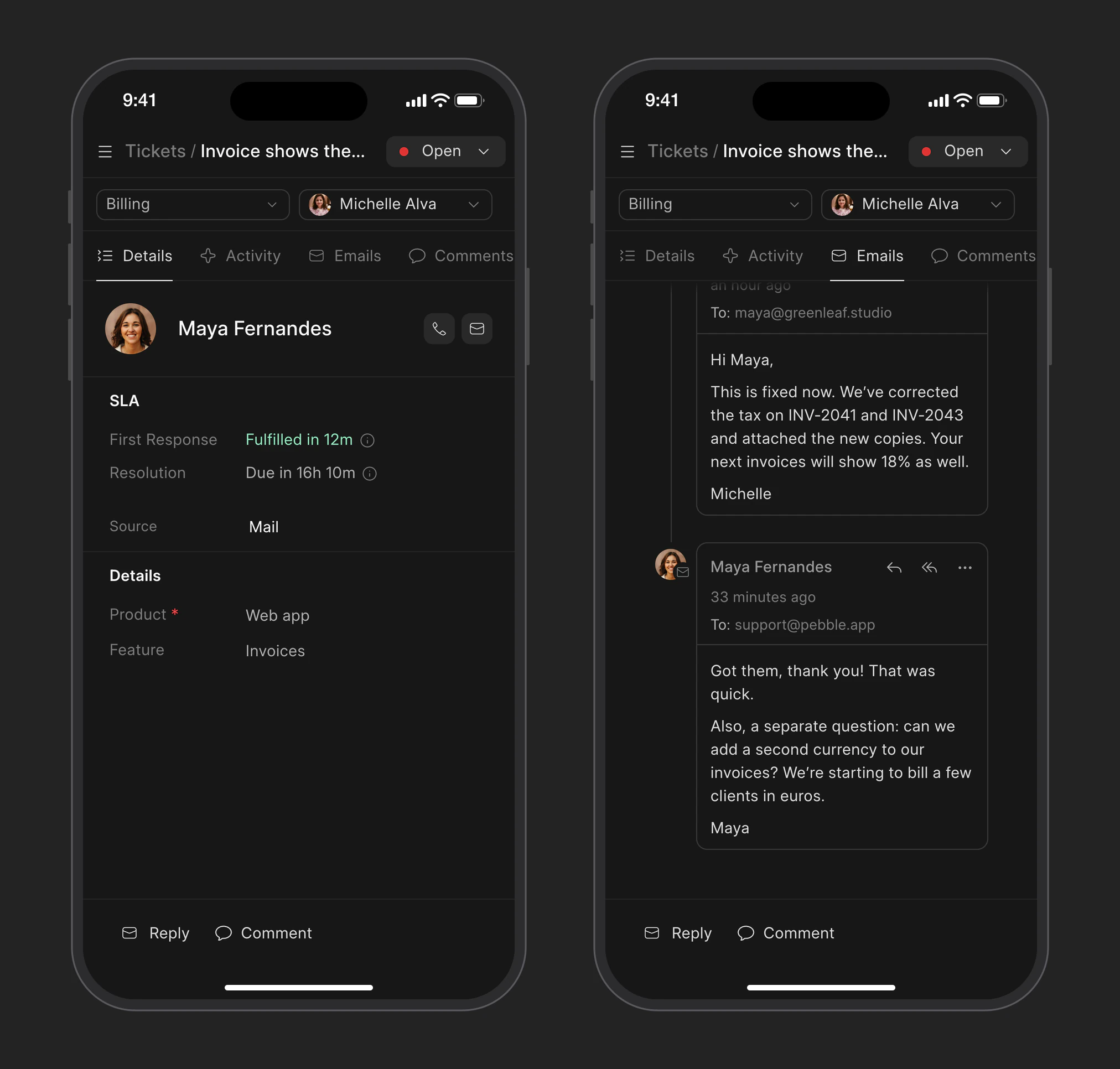
Reply and update tickets
Reply to the customer or leave an internal comment for your team from the bar at the bottom of the ticket.
At the top you can change the status, the team and who the ticket is assigned to.
Keep up with what needs you
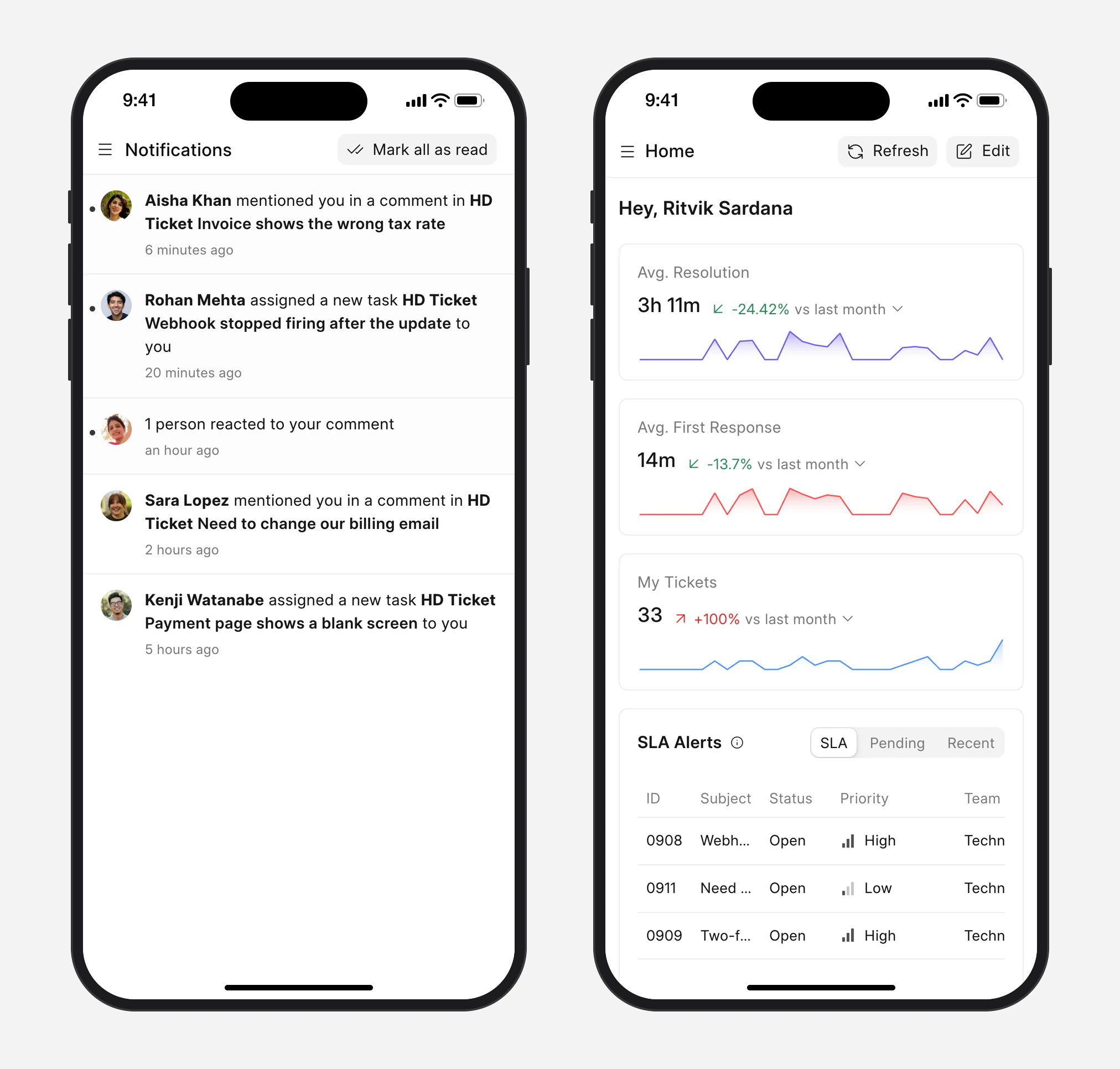
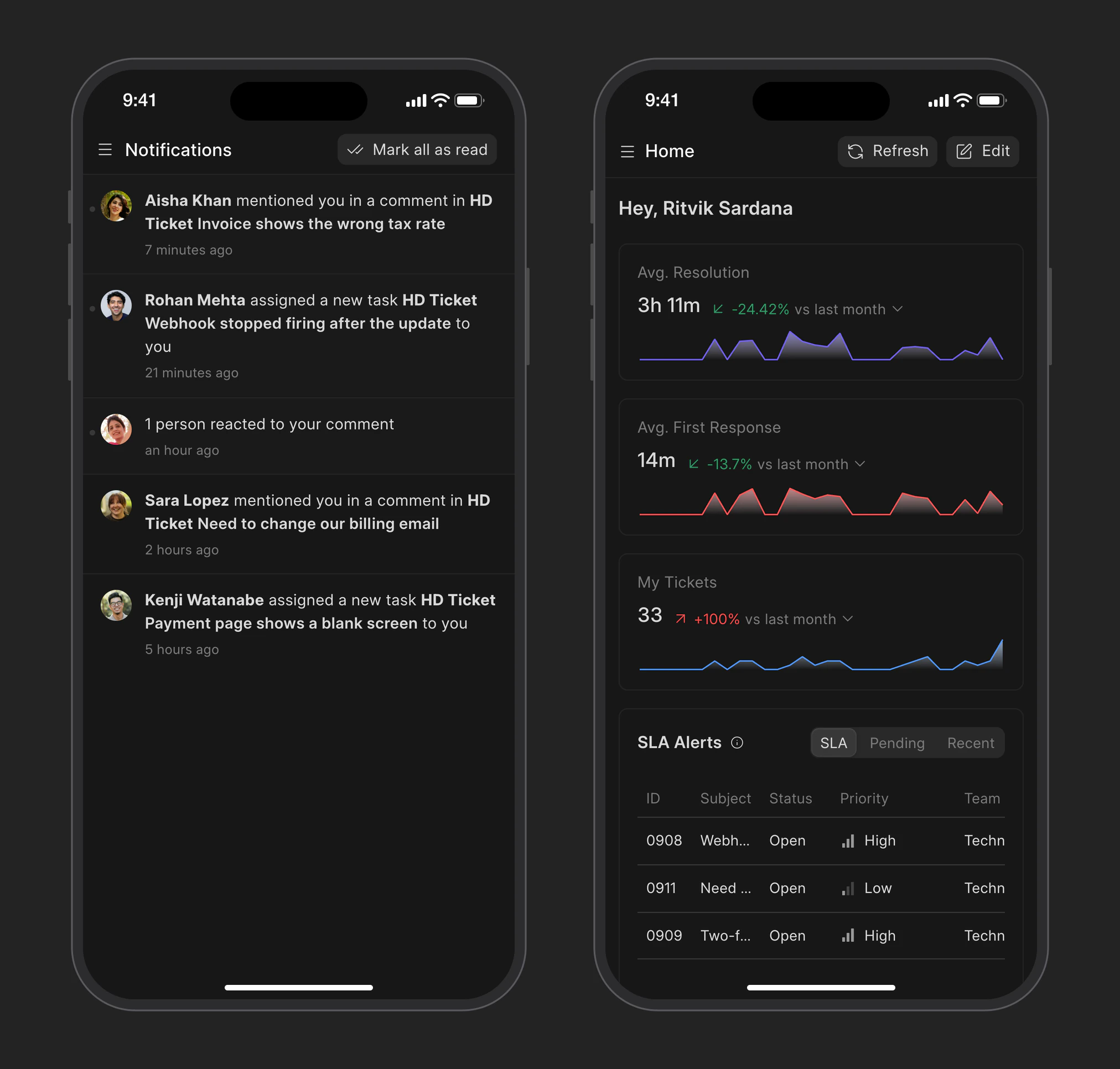
Notifications shows when someone mentions you in a comment or assigns you a ticket. Tap one to open the ticket.
Your Home page shows how you’re doing this month and the tickets that are close to missing their SLA.
Customers can use it on their phone too
The customer portal works on a phone as well. Customers can see their tickets, reply to you, raise new ones and look up answers in your knowledge base.
They can add it to their home screen the same way.
previous feature
Integrations