Frappe
Products
Helpdesk
Service Level Agreements (SLAs)
Frappe
Products
Insights
features
Service Level Agreements (SLAs)
An SLA is the time you promise a customer for a reply and for a fix. In Frappe Helpdesk, you set these times once, and every ticket that comes in gets them automatically.
Helpdesk then keeps track of the time on each ticket, so your team can see what’s due, what’s late and what’s waiting on the customer.
1.
Set times for each priority
2.
Count only working hours
3.
Different SLAs for different customers
4.
Pause the timer while you wait on the customer
5.
See what’s due
Set times for each priority
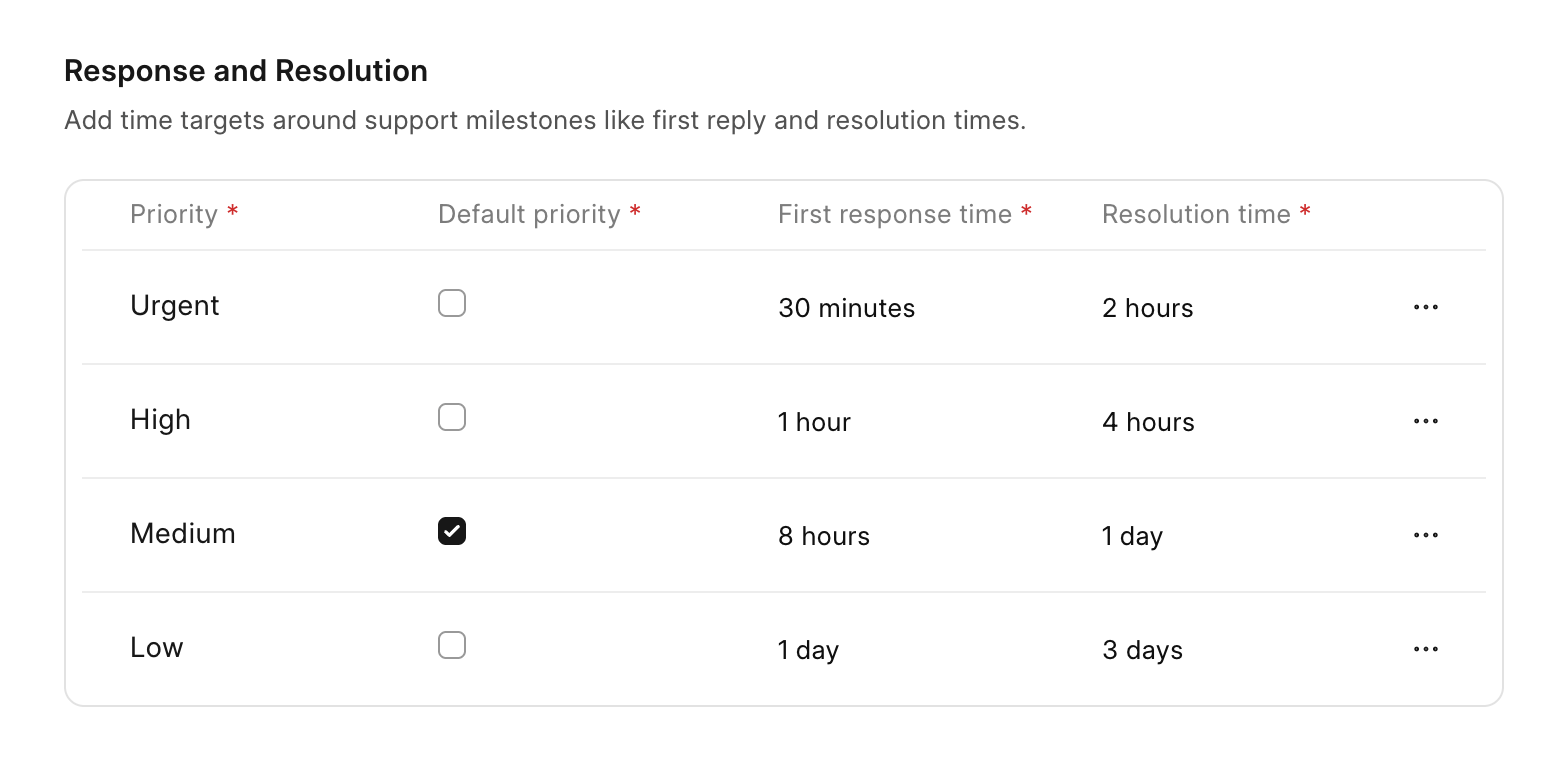
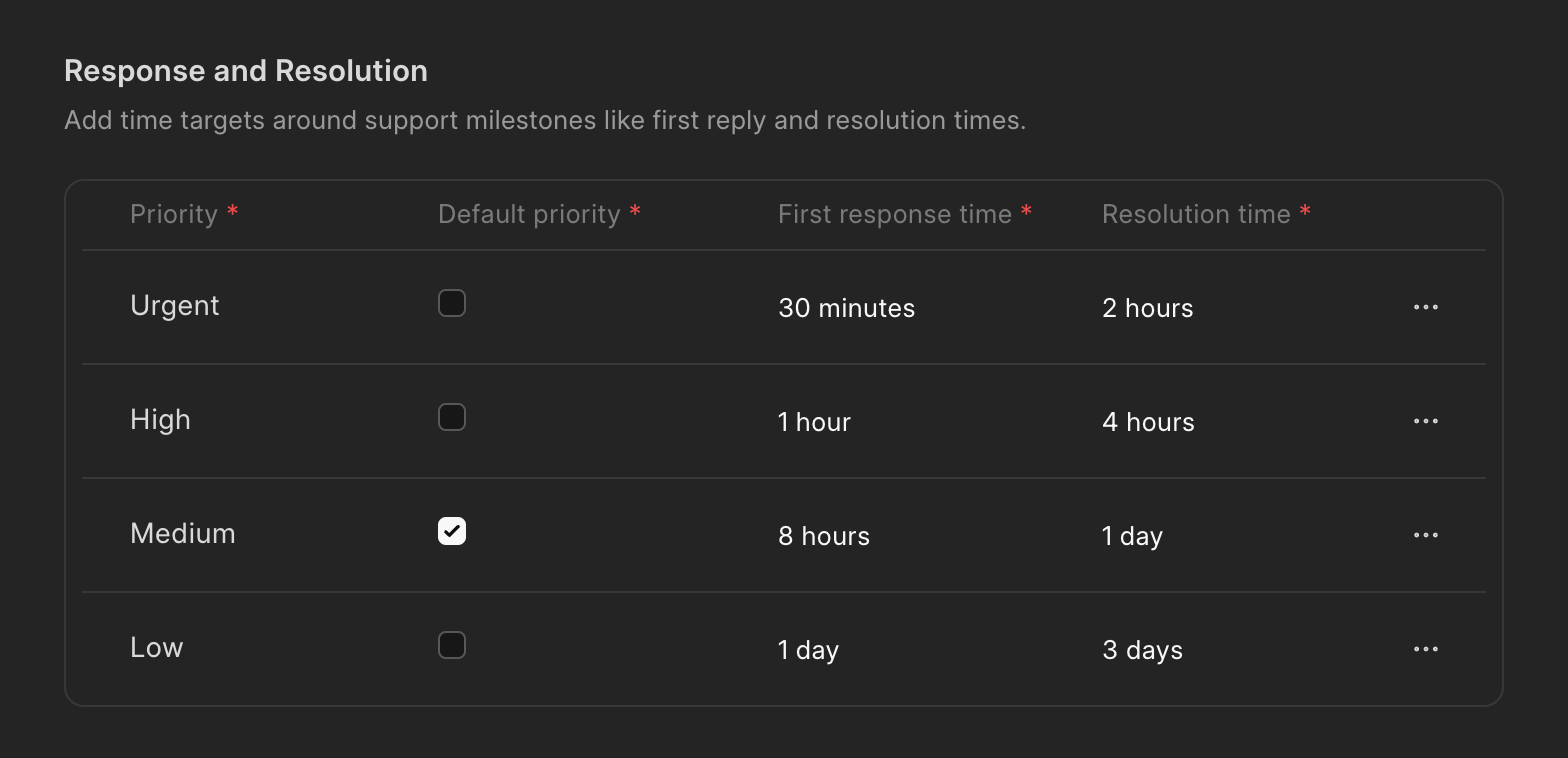
You can set a different first response time and resolution time for each priority. For example, you might reply to urgent tickets within 30 minutes and to low priority ones within a day.
If a ticket comes in without a priority, it gets the default one you choose.
Count only working hours
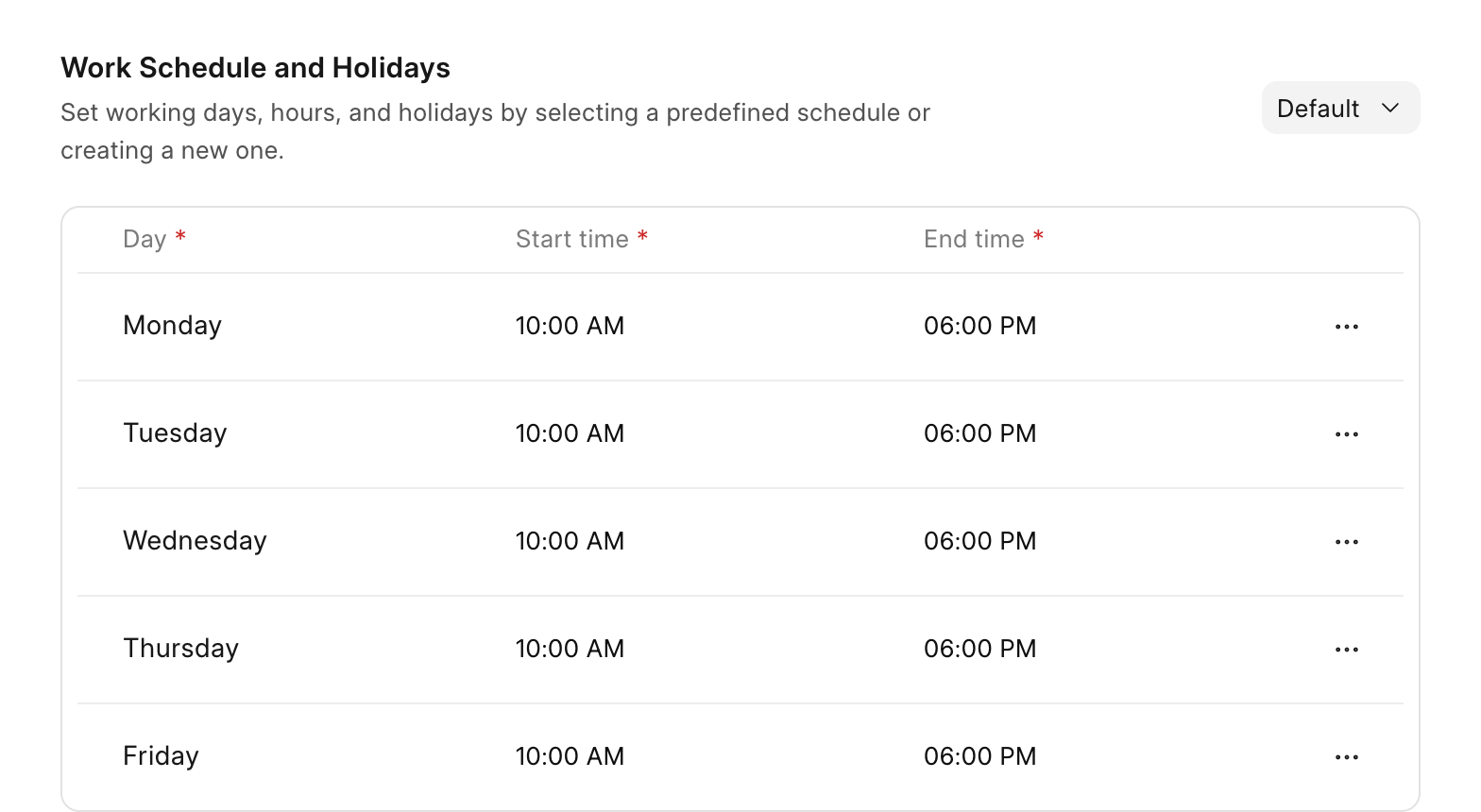
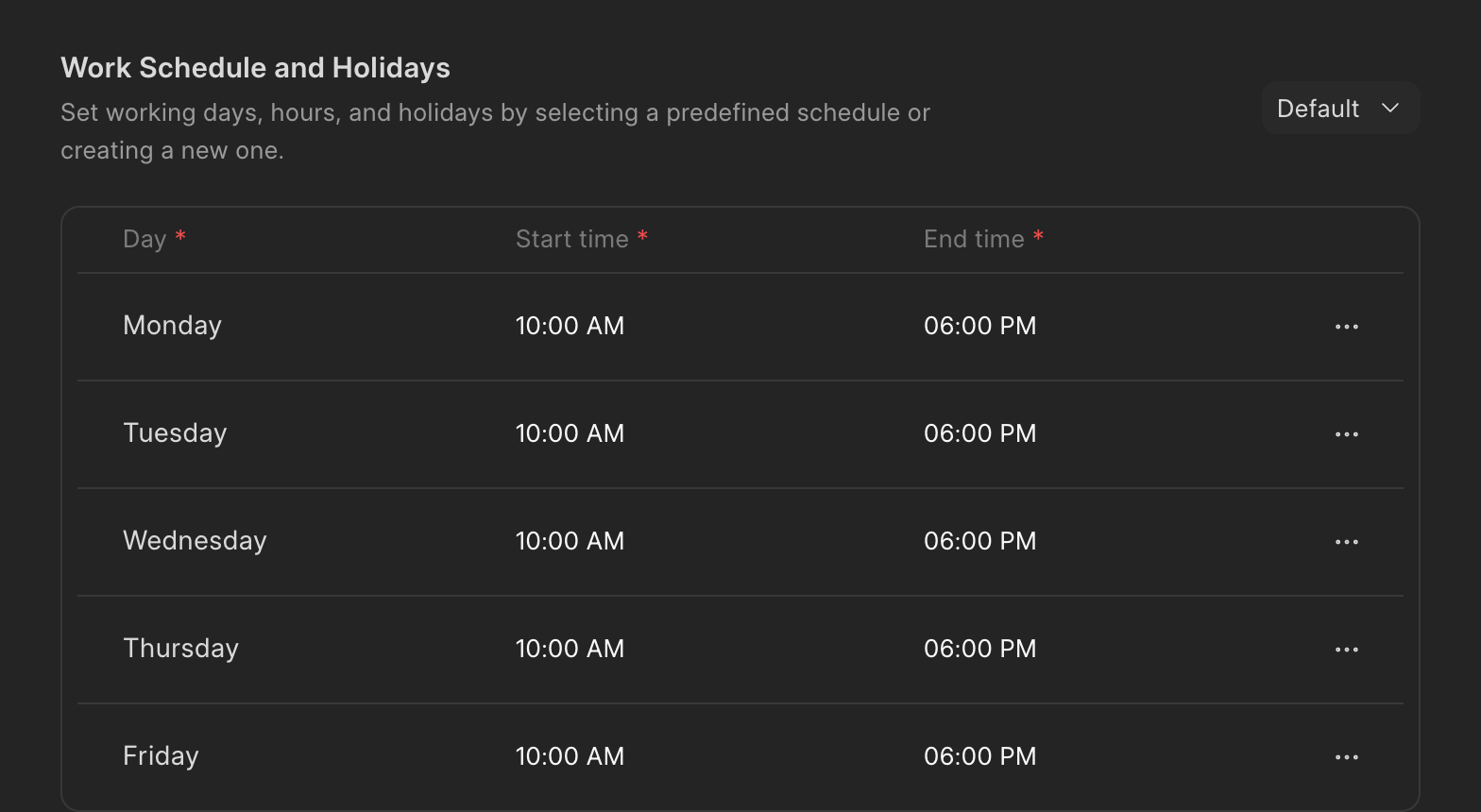
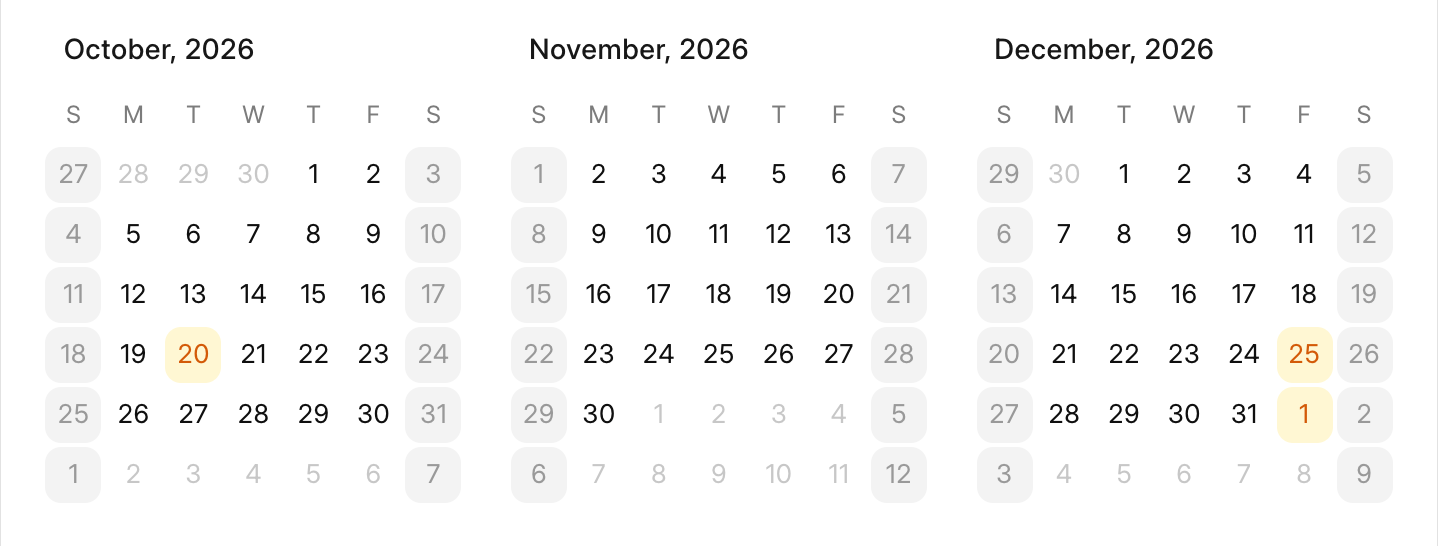
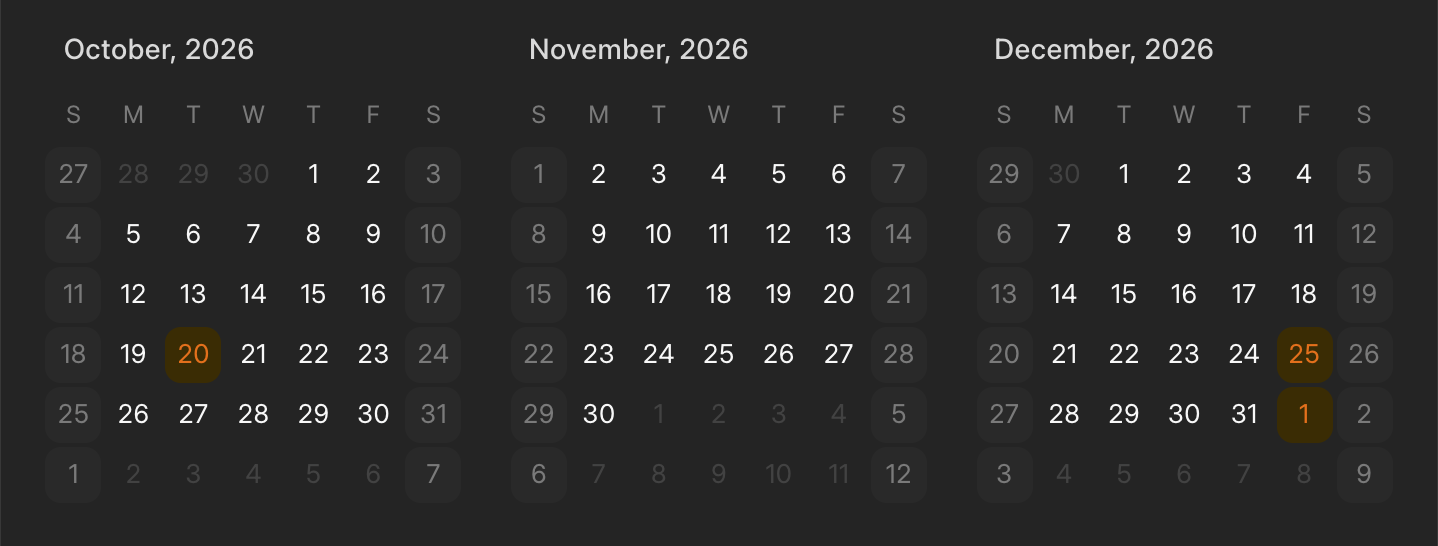
The SLA timer only counts your team’s working hours. You set the days and times your team works, for example Monday to Friday, 10 AM to 6 PM.
You can also add weekends and holidays, and Helpdesk will skip them. So a ticket that comes in on Friday night doesn’t become overdue over the weekend.
Different SLAs for different customers
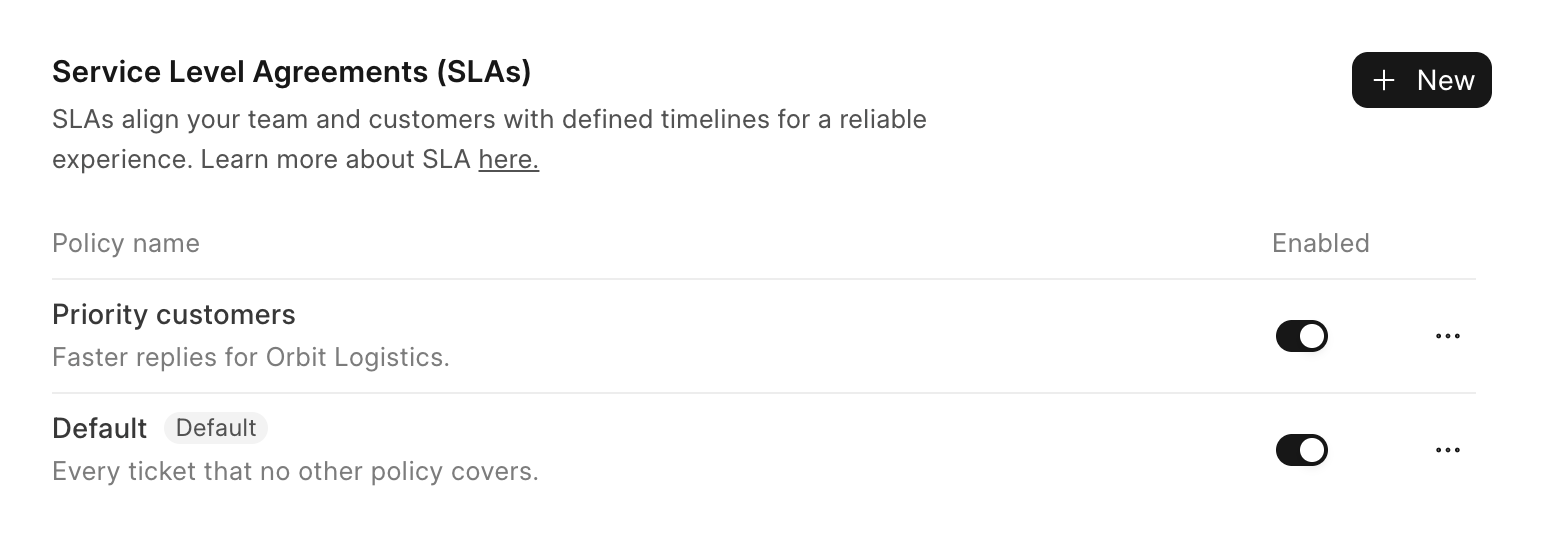
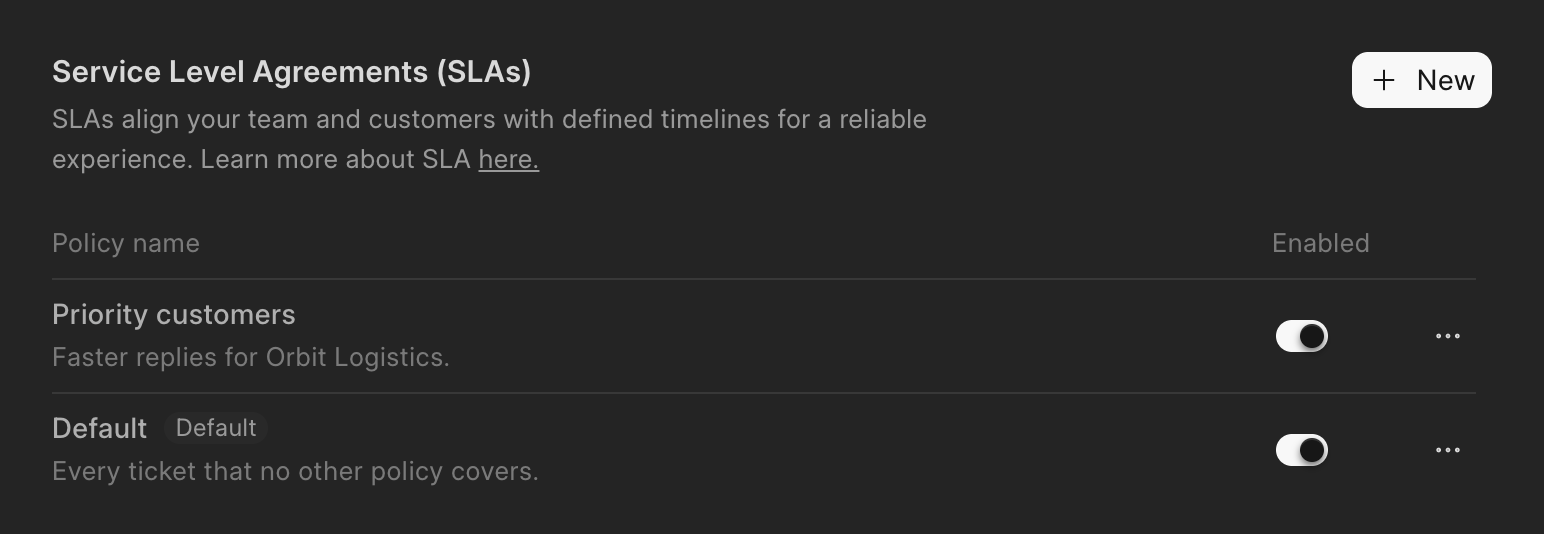
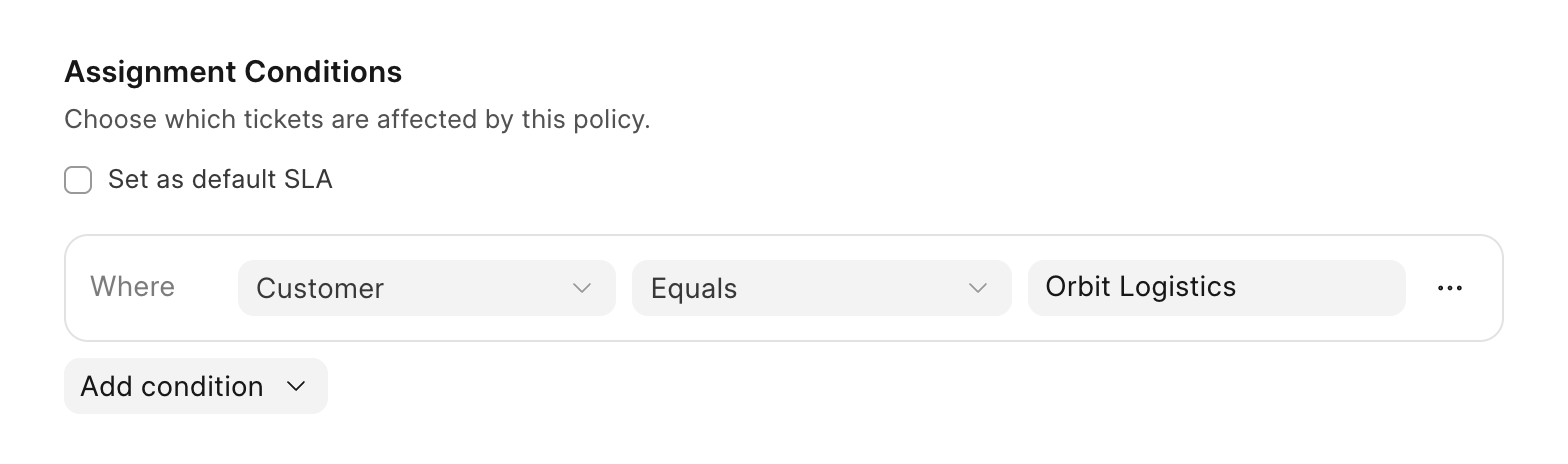
If some customers need faster replies, you can create a separate SLA policy for them. You choose when a policy applies using conditions on the ticket, like the customer, team, ticket type or priority.
Tickets that don’t match any policy follow your default one. If you need a policy only for a while, like during a launch, you can set start and end dates for it.
Pause the timer while you wait on the customer
When you reply to a ticket and its status changes to Replied, the SLA timer pauses. It starts again when the customer replies.
This way, the time a ticket spends waiting on the customer doesn’t count against your team. You can also create your own statuses, like Waiting on vendor, and choose whether they pause the timer.
OpenCustomer writes in
9:58 AM
9:58 AM
1m counted
RepliedAgent replies
9:59 AM
9:59 AM
Paused
OpenCustomer replies
10:01 AM
10:01 AM
52m counted
ResolvedAgent resolves it
10:53 AM
10:53 AM
See what’s due
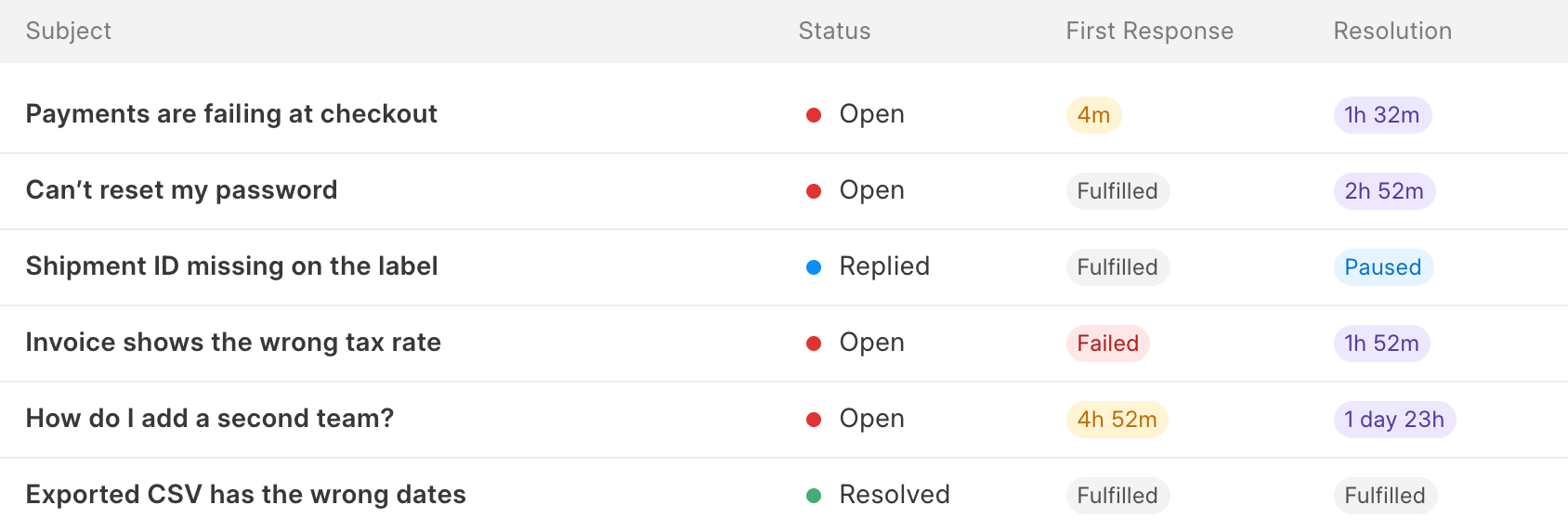
In the ticket list, every ticket shows how much time is left for the first response and the resolution, like 25m or 3h. If a ticket misses its time, it’s marked as Failed.
You can sort tickets by what’s due and save that as a view for your team. The dashboard also shows how many tickets met their SLA.
previous feature
Ticket Management
next feature
Assignment Rules