Frappe
Products
Learning
Mobile Access
Frappe
Products
Insights
features
Mobile Access (PWA)
Frappe Learning works on your phone. Learners open your Learning site in their phone’s browser, add it to their home screen, and it opens like an app.
There’s nothing to download from an app store. It’s the same site they use on a computer, so they can watch a lesson on the way to work, take a quiz between meetings and join a live class from wherever they are.
1.
Add it to your home screen
2.
Take lessons anywhere
3.
Take quizzes on your phone
4.
Join live classes
5.
Keep up with what’s new
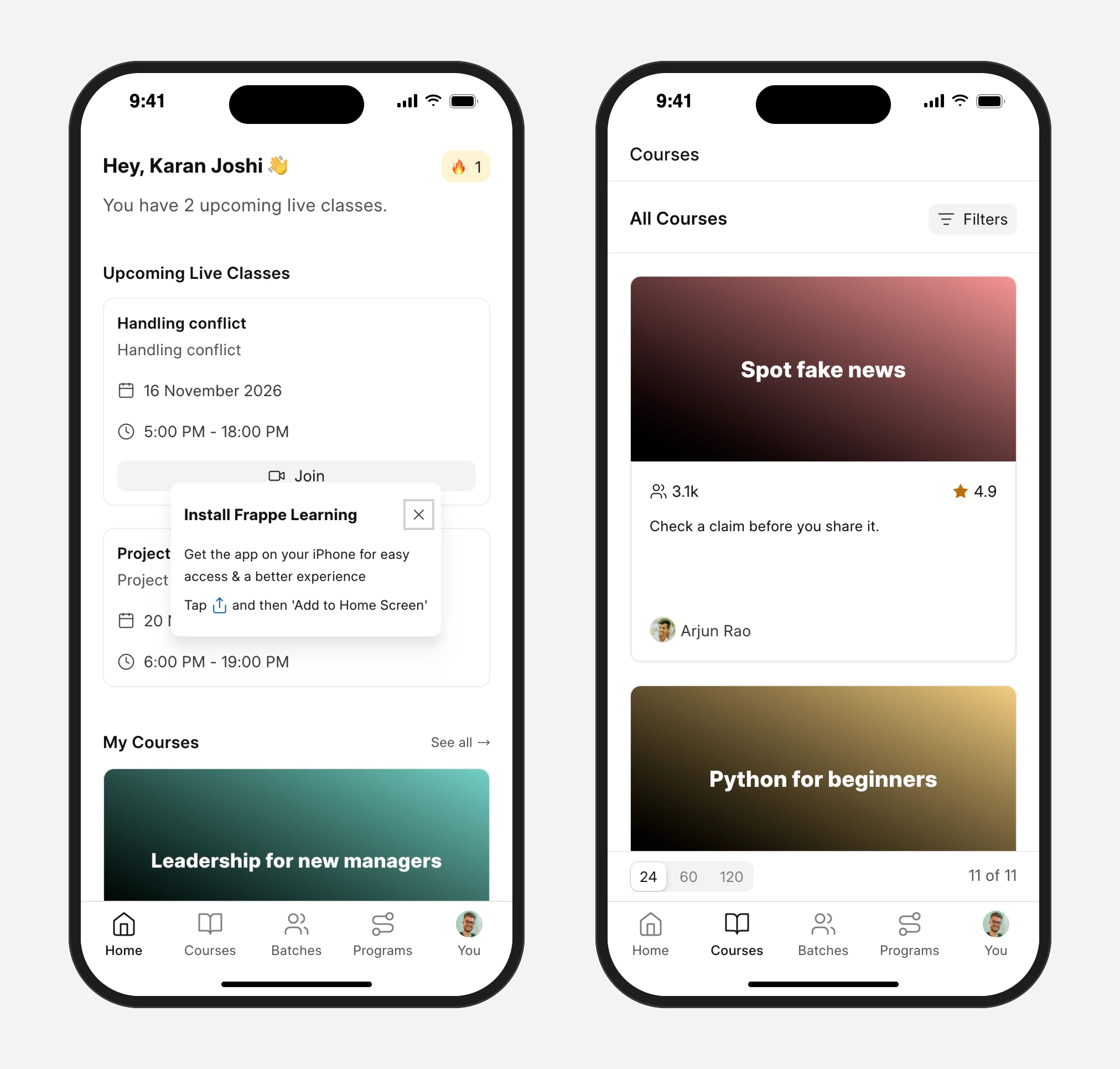
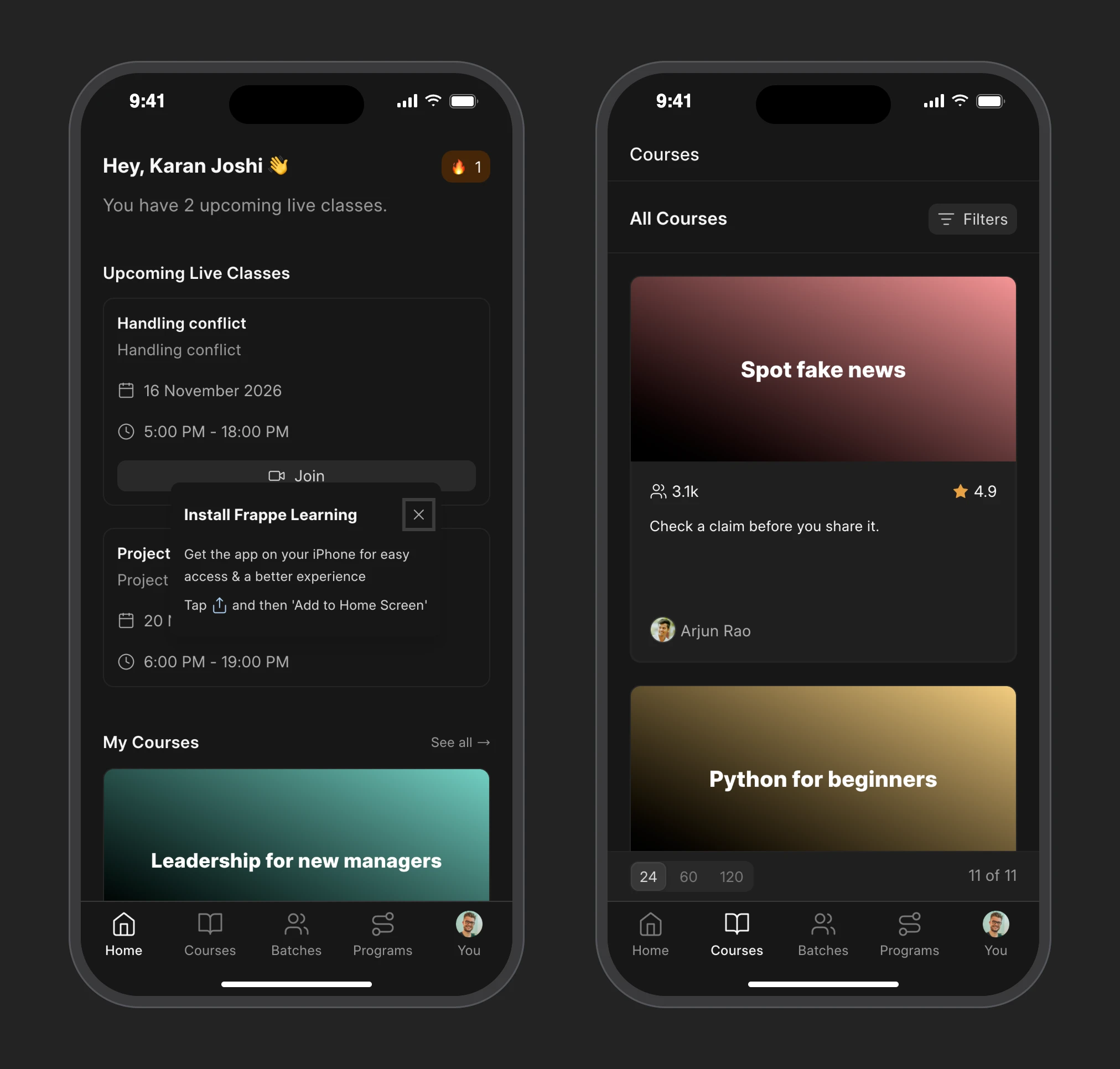
Add it to your home screen
On an iPhone, open your Learning site in Safari, tap Share and then Add to Home Screen. Frappe Learning shows learners how the first time they visit. On Android, open it in Chrome, tap the menu and choose Add to Home screen.
It then gets its own icon and opens full screen, without the browser bar. The tabs at the bottom go to Home, Courses, Batches and Programs, and it updates on its own whenever your site is updated.
Take lessons anywhere
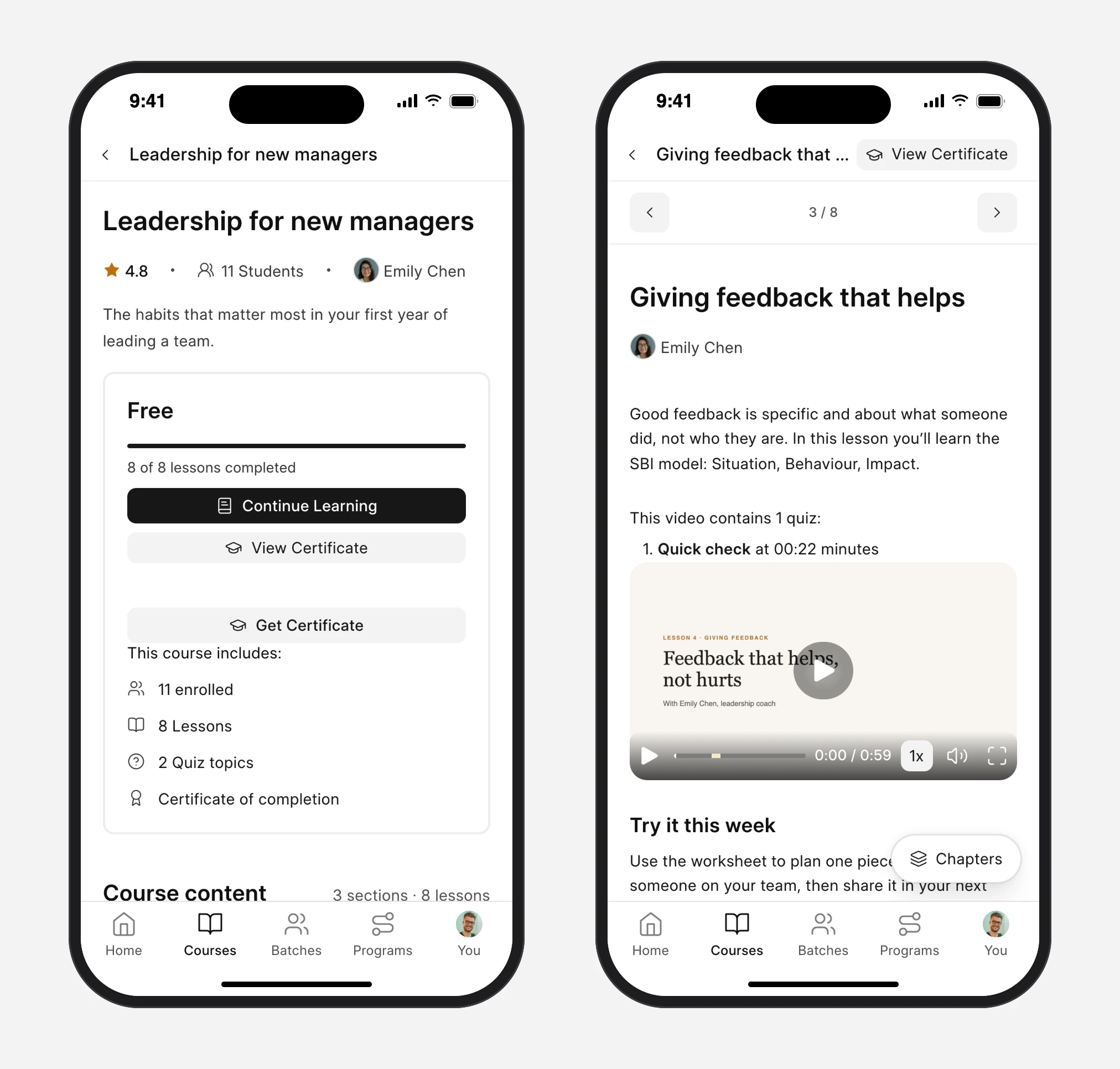
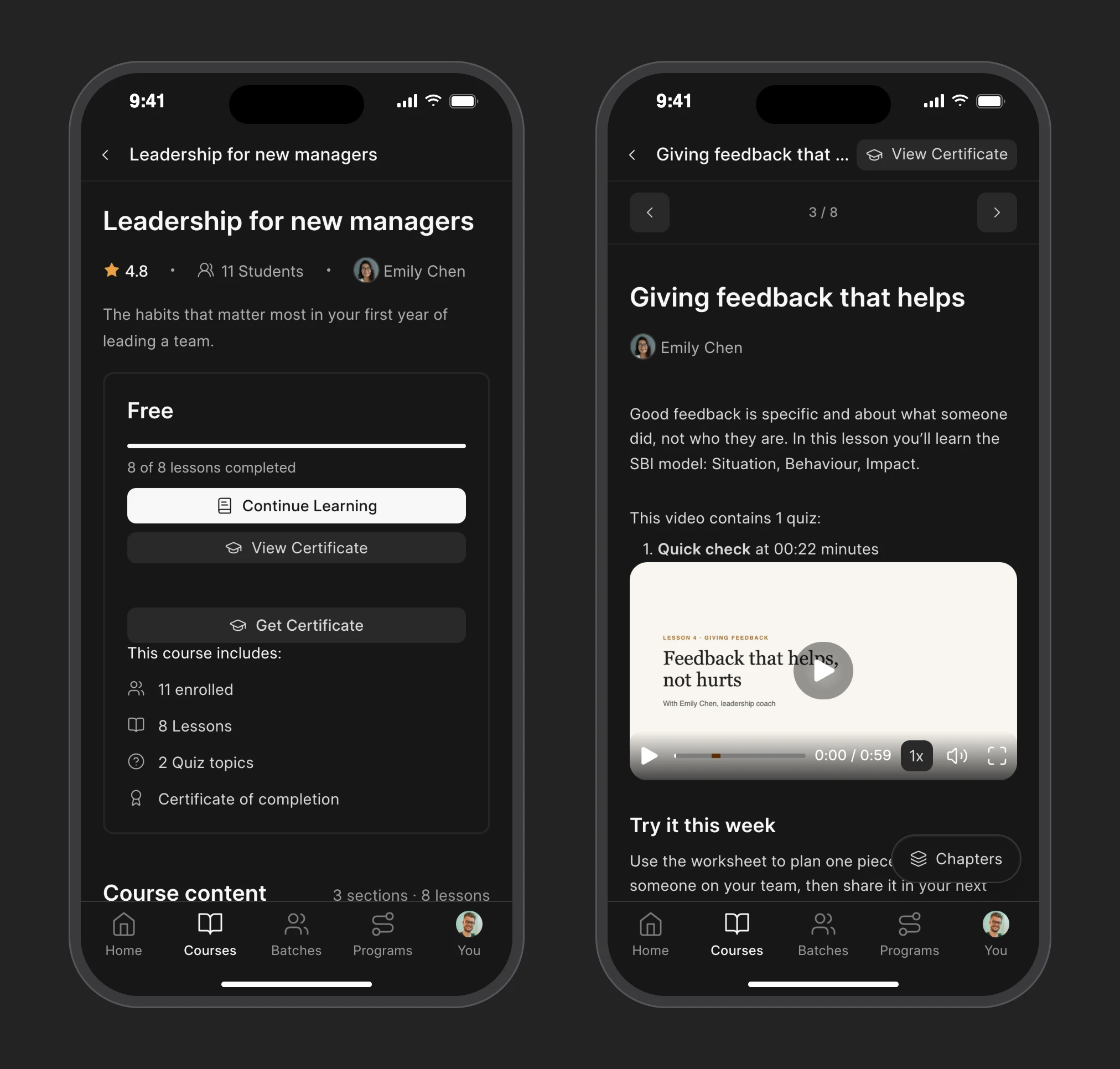
Open a course to see how far you’ve got and pick up where you left off.
Lessons, videos and the questions inside videos work the same as on a computer, and progress is saved as you go.
Take quizzes on your phone
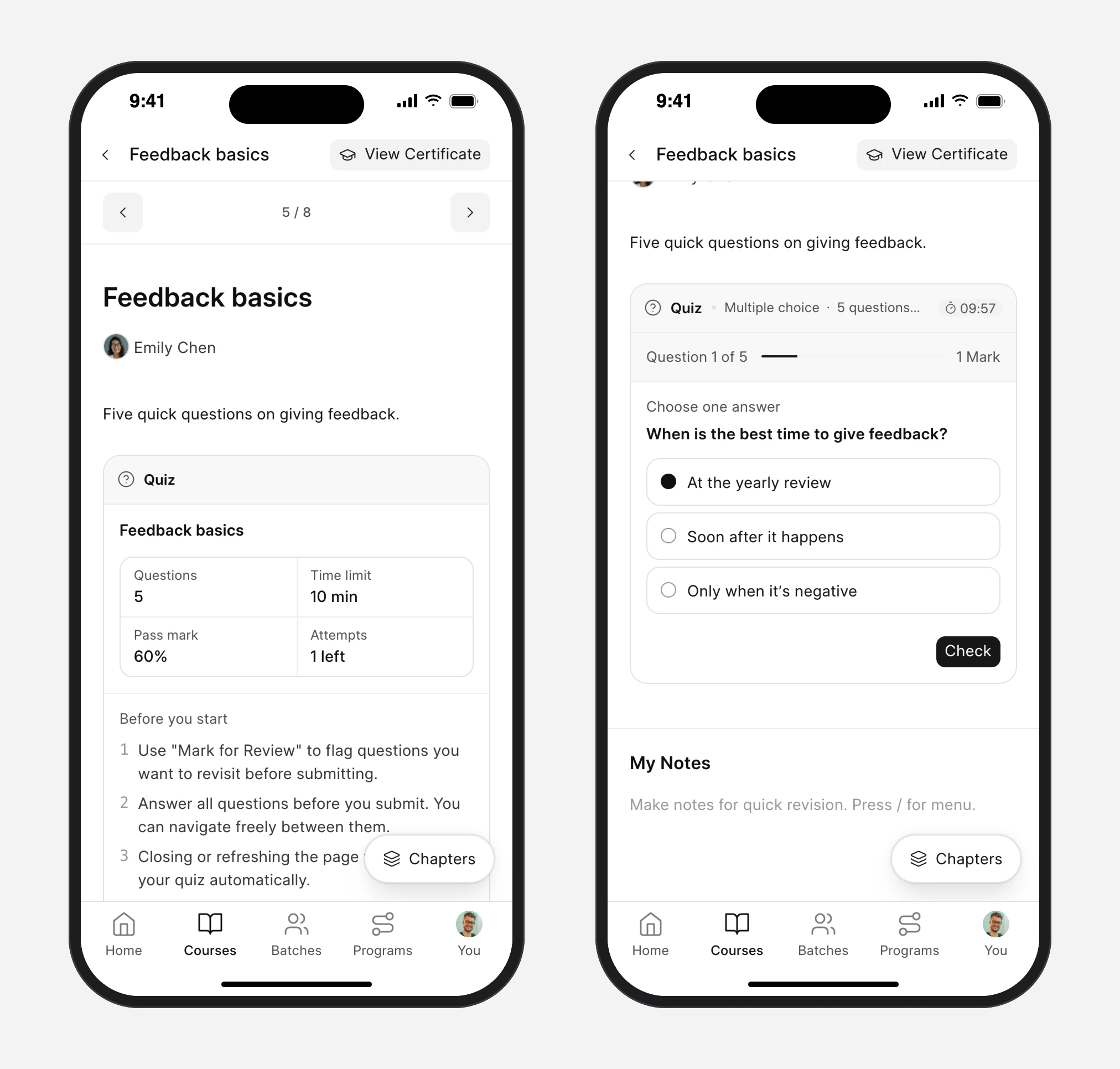
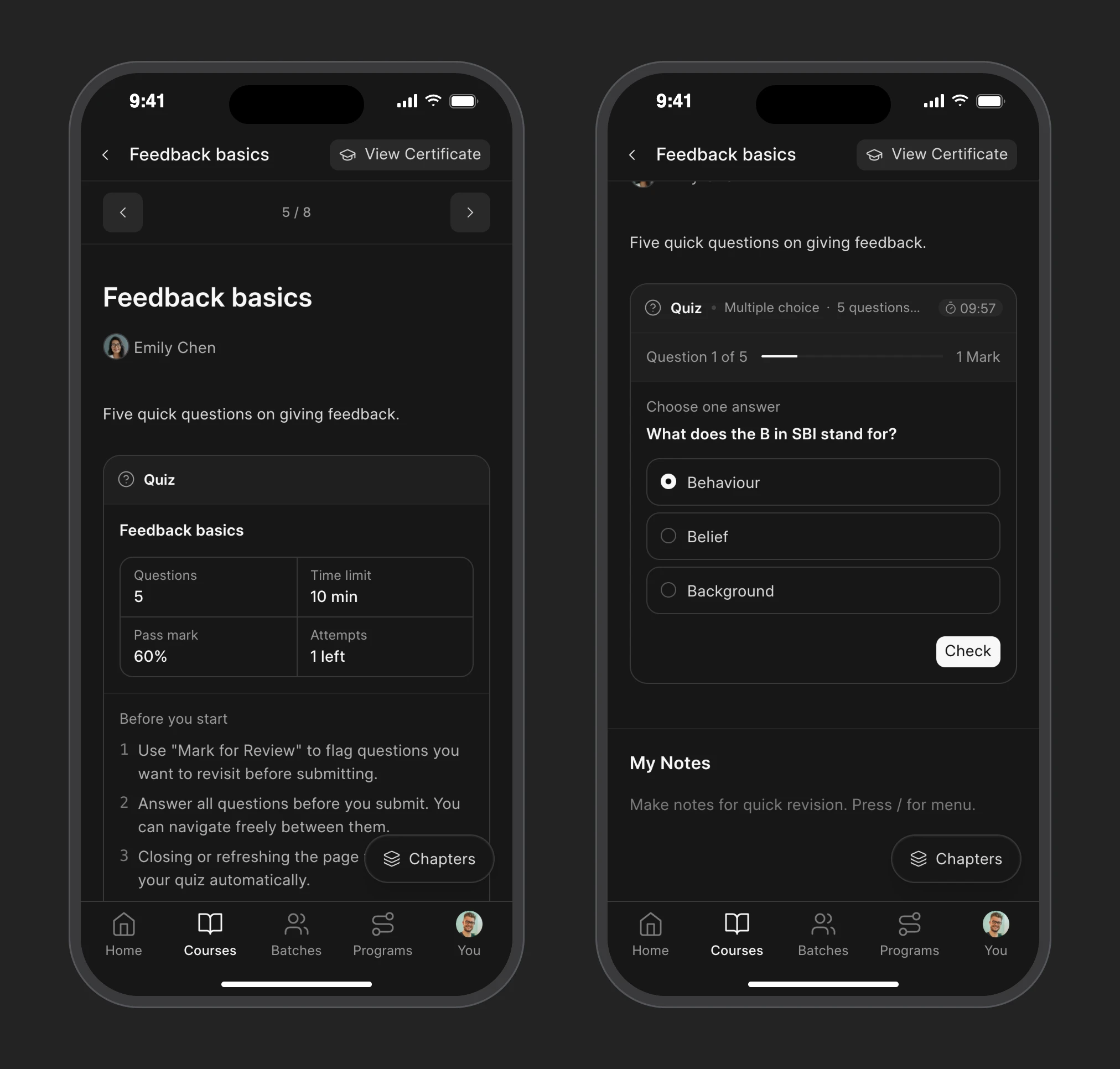
Before starting, learners see the number of questions, the time limit, the pass mark and how many attempts they have left.
They answer one question at a time with the timer at the top, and can check each answer as they go.
Join live classes
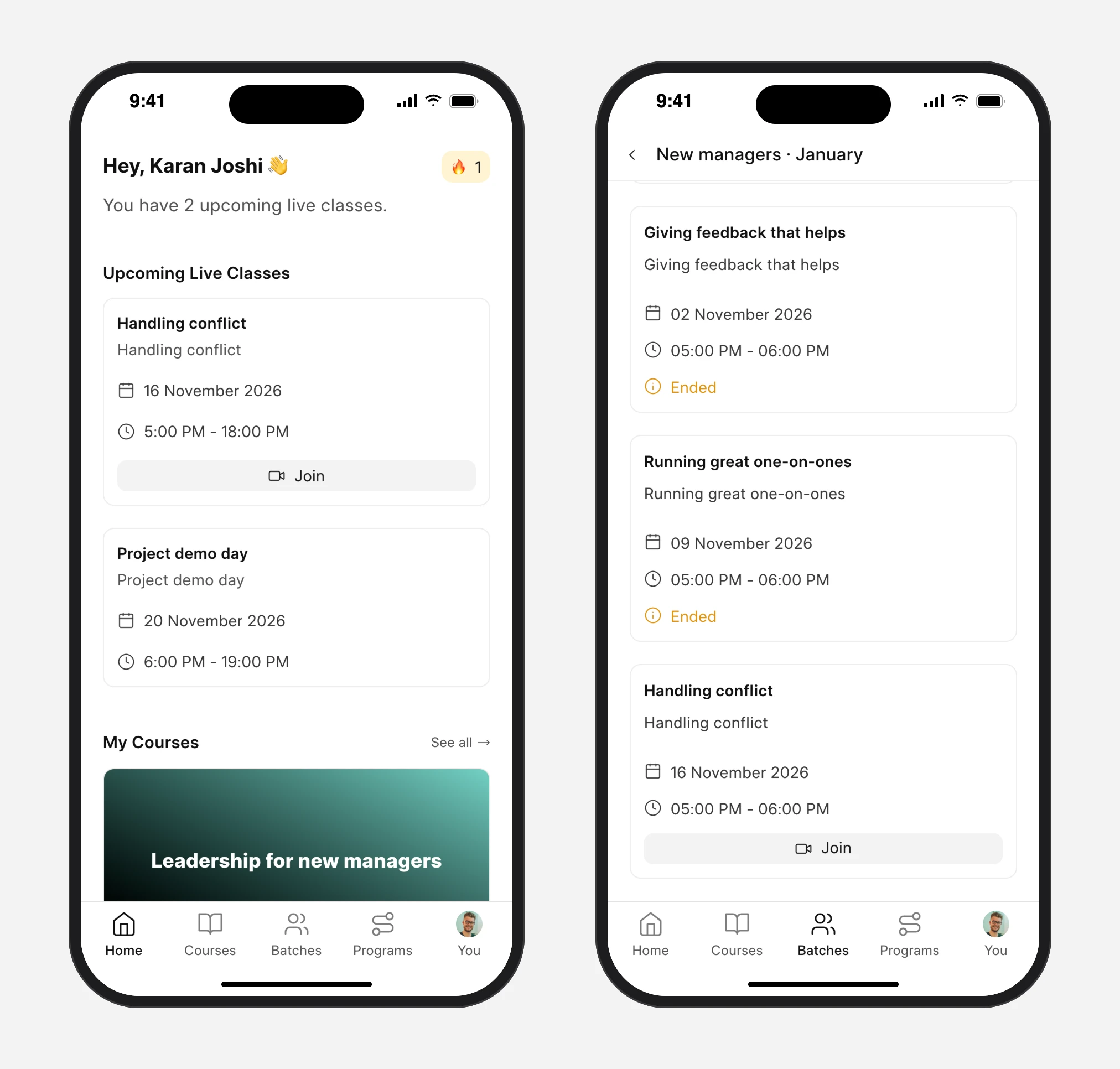
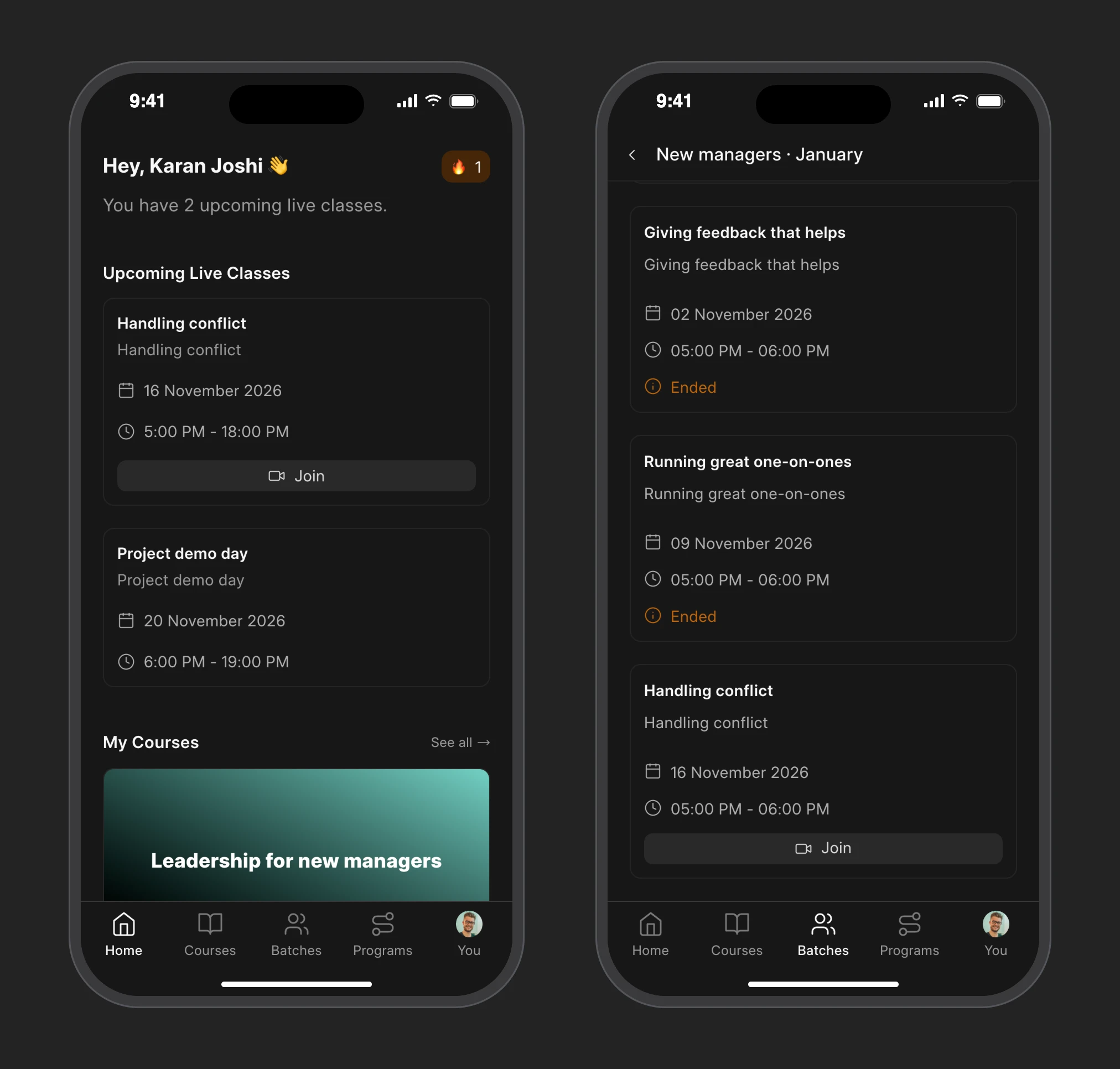
The Home page shows the live classes coming up, with a Join button when it’s time.
Inside a batch, the Classes tab lists every session, the ones that have ended and the ones still to come.
Keep up with what’s new
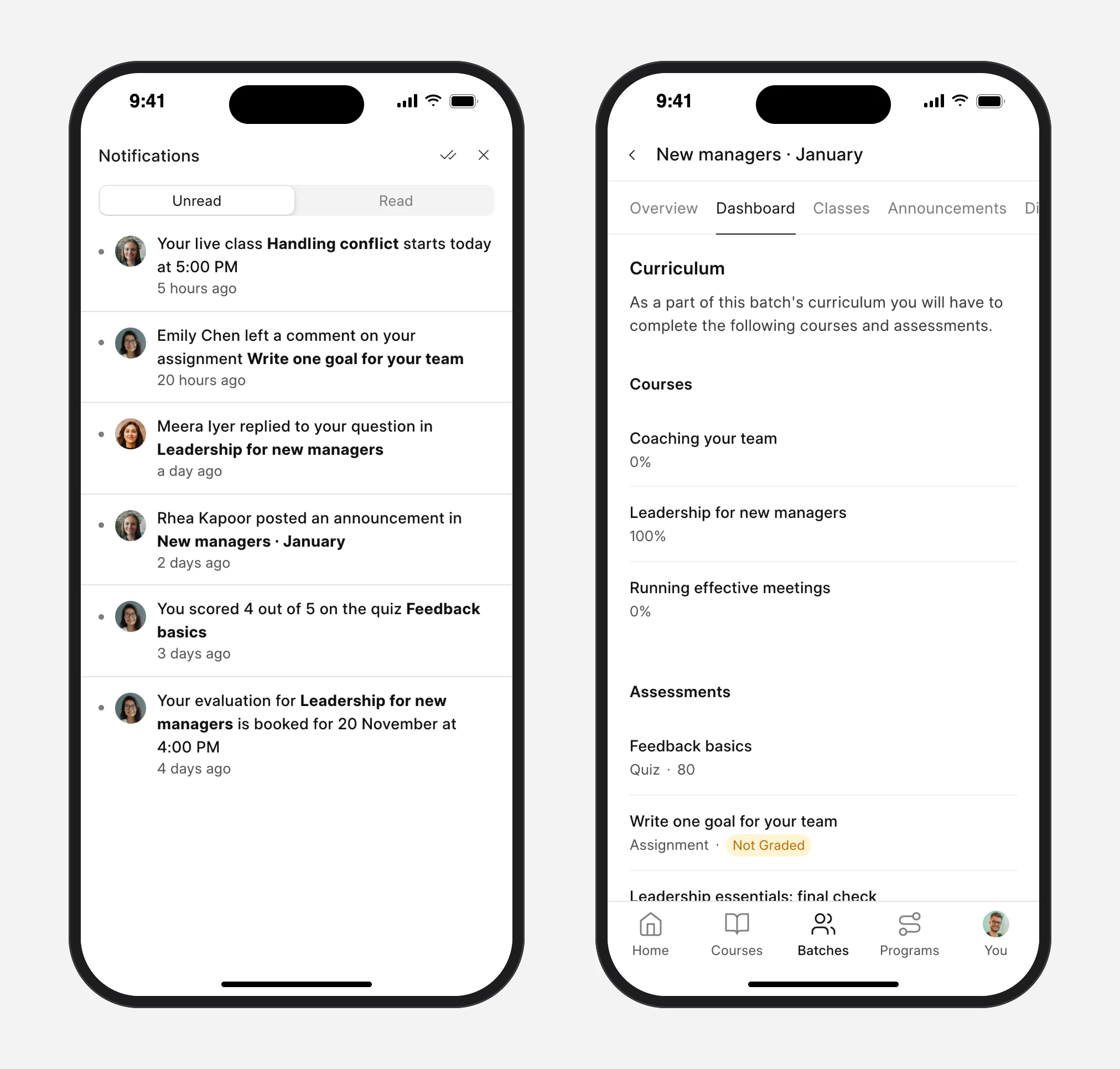
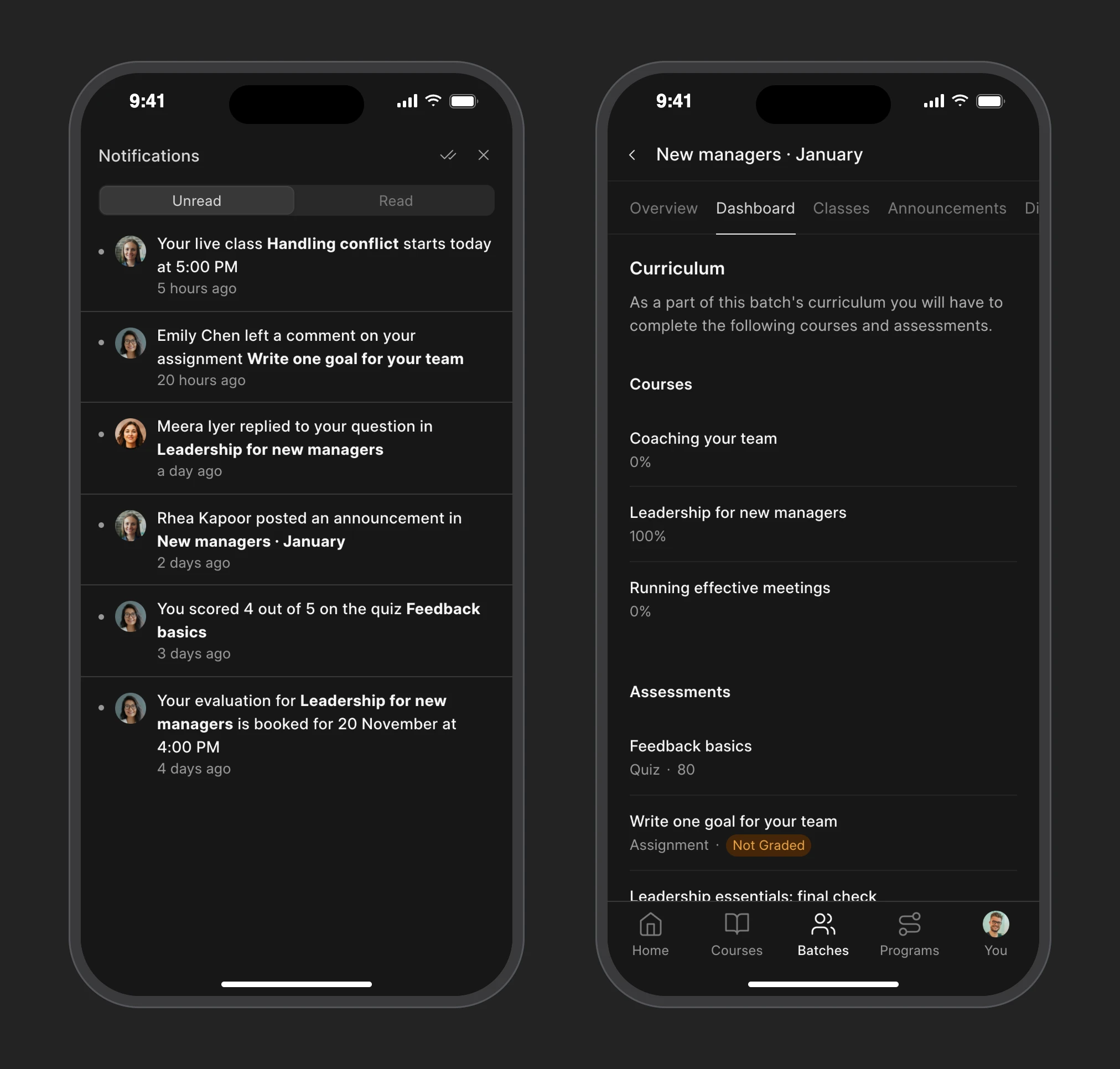
Notifications show when a class is about to start, an instructor comments on an assignment, someone replies to a question or a quiz is scored. Tap one to open it.
The batch dashboard shows the courses and assessments in the batch and how far the learner has got with each.
previous feature
Integrations
next feature
Assignment Rules