Frappe
Products
Learning
Customization
Frappe
Products
Insights
features
Customization
Every training program runs a little differently. Frappe Learning lets you set it up the way yours works: who can create courses, what counts as finished, who can get in, and how it all looks to your learners.
1.
Roles for everyone who teaches
2.
Decide what counts as finished
3.
Choose who gets in
4.
Make it look like yours
Roles for everyone who teaches
In most training teams, a few people build courses, others run sessions and someone signs off on certifications. They shouldn’t all have the same access.
Give each person a role: moderators manage the whole site, instructors create and run their own courses and batches, evaluators grade work and run evaluations, and students learn. One person can hold more than one role, and you can change it in a couple of clicks.
Decide what counts as finished
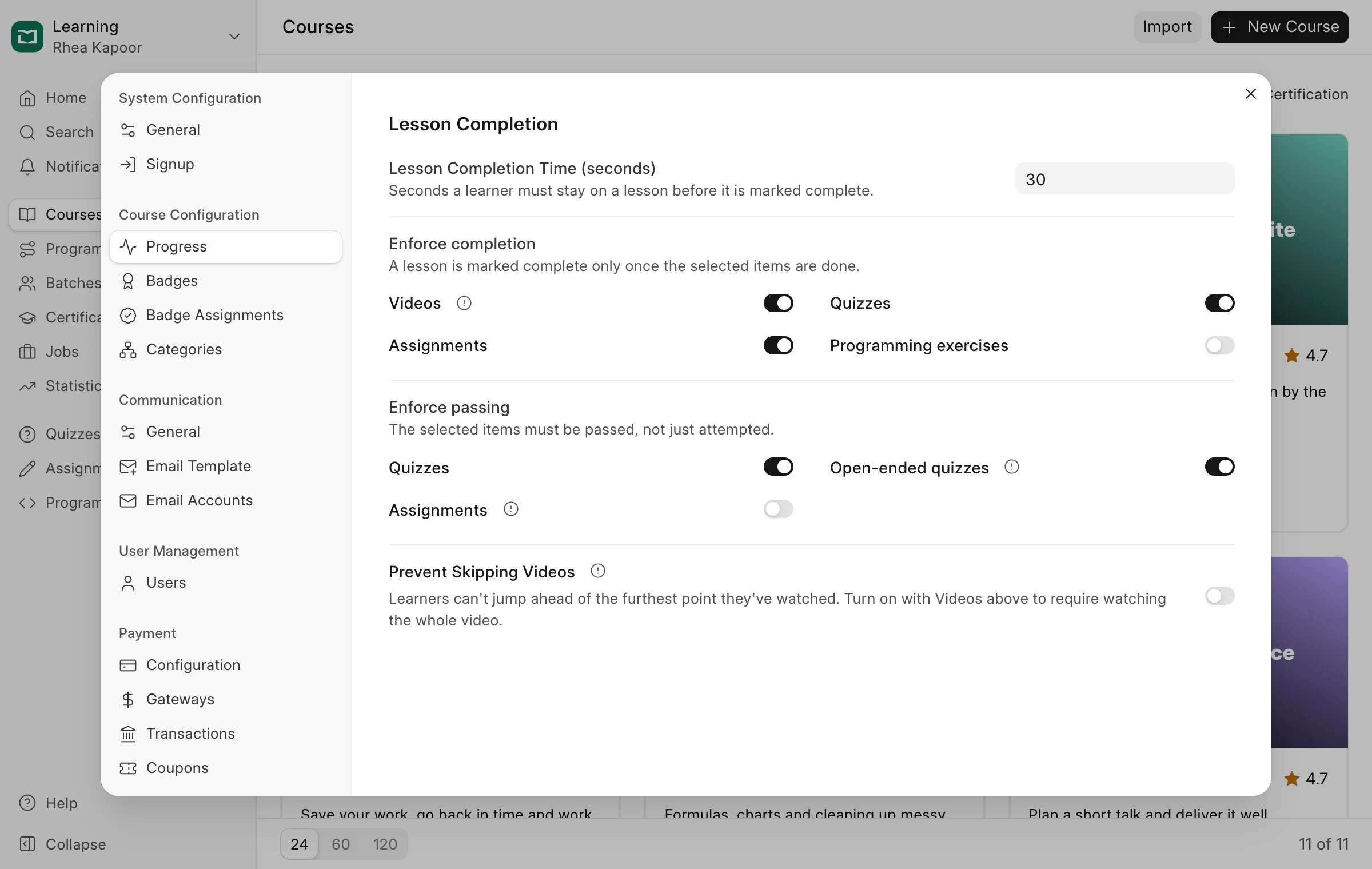
For compliance or certification training, opening a lesson isn’t the same as completing it.
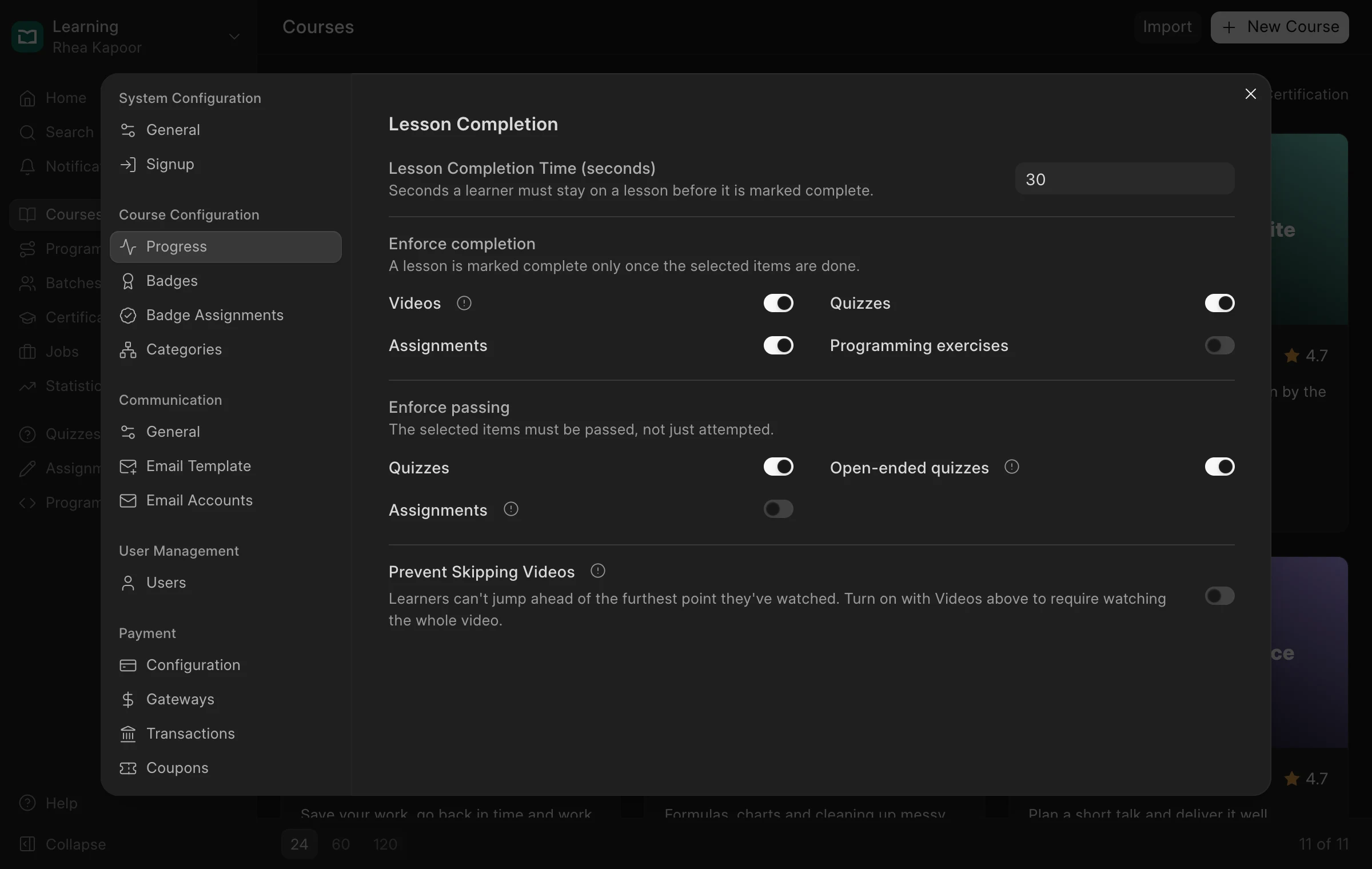
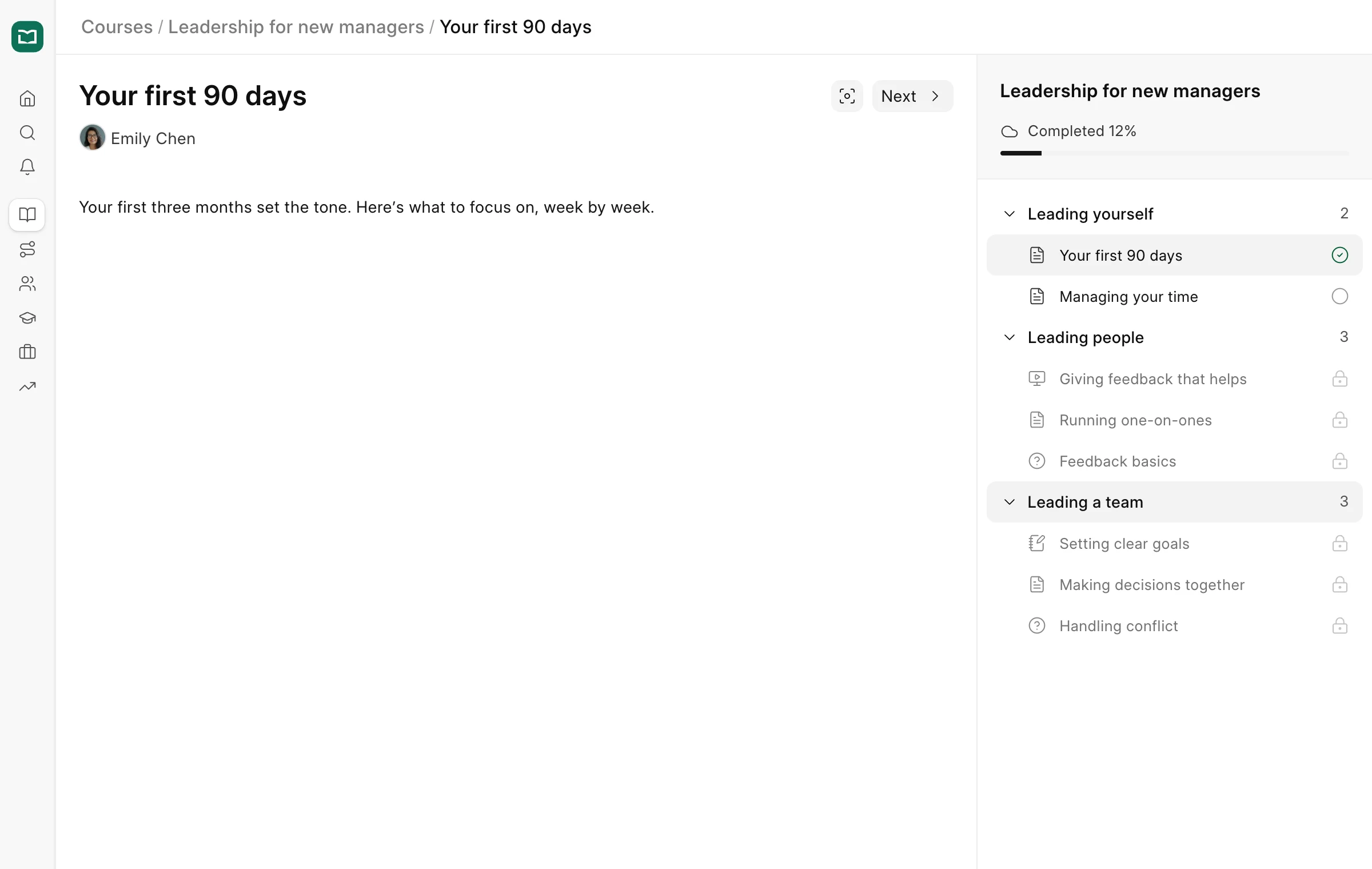
Choose what a learner has to do before a lesson is marked complete: stay on it for a set time, watch the whole video, attempt the quiz or hand in the assignment. You can also require a pass, not just an attempt, and stop learners from skipping ahead in videos.
Choose who gets in
Internal training and a public academy need different doors. Some sites should be open to anyone, others only to people you add yourself.
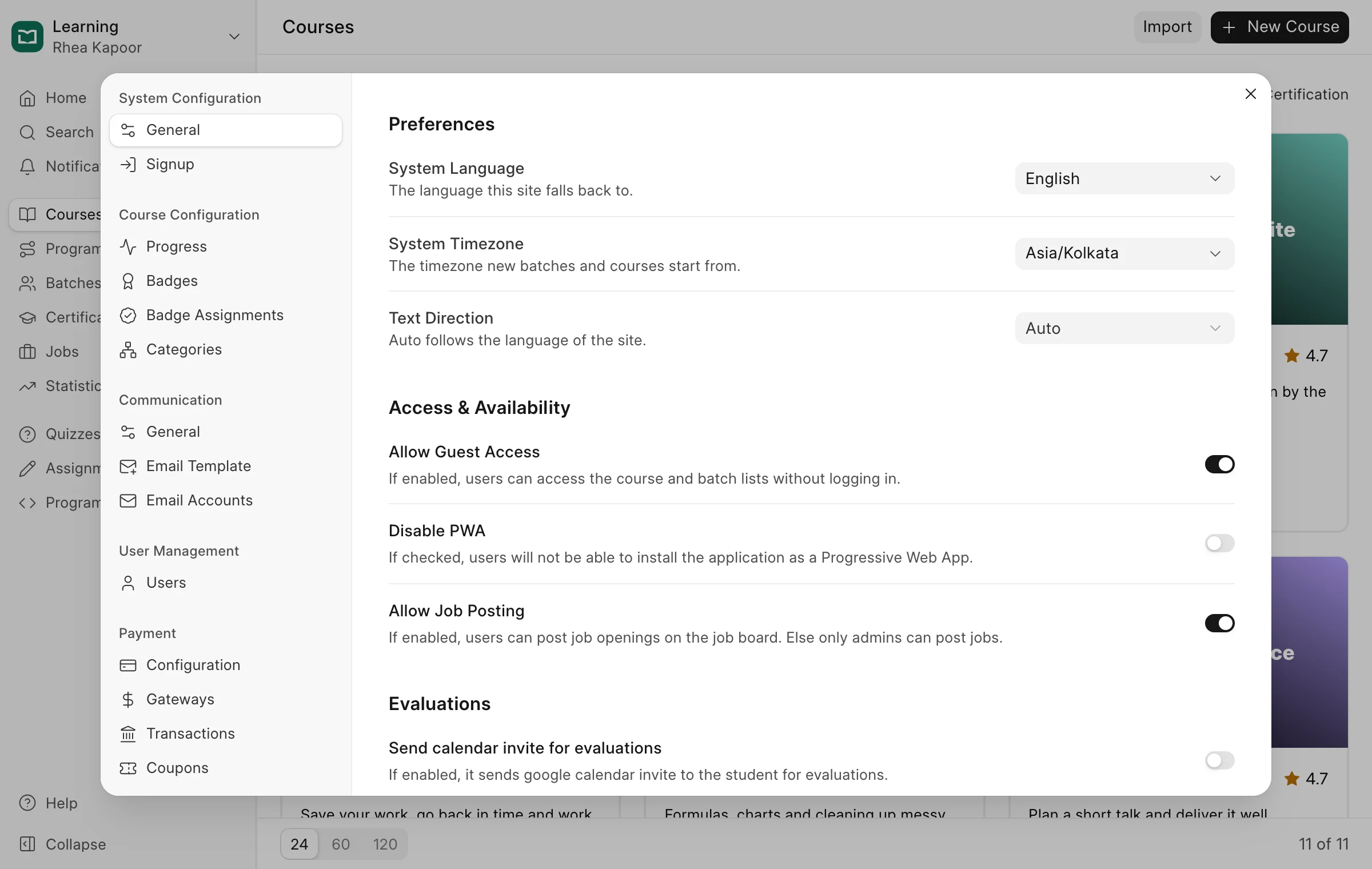
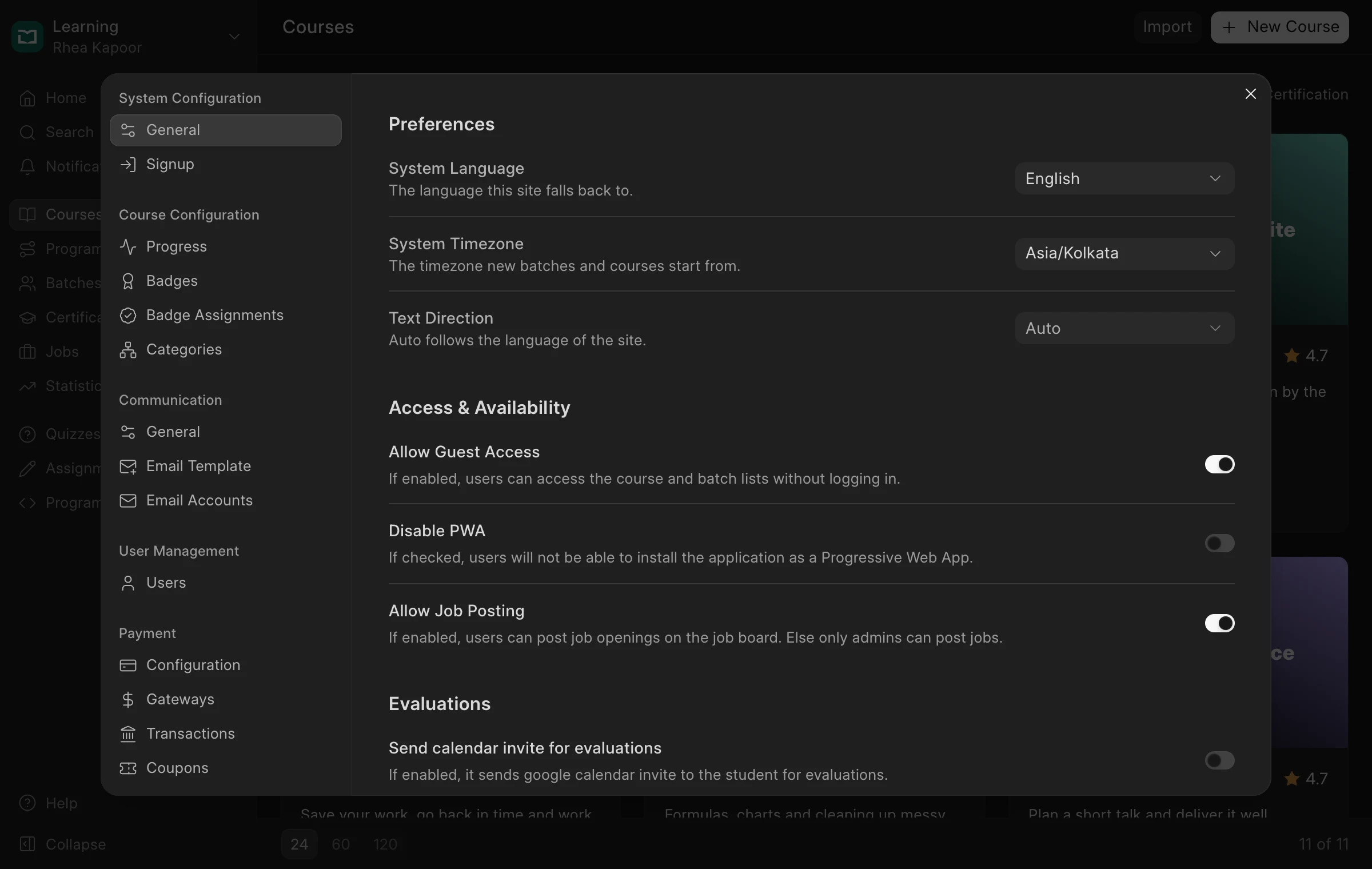
Let visitors browse courses without logging in, or keep everything behind sign-in. Turn off open sign-up for internal training, add a consent notice to the sign-up page, set the language and timezone, and decide whether learners can post on the job board.
Make it look like yours
Your learners should feel they’re in your academy, not someone else’s tool.
Add your name, logo and favicon, and they show in the sidebar, the browser tab and on certificates. You can also choose which items appear in the sidebar and set the description and image used when your pages are shared or show up in search.
previous feature
Insights & Reporting
next feature
Integrations