Frappe
Products
CRM
Follow-ups & Automation
Frappe
Products
Insights
features
Follow-ups & Automation
Frappe CRM helps your team follow up on every lead and deal. New leads are assigned for you, response times are tracked, and each deal has its own list of tasks.
For the steps you repeat on every deal, you can build a workflow automation. It runs on its own when something happens, for example when a deal moves to a new stage.
1.
Assign new leads automatically
2.
Set a response time for leads and deals
3.
Add tasks to a deal
4.
See all your tasks in one place
5.
Automate your follow-ups
6.
Test an automation before you turn it on
7.
Score your leads
Assign new leads automatically
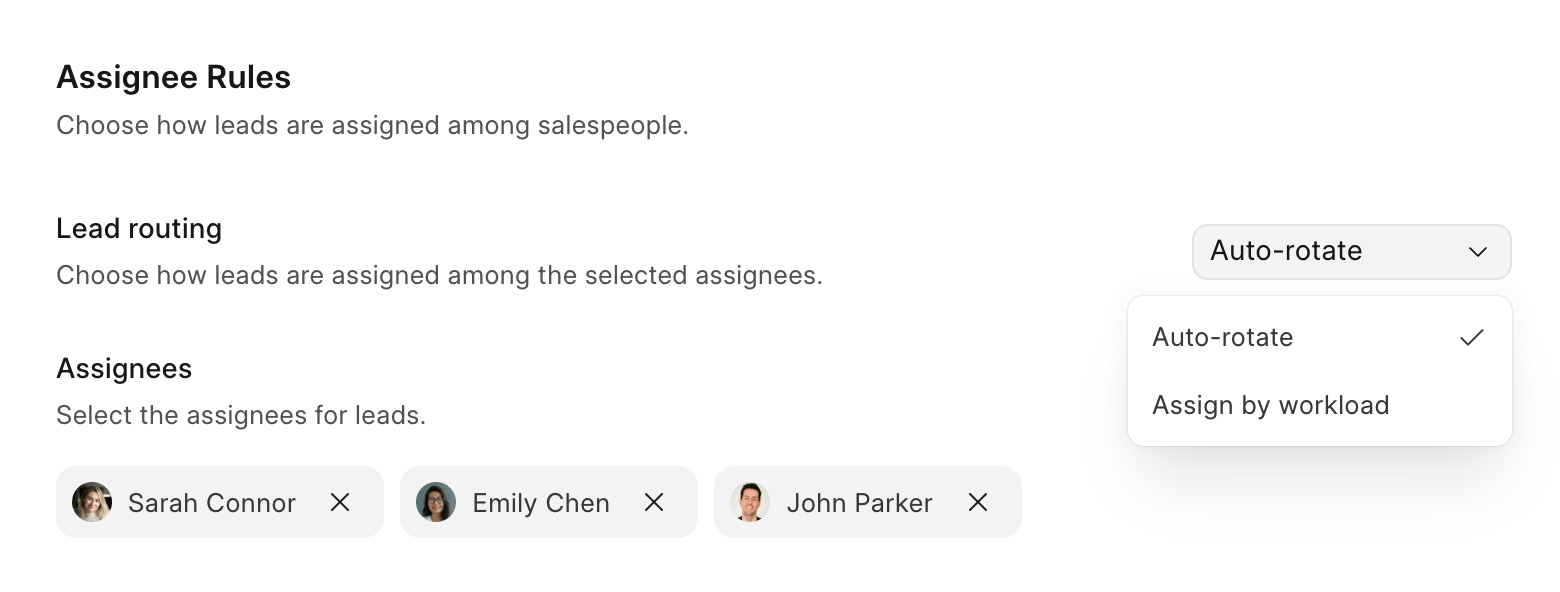
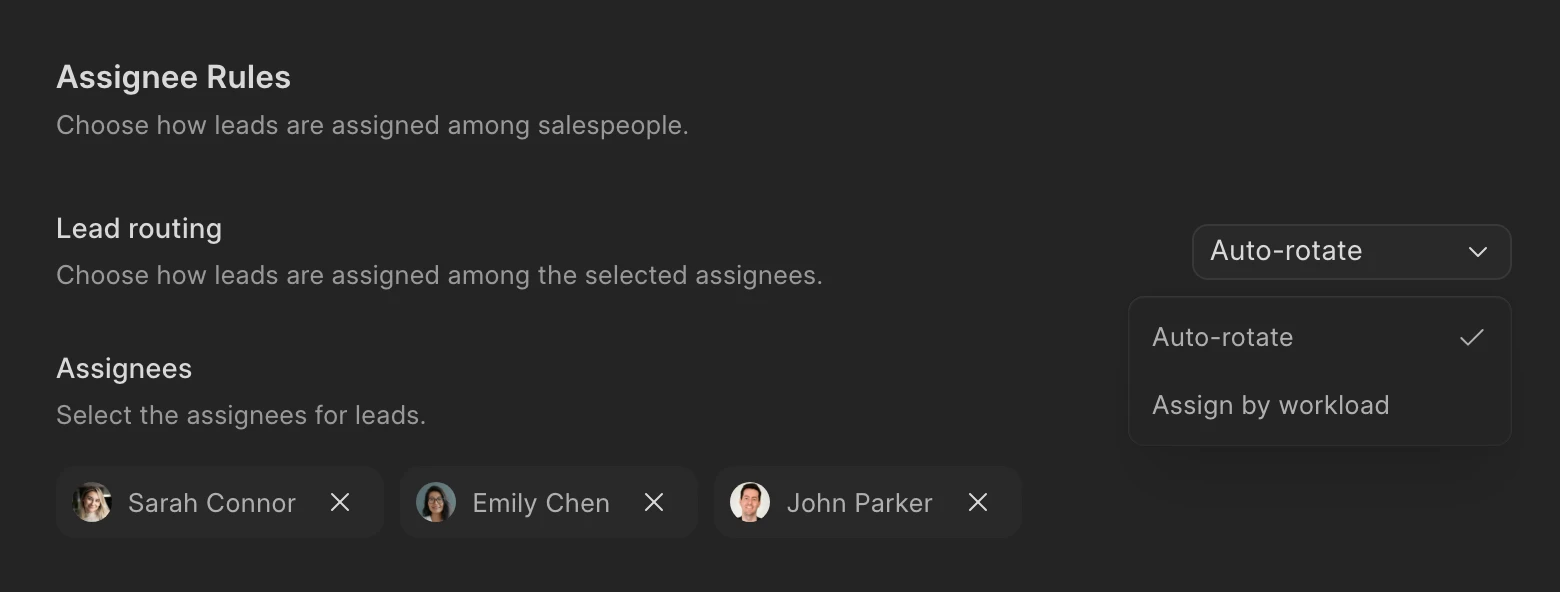
Assignment rules decide who gets a new lead. You set the conditions a lead has to match, such as a status of New, and pick the salespeople who should get them. Rules work the same way for deals.
With Auto-rotate, leads go to each person in turn. With Assign by workload, each new lead goes to the person with the fewest open leads. You can also choose the days of the week a rule is active.
Set a response time for leads and deals
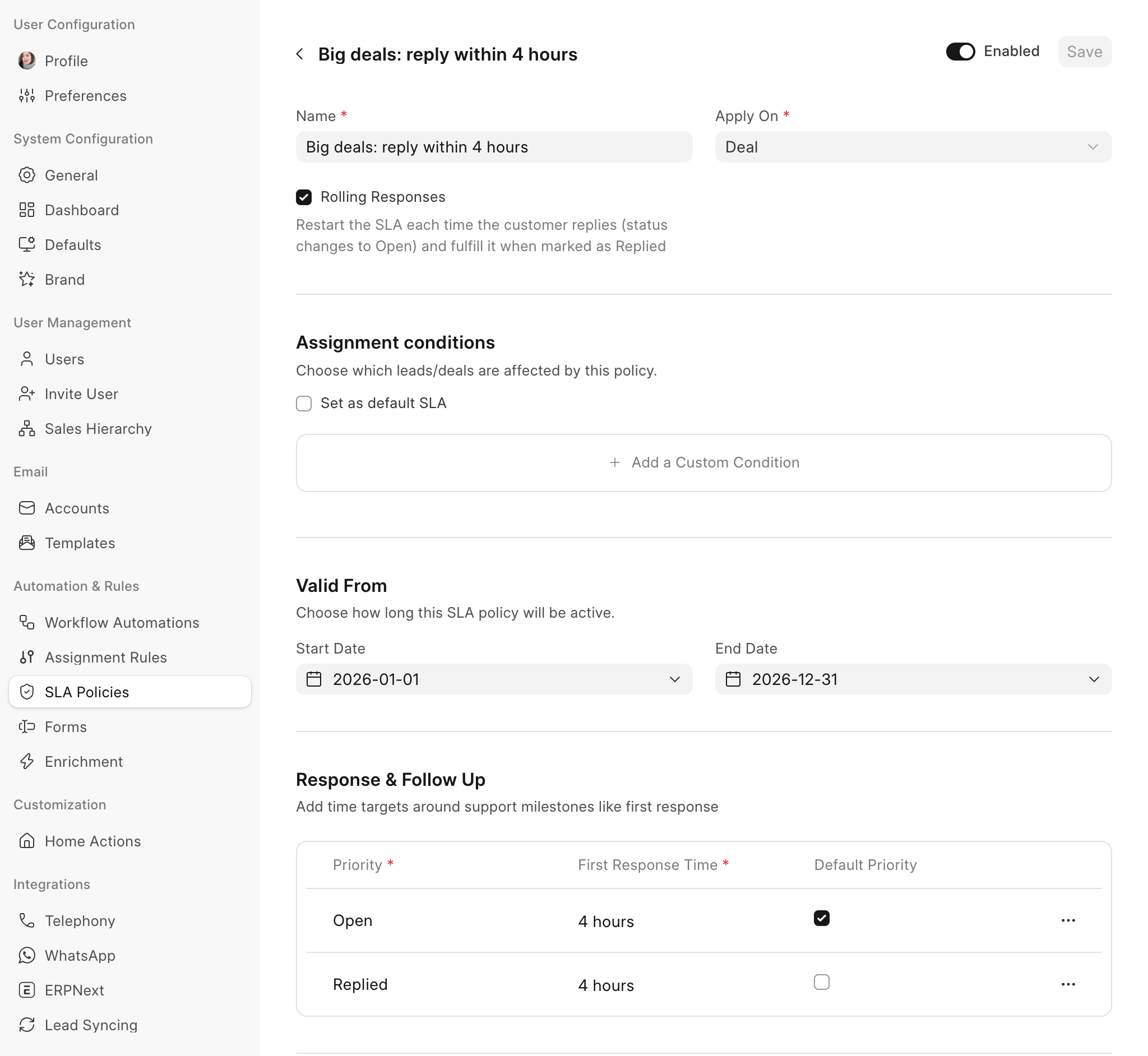
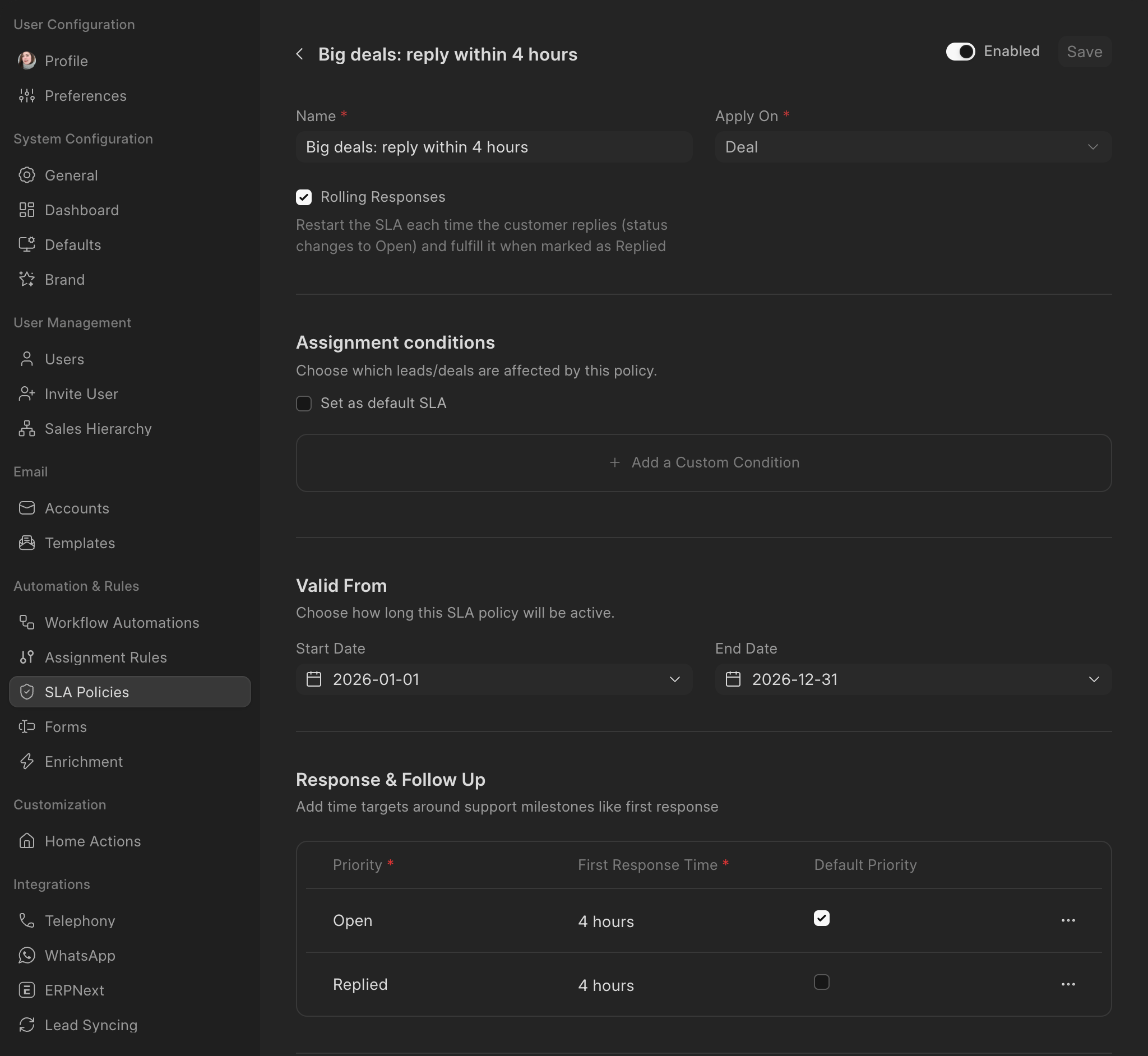
An SLA policy sets how quickly your team should reply. You choose whether it applies to leads or deals, the dates it is active, the first response time, and the working hours it counts.
Each lead or deal then shows when the first response is due, and it turns red if the time passes without a reply.
Add tasks to a deal
Add a task for each next step on a deal or lead, such as sending the updated contract. Give it a due date and a priority, and assign it to the person who will do it.
The person you assign gets a notification, and the task shows up on the deal with everything else your team is doing for it.
See all your tasks in one place
The Tasks page lists the tasks from every lead and deal. Filter by assignee, priority, status or due date to see what needs doing next.
In the Kanban view, tasks are grouped by status. Drag a card to another column to update it.
Automate your follow-ups
Workflow automations do routine follow-up steps for you. You build one on a canvas: choose what starts it, then add the steps that follow. It can start when a lead or deal is created or changes, when a deal is won or lost, when the prospect replies or a task goes overdue, on a schedule or by hand.
A step can update a field, assign the record, create a task, send an email or a notification, or wait for a set time or for something to happen. An If/Else step splits the flow into two paths. This automation waits three days for a reply to the proposal: if one comes, the people on the deal get a notification, and if not, the contact gets a follow-up email.
Test an automation before you turn it on
Open Test Run, pick a record and start the test. You see each step that ran and what it did. When the test reaches a wait, you can skip it to see what happens if nobody replies.
To check the other path, run it again from the wait. Anything the test changes is undone afterwards and no emails go out, so you can try it on a real deal.
Score your leads
Lead scoring helps your team see which leads to call first. You set it up with a workflow automation that runs when a new lead comes in, and give points for the things that make a lead a good fit, like the size of the company or where the lead came from.
Each Adjust Lead Score step adds points when its condition matches, and notes the reason. A Set Lead Temperature step can then mark the lead as Hot, Warm or Cold once its score passes a number you choose. You can sort and filter your leads by score or temperature.
previous feature
Communications
next feature
Views & Reports