


As we gear up for Frappeverse 2026, the team has been busy building new features and polishing existing ones.
This month also marks an exciting milestone for the Frappe productivity suite. Drive, Writer, Mail, Slides, Meet, Calendar, and Sheets now live together in the new Suite App. Check out the repository here: frappe/suite, and join us in building the future of the Frappe productivity ecosystem.
Now, let's take a look at what's new this month.
Table of Contents

Data Import
The Data Import tool received a major upgrade this month, fix bad values without re-uploading files, import tree DocTypes from a single sheet, and run mixed insert/update imports in one go.
Value Mapping and Skip Row #39733
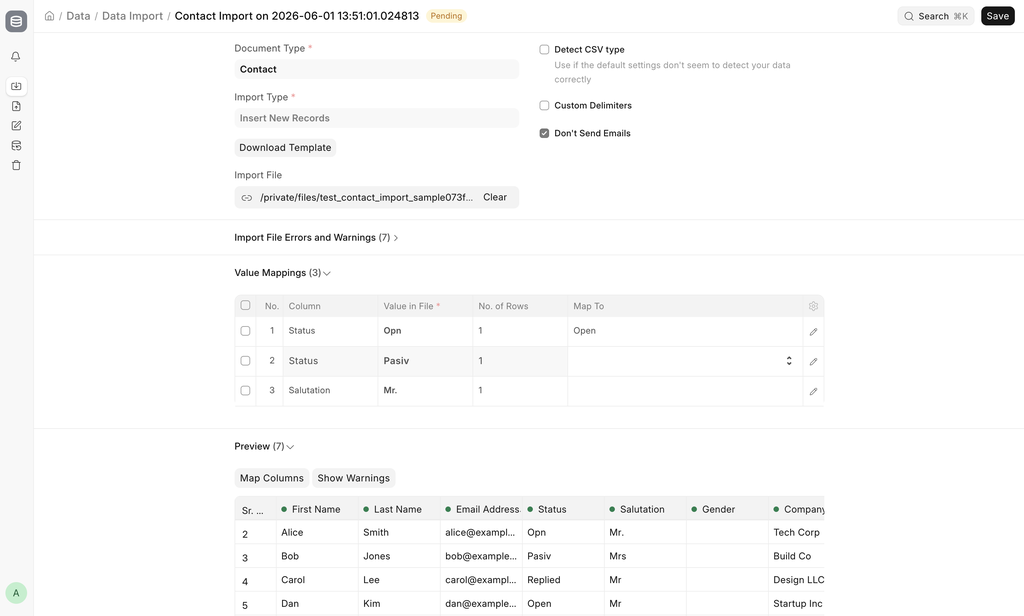
Importing data from spreadsheets often fails when a Link or Select value in the file does not exist in the system, a typo in a customer name, a status that was renamed, or a value that was never created. Previously, the only option was to fix the file and upload it again.
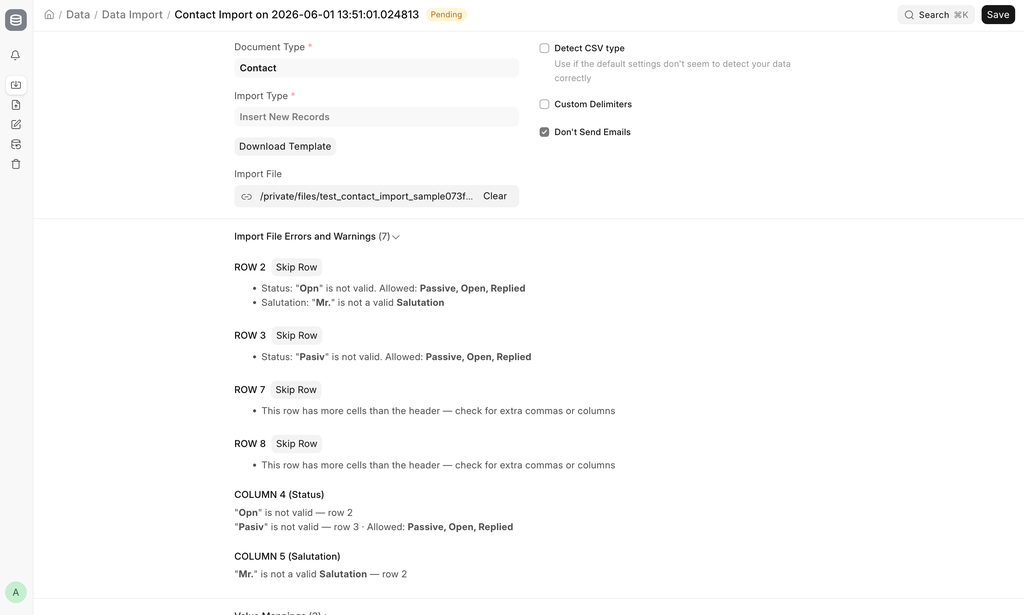
The Data Import tool now lets you map invalid values to valid ones directly on the import form. Each invalid value can be mapped to an existing record or option without touching the source file.
For rows that cannot be fixed or mapped, you can skip individual rows from the warnings section. Skipped rows are excluded from the import and can be downloaded for later review.
The import screen also has a cleaner layout: Preview, Warnings, and Value Mappings are collapsible sections with count badges so you can scan issues quickly.
Tree DocTypes in a Single Sheet #39833
Importing hierarchical data like Accounts, Item Groups, Warehouses used to mean splitting your file, parents in one import, children in another. Even when your sheet was already ordered correctly, the system could still complain that a parent “does not exist” because it hadn’t been imported yet.
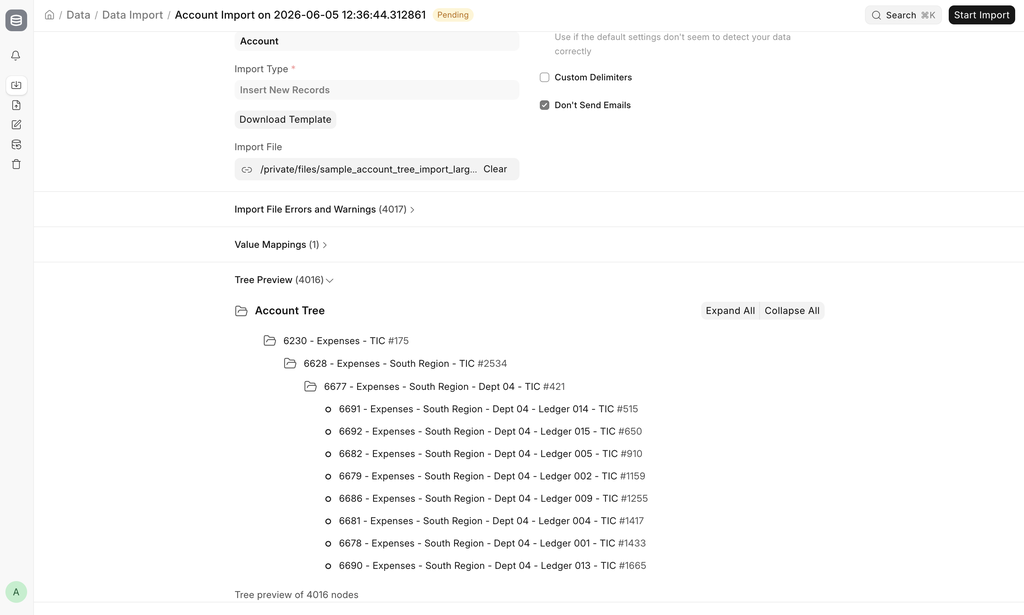
You can now import the full hierarchy from one file. Upload your sheet with parents and children together, and the system handles the order for you.
Before you start the import, a Tree View Preview shows how your data will be structured similar to the Account tree you already use so you can check that everything looks right.
Insert or Update #39887
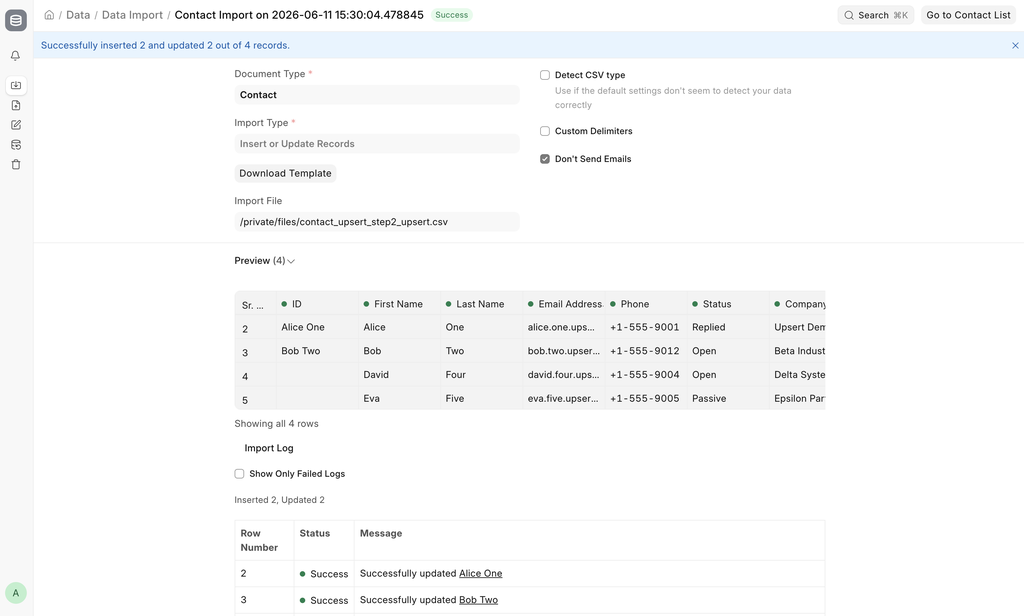
Data Import previously supported Insert New Records and Update Existing Records only. If a file mixed new and existing rows, you had to split it or run two imports.
There is now a third option: Insert or Update Records. For each row, the system updates the record if it already exists (matched by ID / autoname field) and inserts it when it does not. Rows that match existing data with no changes succeed without error.


Frankfurter v2 API Support
Currency Exchange Settings now supports the Frankfurter v2 API as a new service provider option.
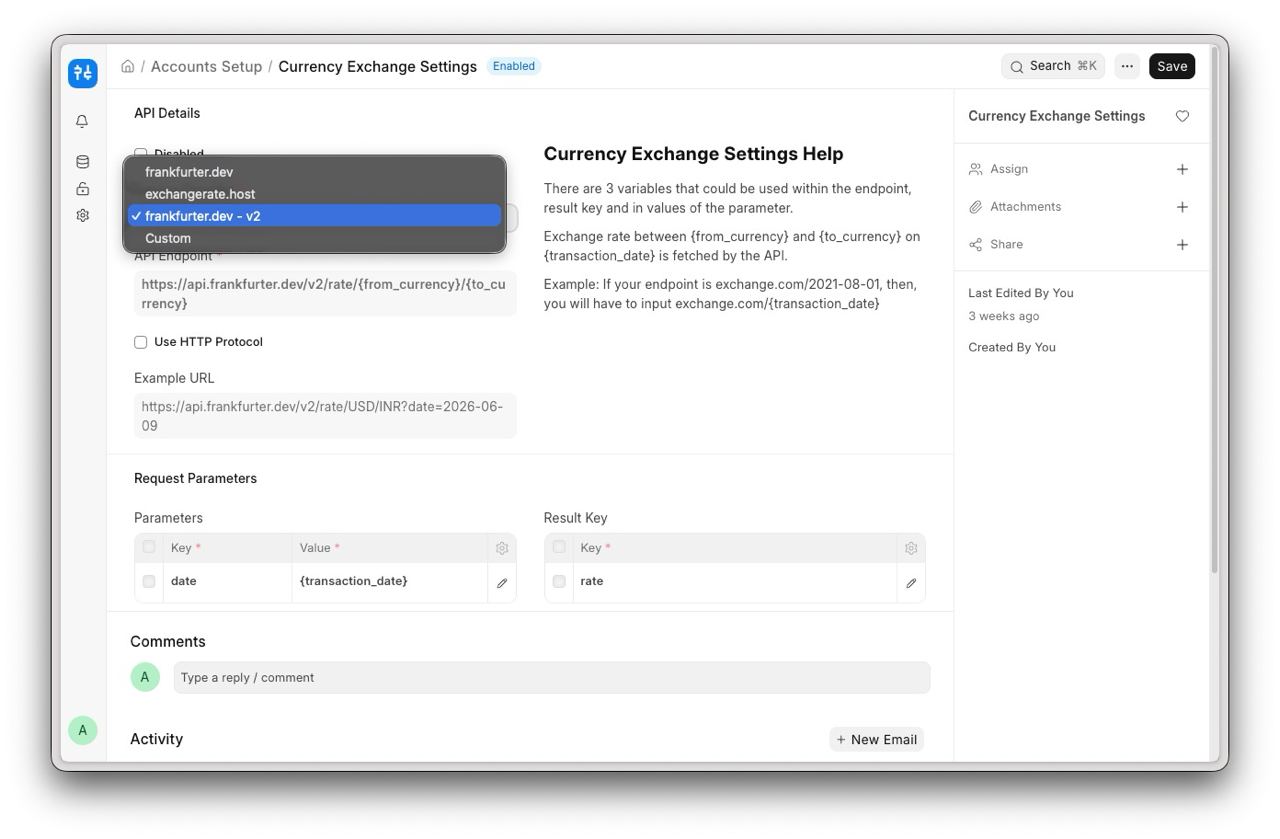
The key improvement is currency coverage: v1 supported only 30 major currencies sourced from the European Central Bank. In comparison, v2 pulls from 84+ central banks worldwide and covers 305 currencies, including emerging market currencies, exotic currencies, and legacy currencies (e.g., Deutsche Mark, French France).
Full list of supported currencies: https://frankfurter.dev/currencies/
The existing v1 option remains available for backward compatibility.
Frappe CRM Data Synchronization
CRM Settings now has a dedicated Frappe CRM section that gives administrators explicit control over data synchronization between Frappe CRM and ERPNext. Sync is disabled by default and must be turned on manually by a System Manager.
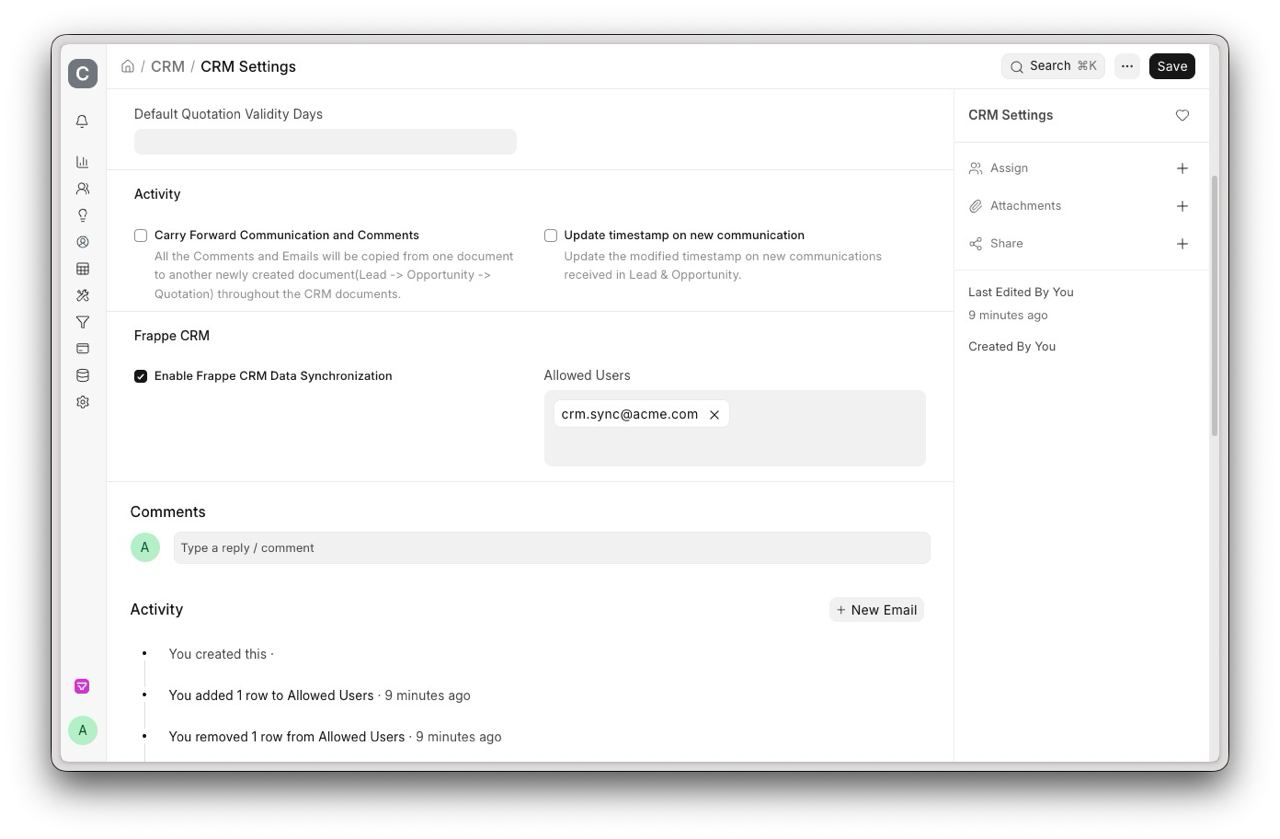
Additionally, System Managers must specify which users are permitted to push data from Frappe CRM into ERPNext; sync requests from any unlisted user will be blocked. Existing setups that previously worked without this configuration will stop functioning until the toggle is enabled and the appropriate users are added to the allowed list.

Project Field in Opening Invoice Creation Tool
The Opening Invoice Creation Tool now supports project linking at both the header and invoice-row levels.
A Project field has been added to each invoice row in the tool, allowing users to associate individual opening invoices with specific projects during data migration or go-live. When invoices are created, the project is carried forward onto the invoice item line, ensuring that project-wise Profit & Loss and reports reflect the correct outstanding balances from day one without requiring manual correction after the fact.
Contributed by Ravibharathi P C from Aerele.
Allocate Full Amount to Stock Items
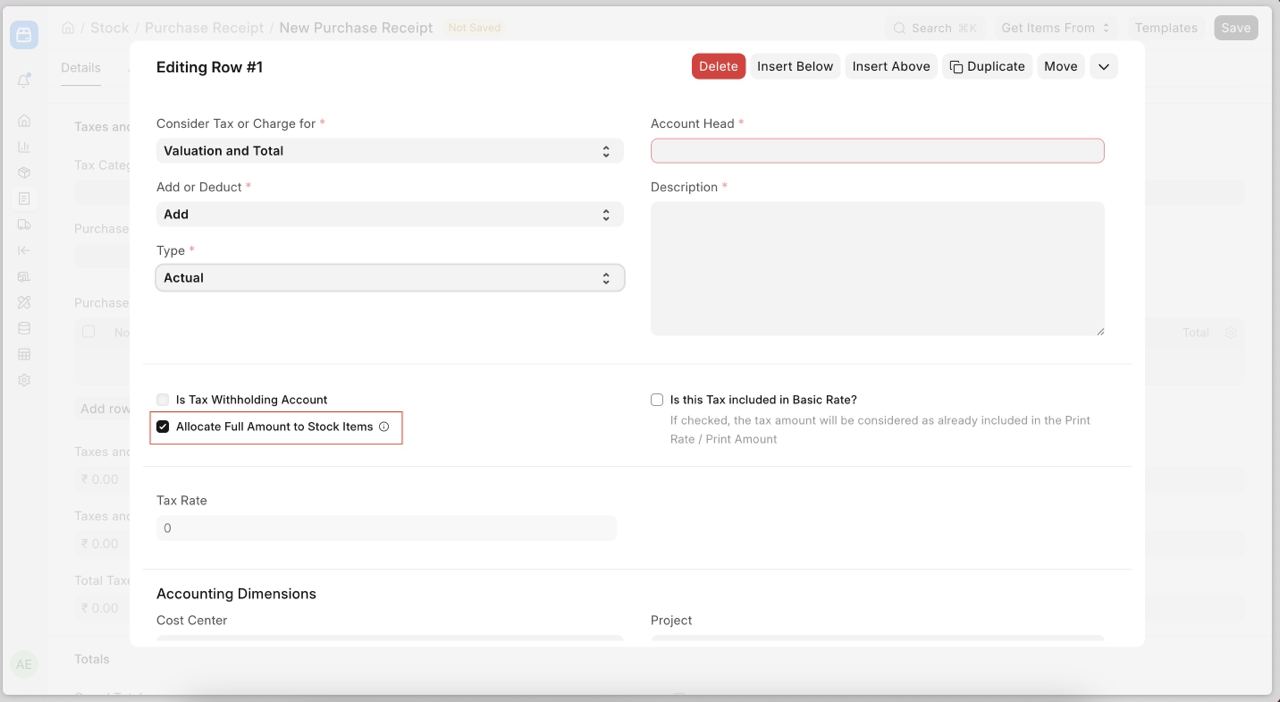
When an Actual tax or charge is added with Consider Tax or Charge for = Valuation or Valuation and Total, the system distributes the amount across all items based on their net amount.
However, only stock (inventory) items can be included in inventory valuation. If the document also contains non-stock (service) items, the portion of the amount allocated to those service items is not added to the inventory value.
This behaviour is correct for taxes because taxes allocated to service items should not increase the value of inventory.
However, it is not correct for service charges such as Freight, Transportation, Loading, or Handling Charges. These charges are part of the cost of bringing goods into inventory and should be fully added to the value of the stock items, even if the document contains service items.
Previously, the system had no way to distinguish whether an Actual amount was a tax or a service charge. As a result, part of the freight or other service charges could be excluded from inventory valuation whenever service items were present in the document.
To solve this, a new checkbox called Allocate Full Amount to Stock Items has been added to the Taxes and Charges table.
If the checkbox is enabled:
The entire amount of the service charge is allocated only to the stock items and is fully included in inventory valuation.If the checkbox is disabled:
The system follows the existing behavior and distributes the amount across all items. Any portion allocated to service items is not included in inventory valuation.
This gives users full control over how Actual charges are treated and ensures that freight and other service charges are correctly capitalized into inventory when required.
Allow Negative Stock for Batch
Allow negative stock for Batch in Stock Settings is a global flag. When enabled, it lets any batch go into negative stock — including "safe" batches that have never gone negative. Users wanted the relaxed behaviour only for specific batches (typically old batches that went negative in the past due to backdated entries but currently have available stock), without exposing all batches to negative stock.
To solve the issue, added an Allow Negative Stock for Batch checkbox on the Batch doctype. Users can enable “Allow Negative Stock for Batch“ for specific batches and solve the negative stock problems.
Allow editing stock UOM qty for Stock Entry
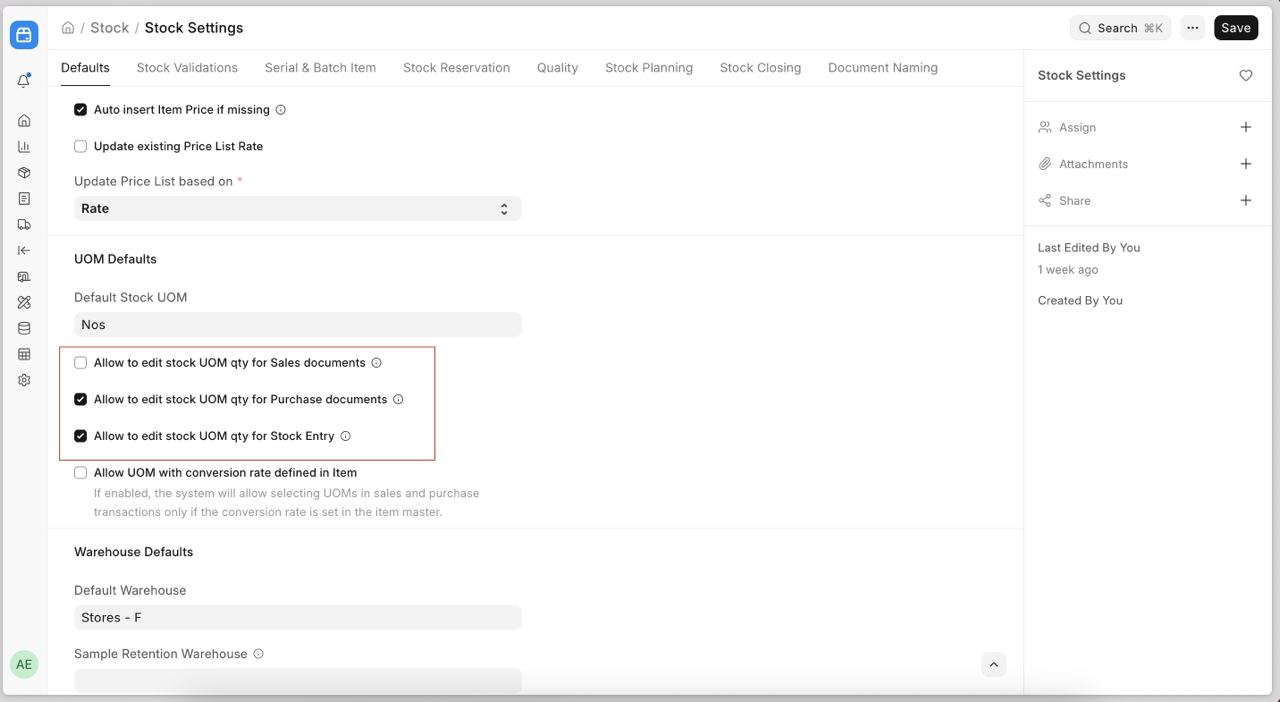
Users can now directly enter the quantity in the Qty (Stock UOM) field, and the system will automatically calculate the conversion factor in the stock entry. This feature was already available in Sales and Purchase documents but was missing in the Stock Entry document. To enable this feature goto Stock Settings and enable the checkbox “Allow to edit stock UOM qty for Stock Entry“.

Create Sales Invoice from Pick Lists
Previously, users could only create Delivery Notes from Pick Lists, which meant that many users were forced to create Delivery Notes and then a Sales Invoice even when they did not normally use the Delivery Note to Sales Invoice flow. Users can now directly create Sales Invoices (with Update Stock enabled) against a Pick List to bypass the Delivery Note step, should they want it.
Secondary and Non-Stock items in Work Order
Users will now be able to see the secondary items and non-stock items from the BOM linked to the Work Order directly in the Work Order. This is useful for workers on the production floor as they do not need to keep referring to the BOM to check those details. If no secondary items are generated yet against the Work Order, the system will show the details as it is picked from the BOM. As soon as secondary items are generated, the Work Order will reflect the actual secondary items generated with their details.
Item Where Used Report
The Item Where Used report shows the exact documents this item has been used in master data. This includes BOMs, Product Bundle, Subcontracting BOMs, Item Alternatives, etc. Read more about it here
New In Transit status for Stock Entry
Stock Entry now has a new status called “In Transit”. Whenever you create a Goods-in-Transit Stock Entry, the status will show “In Transit” until transit completion ie. the secondary Stock Entry is created. This is useful as users can now know at a glance if the transit is complete or not.
Party Aliases
The Customer and Supplier DocTypes have a new field called “Alias”. Any value entered in this field can be used to search for that Customer or Supplier in Link fields. This is useful as it is sometimes not easy to remember the company name of every party. Think of it as a nickname.


Employer’s Contribution Components
An employee’s cost to the company has different salary components. Previously, we had “Earning“ and “Deduction“ types. “Do Not Include in Total“ check for those component types denoted an employee’s payable cost that’s not counted in the gross or net earnings. However, there are some components of an employee’s cost to the company that aren’t part of the employee’s earnings at all and shouldn’t even show up on the salary slip.
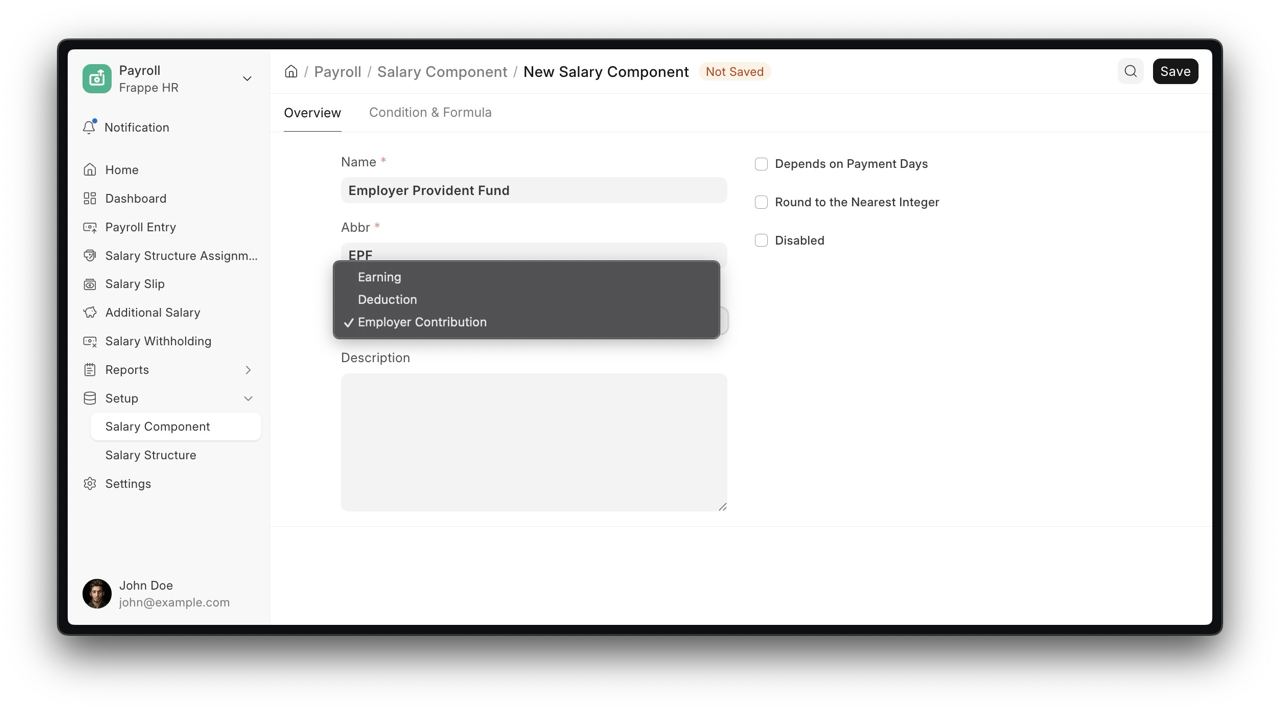
To achieve that, we’ve added a component type called “Employer Contribution“ in the salary component. You can set this as part of the salary structure along with earnings and deductions.
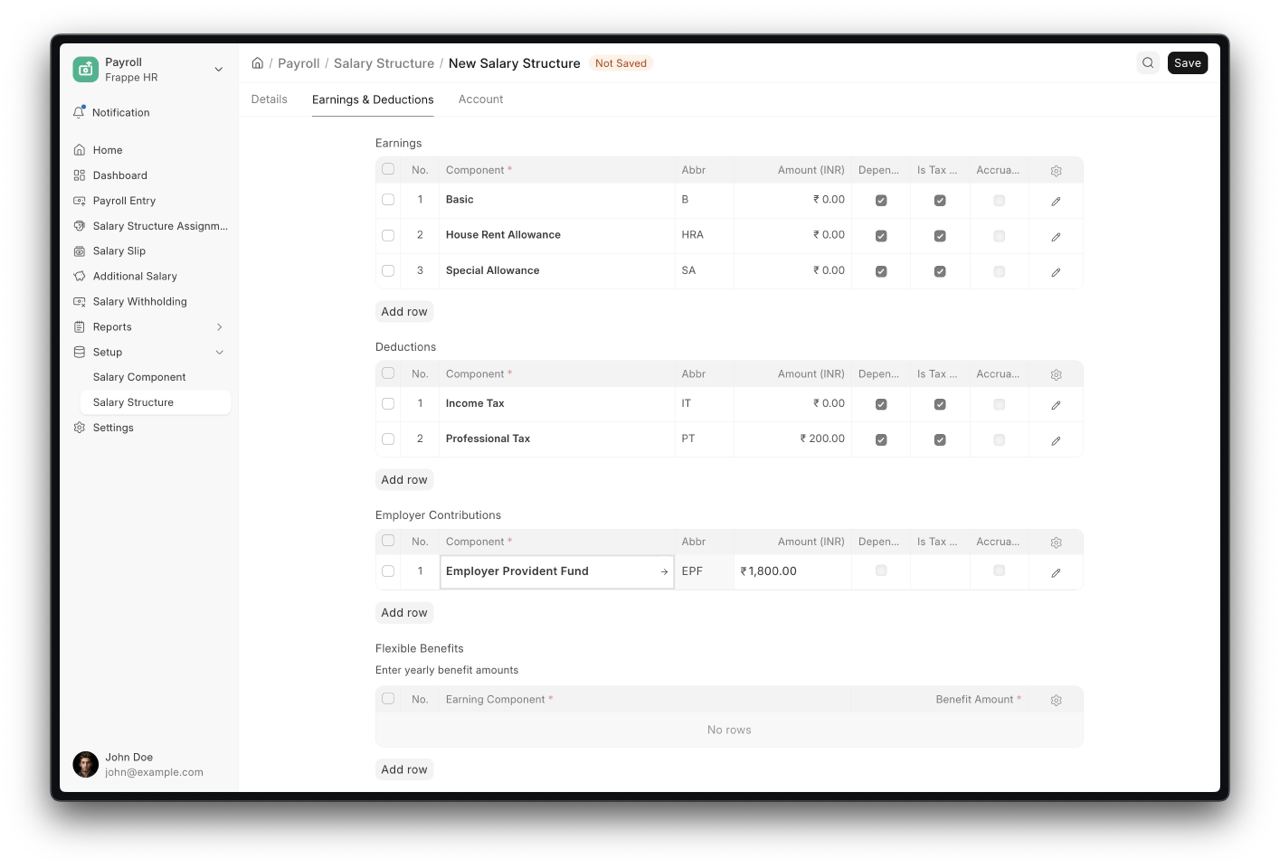
We have also added CTC and Annual Gross Earning fields in the salary structure assignment that calculate automatically on saving the assignment.
And the employer’s contribution components show up in their own section in the Employee CTC Break-Up report to give you the full break-up by components.
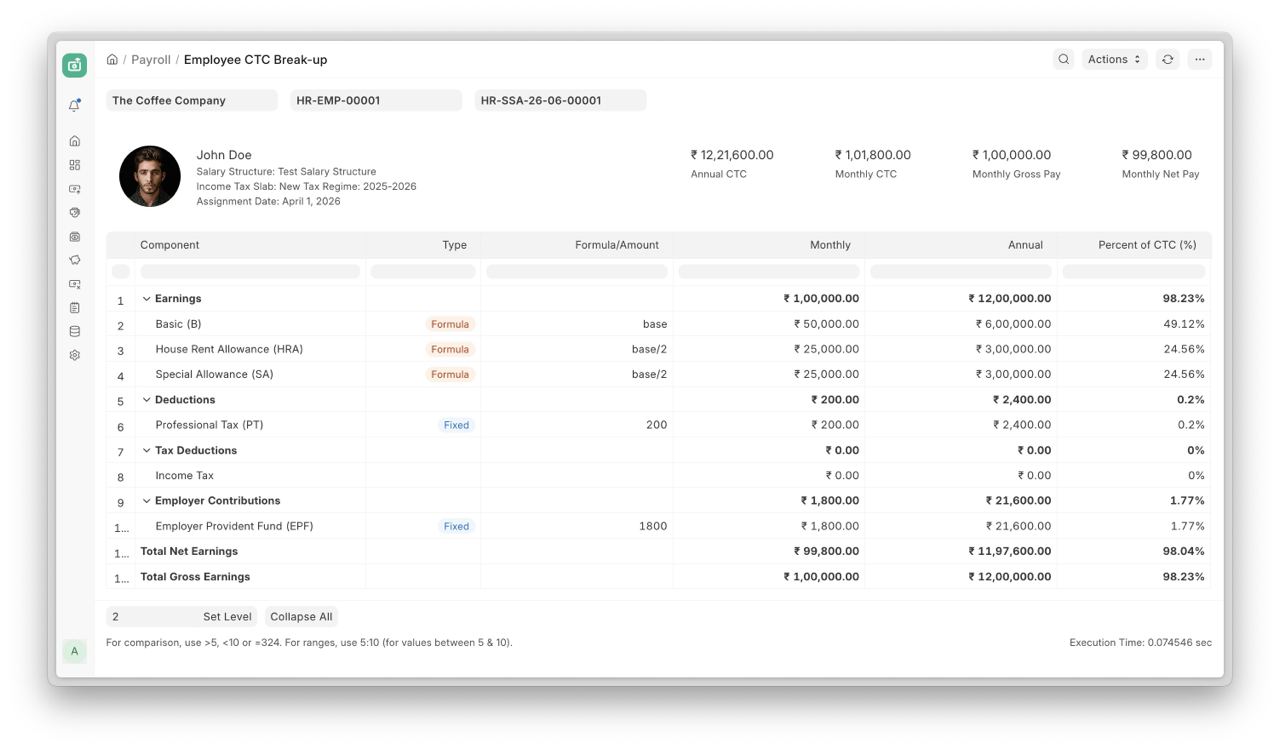
Now the gross earning and employer’s contributions will add up to make 100% of CTC.

Employee Advance Return #4637
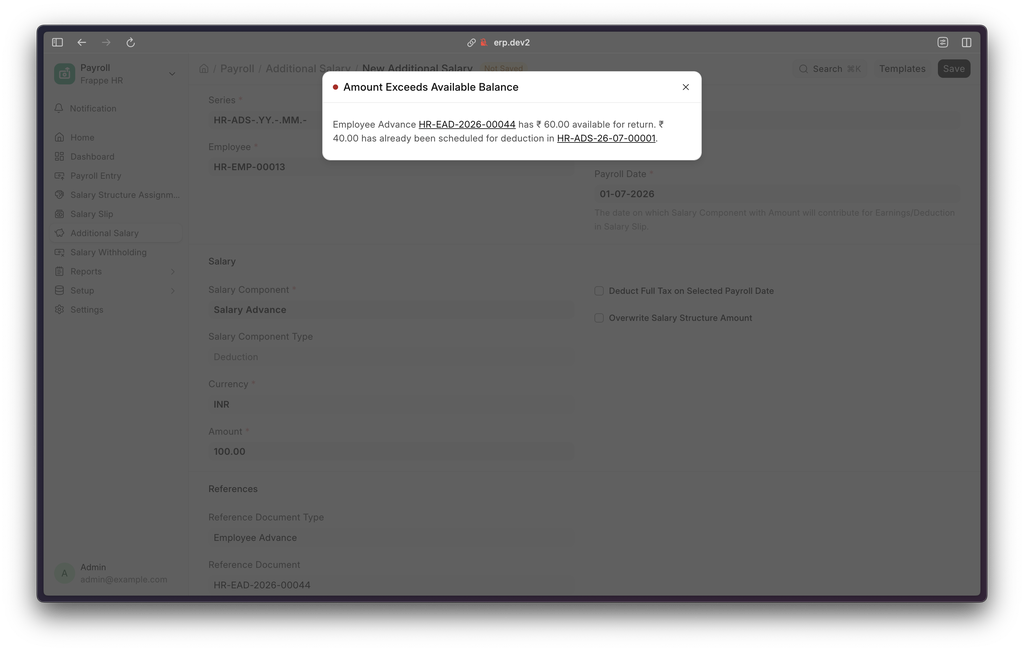
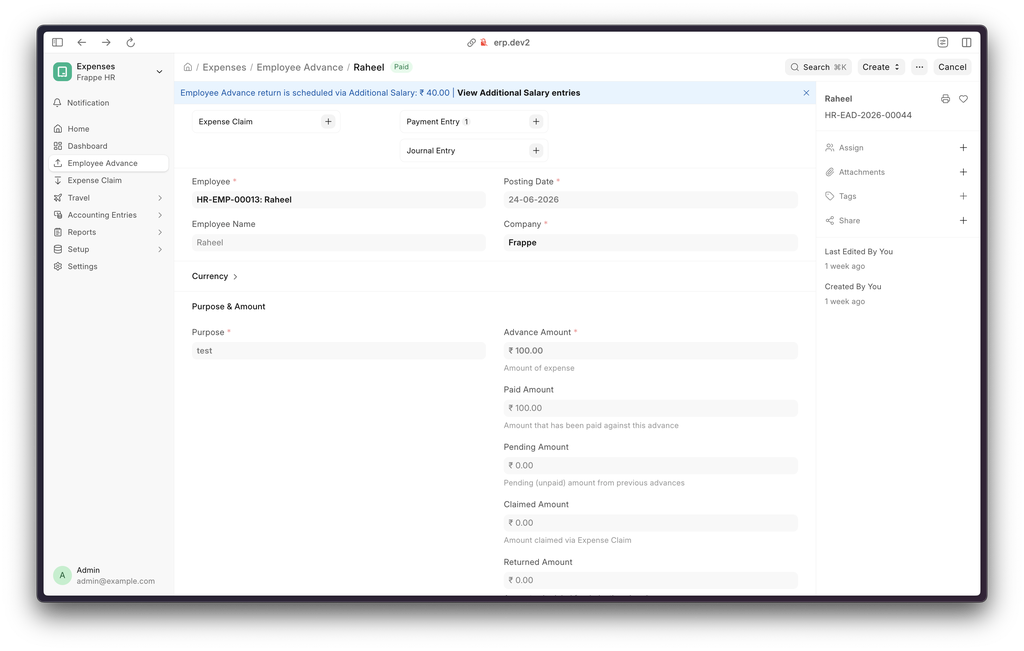
Employee Advance returns scheduled through Additional Salary were directly updating the advance's return amount, causing inconsistencies with the Advance Payment Ledger Entry (APLE) flow and incorrect advance status calculations. Return amounts are now updated only when payroll is generated and the Journal Entry is successfully submitted, and validation has been added to prevent scheduling deductions beyond the available advance amount.
A dashboard banner on Employee Advance now shows the amount scheduled for return via Additional Salary, with a link to the related entries.
Hiring Pipeline Kanban for Job Applicants #4805
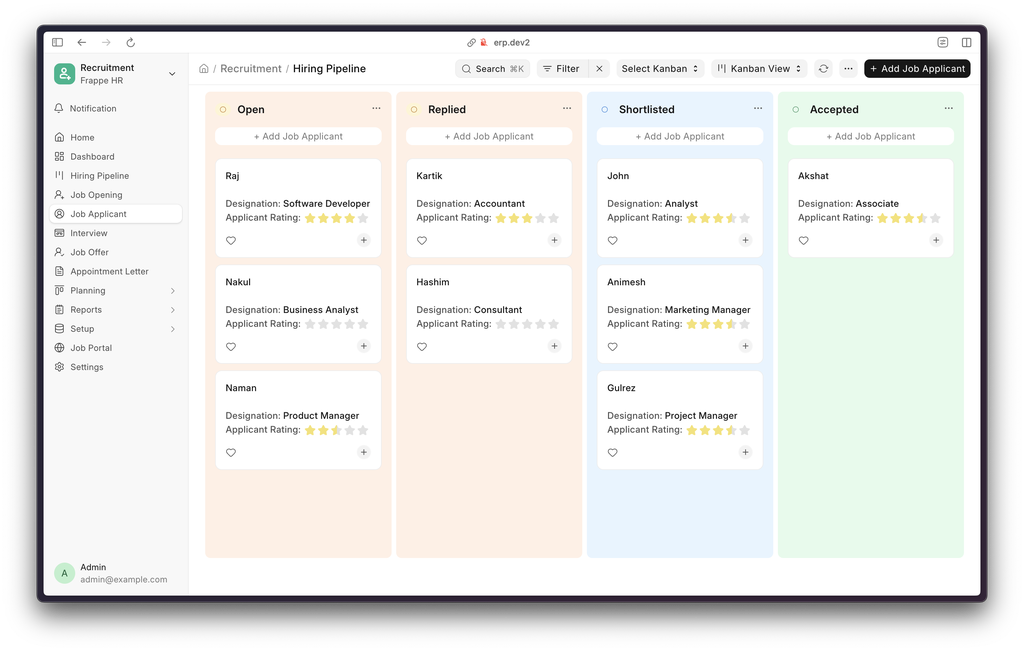
A Hiring Pipeline Kanban board has been added for the Job Applicant doctype. The board auto-creates on first use, and cards added from any column open a new Job Applicant form with that status pre-filled. Applicants can be rated directly from the board with half-star precision, without opening the full form. A Hiring Pipeline shortcut has also been added to the Recruitment sidebar for quick access.
Other Fixes
Earned Leave Allocation #4694: Half-yearly earned leave allocation dates were calculated using the calendar year instead of the configured Leave Period; allocation now derives half-year boundaries from the Leave Period itself.
Employee Advance Payment Entry #4755: Fixed Payment Entry creation incorrectly prompting for an Exchange Gain/Loss Account when the advance and company currency matched.
Income Tax Computation Report #4802: Fixed Gross Earnings being inflated by opening balances from a prior fiscal year's Salary Structure Assignment; opening balances are now only applied when the assignment falls within the current payroll period.
PWA Leave Balance #4708: Fixed the Leave Balance Before Application field on the PWA showing the current balance instead of the balance at the time of application when viewing an existing leave. Contributed by Raghav Ruia.
Expense Claim Advances#4657: Employee Advances in a currency different from the Expense Claim's currency are excluded when fetching advances into a claim, preventing incorrect advance and grand total amounts. Contributed by Abhinav A P.


Improved Server and Bench List
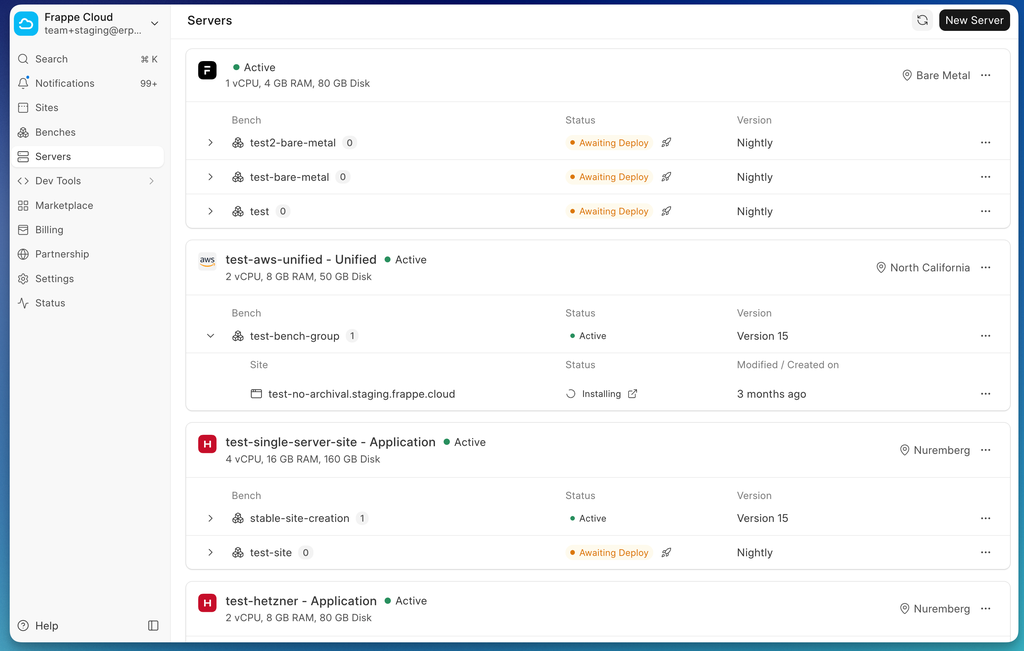
The server and bench list have been a source of confusion for new users. The list views did not establish the hierarchy of sites and benches which made the experience difficult for new users.
The new server and bench list introduces a clear hierarchy: server → bench → site for dedicated servers, and bench → site for shared servers. The site list remains untouched and will continue to show all sites as before.

Streaming Backups
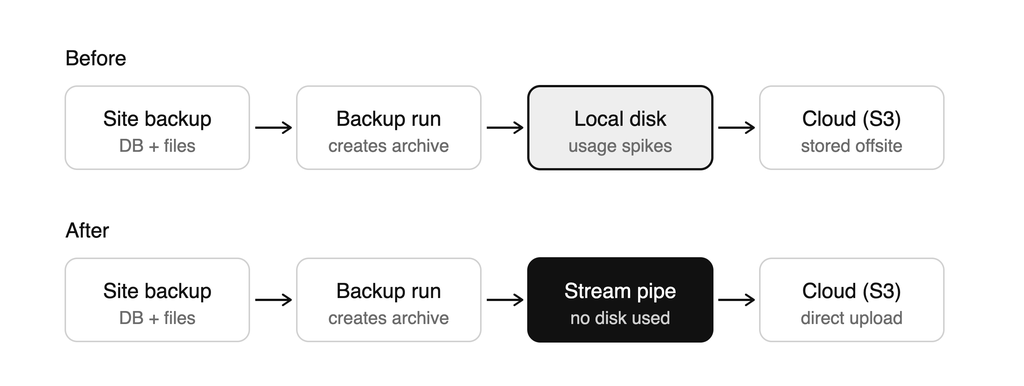
Backups now stream directly to cloud storage instead of being written to local disk first. Large sites no longer see disk usage spike during backups, removing the need to reserve extra buffer space.
Supported on sites running Version 13 and above. Encrypted backups continue to run the usual way (written to disk, then uploaded). Restores still download the full backup to disk, so headroom remains necessary where restores are frequent.

Better Team Management and Roles UX
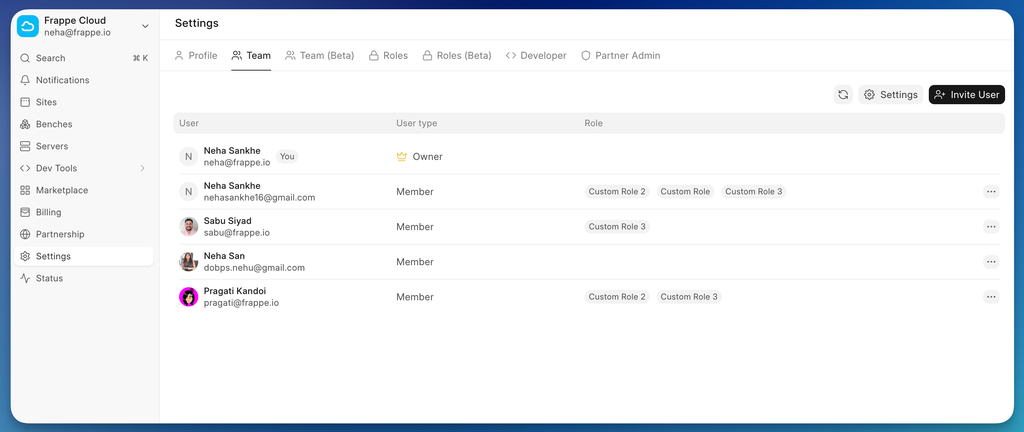
Earlier, the team management experience was confusing and unreliable. It was difficult to track the access granted to each user, identify which users had administrator access, and determine which custom roles inherited administrator privileges. This has now been addressed.
With the new team management experience, you select a role before inviting a user. You can also view all access granted to each user directly from the list view, making team management simpler, more reliable, and easier to understand.


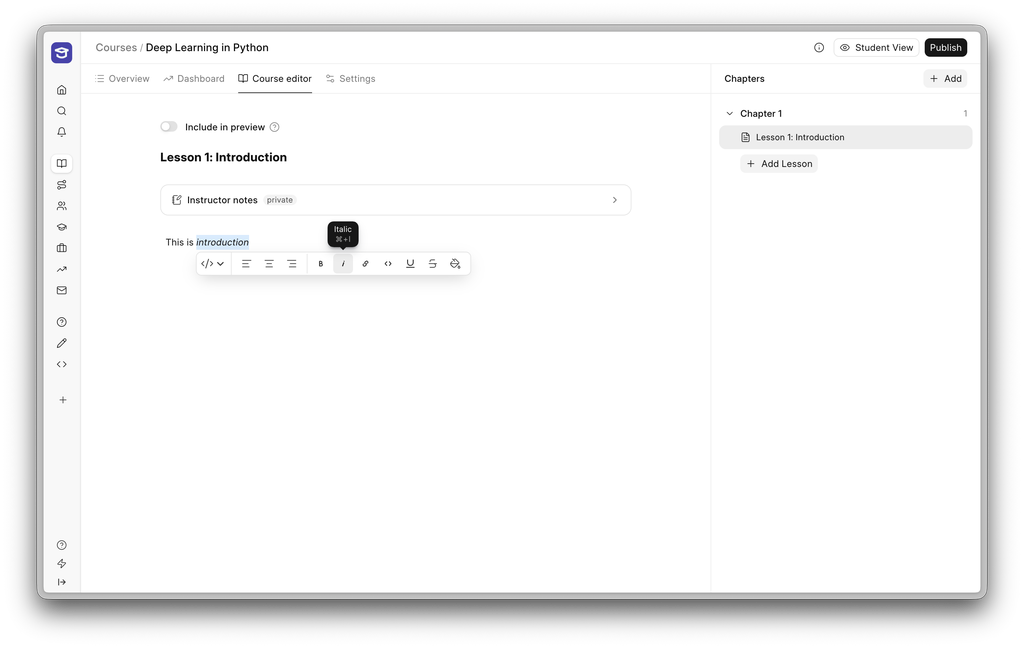
Redesigned Lesson Editor
Select any text to bring up an inline toolbar for underline, strikethrough, alignment, and color. Rearranging is just as quick: drag a block by its handle to move it, or cut, copy, and paste whole blocks wherever you need them. And everything autosaves as you go.
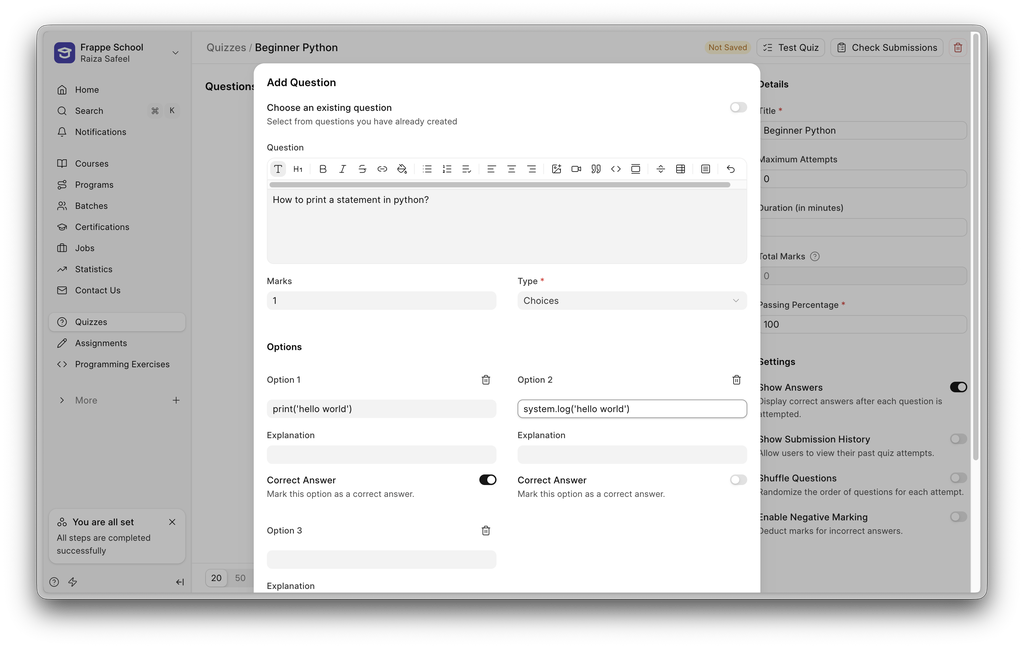
More options in Quiz
Quiz questions used to be limited to a handful of choices. Now you can add up to 10 options per question (and up to 10 possibilities for fill-in-the-blank style questions).


Agent Availability Status #3372
The Agent Availability Status feature is now live on Frappe Helpdesk. This feature lets agents communicate their current status throughout their shift, giving team leads and the system a real-time view of who can take on new tickets.
Here’s a short demonstration of how the feature works:
Each agent carries a live availability status Active, Away, or Unavailable that is shown across the agent portal as a coloured presence dot.
Under the hood, this feature is powered by the HD Agent Status doctype. Agent mangers can create as many agent statuses they want according to their organisations needs. Each Status has a category assigned to it which defines and controls how assignment rule work in automatio
Here is a short demo of how to create a new Agent Status:
This feature closes a gap that every growing support team eventually runs into: knowing who's actually free to help, right now. It keeps ticket routing honest, gives team leads a real-time view of the floor, and adapts to however your team actually organises its day.
You can read more about this in the documentation.

Rethinking Customer Contact Management #3045
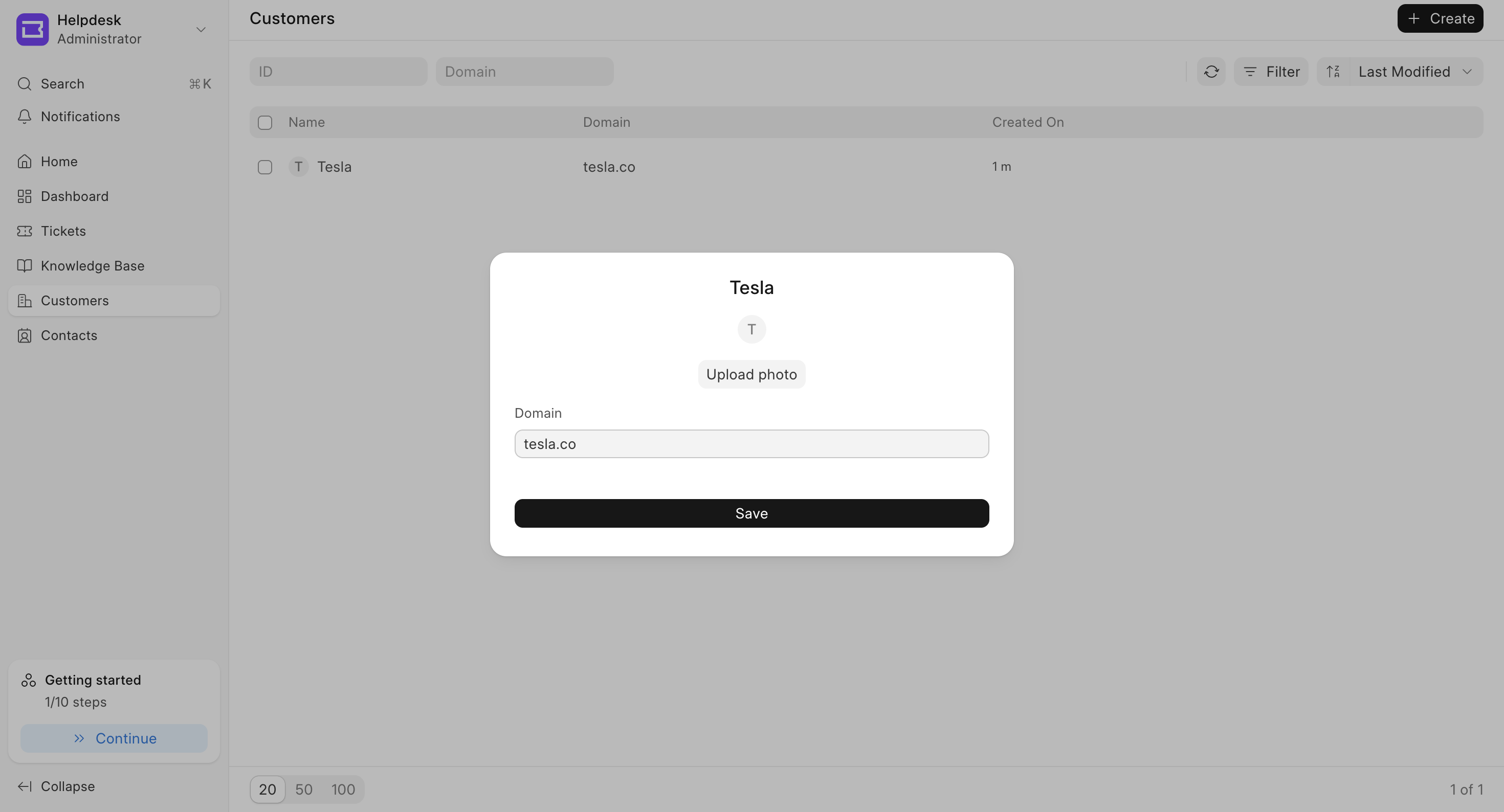
For the longest time, Customer Management in Helpdesk only gave you these views.
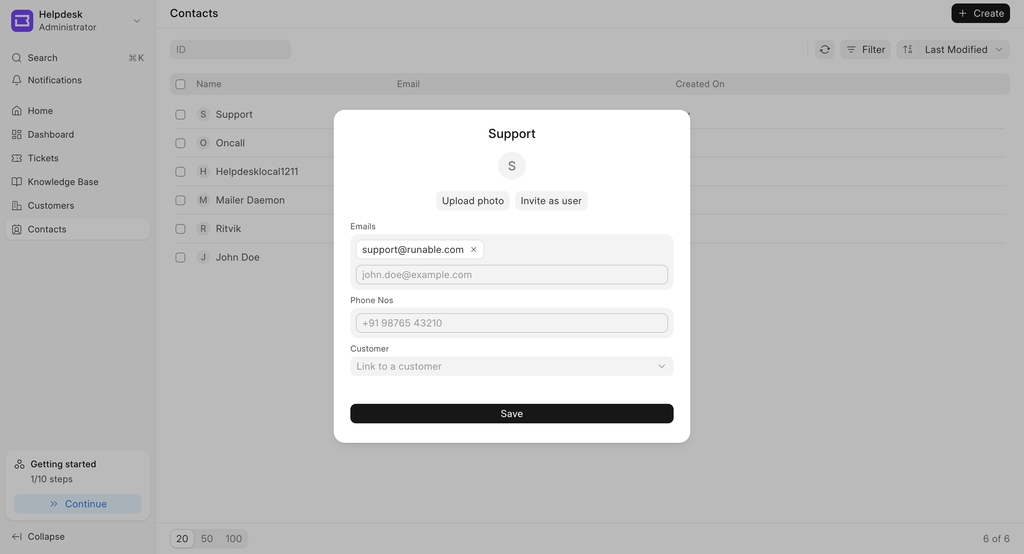
Quick Context:
- Customer — a business or individual you provide support to. E.g., Acme Inc is a customer in our Ticketing system, and we provide support to them.
- Contact — the person raising a ticket. An employee of Acme Inc raising tickets on behalf of Acme Inc.
The old approach had real limitations:
- Ticket Visibility was all-or-nothing: Contacts linked to a customer saw every other contact's tickets; unlinked ones saw only their own. No in-between. We got a lot of requests for real control over who sees what.
- No Customer or Contact Context: Seeing what someone raised meant re-applying list view filters every time.
- No Analytics: There was no built-in way to analyze support ticket data.
- Poor UX for Linking: You had to open each contact's modal to find their customer.
- Poor UX for Inviting: We added people as users directly instead of sending an invite.
So we decided to revamp the entire implementation, one of the biggest changes in Helpdesk so far.
New Flow:
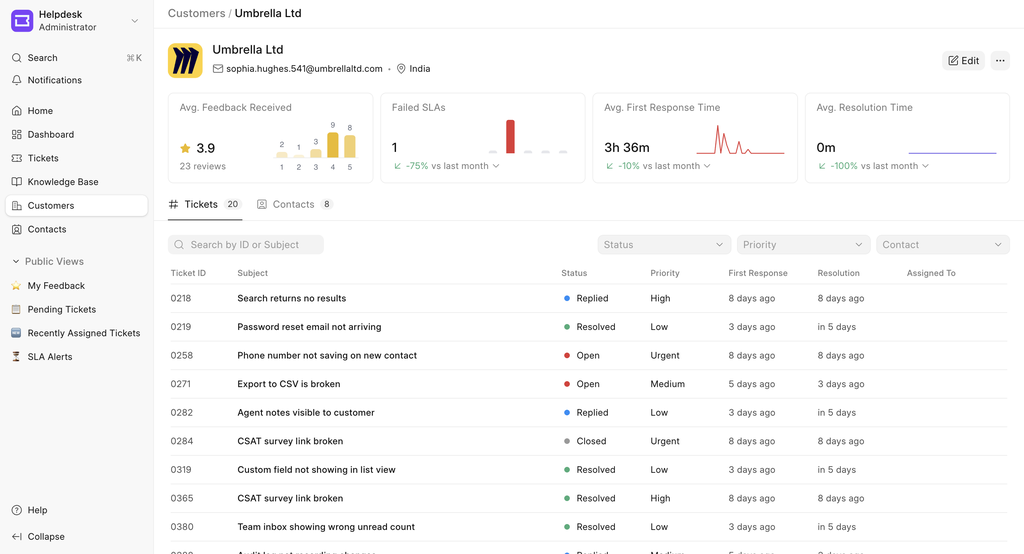
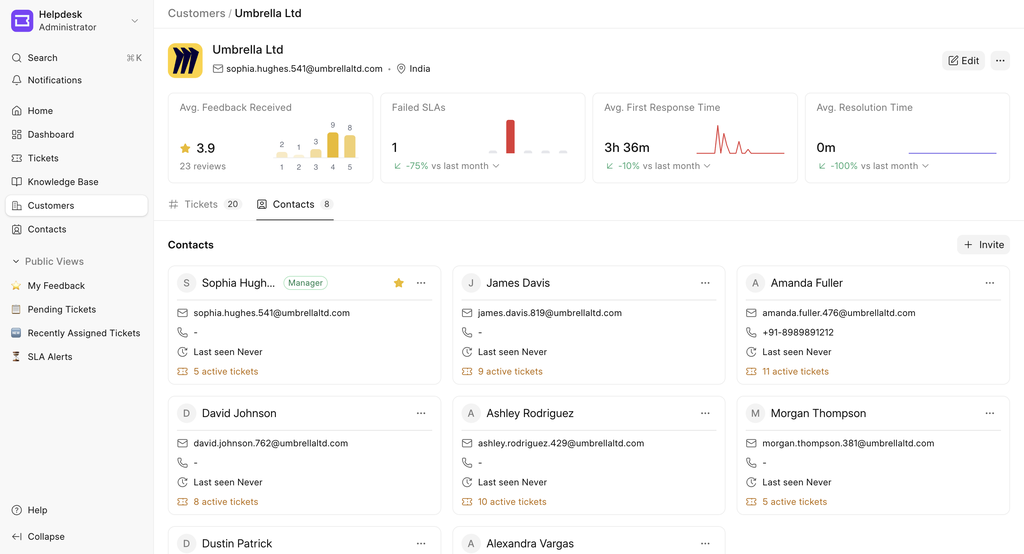
We now have separate pages for Customer and Contact.
Customer:
Contact:
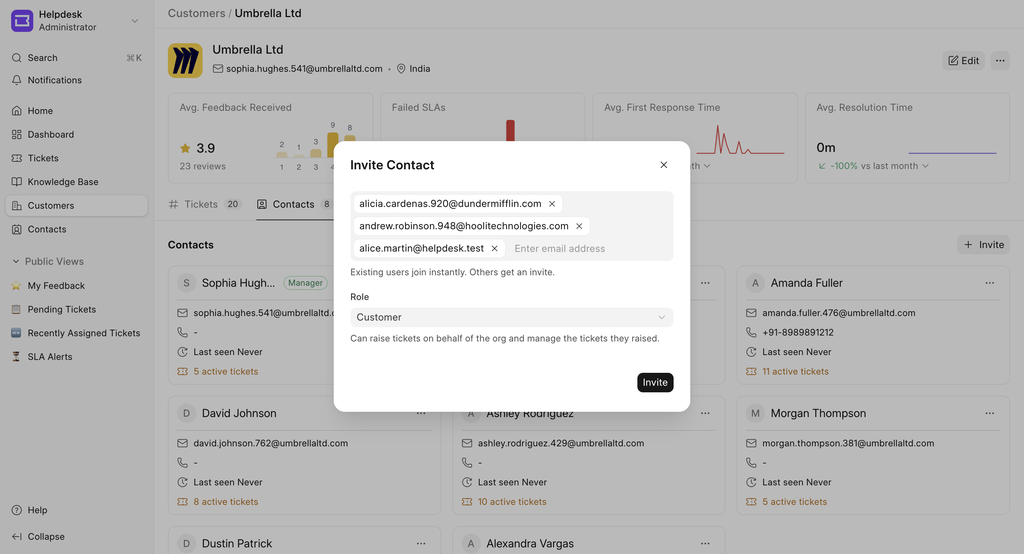
You can link a contact to a customer. While creating the contact or from the customer page by inviting them. If their user already exists, they're added immediately; if not, an invite goes out, and they're added once they accept.
Contact Roles
Each contact is assigned a role:
- Customer Manager: Can view tickets for the entire organization.
- Customer: Can view only the tickets they have raised.
Multiple Customer Associations
A contact can be linked to multiple customers.
- Each customer has one Primary Contact (the Customer Manager).
- If a contact is associated with multiple customers, they can choose which customer they are raising a ticket for when submitting a ticket through the portal.
This is a Breaking Change ⚠️
- Previously, 3 contacts linked to the same customer could all see each other's tickets. Now each sees only their own, unless the role is updated from the agent side.
- Also note: the
customerfield in the HD Ticket Template is now reserved and won't be available for customization.


ERPNext Integration #2182
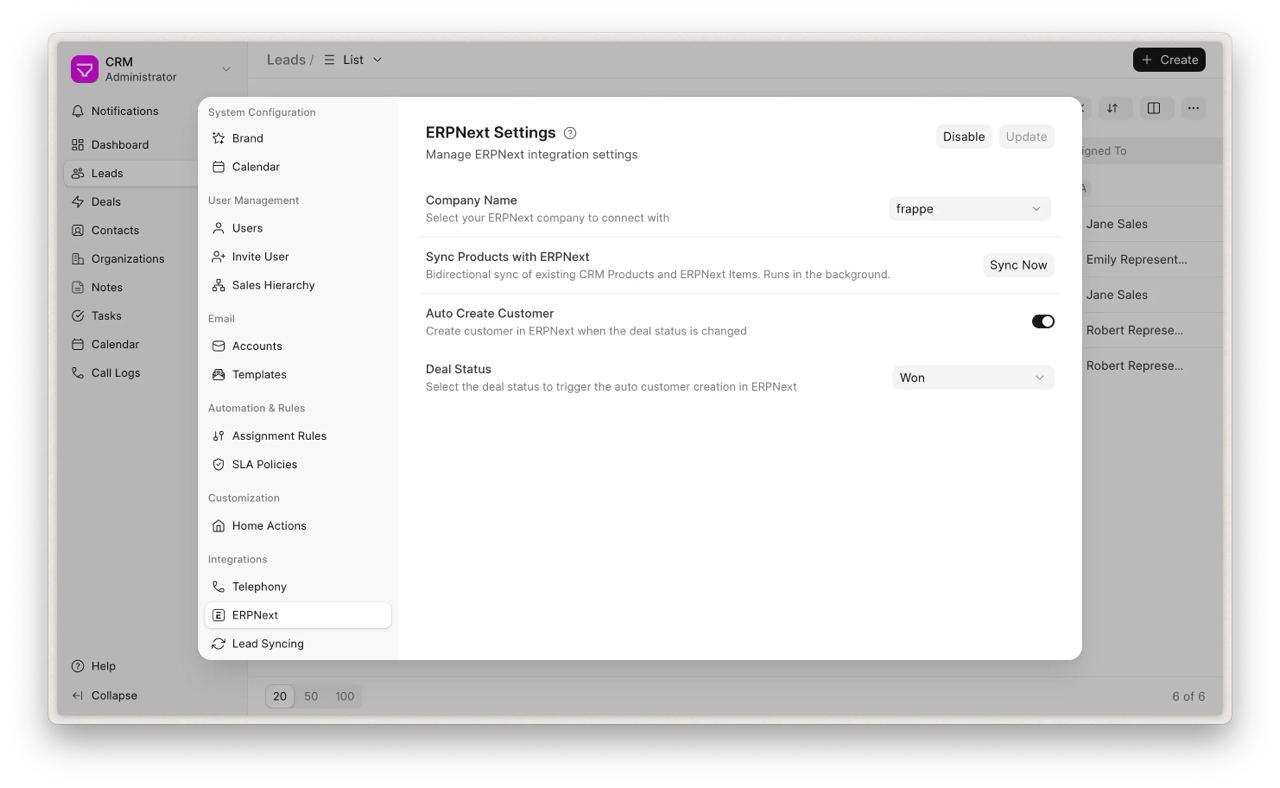
When ERPNext is installed on the same site, you no longer need to duplicate existing Items to CRM Product. When ERPNext integration is enabled, your existing CRM Products will automatically sync with Items from ERPNext.
For more info, read the documentation

Faster Initial Page Load #2187
We've made a significant performance improvement to how Frappe CRM loads users. On very large sites think hundreds of thousands of user records the CRM screen could take around 11 seconds to become usable on first load, and in some cases would fail to load entirely with a "Not Permitted" error.
We've fixed this. The CRM frontend now becomes interactive in roughly 64 milliseconds about 168× faster. The app loads the small set of users it actually needs right away, then quietly fetches the full list in the background without holding up the screen.
If you run CRM on a large shared site alongside ERPNext or HR, this is a meaningful upgrade in day-to-day speed and reliability. It's already merged and backported to the stable release.
Contributed by Deepak

One quick note first. All our productivity apps (Drive, Writer, Mail, Slides, Meet, Calendar and Sheets) now live together in one shared repo - frappe/suite. Drop a star if you haven’t already! Now for the updates on Slides -
Shape Improvements #12
We spent some time improving how shapes work. There are other improvements too, but these are a few of the highlights.
Draw Shapes Where You Want Them
- Picking a shape now lets you click and drag to place it at the exact spot and size you want with a live preview as you go, Previously, we used to drop shape with a fixed size in the center
- Hold
Shift (⇧)while dragging for perfect squares and circles, or to snap lines to clean angles. - Added diamond, triangle, and pentagon too, handy for flowcharts and diagrams.
Text Inside Shapes
- Double-click a shape to type text right inside it, instead of placing a separate text box on top and moving them around together.
- Click the text to edit it, or click elsewhere on the shape to style the shape itself.
Line Improvements
- Drag either end of a line to resize and rotate it in one go.
- Thin lines are much easier to click and select now, and the default thickness is better.
Better Interactions #8
We also spent time improving the Slides canvas this month. Moving, resizing, and rotating things should feel a bit smoother and more predictable now. Here are a few of the changes.
Gestures Feel Smoother
- Drags and resizes start the moment you move and should feel a smoother, even on a busy slide with lots of elements.
- Dragging used to slowly drift out of sync with your cursor. Now whatever you grab stays right under your cursor while you drag it.
Resizing and Rotating Work Better
- Resizing now works correctly at any zoom and on tilted elements which was missing before.
- Lines stretch and rotate from one end now, with the other end staying put, which feels a lot more natural than before.
Few More Fixes
- More guides to help you line things up, and tilted elements now snap into place too instead of being ignored.
- Dragging a selection box no longer accidentally grabs tilted elements it didn't actually touch.
- Removed the functionality to add text by double-clicking which was easy to trigger by accident. Now, the quickest way is to use the shortcut
t.
There's still more to polish, and it'll keep getting better as we go.

That's a wrap for June! 👋
These updates from major improvements to small quality-of-life enhancements are made possible by our team and the incredible Frappe community working together.
We also released Frappe Lending v16, featuring the new Loan Origination module and several Loan Management enhancements. Check out the release post to explore everything that's new.


·
Very commendable! I love the Data Import update! We can now import at a go parent and child entries. We can also import at a go when inserting new entries or updating existing ones. The bit of also skipping erred entries while importing is also amazing!