


The v16.60 announcement covered the whole release. This post takes a closer look at the customer, supplier and report changes.
Customer Overview
Say a customer calls to ask why their order is on hold. To answer that, you'd open Accounts Receivable to see what they owe, check their credit limit, and then go through their sales orders to see what's still pending. That's three or four screens for one question.
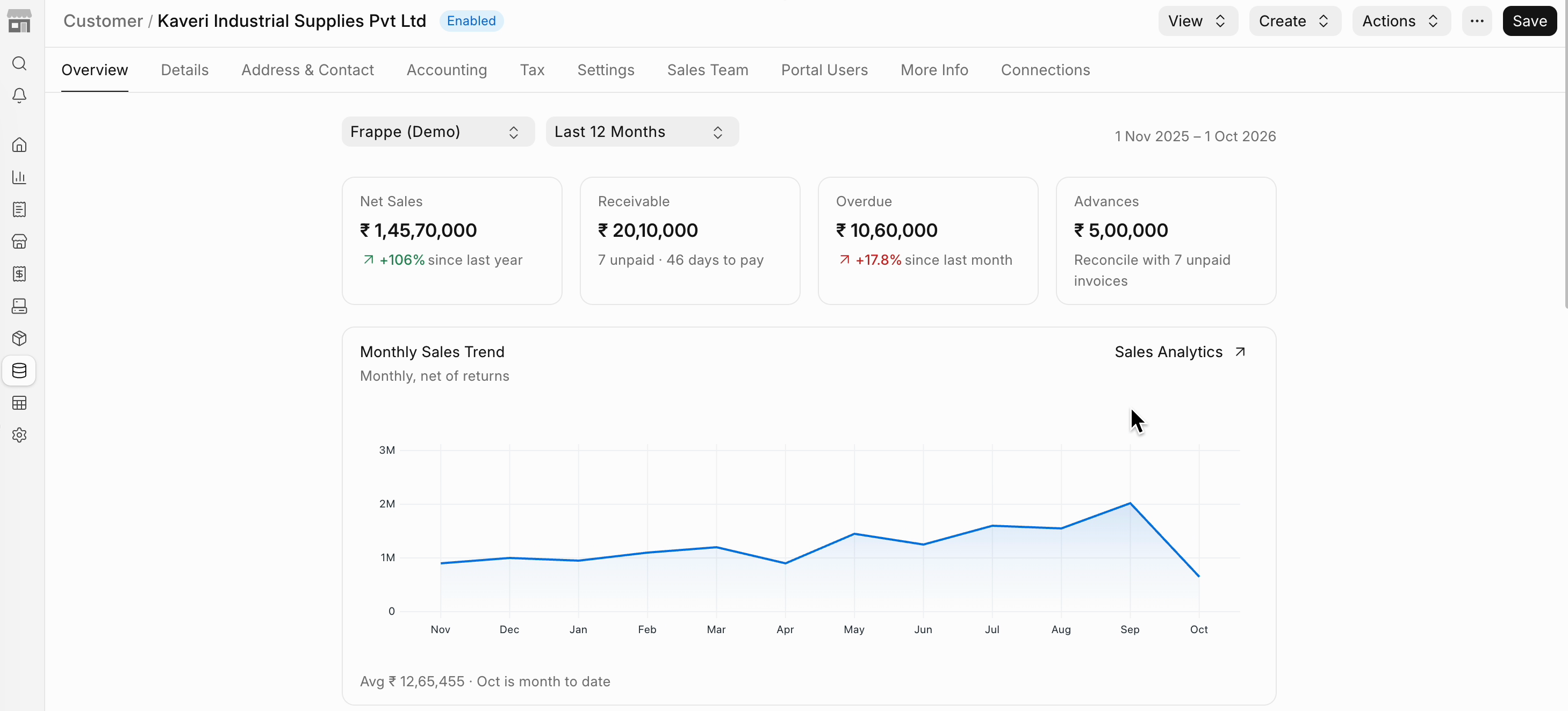
The Customer form now opens on an Overview tab that puts all of this in one place. The top row has the numbers you'd want first: what they've bought, what they owe, how much of that is overdue, and any advance they've paid that hasn't been used yet. Each card adds a bit of context, like how sales compare with last year or roughly how long they take to pay.
Receivables, Credit and Open Orders
Further down, receivables ageing splits what the customer owes by how late it is. It uses the same calculation as the Accounts Receivable report, so the two always agree.
Next to it is the credit limit. Along with how much of it is used, the chart shows what's using it up: overdue invoices, invoices not yet due, and orders that haven't been billed yet. That last part is easy to forget, and it's often why a customer hits their limit sooner than expected.
Below these, the Open Pipeline cards show what's still in progress with the customer: quotations waiting for an answer, orders to deliver or bill, and invoices that haven't been paid.
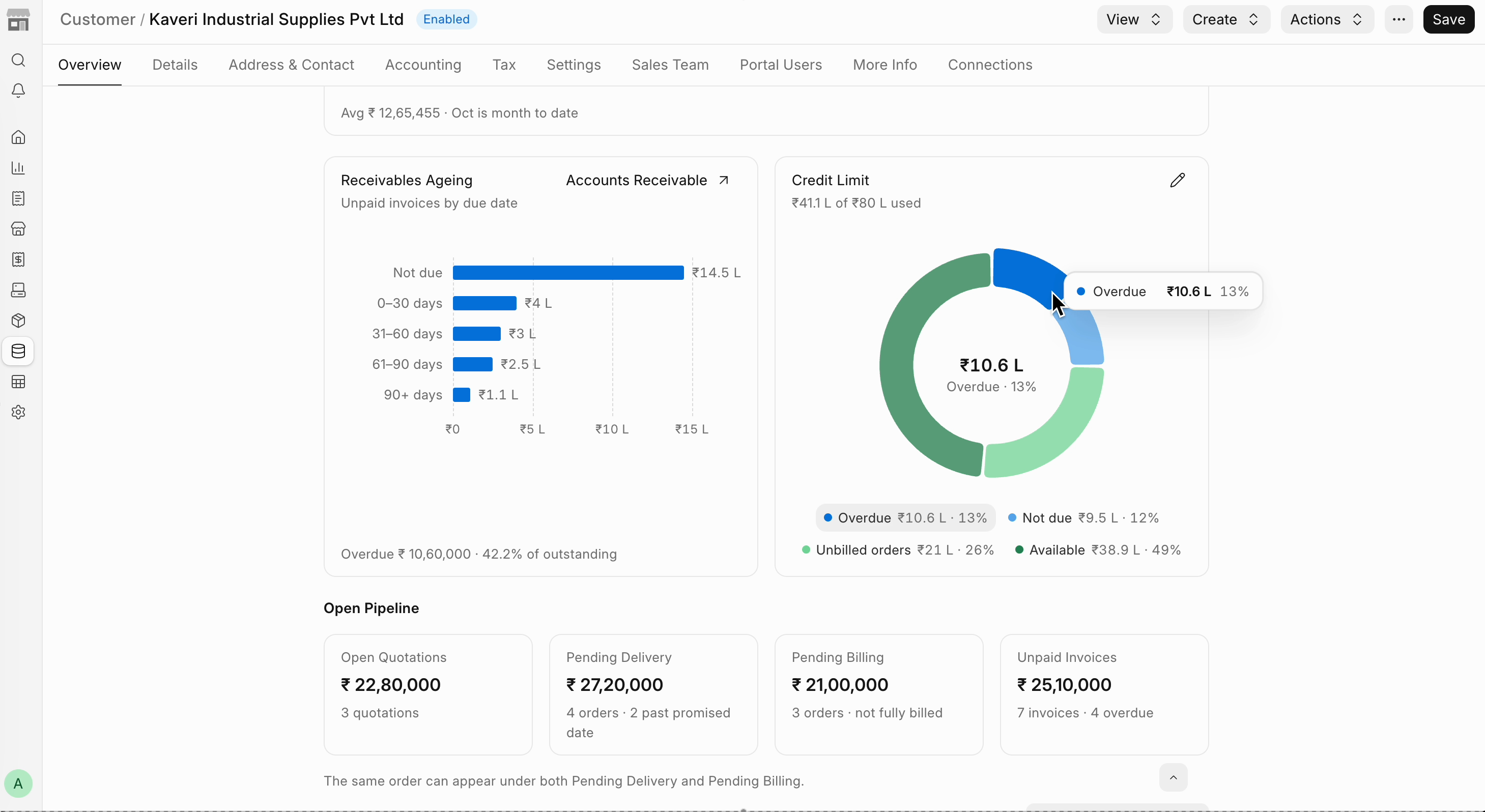
If the limit needs changing, you can edit it from the card without leaving the overview.
Supplier Overview
Suppliers raise the same questions from the other side. What do we owe them, are they delivering on time, and what's still pending? The Supplier form now has its own Overview tab with the same layout, built around buying: your purchases, what you owe, what's overdue and the advances you've paid, with purchases and payments by month below.
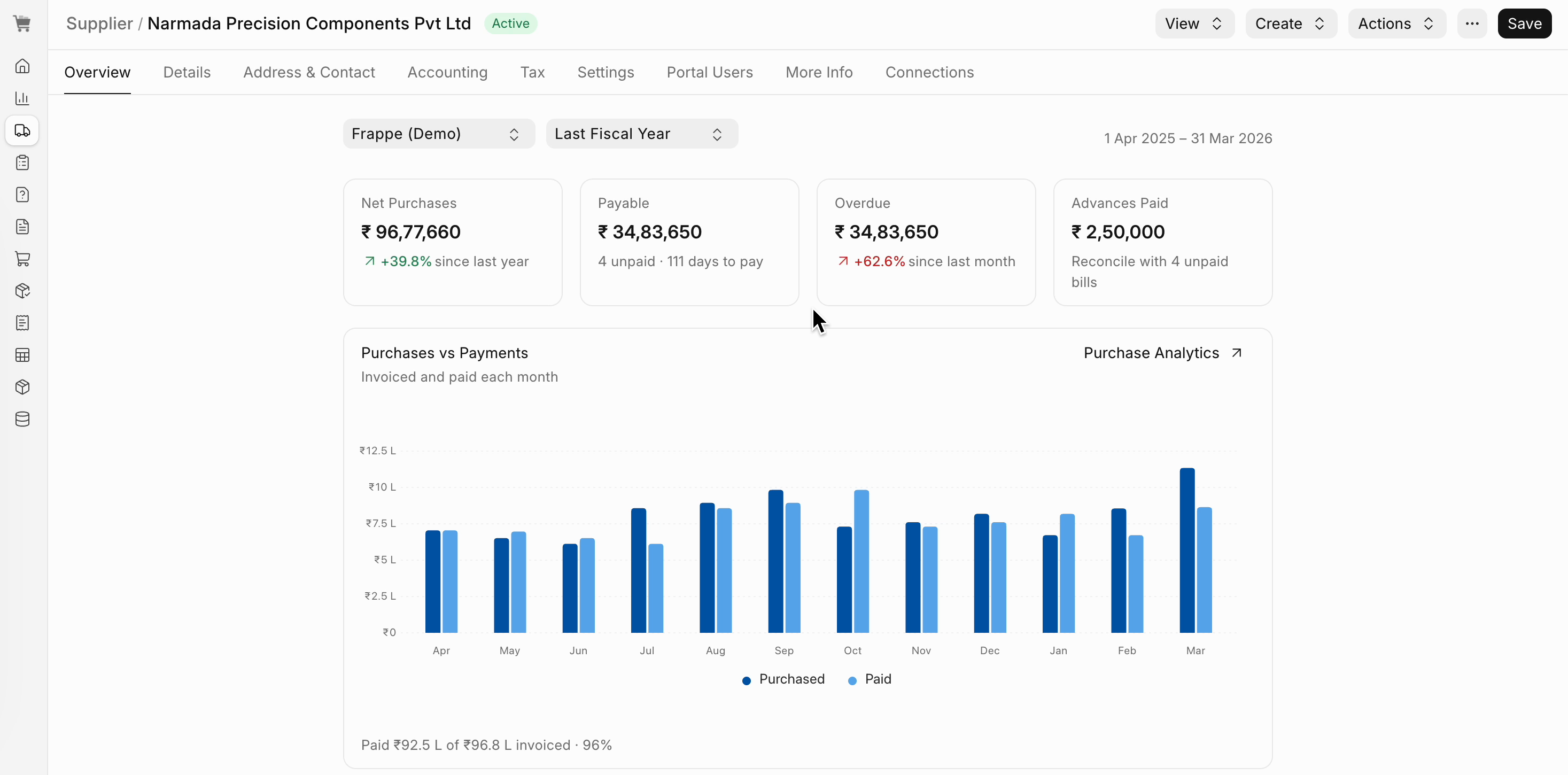
Both overviews start on the current fiscal year and remember the period you last picked. You can switch to the last 12 months, this quarter or the last fiscal year, and change the company if you have more than one.
Delivery Performance
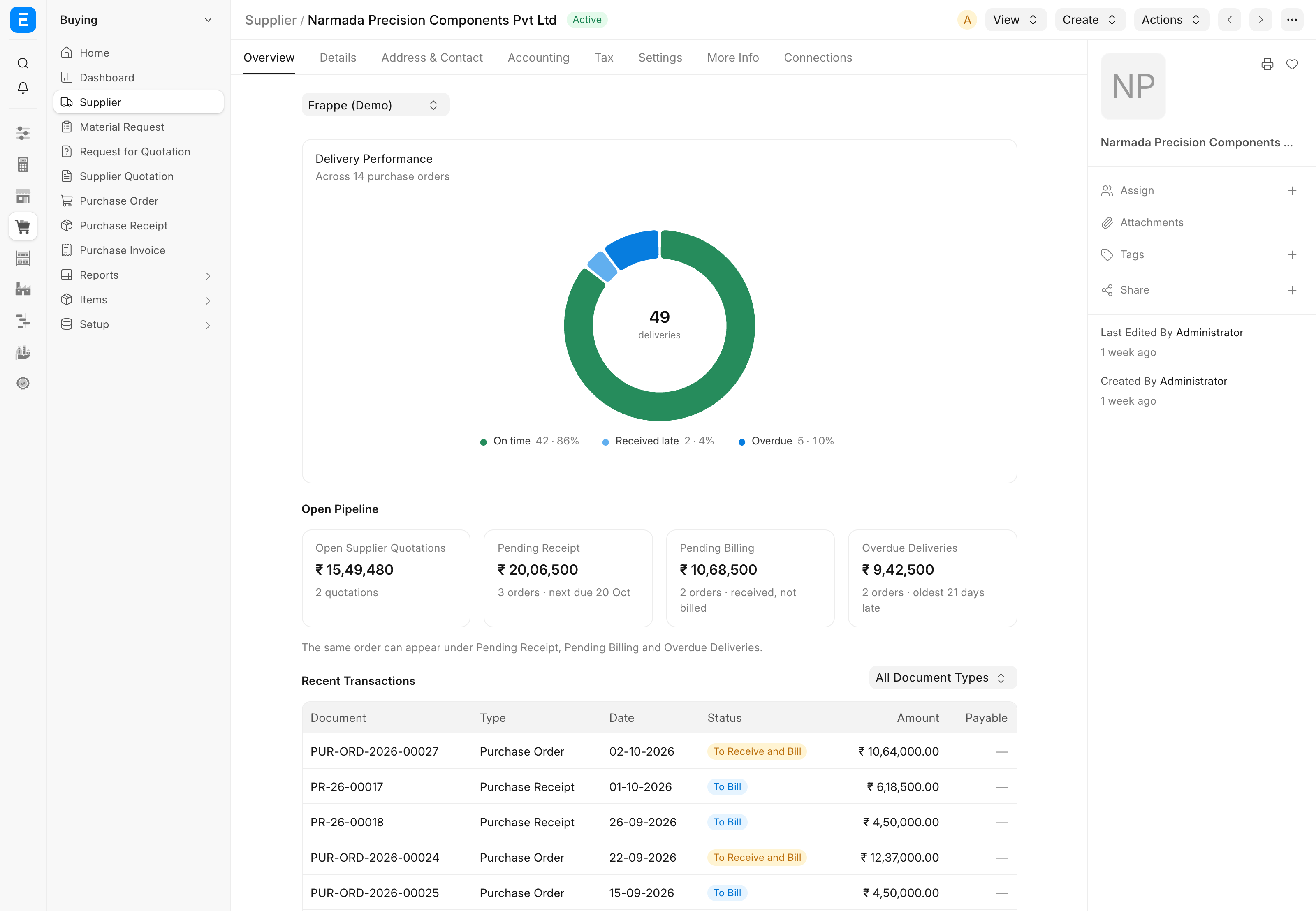
With suppliers, money is only half the picture. The other half is whether things arrive when they should. Delivery Performance looks at the lines on the supplier's purchase orders and shows how many were received on time, how many arrived late, and how many are still overdue.
The cards below it show the purchasing work that's still open: supplier quotations, orders waiting to be received, receipts waiting to be billed, and deliveries that are already late.
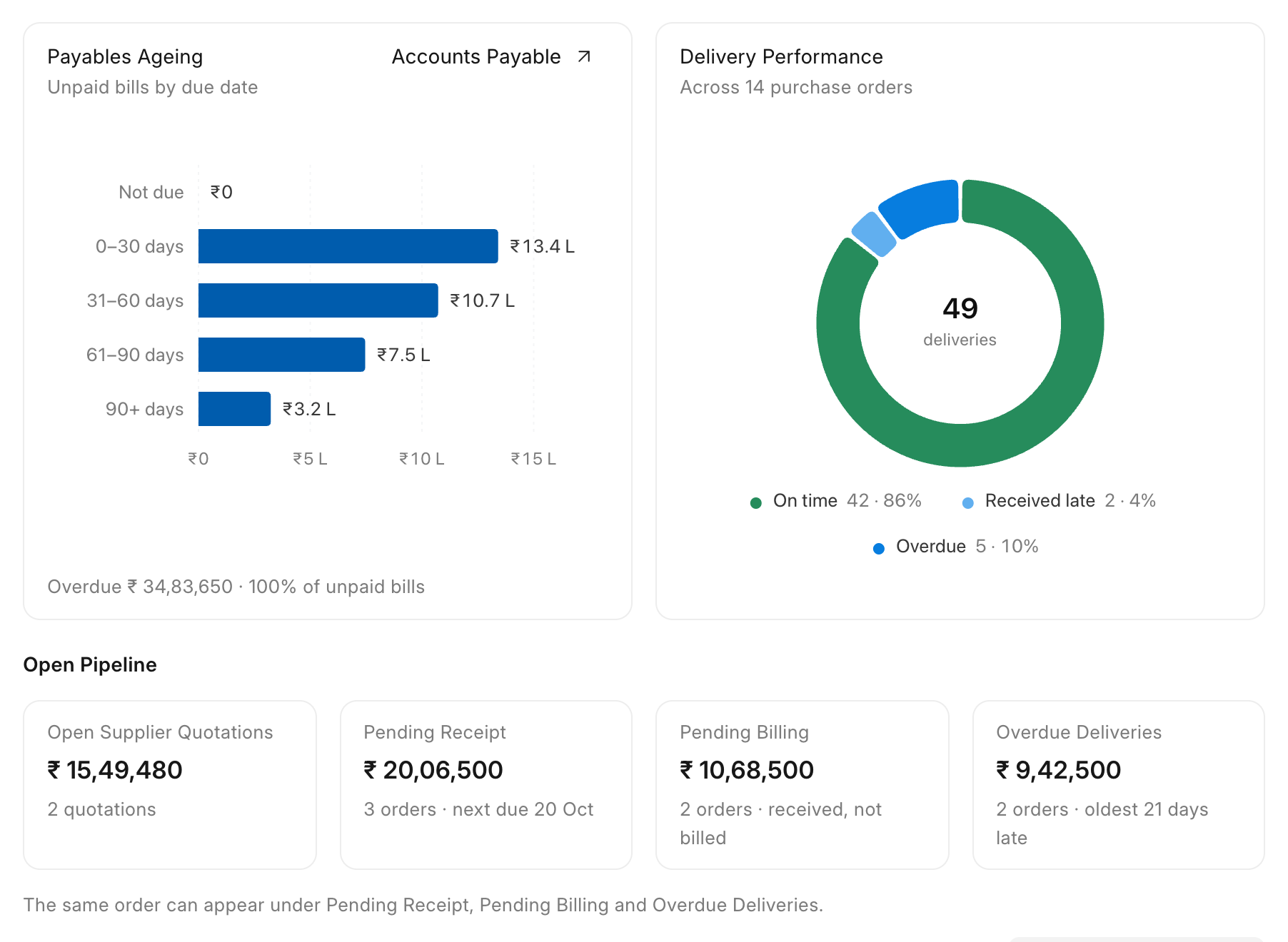
Each card is also a shortcut. Click one and you get the purchase orders behind that number, already filtered.
Unapplied Advances
Advances are easy to lose track of. You pay a supplier upfront, the bill comes in weeks later, and nobody matches the two, so the payment just sits there.
The Advances Paid card catches this. If an advance hasn't been applied and there are unpaid bills it could go against, the card tells you how many. If you have access, you can open Payment Reconciliation straight from the card and match them. The Customer Overview does the same for advances you've received.
New Parties and Restricted Access
A new supplier doesn't have months of history, and we didn't want their overview to be a page of empty charts. Sections with nothing to show stay hidden, and the cards say what's going on instead. For a supplier you've only paid an advance to, the overview shows the payment and explains why it hasn't been applied yet.
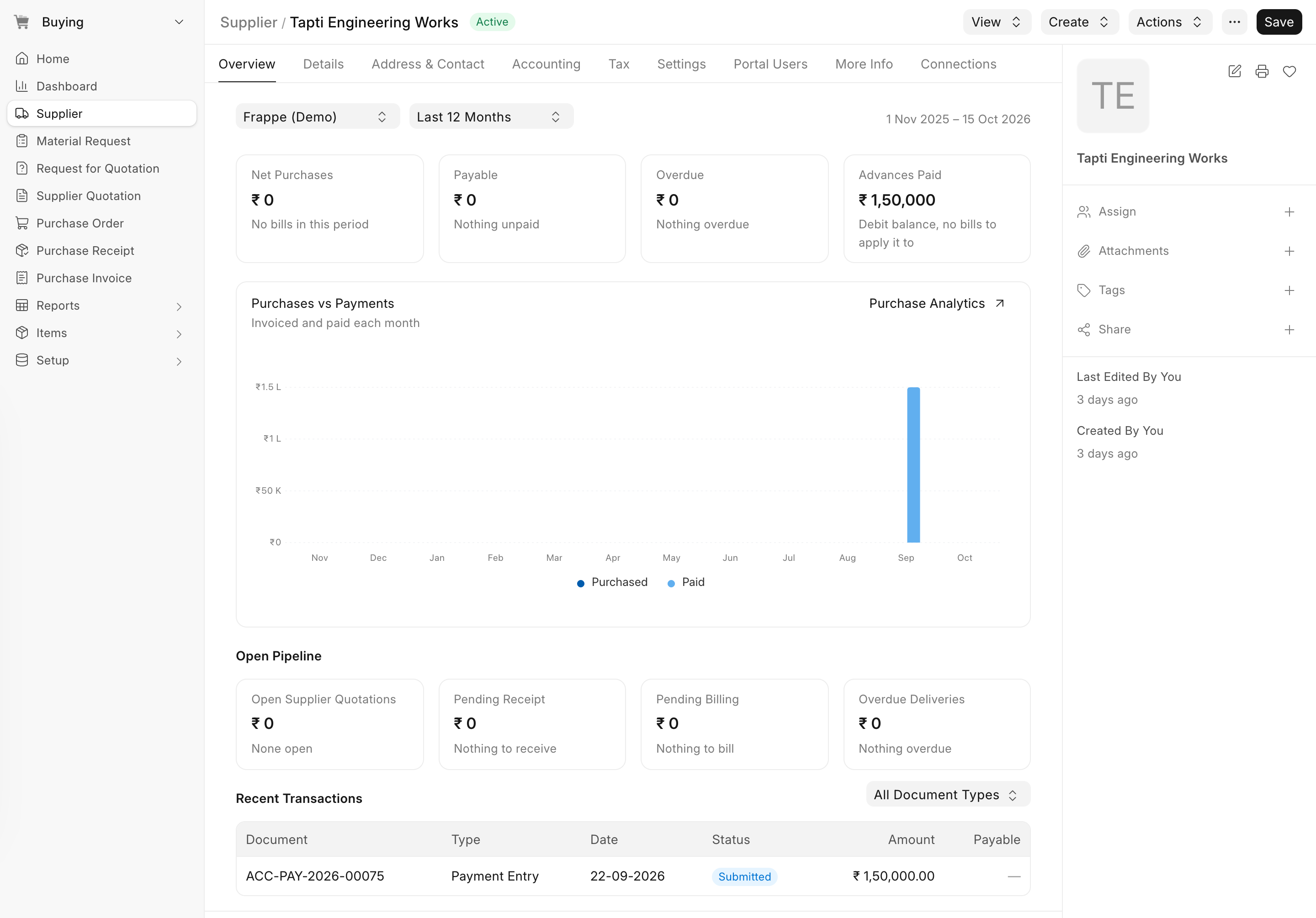
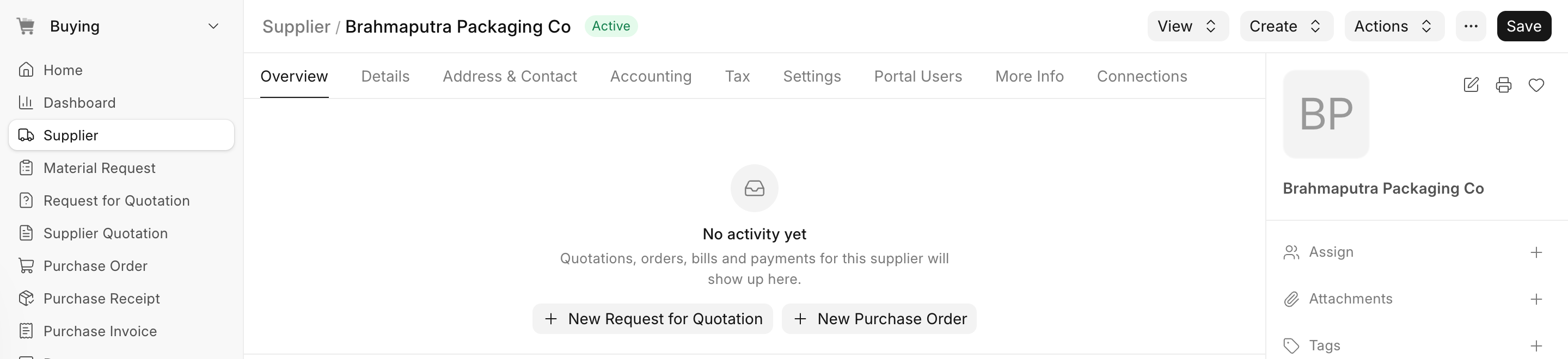
The overview also follows your existing permissions. Someone in purchasing who can't see accounts still gets deliveries, open orders and recent transactions, just not the financial figures.
Items Tab
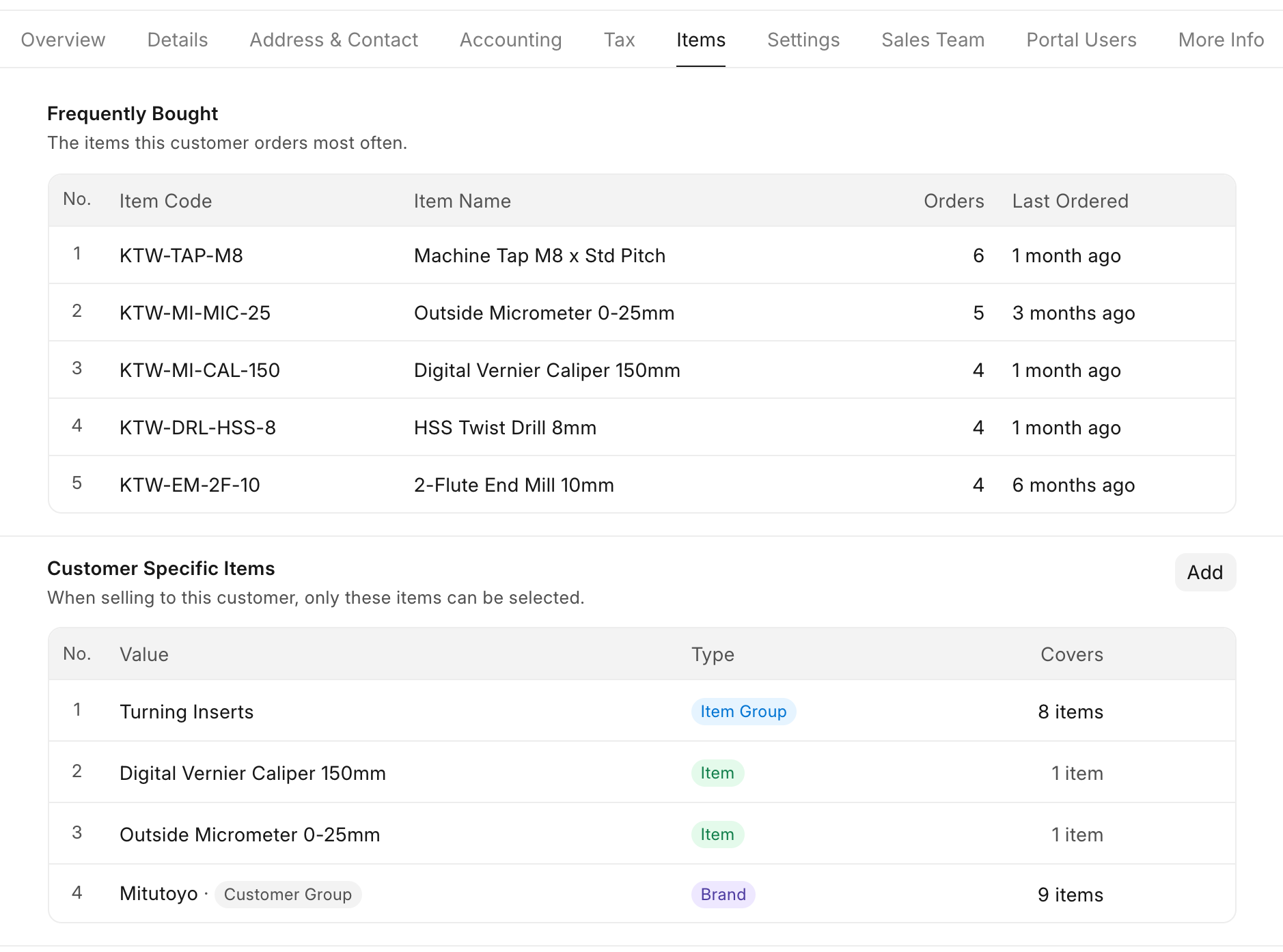
Another question that comes up a lot is what a customer usually buys. The new Items tab answers it. Frequently Bought lists the five items they order most, with how many orders each one was on and when it was last ordered. Click the order count to see those orders.
Party Specific Item
ERPNext has long let you limit which items can be sold to a customer or bought from a supplier, using Party Specific Item. But those rules lived in a separate list, so it was easy to forget they existed until an item didn't show up on an order. Now they're on the Items tab as Customer Specific Items or Supplier Specific Items, along with any rules set on the customer or supplier group. You can add or remove them right there, and the item picker shows the items they buy most at the top.
Printing Reports
Printing a report used to involve some guesswork. You clicked Print, picked a format, orientation and letter head in a dialog, and only saw the result once it opened in a new tab. If something looked wrong, you went back to the report and started over.
Now Print opens a full page with a live preview, the same way documents do.
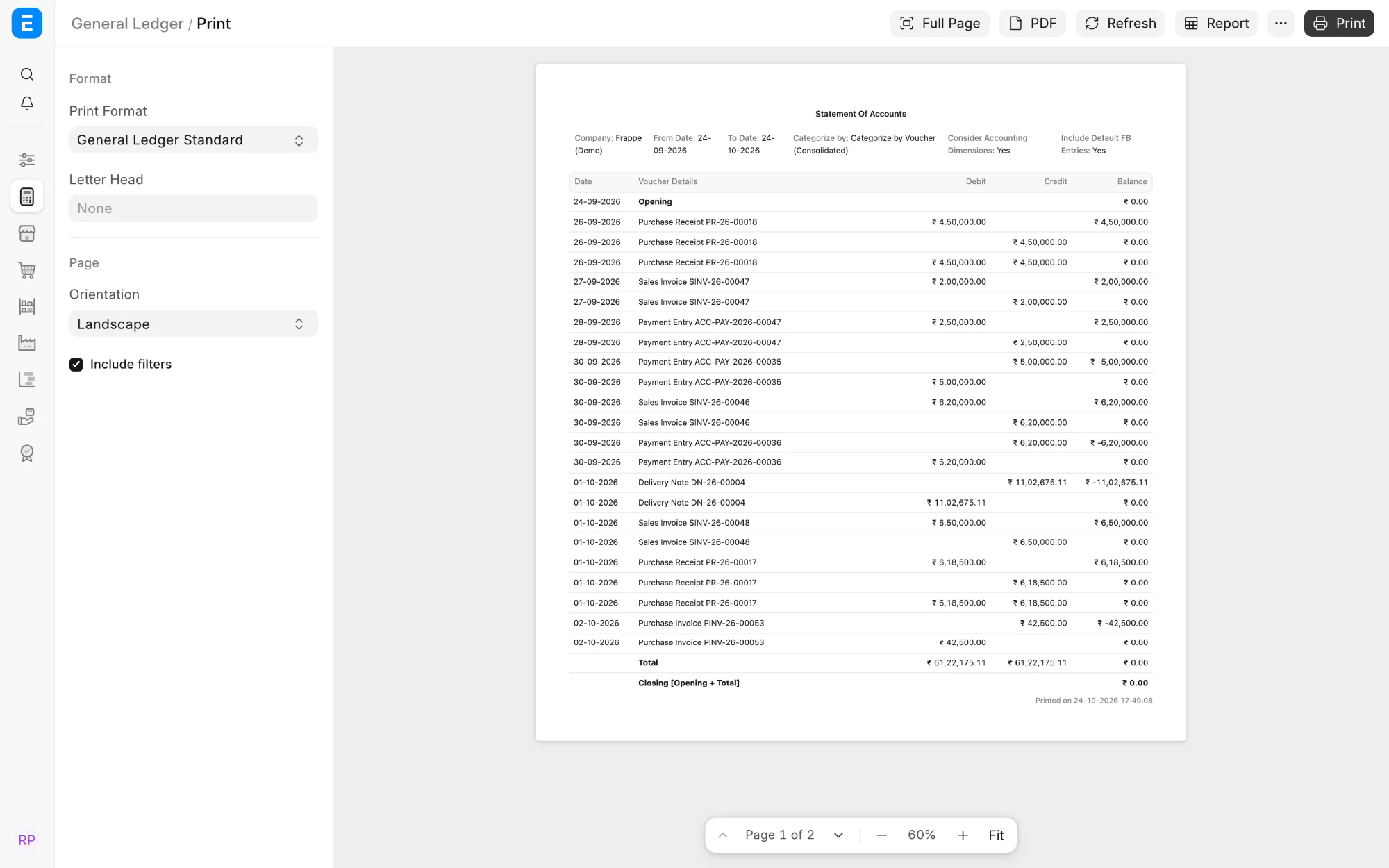
Change the format, letter head or orientation, choose the columns, and the preview updates as you go. Download the PDF from the same page when it looks right.
Report Print Formats
A good preview only helps if there's something worth printing. Most reports printed as the same wide table you see on screen, which works for checking numbers but isn't something you'd send to a customer or hand to an auditor.
So we added ten print formats for the reports people print most. If you've used Tally, many of them will look familiar. Statement of Account prints a party or an account with a running balance, and becomes a Bank Book or Cash Book when you pick a bank or cash account. There are also Bill-wise Pending statements and Balance Confirmation letters for customers and suppliers, Sales and Purchase Registers, Orders Outstanding for both, and a Warehouse Stock Summary.
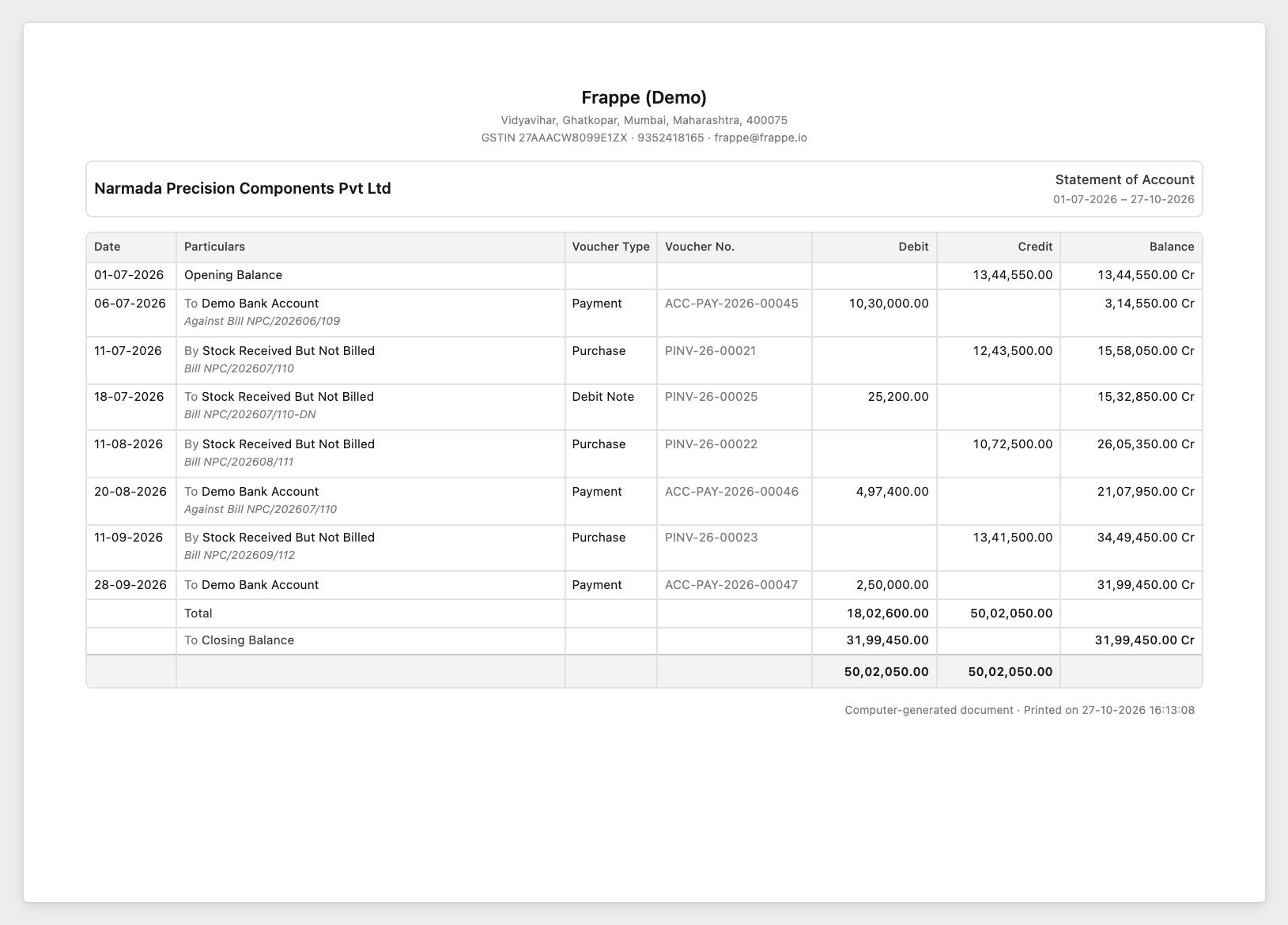
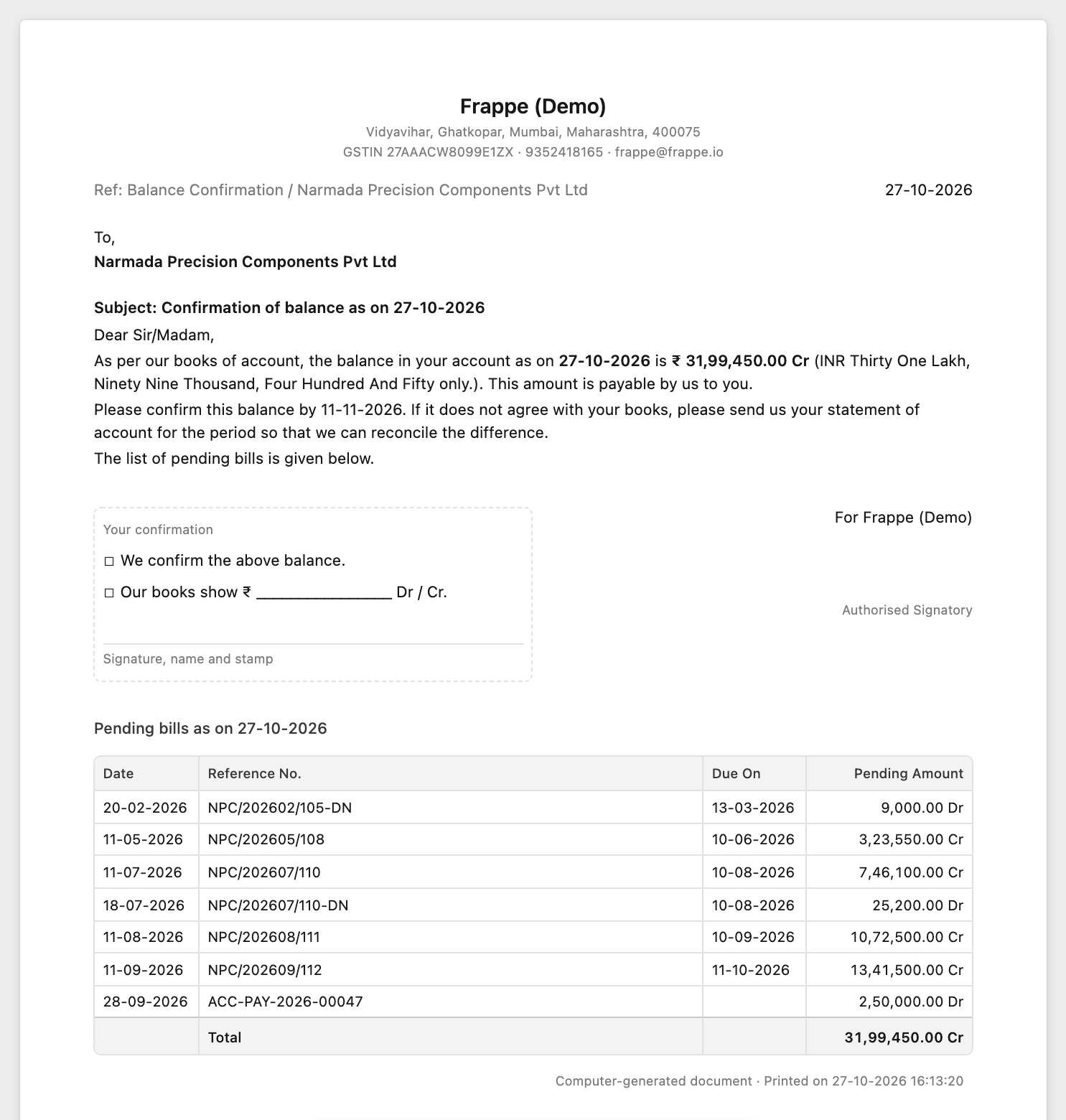
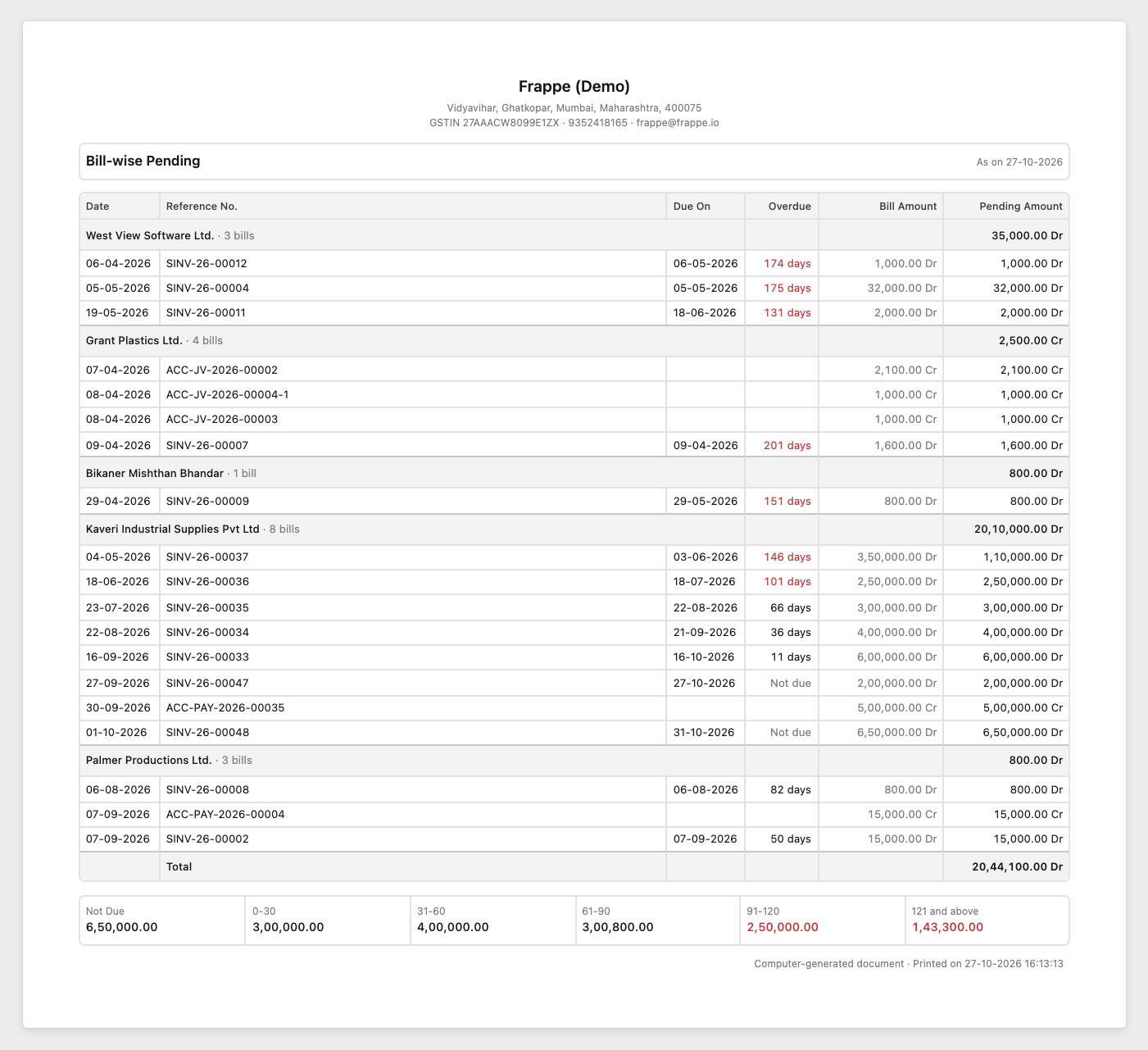
None of the reports' default print formats have changed, so what you print today won't look any different until you pick one of these.
Day Book
If you've moved from Tally, the Day Book was probably one of the first reports you looked for. Now ERPNext has one. It lists every voucher for the day on a single line, with the party or main ledger, the voucher type and number, and the amount under Debit or Credit. It opens on today's date, so it's a quick way to see what was entered.
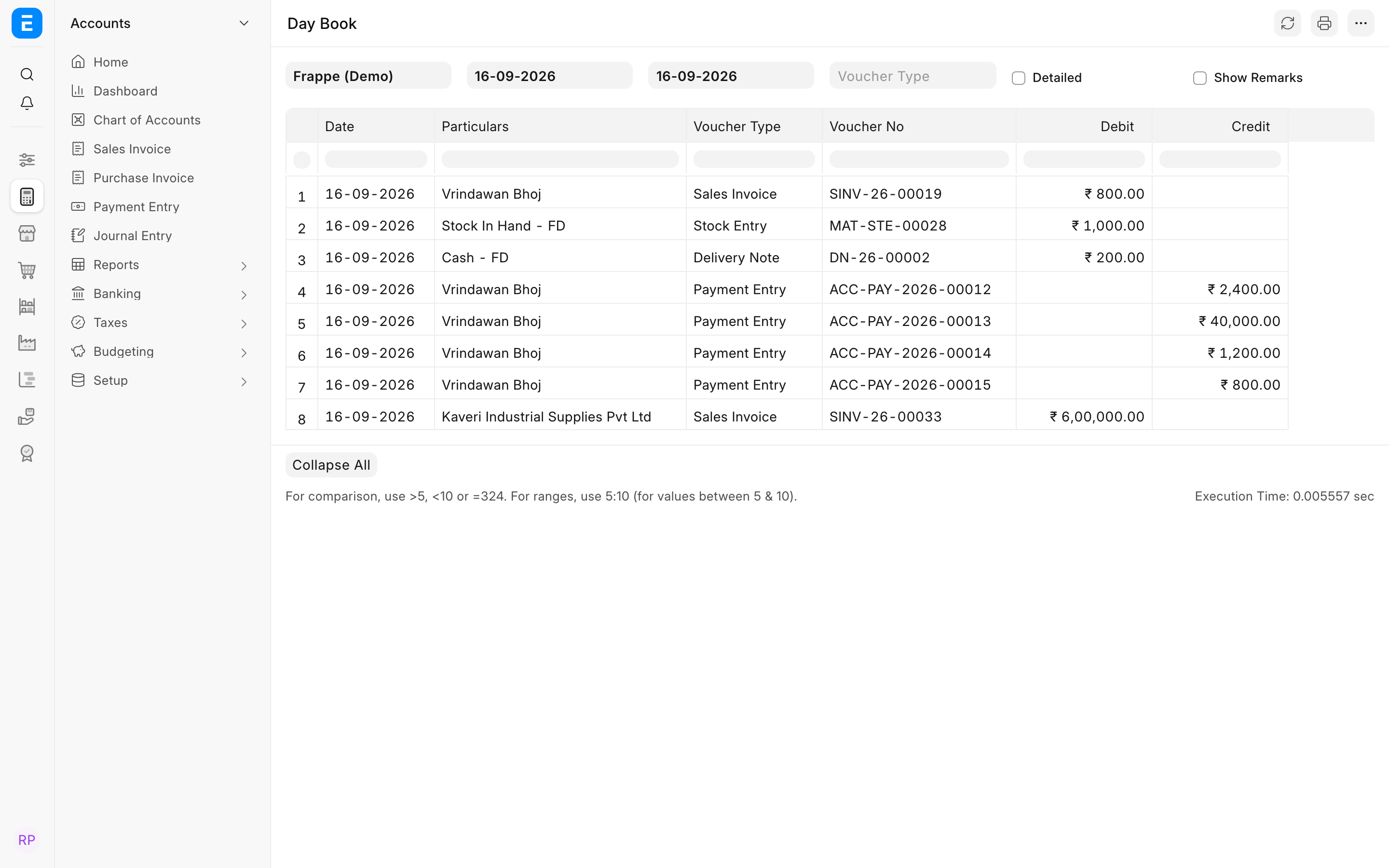
Enable "Detailed" to see the ledger lines inside each voucher, or filter by voucher type if you only want, say, payments. It follows the same rules as the General Ledger, so cancelled entries are left out and people only see what their permissions allow. It also has its own print format, with a total at the bottom when you print a single voucher type.
All of this is available from ERPNext v16.60. Try it on your own customers and suppliers, and let us know what you'd like to see next.

