


September was a heads-down month. No events, no launches, just a long list of things that make the daily work shorter.
CRM learnt to run your follow-ups for you, India Payroll can now file a quarterly TDS return without leaving payroll, and Calendar got the redraw it has needed for a while.
Table of Contents

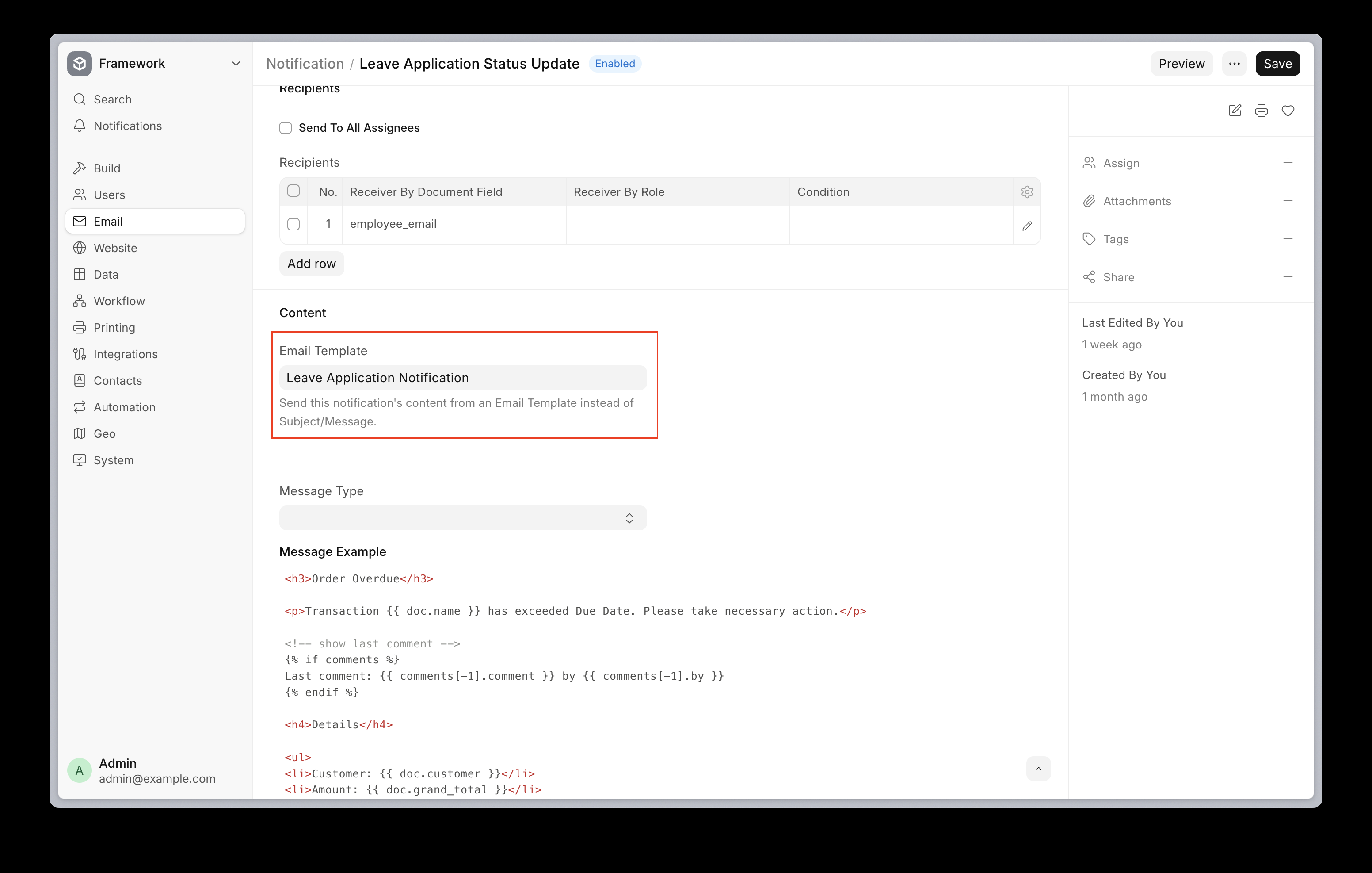
Email Templates in Notification #42950
A Notification can now take its subject and message from an Email Template instead of having the text typed into the notification itself. The template is read every time the notification goes out, so editing the template updates every notification that uses it. Fix a typo once and it is fixed everywhere.


Put a Customer on Hold #59303
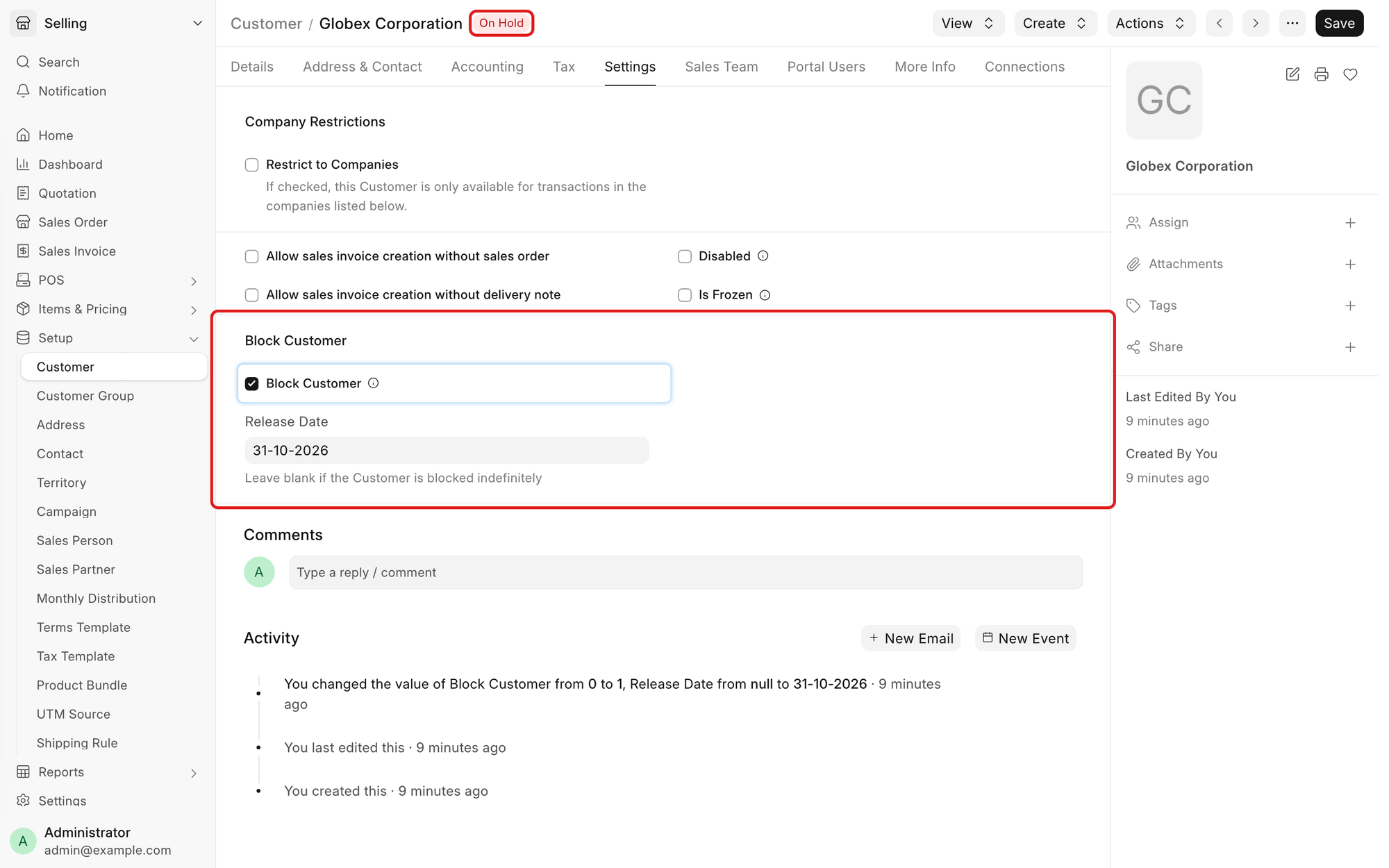
You can now stop new sales documents for a customer until a date you pick. Tick Block Customer on the Settings tab of the Customer and set a Release Date, or leave the date blank to hold them until you clear the check box.
A blocked customer cannot save or submit a Sales Order, Delivery Note, Sales Invoice or POS Invoice. Quotations still work, and so do payments from that customer. The Customer list shows On Hold while the hold is on.
New Versions of a Quotation #59378
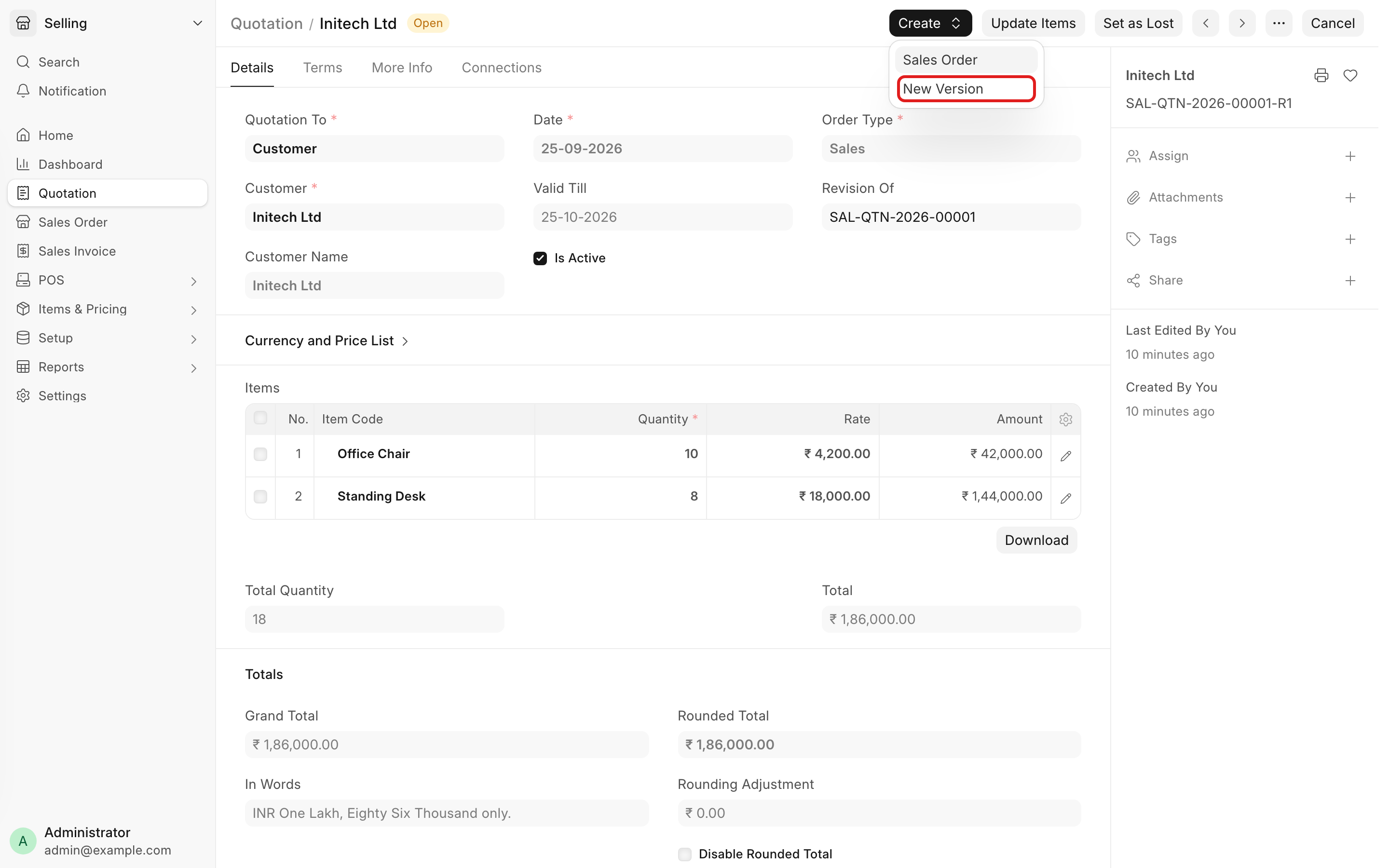
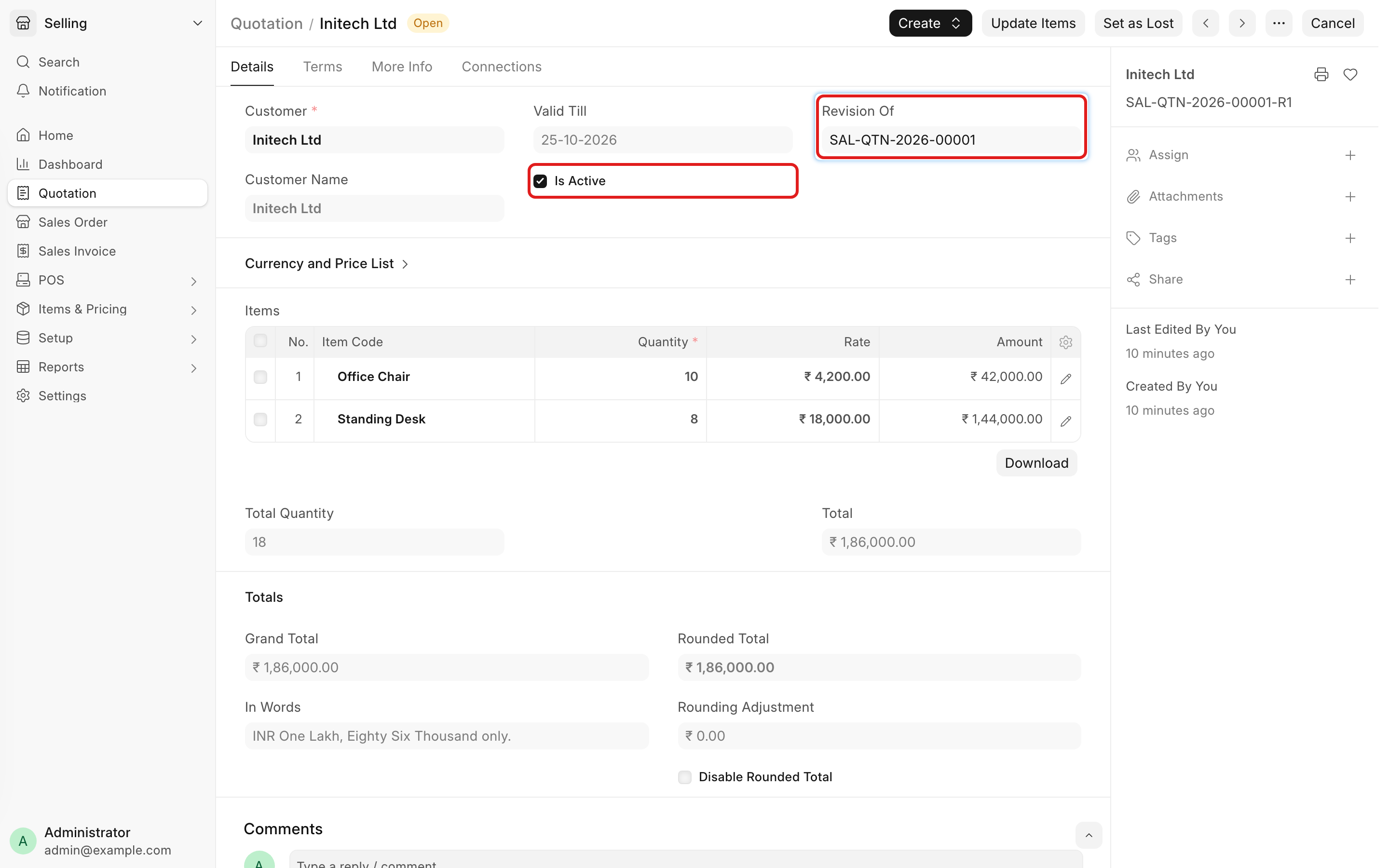
Changing a submitted quotation no longer means cancelling and amending it. Use Create > New Version and you get a draft named <original>-R1, then -R2, and so on, keeping the original name.
Submitting a version marks the others Inactive, and you cannot raise a Sales Order or Sales Invoice from an inactive one. A new version has to keep the company and the party of the original, and Set as Lost on any version marks them all Lost.
Close Blanket Orders and Their Items #59341
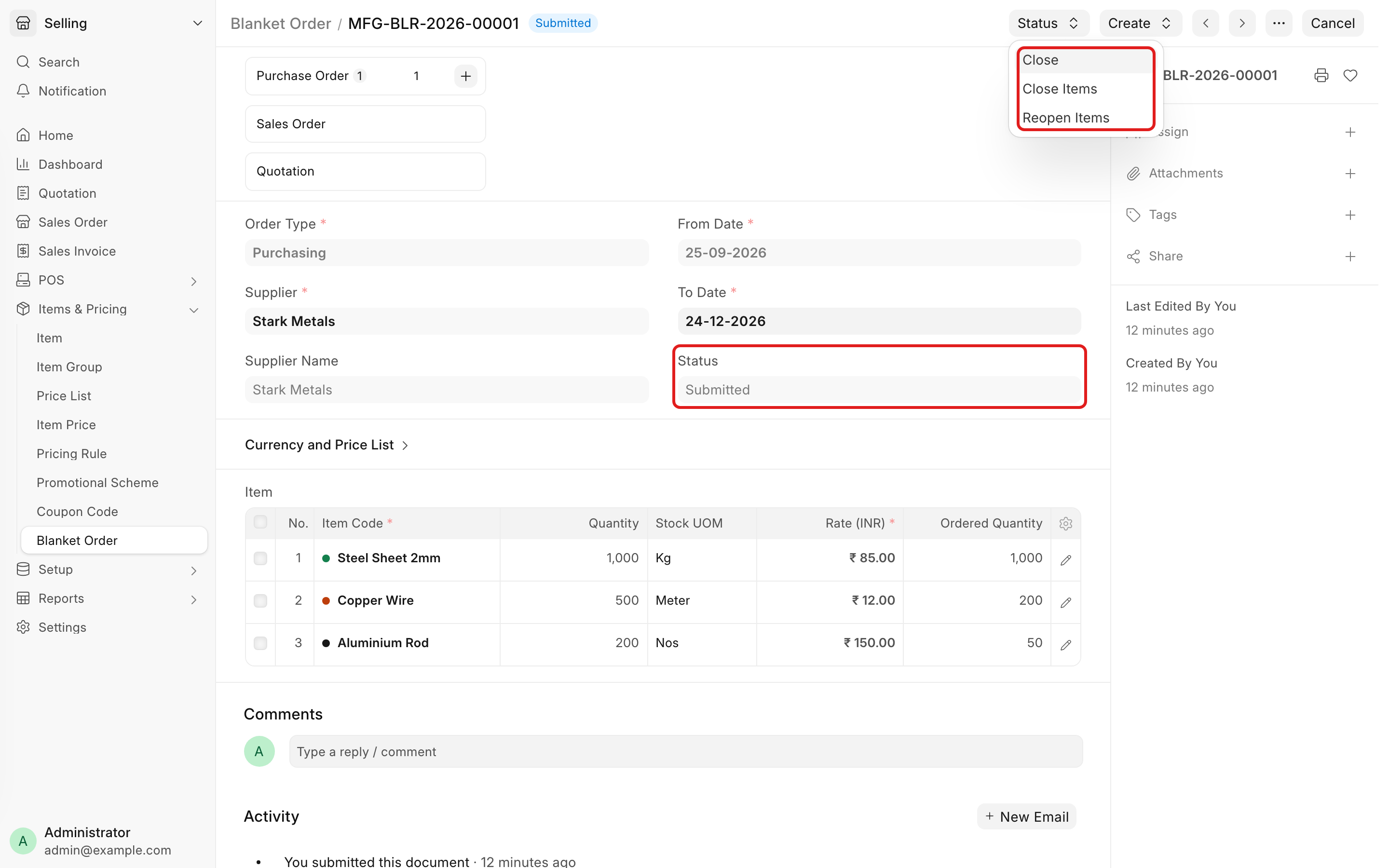
A Blanket Order now has a status: Draft, Submitted, Closed or Cancelled. Use Status > Close to stop new orders against it and Status > Re-open to allow them again.
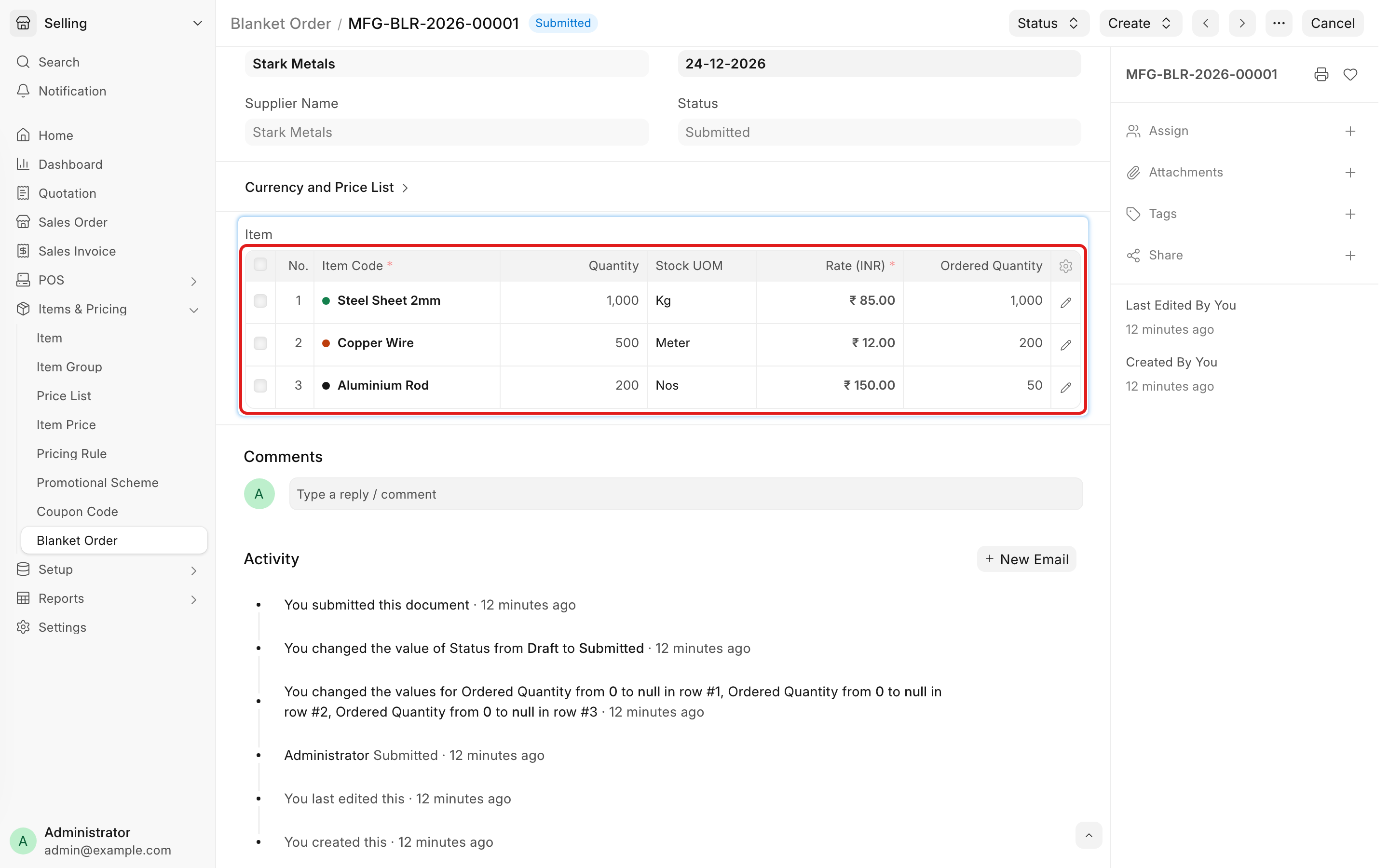
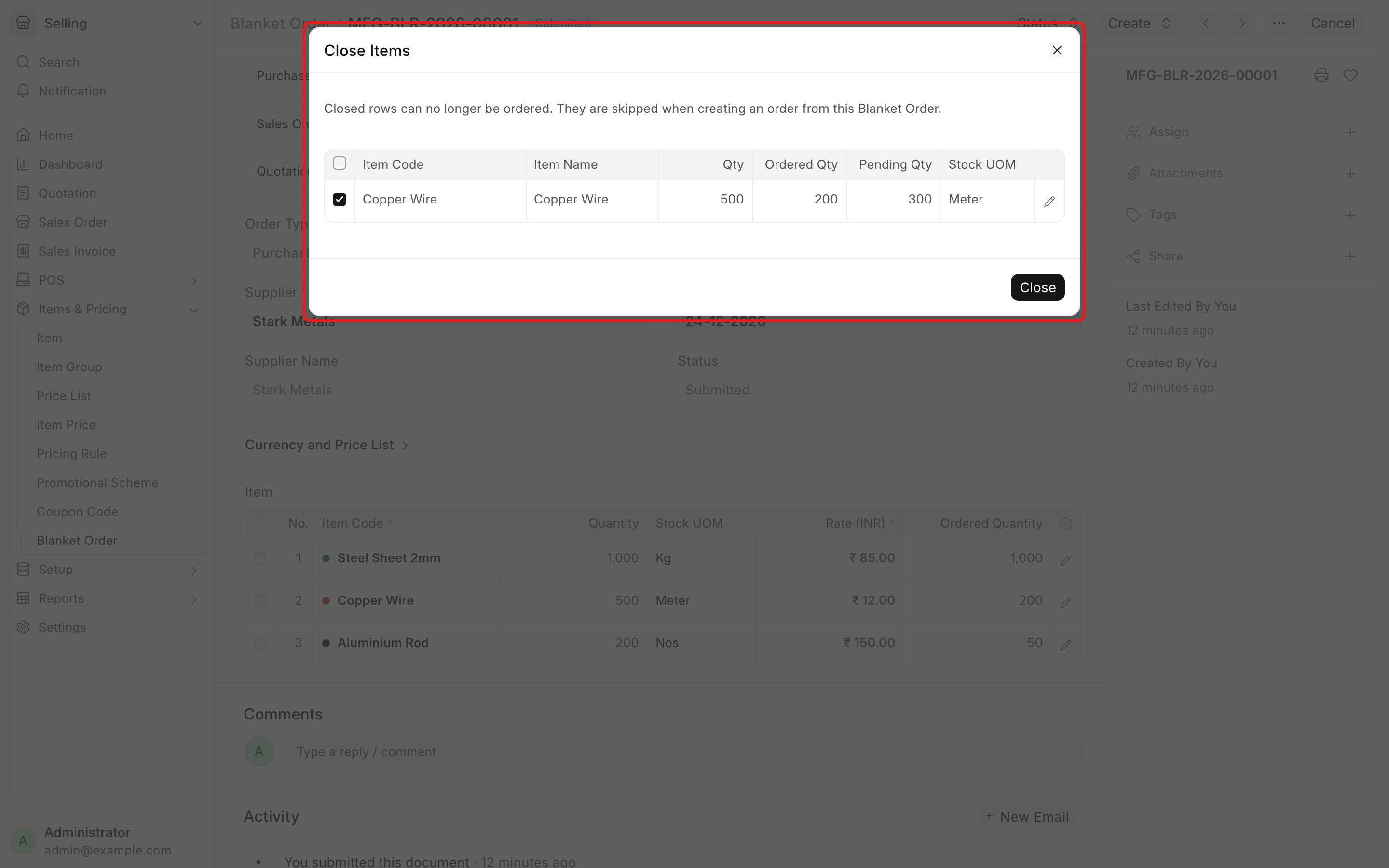
Single rows can be closed too, through Status > Close Items, as long as part of the row's quantity is still unordered (#59343). Close every row and the Blanket Order closes itself; reopen one and it reopens. Row colours show where each one stands: green is fully ordered, orange has quantity pending, grey is closed.
Serial and Batch Wise Stock Balance #59321
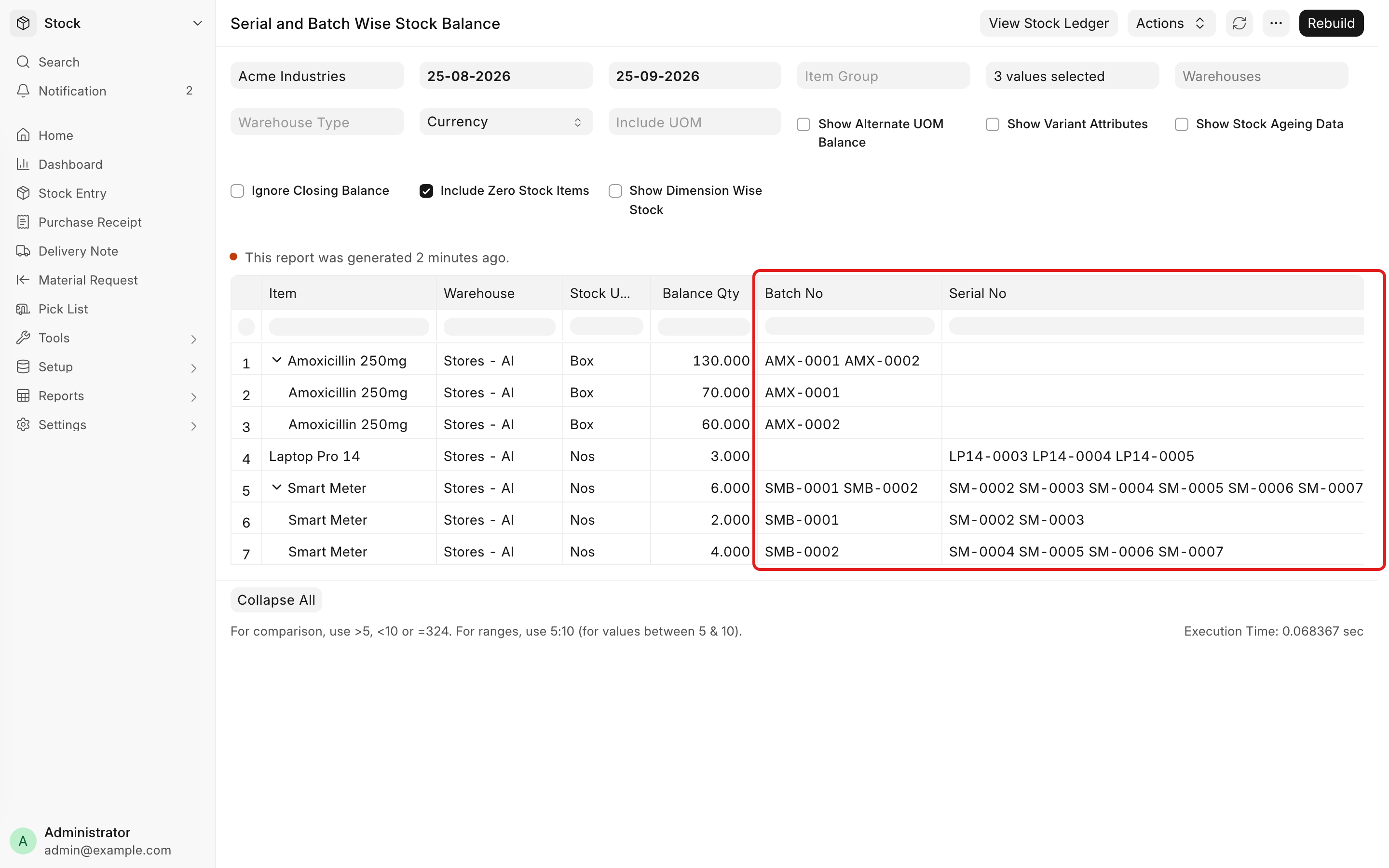
A new report shows the stock balance of each item along with the batches and serial numbers actually in stock. It takes the same filters as Stock Balance.
Expand an item to get a row per batch with its opening, in, out and balance quantity and value, and the serial numbers in that batch. The batch quantities add up to the item row. The report does not read Stock Closing Entries, because those do not store serial numbers, and it tells you when one exists.
Subcontracting Inward Reports #59395
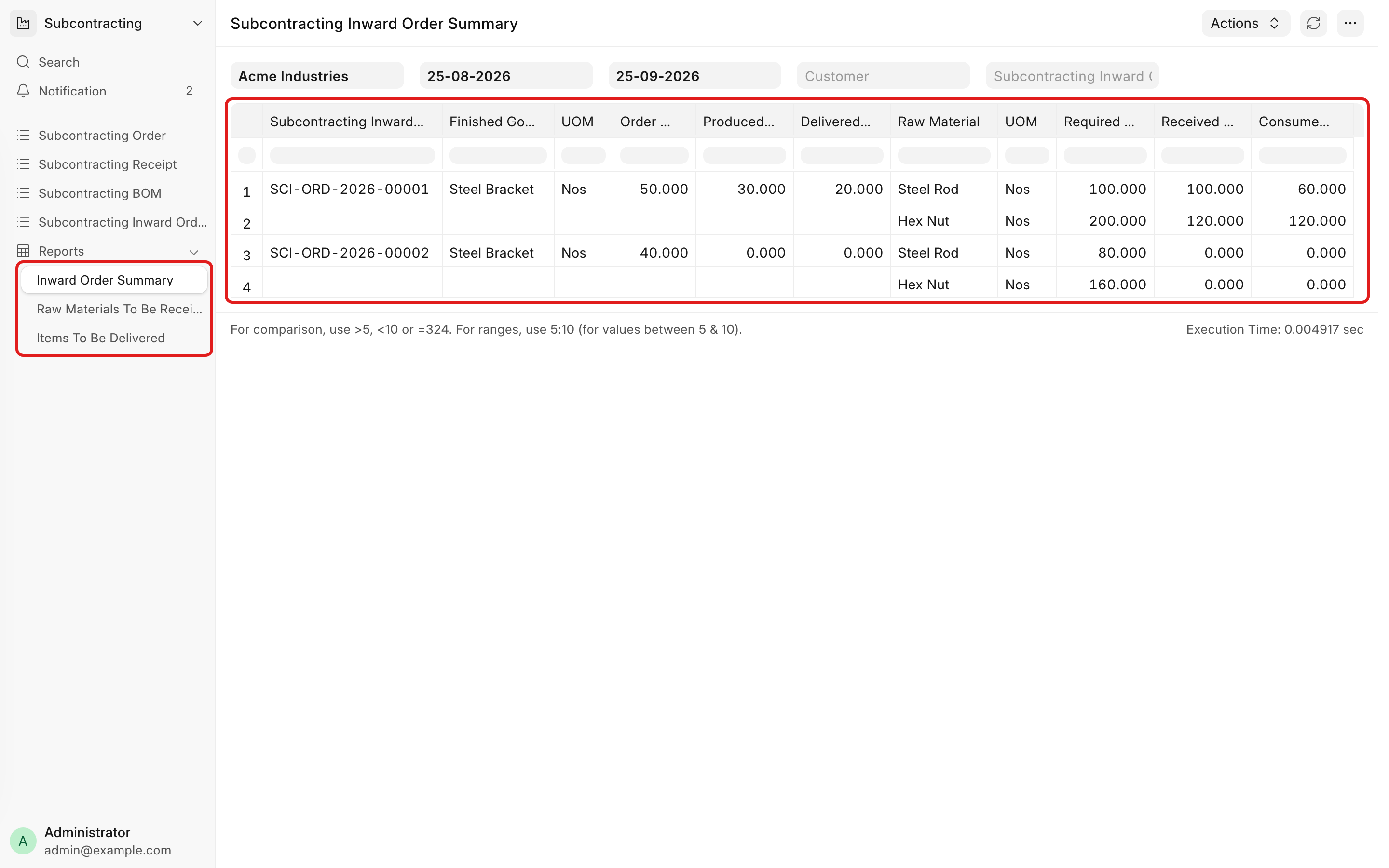
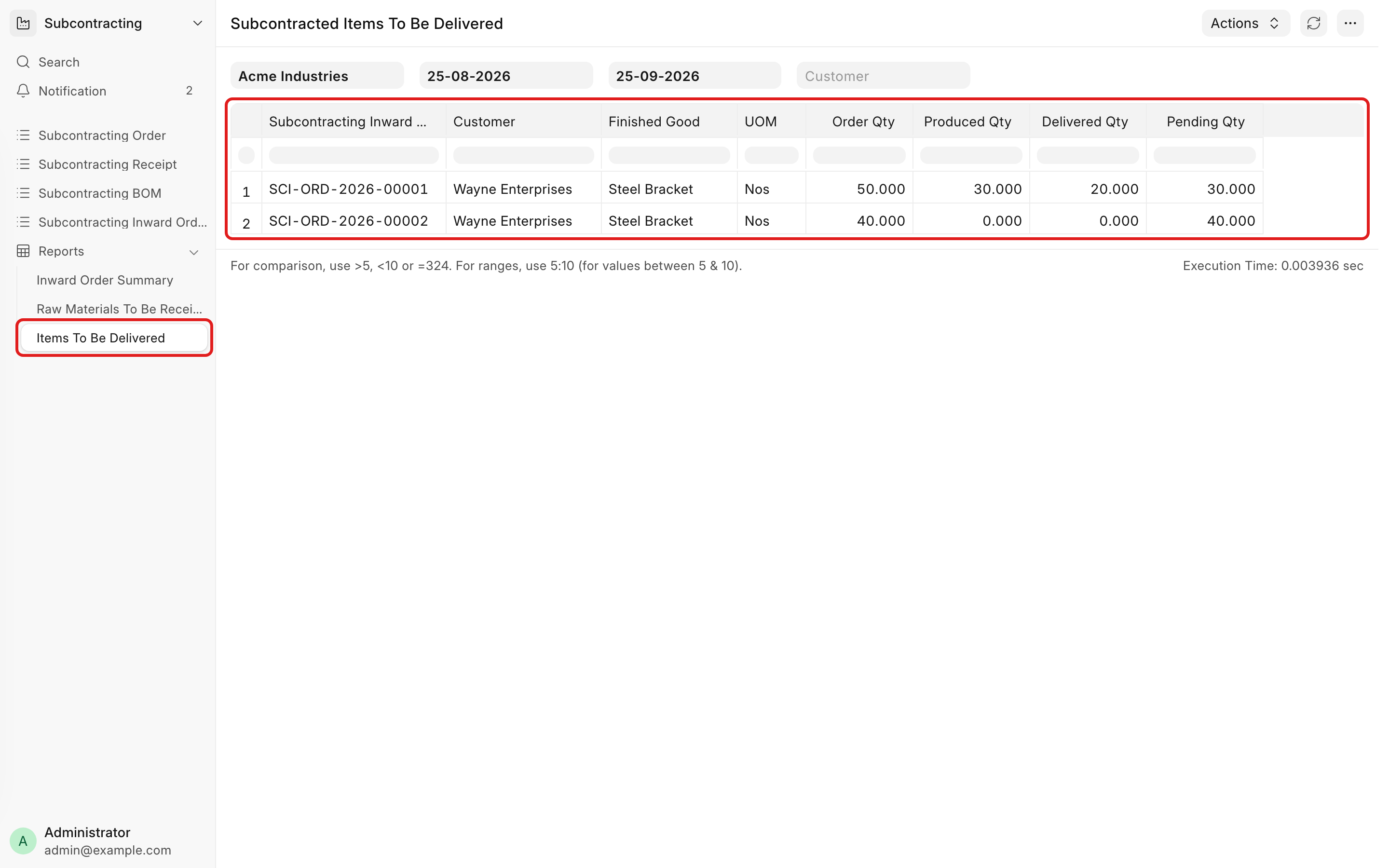
Three new reports for Subcontracting Inward Orders, the ones where a customer sends you materials to make their goods.
- Subcontracting Inward Order Summary shows ordered, produced, delivered and returned quantities per finished good, plus the customer materials received, consumed and returned.
- Subcontracted Raw Materials To Be Received lists customer materials still pending on open orders.
- Subcontracted Items To Be Delivered lists finished goods you have not delivered yet.
They sit in the Reports group in the Subcontracting sidebar.

Use Serial No Wise Valuation #59082
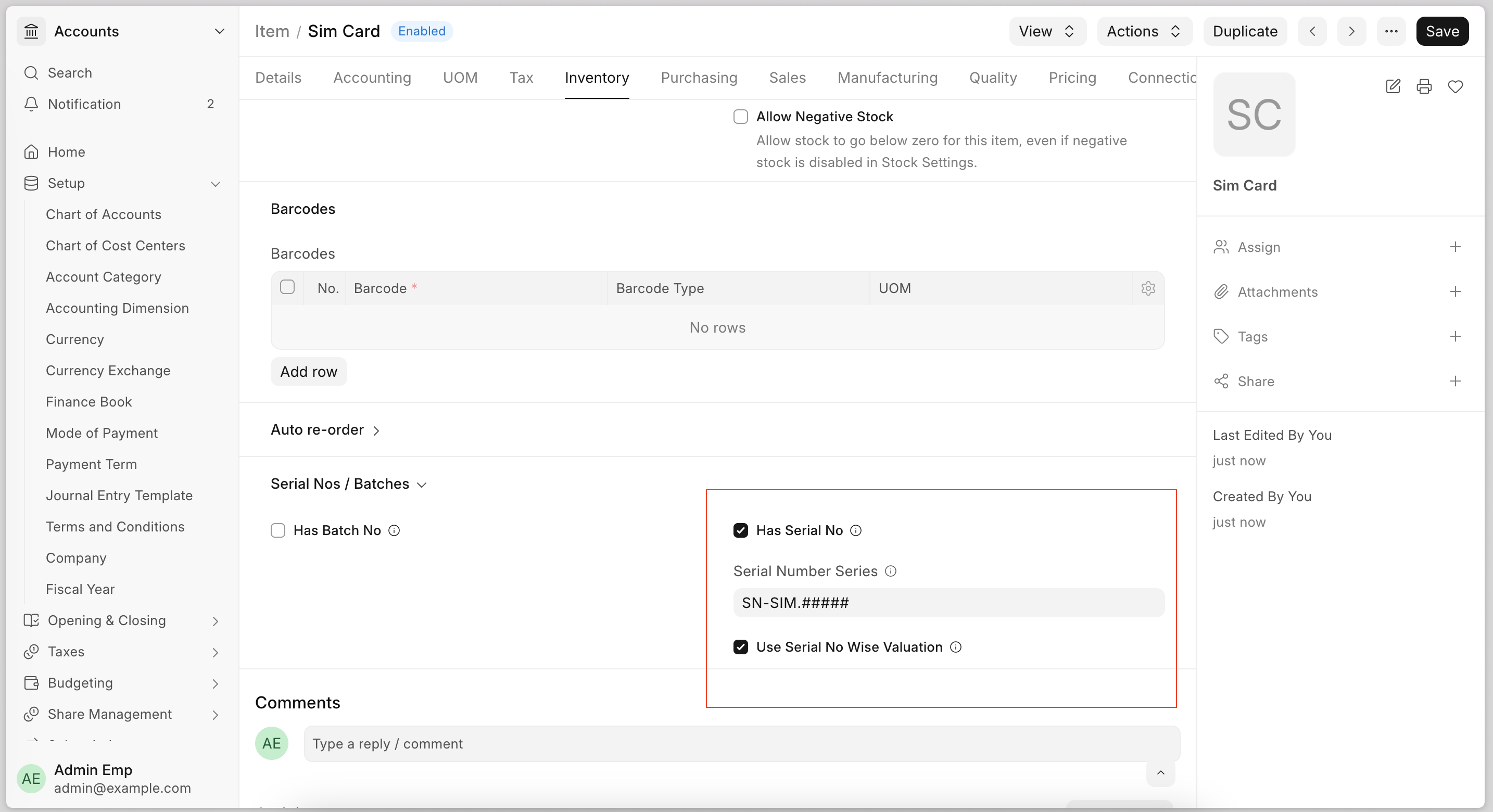
Serial number wise valuation used to be implicit. It is now a Use Serial No Wise Valuation check box on the Item, so you can turn it off where you do not need it.
It is worth turning off when the count is large. A telecom company holding millions of SIM cards rarely needs the valuation of each card, and valuing every serial number slows stock reposting badly. With the box cleared, the item falls back to Item and Warehouse wise Moving Average. A company selling a few high value set-top boxes, on the other hand, probably does want each box valued on its own, so it keeps the box ticked.
If serial numbers already exist and the box is cleared, the valuation method is forced to Moving Average. Otherwise you can set FIFO, LIFO, Moving Average or, from v17, Standard Cost.
Note: this is available in version 16.
Repost GL Entries from a Report #59127
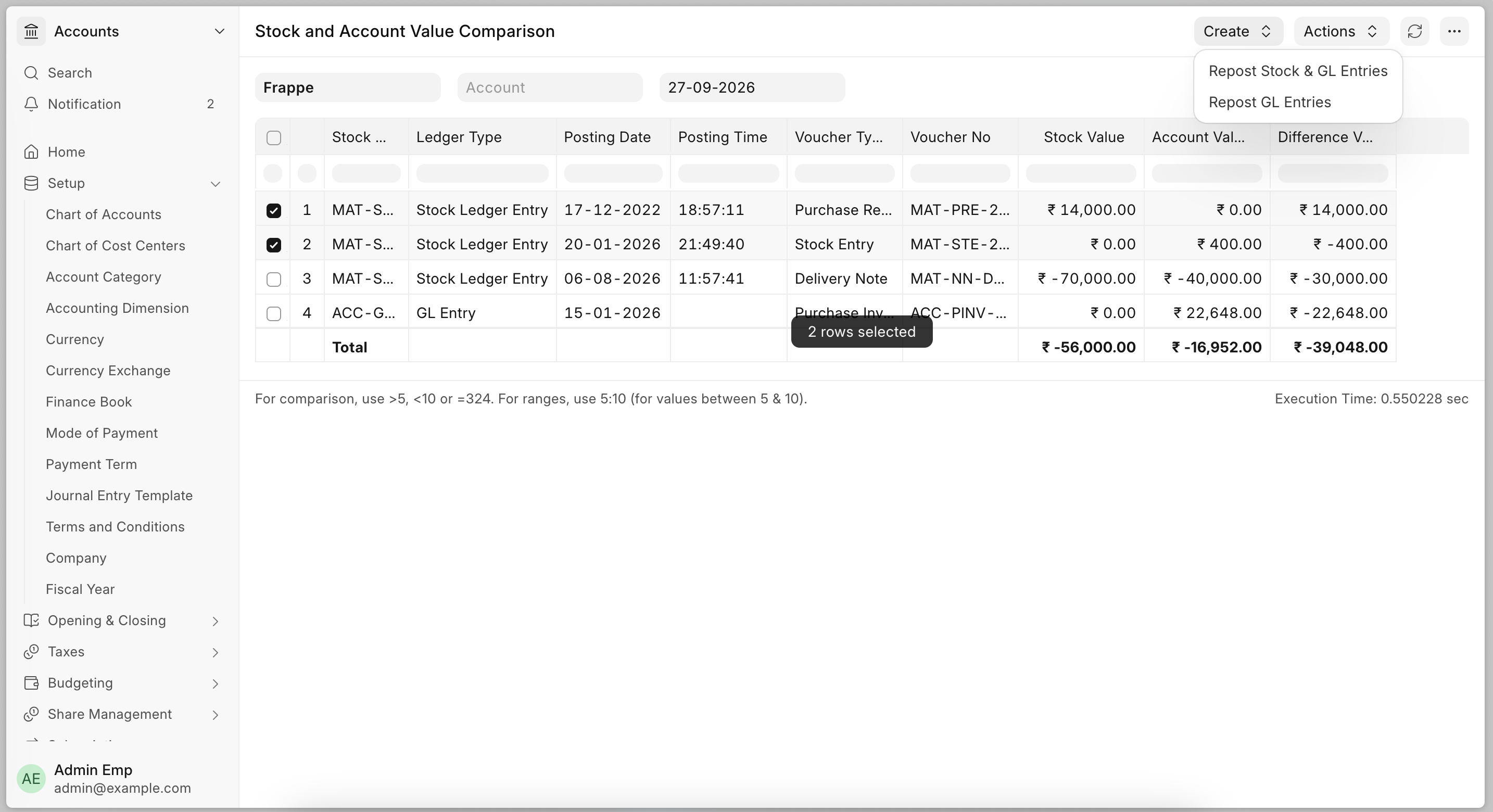
When the Stock and Account Value Comparison report shows correct Stock Ledger values but wrong GL entries, reposting everything was the only option, and that reposts the Stock Ledger too. There is now a separate button that reposts only the GL entries, which is much faster. It is also the one to use after changing a warehouse's inventory account.
Note: this is available in version 16.
Reposting on Large Sites #59117
A backdated stock entry makes ERPNext recalculate the stock value of every affected transaction after it. Reposting used to load all of them into memory at once. On a large site that can be a million transactions at roughly 3.5 KB each, which is several GB of RAM, and when the server ran out the operating system killed the job and left stock values wrong.
Reposting now works through 500 ledgers at a time, and leftover data that used to pile up during a repost is cleaned as it goes.
Never Skip Patches Hook #42961
bench migrate --skip-failing keeps going when a patch fails and marks it skipped. That is fine for most patches, but some of them move data, and skipping those quietly leaves the site wrong.
Apps can now list the patches that must never be skipped:
never_skip_patches = ["app.patches.v16_0.critical_data_fix"]
If one of those fails, the migration stops.

Consolidated Receivable and Payable Reports #59481
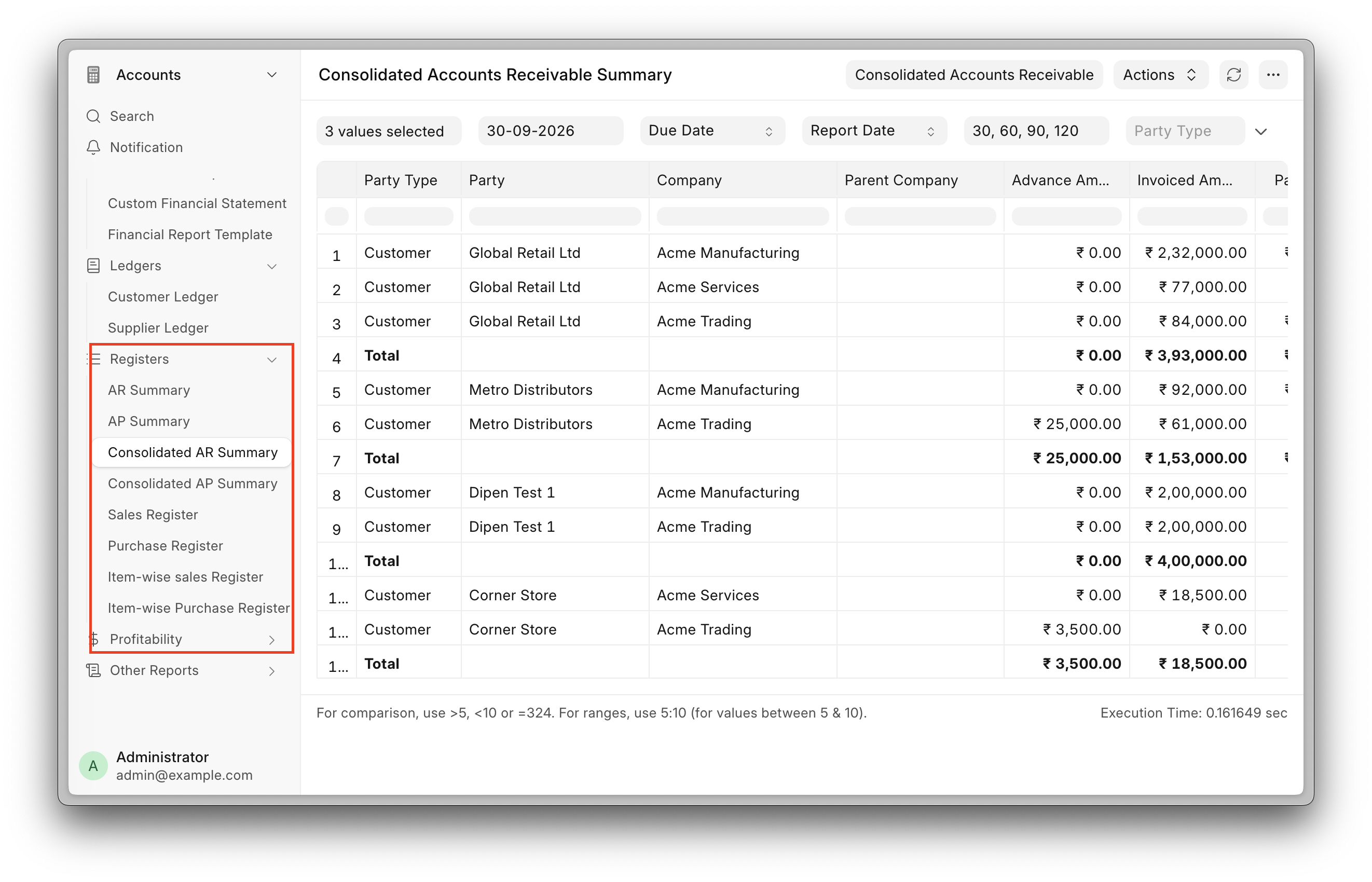
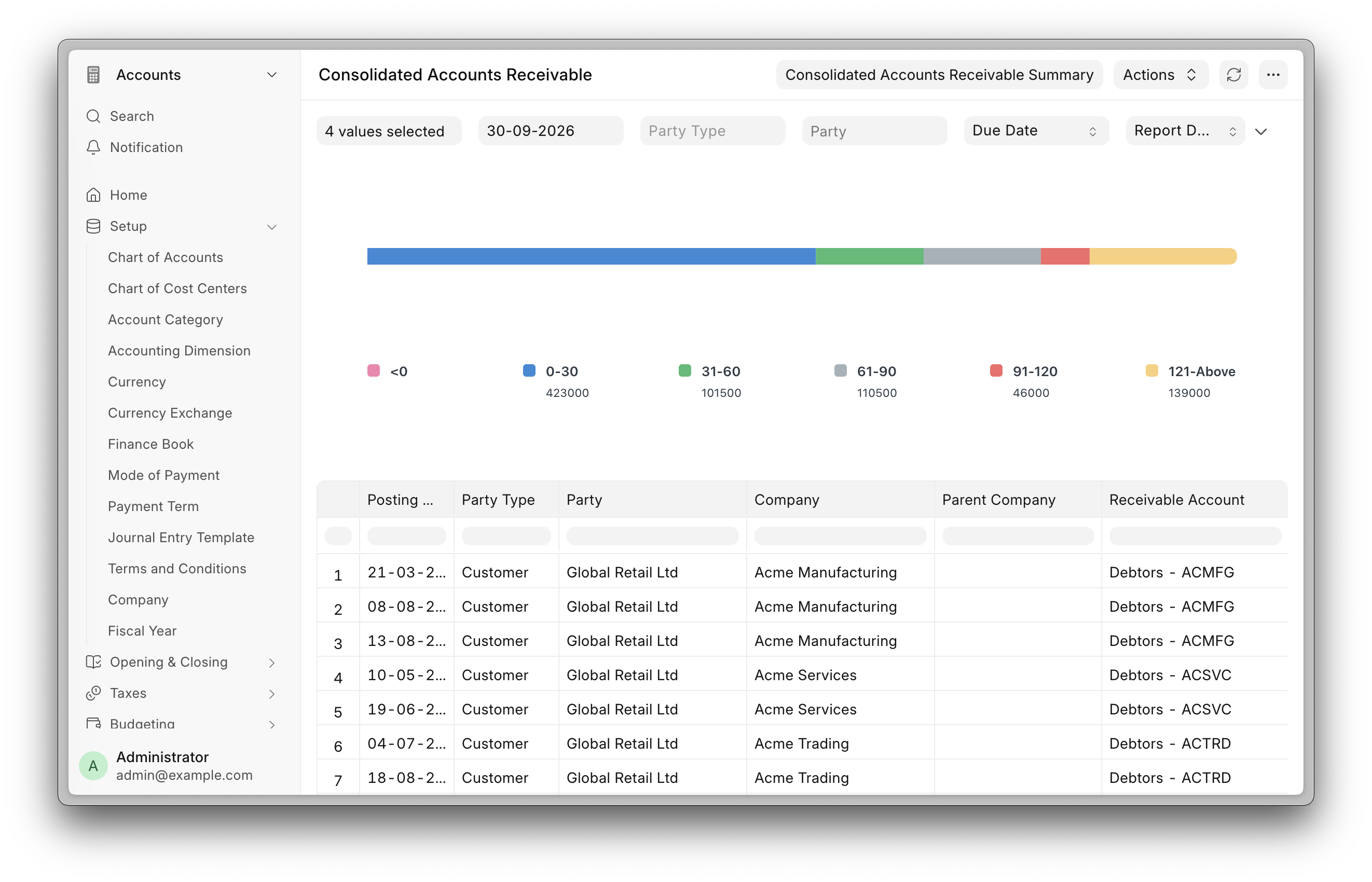
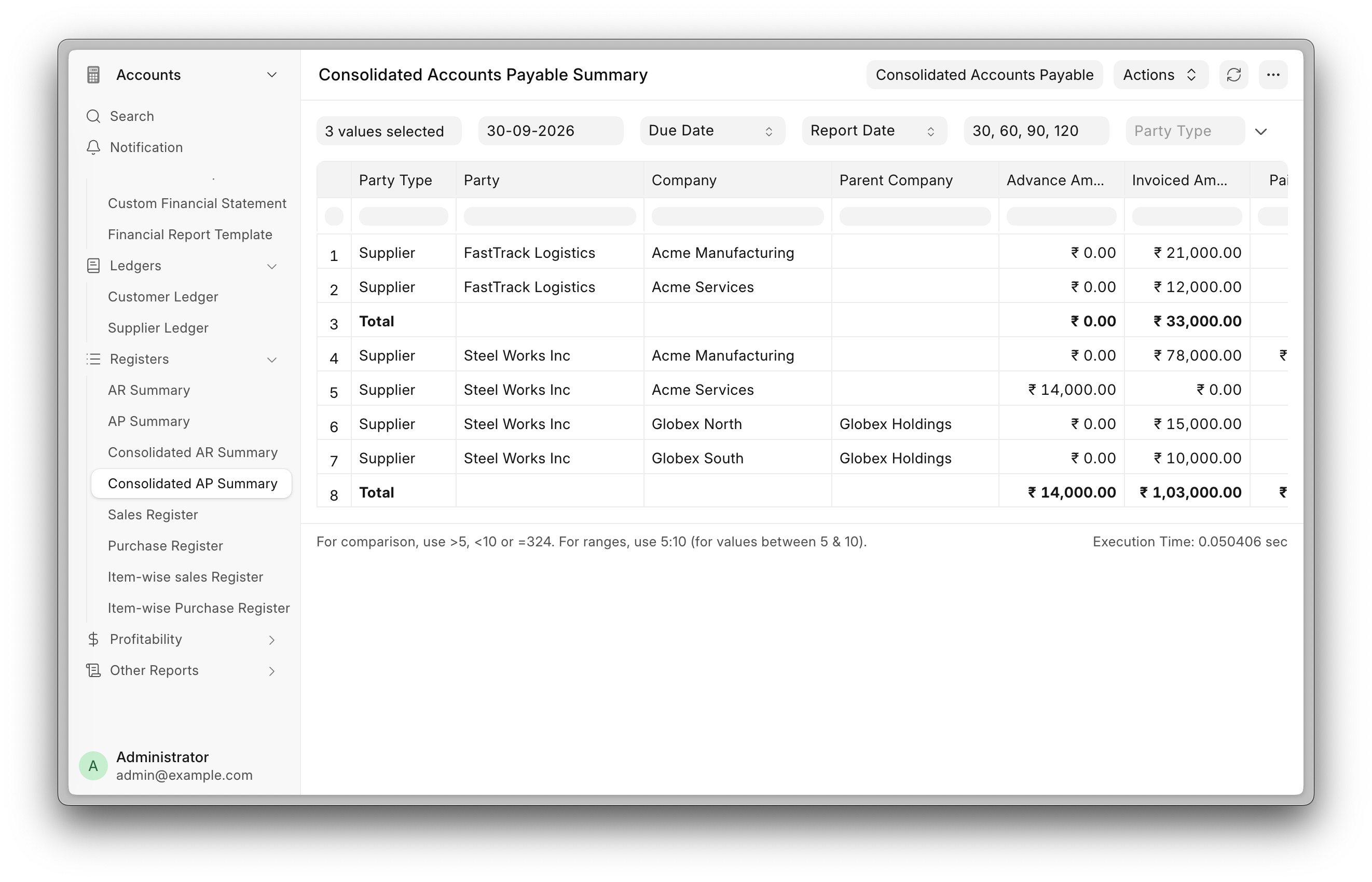
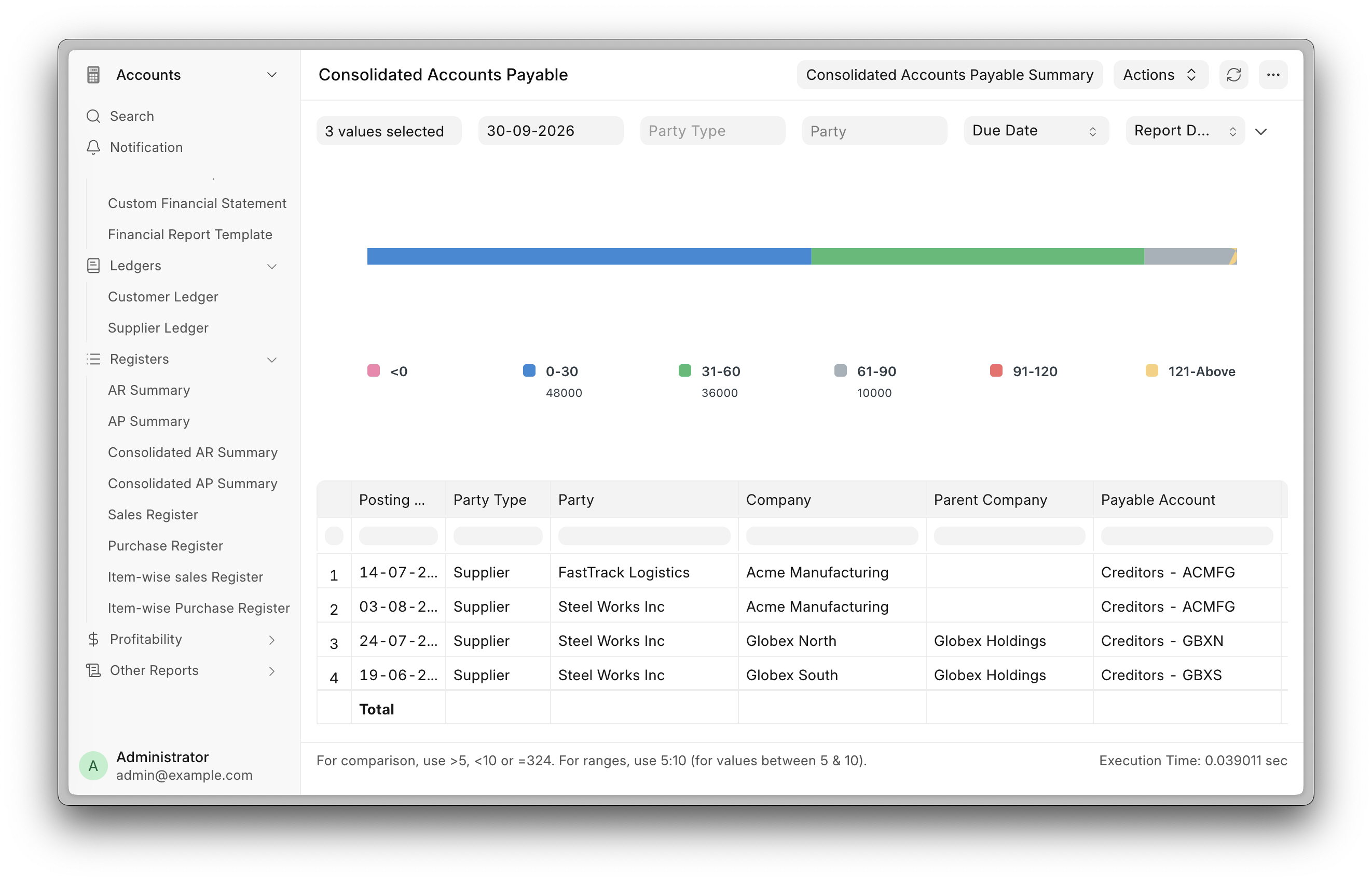
Four new reports show what a party owes you, and what you owe them, across several of your companies at once. The companies do not have to be related.
- Consolidated Accounts Receivable and Consolidated Accounts Payable list each party's open invoices with the company every invoice belongs to. Group the rows by party or by company.
- Consolidated Accounts Receivable Summary and Consolidated Accounts Payable Summary give one row per company per party, then that party's total across them (#59482).
Pick the companies in the Companies filter; choosing a group company pulls in everything under it. Totals are dropped when the selected companies use different currencies, since unlike currencies cannot be added. The summary reports are in the Registers group in the Accounts sidebar, and each links through to its detailed version.


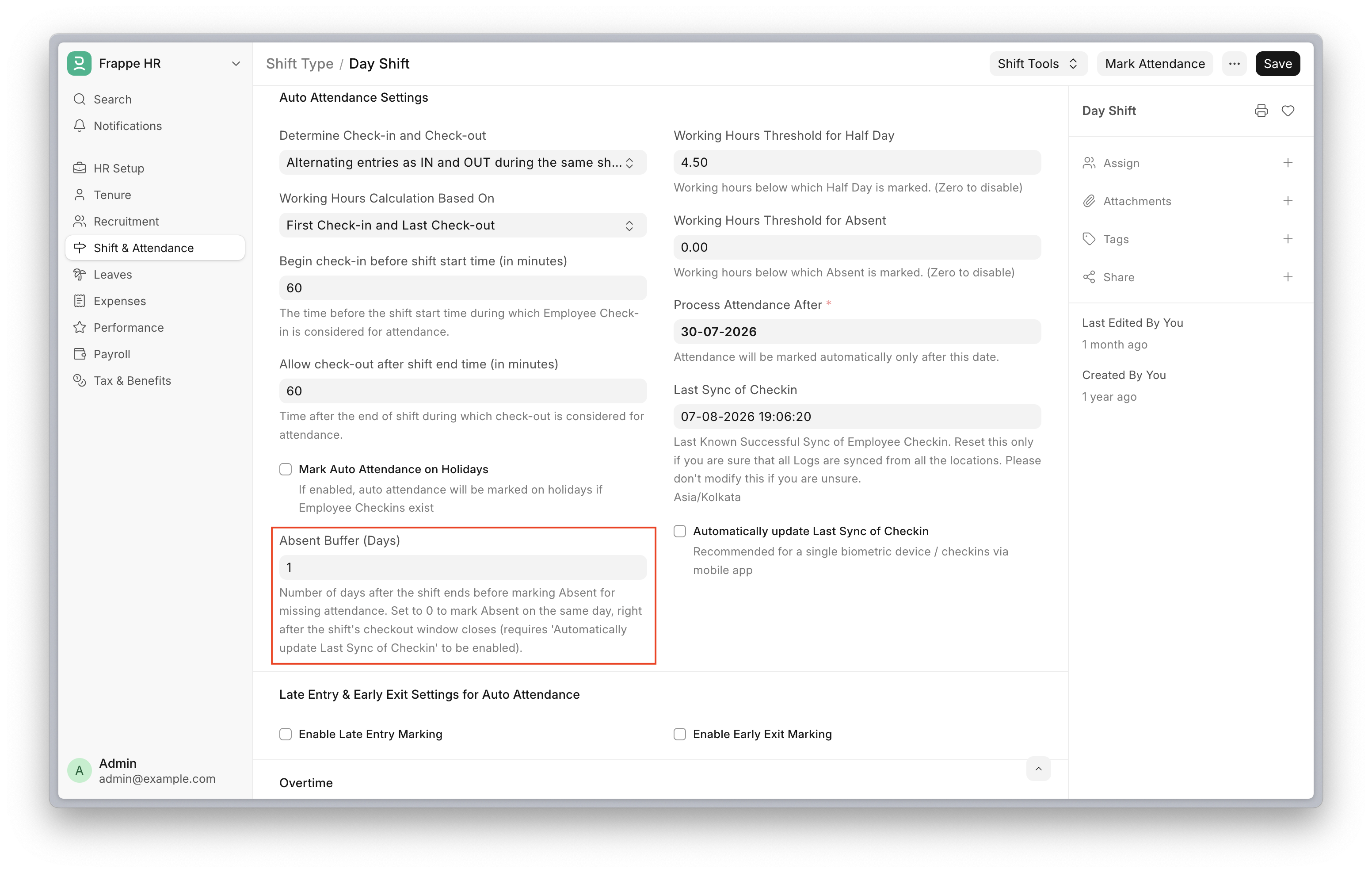
Mark Absent on the Same Day #5083
Auto attendance always waited until the next day to mark someone Absent, even when their shift had ended hours earlier. Shift Type now has an Absent Buffer (Days) field. Set it to 0 to mark Absent the same day, or higher if your team needs longer to sort out missed check-ins. It defaults to 1, so nothing changes until you change it. Same-day marking needs Automatically update Last Sync of Checkin switched on.
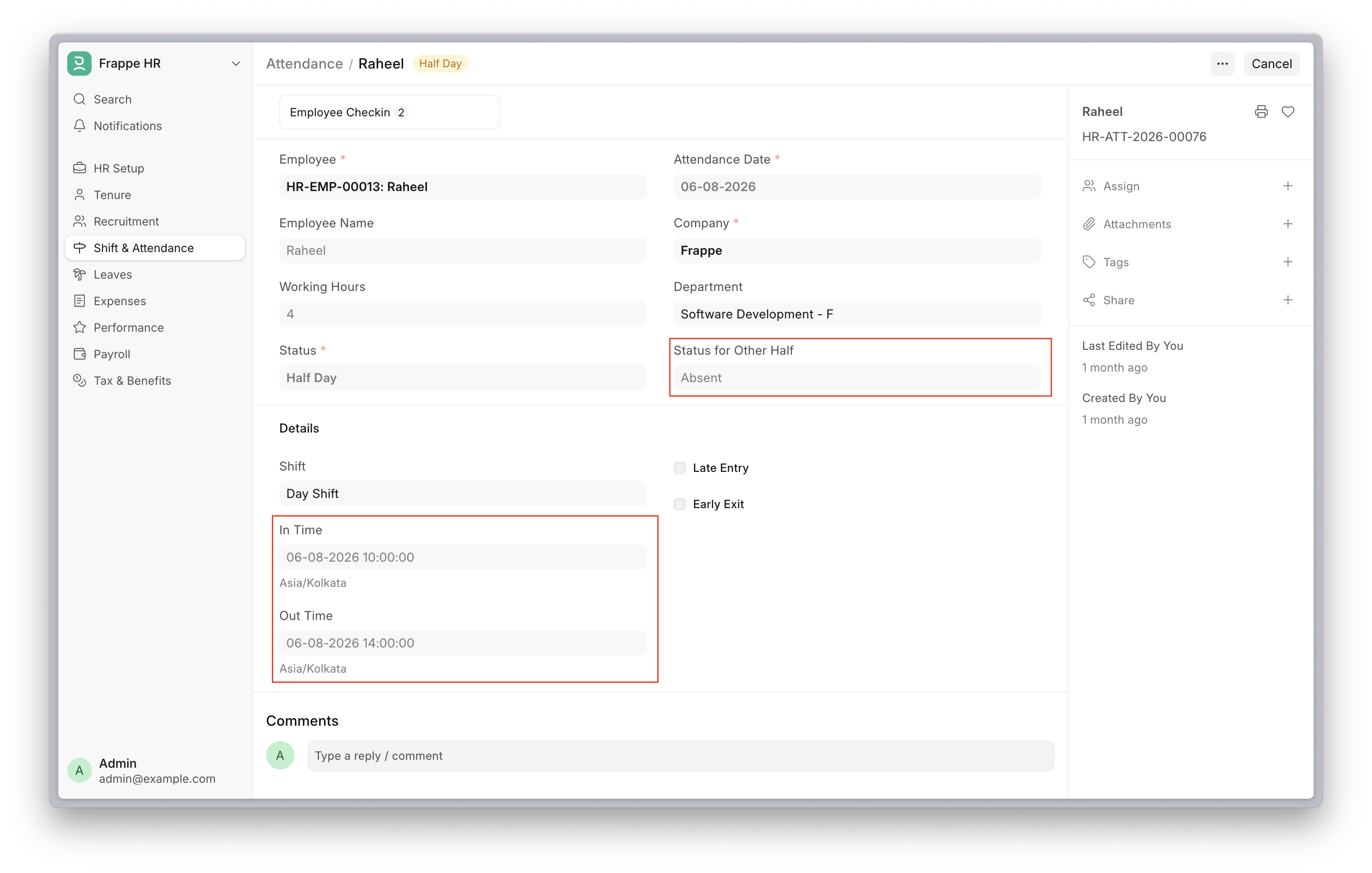
Half Day Attendance #5297
When someone took a half day leave and checked in for the other half, auto attendance could mark that half day Absent before the shift had even ended. Their check-ins then arrived too late to change it and the day stayed Absent. Half days are now closed only once the shift is over.
Daily Work Summary Deprecated
Daily Work Summary is gone from develop, along with Daily Work Summary Group, the Team Updates page and the Daily Work Summary Replies report. v16 shows a deprecation notice in all of them, so it will not be part of the next major release.
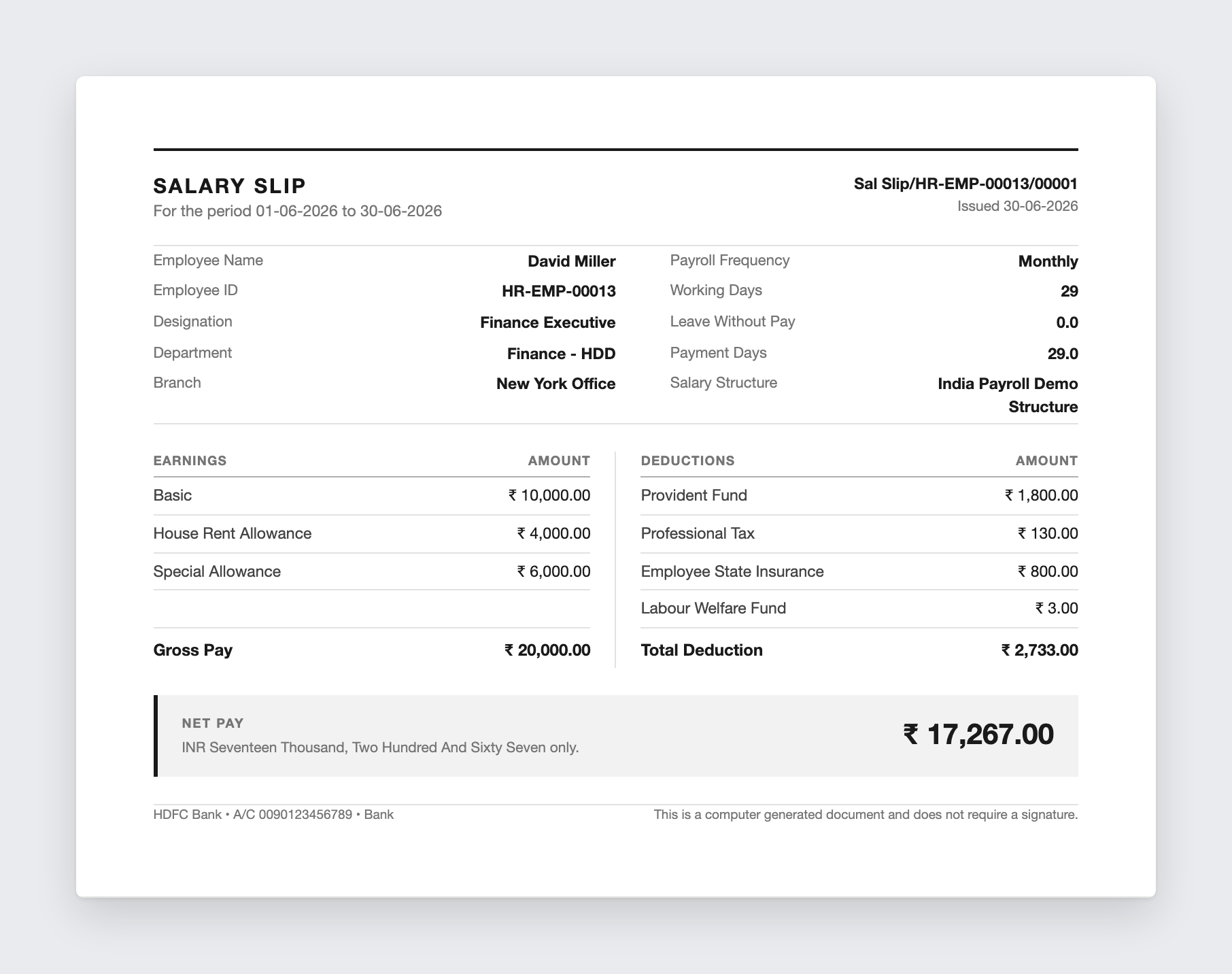
New Print Formats for Salary Slips #5183
The salary slip formats HR shipped were all built in the Print Format Builder, which cannot express a net pay band, a year-to-date column or an attendance breakdown. Three new formats, written as Jinja, cover the layouts people were rebuilding by hand anyway.
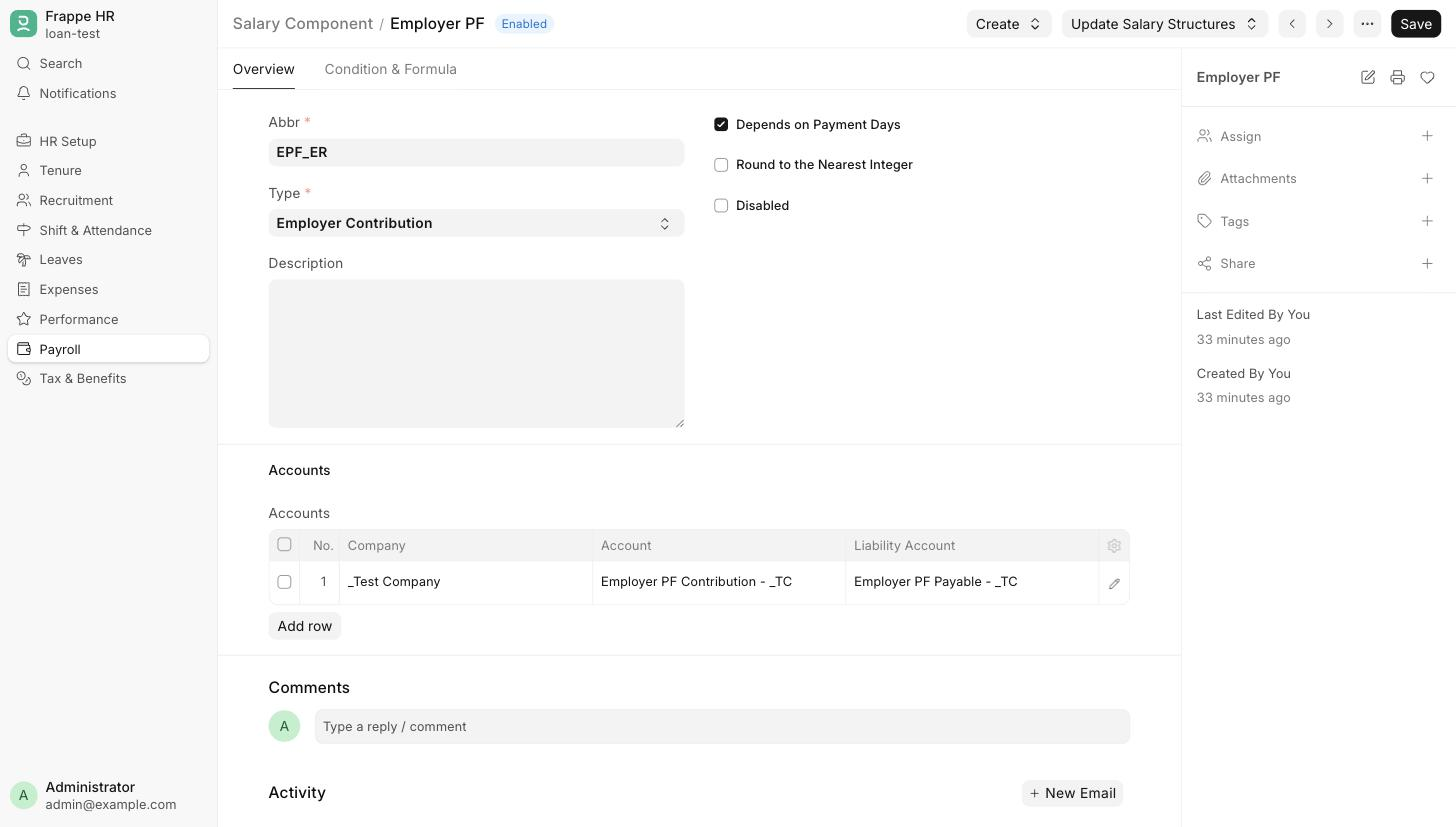
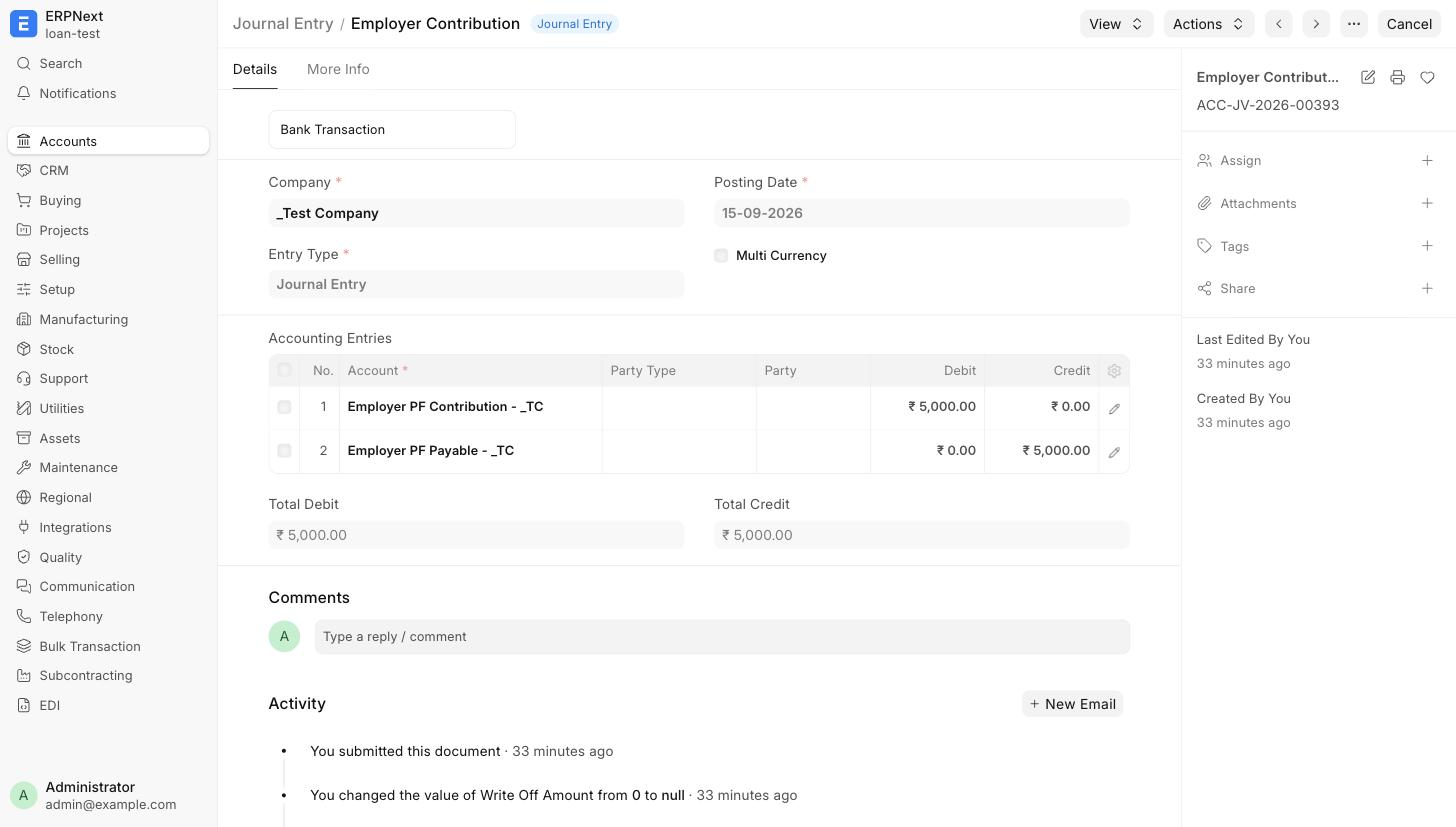
Accounting for Employer Contributions #5271
Employer Contribution salary components passed no accounting entry at all. They now get their own Journal Entry.
India Payroll Files Your Quarterly TDS Return
India Payroll can now file Form 24Q from inside the system. Every deduction already sits on the salary slip, so the return builds itself from payroll, reconciles against the challans you deposited, and goes to the department through the Sandbox API. No exports, no separate return preparation utility, no re-keying deductee data.
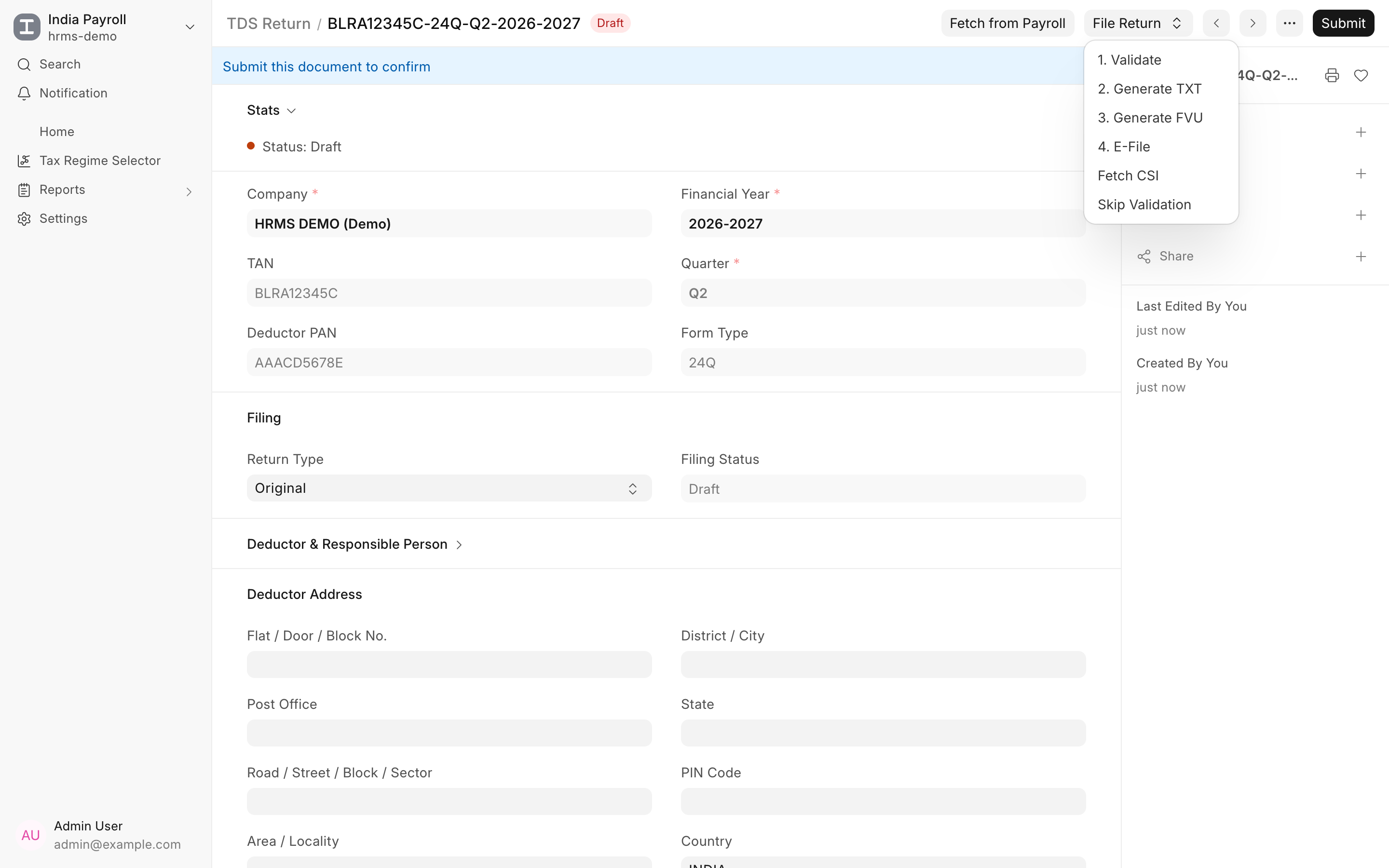
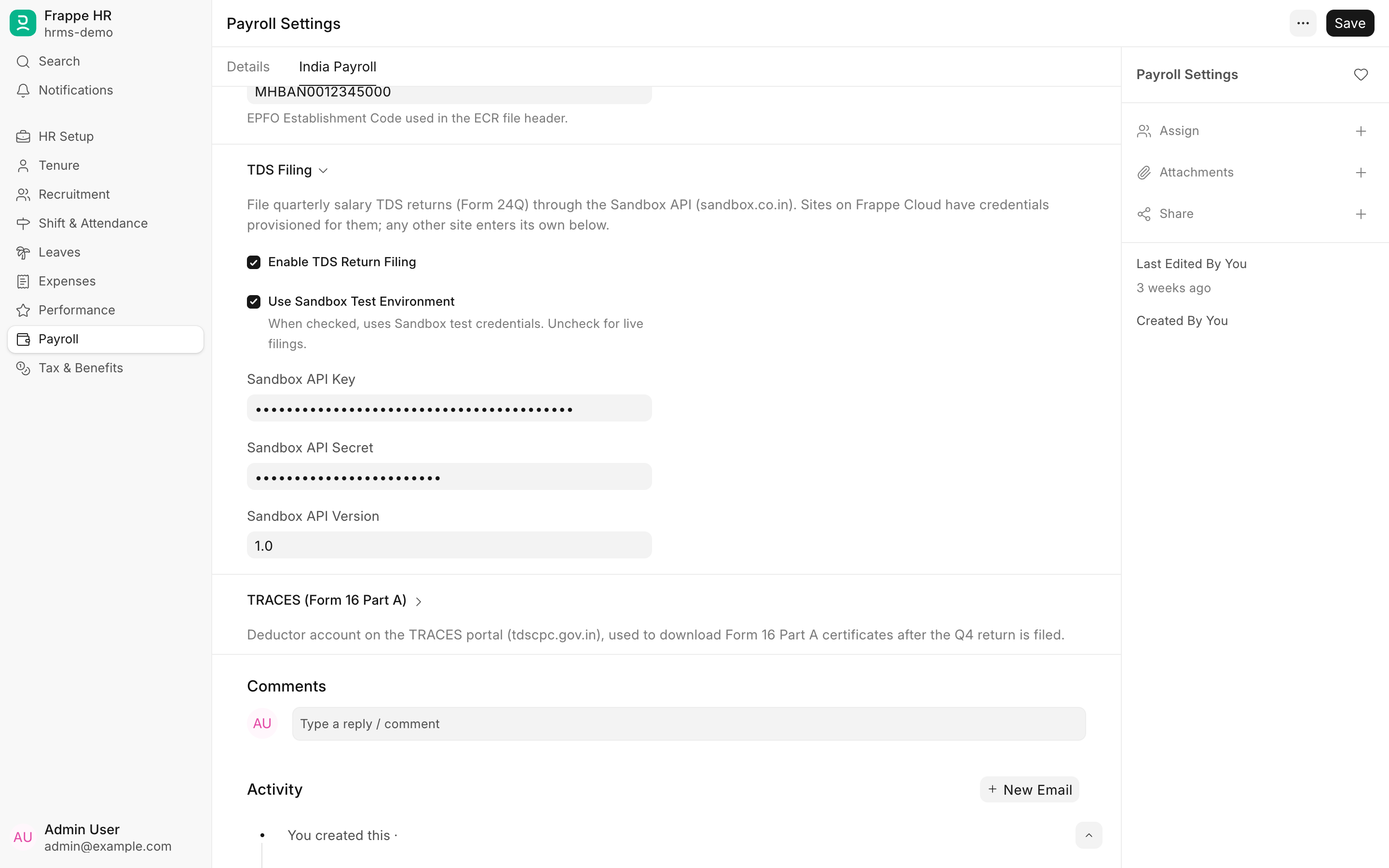
Set up in two places. Enter the deductor details once on the Company: TAN, deductor type and the person responsible for deduction. Then turn on TDS Return Filing under the India Payroll tab of Payroll Settings. Sites on Frappe Cloud get Sandbox credentials provisioned; any other site adds its own API key and secret. A Sandbox test mode lets you dry-run the whole thing before a live filing.
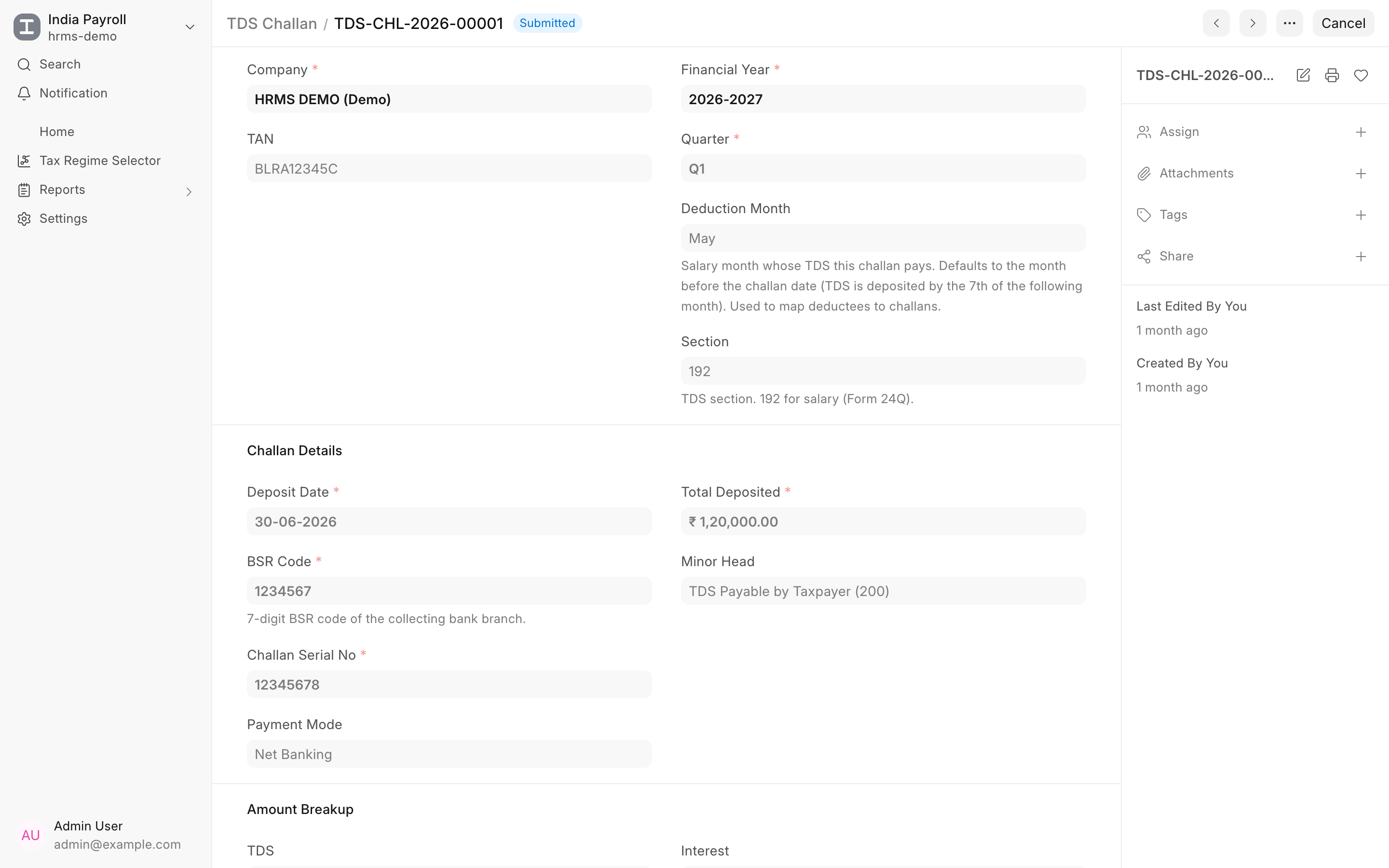
Challans as documents. Record each TDS deposit as a TDS Challan with its BSR code, serial number, deposit date and amount breakup. The challan works out which salary month it pays for, so deductees map to challans without manual matching.
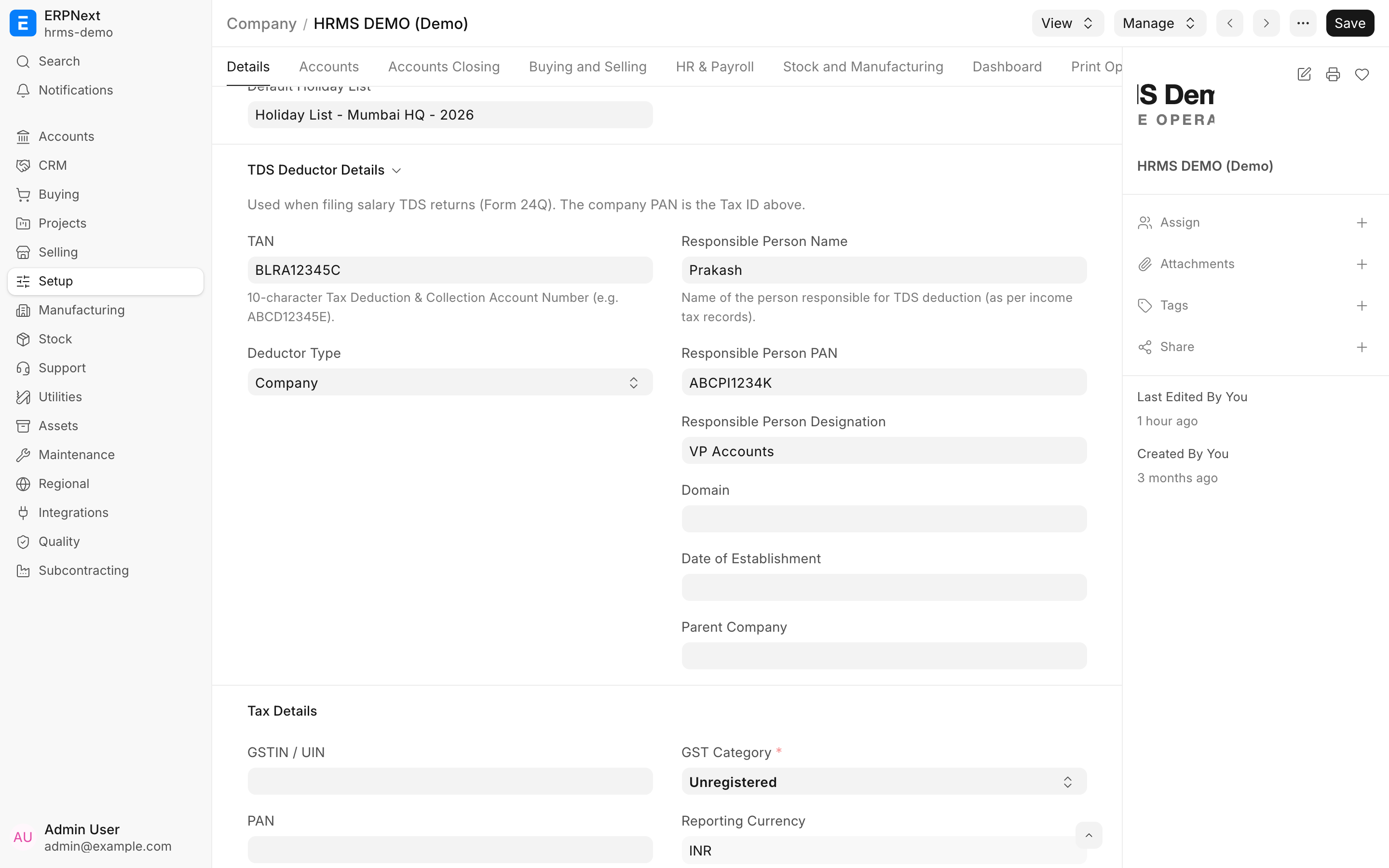
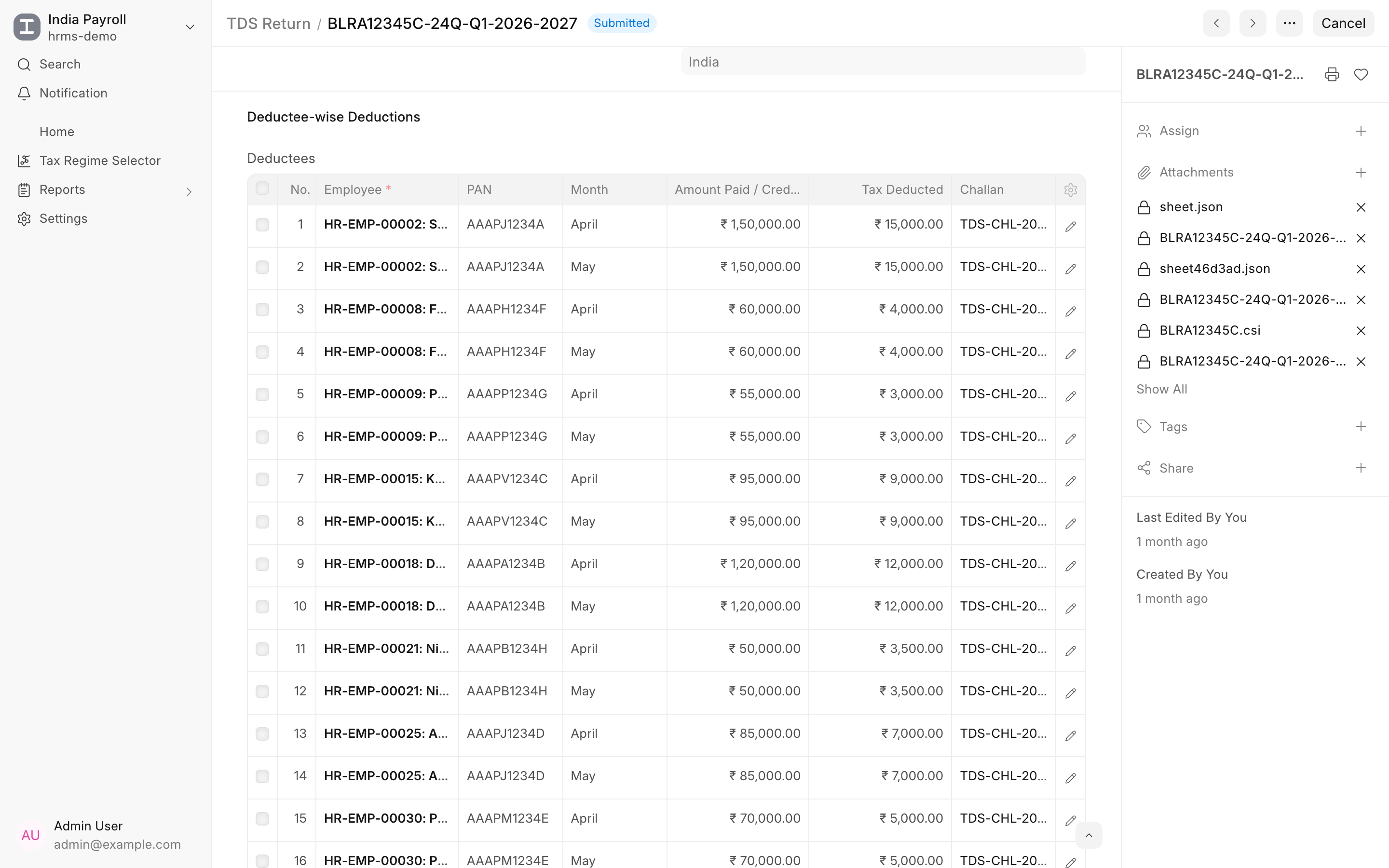
One click from salary slips to deductees. Create a TDS Return for the company, financial year and quarter. The deductor block fills itself from the Company and its linked address and contacts. Hit Fetch from Payroll and every submitted salary slip with income tax deducted becomes a deductee row, one per employee per month, with PAN, amount paid, tax deducted and the matching challan. Rows stay editable for the odd correction. Totals for amount paid, tax deducted and tax deposited sit side by side, and the return will not proceed if deducted exceeds deposited.
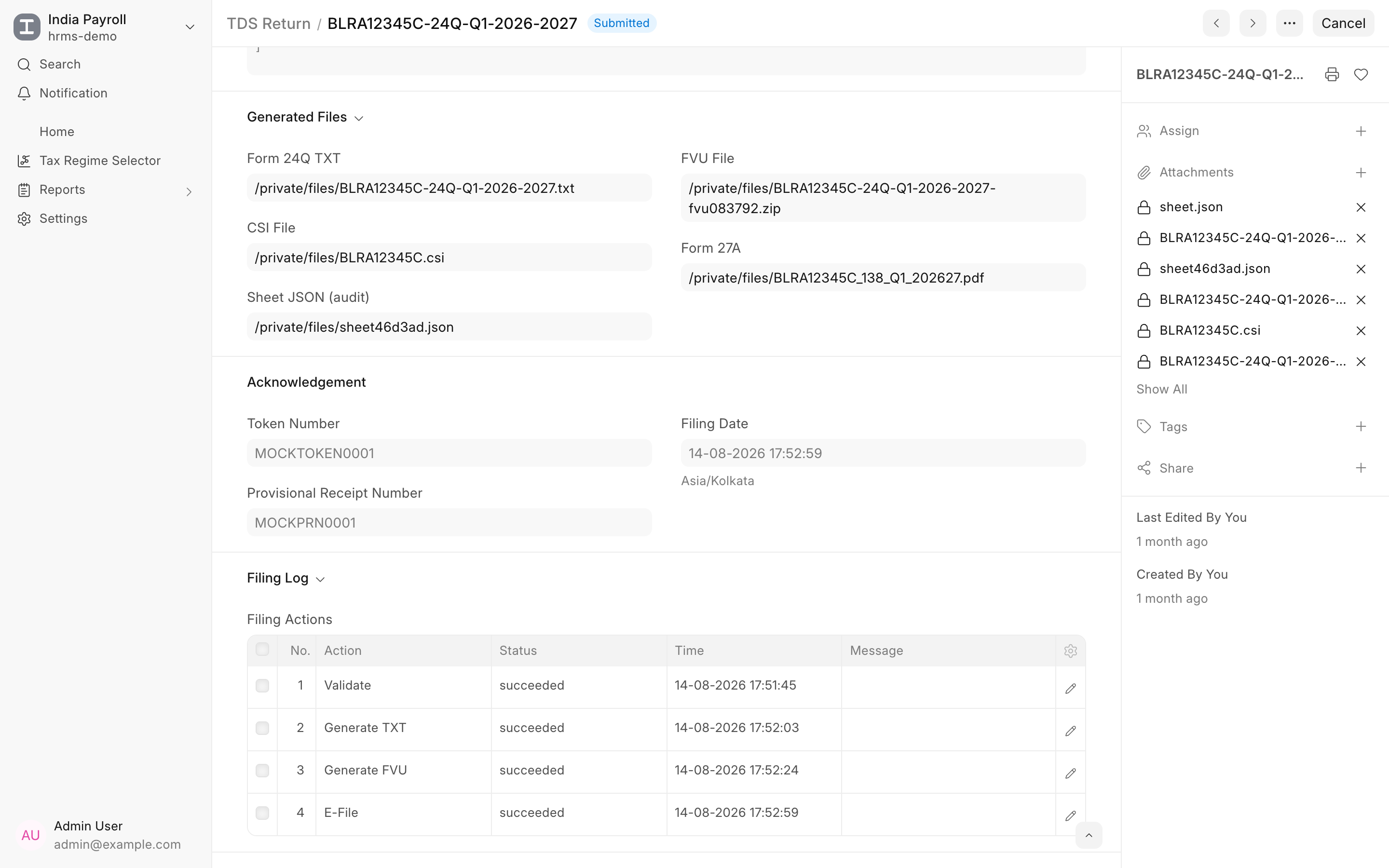
A four step, audited pipeline. Each step runs as a background job and is logged on the return.
- Validate runs Sandbox's potential-notice check and shows any issues before you commit anything.
- Generate TXT produces the return file in the department's format.
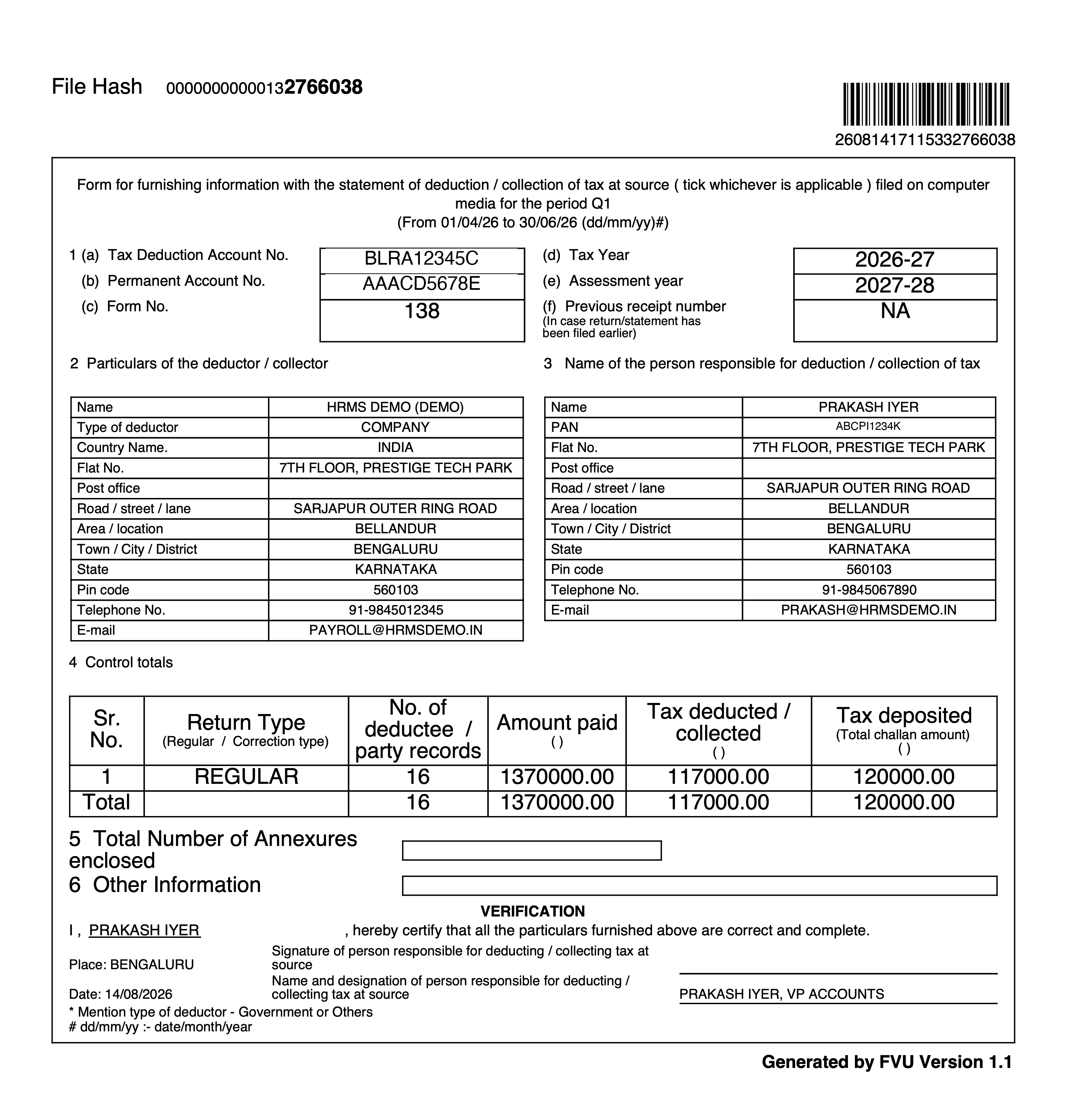
- Generate FVU validates the TXT against the CSI file and returns the FVU along with Form 27A, both previewable and printable from the return. The CSI file is fetched with an OTP sent to the deductor's TRACES-registered mobile.
- E-File submits the FVU and writes back the token number, provisional receipt number and filing date.
Submitting the document locks the filed return. Revised returns work too: pick Revised and enter the previous receipt number.
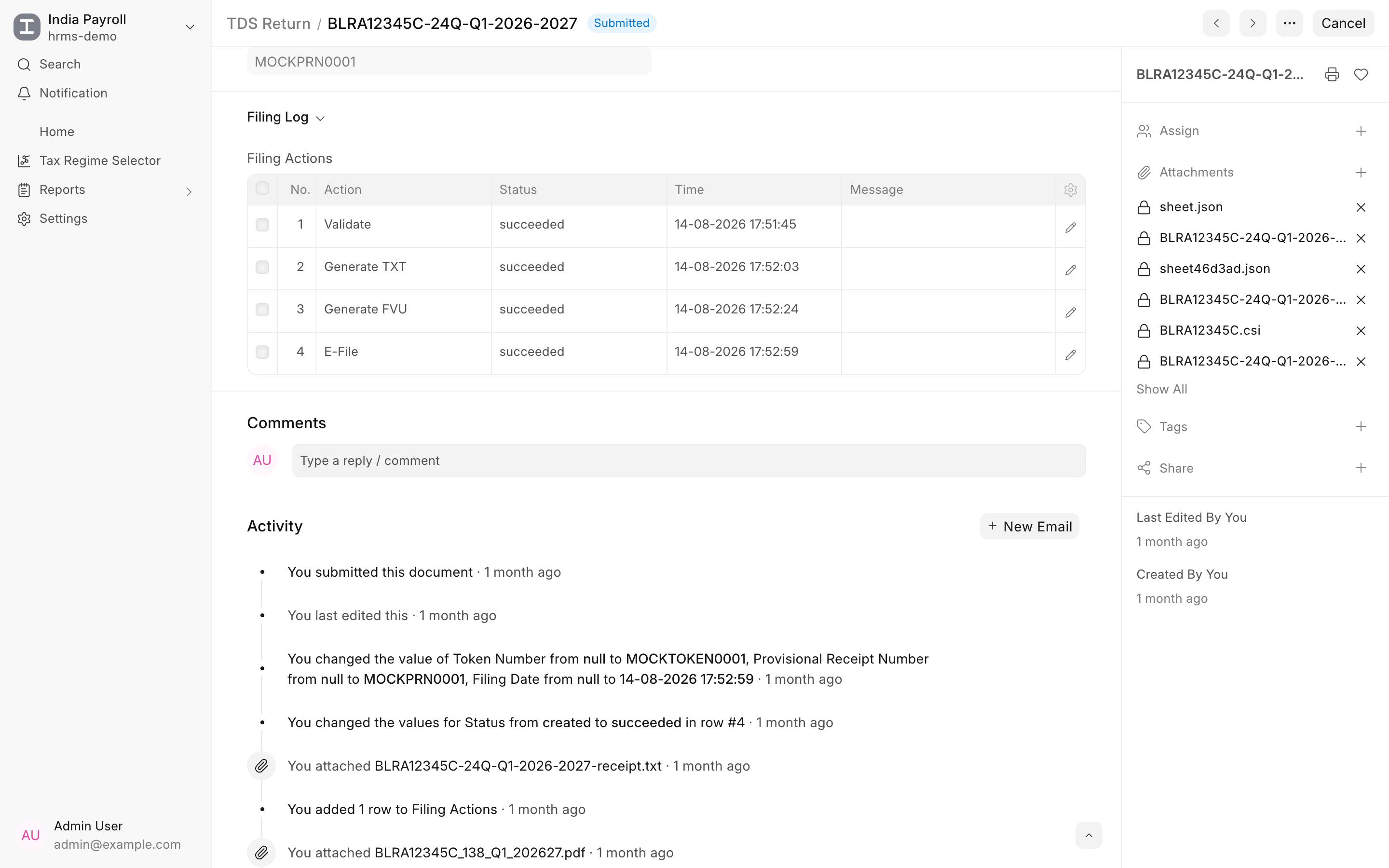
Form 16 without the scramble. Once the Q4 return is filed, Create Form 16 generates a record for every employee in the annual annexure. Part B is built from the employee's salary data and Part A is requested from TRACES using the deductor's TRACES login stored in Payroll Settings. Both PDFs attach to the Form 16 record, ready to share.
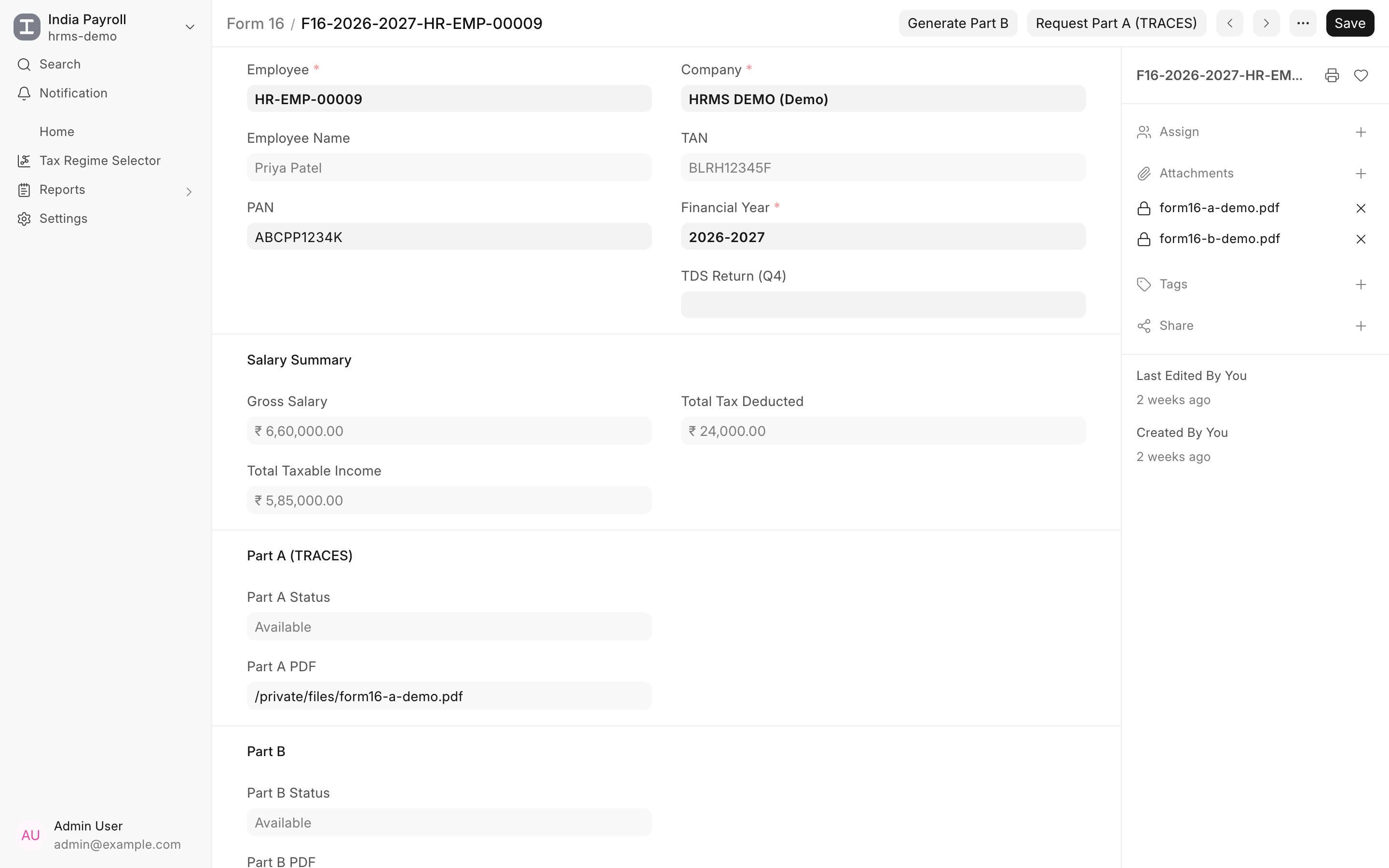
Ready for the new Income-tax Act. Returns for periods under the Income-tax Act 2025 are generated in the new Form 138 layout automatically, so the same flow carries over when the switch happens.
TDS filing ships with the India Payroll app for Frappe HR. Enable it from Payroll Settings, record your challans, and file your next quarter from payroll.


More Settings in Learning
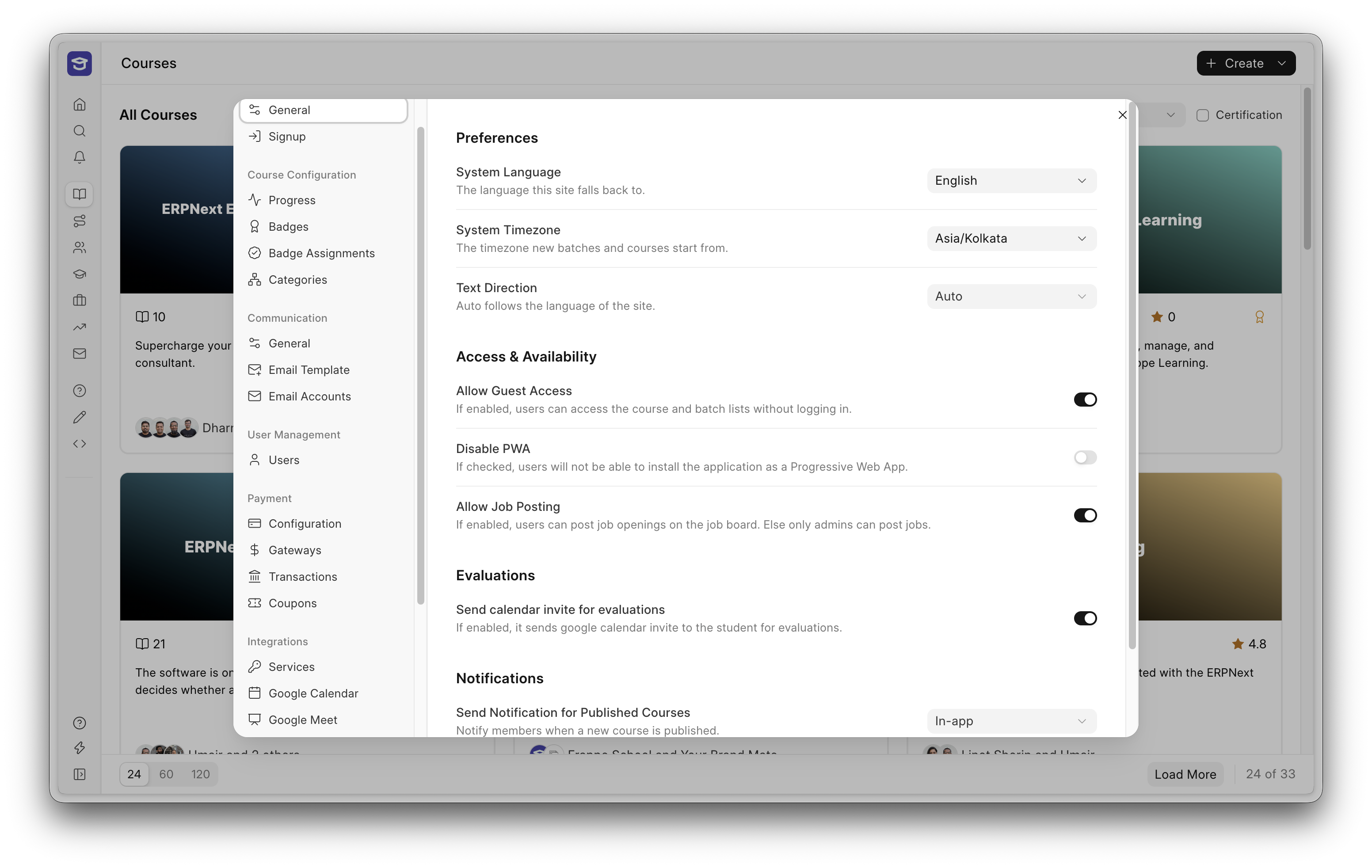
Administrators get more control over the portal from one place, including languages, system timezone and text direction, badge assignments, and the Google API and Calendar integration.
A New Interface for Assessments
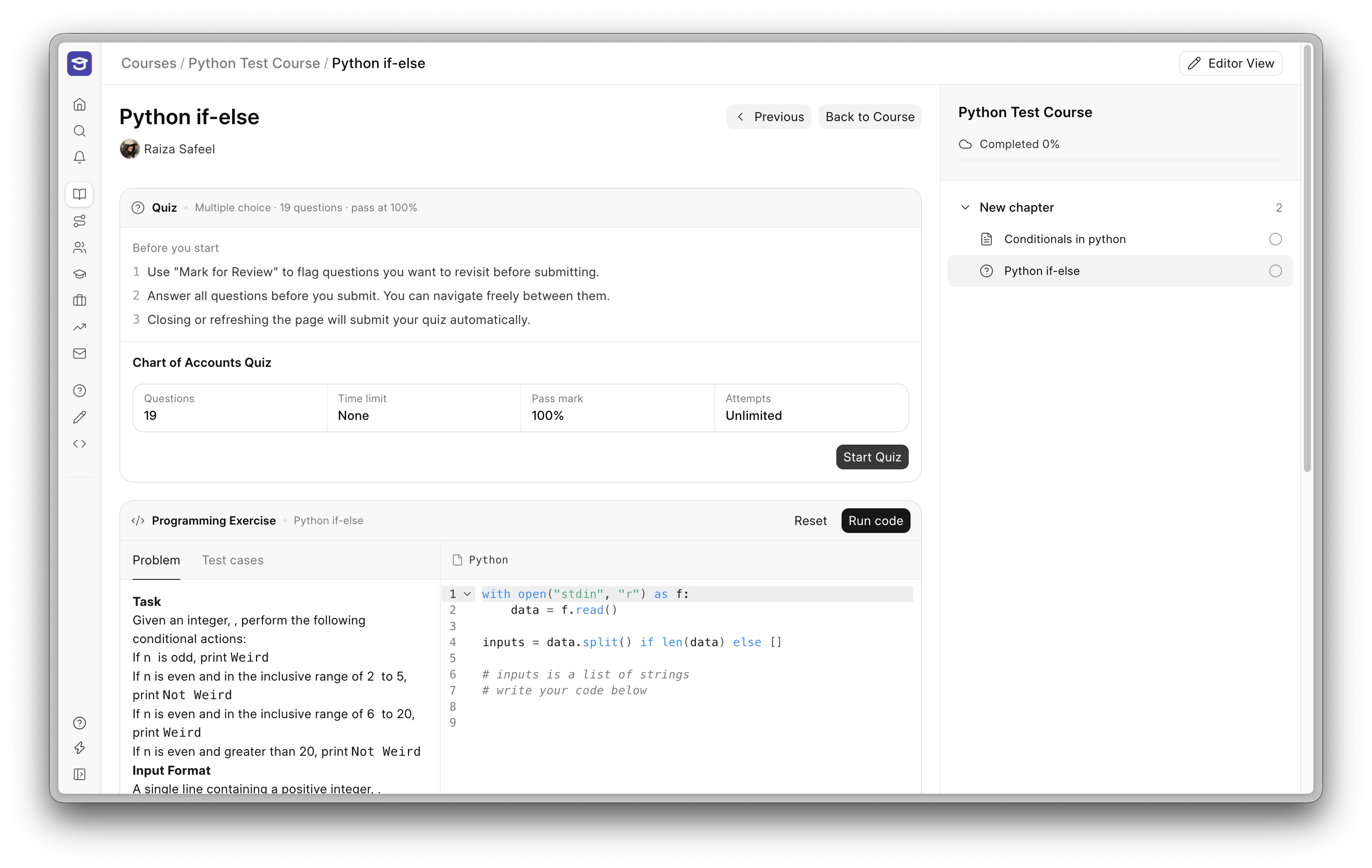
Programming Exercises, Assignments and Quizzes have a cleaner assessment screen, with more room for the question, the answer and the feedback.
Programming Exercises now feel much closer to a real coding environment, with the familiar keyboard shortcuts, including ⌘ + ` to open the console.


Ticket Fields Now Follow Permission Levels #3544
Which ticket fields a customer can see or change is now decided by Frappe's permission levels, the same ones you set in Role Permissions. Customers could previously see or change some fields simply because the portal page left them unguarded. The rules are now checked on the server, so they hold for the portal and the API alike.
- Three groups of fields. Level 0, such as subject, description and status, is shared with customers. Level 7, such as team, priority and ticket type, can be read by customers but changed only by agents. Level 8 is agents only, and customers never see it.
- Internal fields stay internal. The portal, the REST API, list views and reports all leave out any field the user cannot read. To hide a custom field from customers, set its level to 8 in Customize Form.
- Templates say who sees each field. A Visible to column, set to Everyone or Agents, replaces the old Hide from customer check box. Existing templates are converted for you.
- You choose what customers can change later. After raising a ticket, a customer can change only the fields you mark Editable after creation on the template. They can always close the ticket and rate it.
For admins: existing sites pick up the new rules when they update, and agent managers see a notice in Helpdesk until they dismiss it. If you have server scripts, form scripts or custom roles on HD Ticket, check them before updating. Scripts running Before Insert, bots that are not agents, and custom staff roles are the usual things to fix. The migration guide lists what to check and how to test, and there is more on permission levels in the docs.


Workflow Automations #2783
Stop chasing routine follow-up work by hand. Tell Frappe CRM when something should happen and what should happen next, and it runs in the background for every matching lead or deal, with no code to write.
- Follow up on time. Send a welcome email to every new lead, or remind the owner when a prospect has not replied in three days.
- Keep deals moving. Convert a lead to a deal once it is Qualified, route new deals to the right rep by territory or value, or move a deal's stage when a condition is met.
- Score leads automatically. Add points when a prospect replies, subtract them when a task goes overdue, and mark leads Hot, Warm or Cold.
- Keep your team in the loop. Notify the owner when a deal is won or lost, or alert a manager when a high value deal changes stage.
- Connect your other tools. Call a webhook to push a won deal to billing, or create a record in any other DocType.
You can test an automation on a real record before turning it on. Test runs roll back every change, so nothing is saved and no webhook fires.
Find it under Settings → Automation & Rules → Workflow Automations, and the docs walk through the rest.
Command Palette #2921
Press ⌘K, or Ctrl+K, anywhere in Frappe CRM to find a record, change its status or jump to a settings page without touching the mouse.
- Find any record by typing. Search leads, deals, contacts and organizations by name, email, phone or company.
- Act on the record you are viewing. On a lead or deal, change the status, assign it, add a comment or send an email template in a couple of keystrokes.
- Filter lists instantly. From any list view, filter by any field or switch views without opening a menu.
- See what is due. Open the palette for your upcoming tasks, SLA deadlines and recently viewed records.


Pages Now Have Three States: Draft, Staging and Live
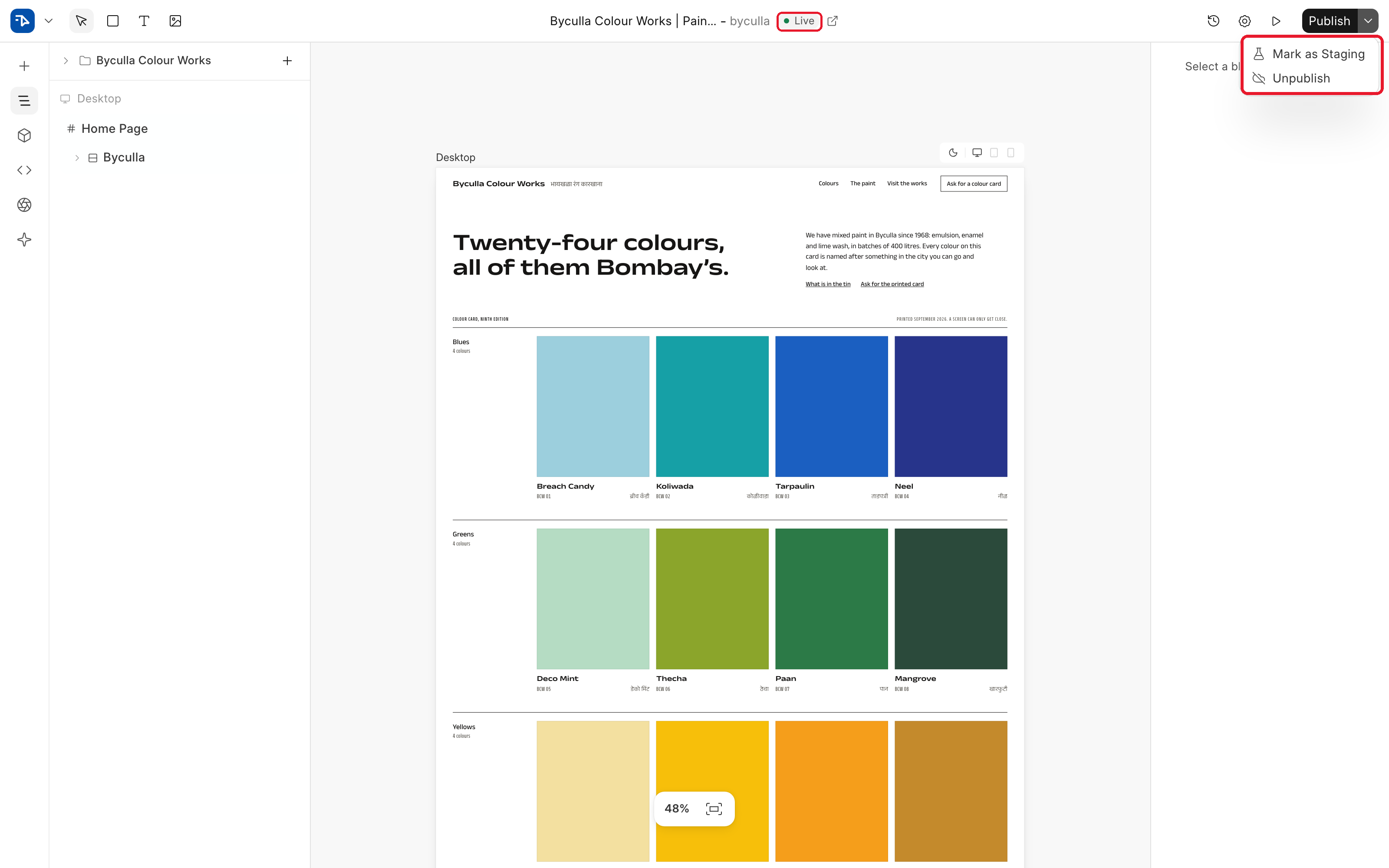
A page used to be either published or not. A staging page works at its real route but stays out of search engines, so you can send a client the link before the page is public. Move a live page to staging and the live version stays up while you work on it.
Gap Handlers
Gap could only be set from the Layout panel: type a number, look at the canvas, try again. Now you drag it on the canvas, the way padding already worked. Padding got a fix too, so dragging one side no longer moves the others. Margin handles are gone from the canvas, and margin is still in the properties panel.
Navigate to a Different Page from the Sidebar
A site is usually a handful of pages that link to each other, but moving between them meant going back to the dashboard each time. The Layers tab now starts with the pages in the open page's folder. Also, importing a template puts its pages in their own folder under one route, so the links between them resolve instead of landing on a 404.
Bob Checks Its Work in Different Page States
Bob checked its work with a single screenshot of the desktop page in light mode, so a dark mode or mobile change could be reported as working when it was not. It can now preview a page in dark mode and at mobile width and read an image block, and it checks a change in the mode you asked for before calling it done.
Others
Real italics on the canvas, colour tokens in the Background field, duplicates that arrive as numbered drafts, and a long tail of keyboard, popover and dialog fixes.


Analytics #796
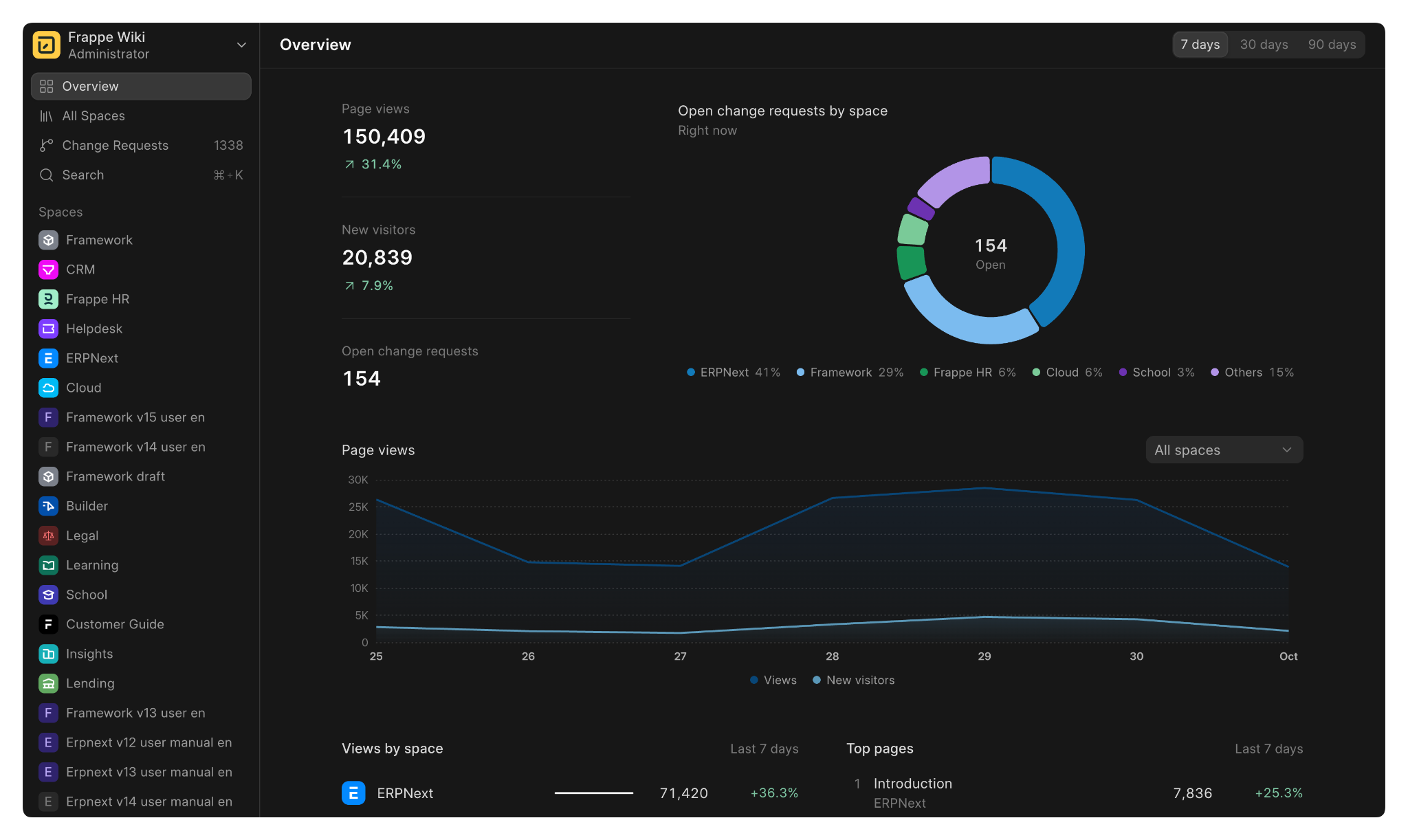
Frappe Wiki now has built-in page view analytics. There is a nice overview dashboard that will help you visualise the numbers and trends. Just enable view tracking from the settings page, no third party plugin required!
Command Bar #780
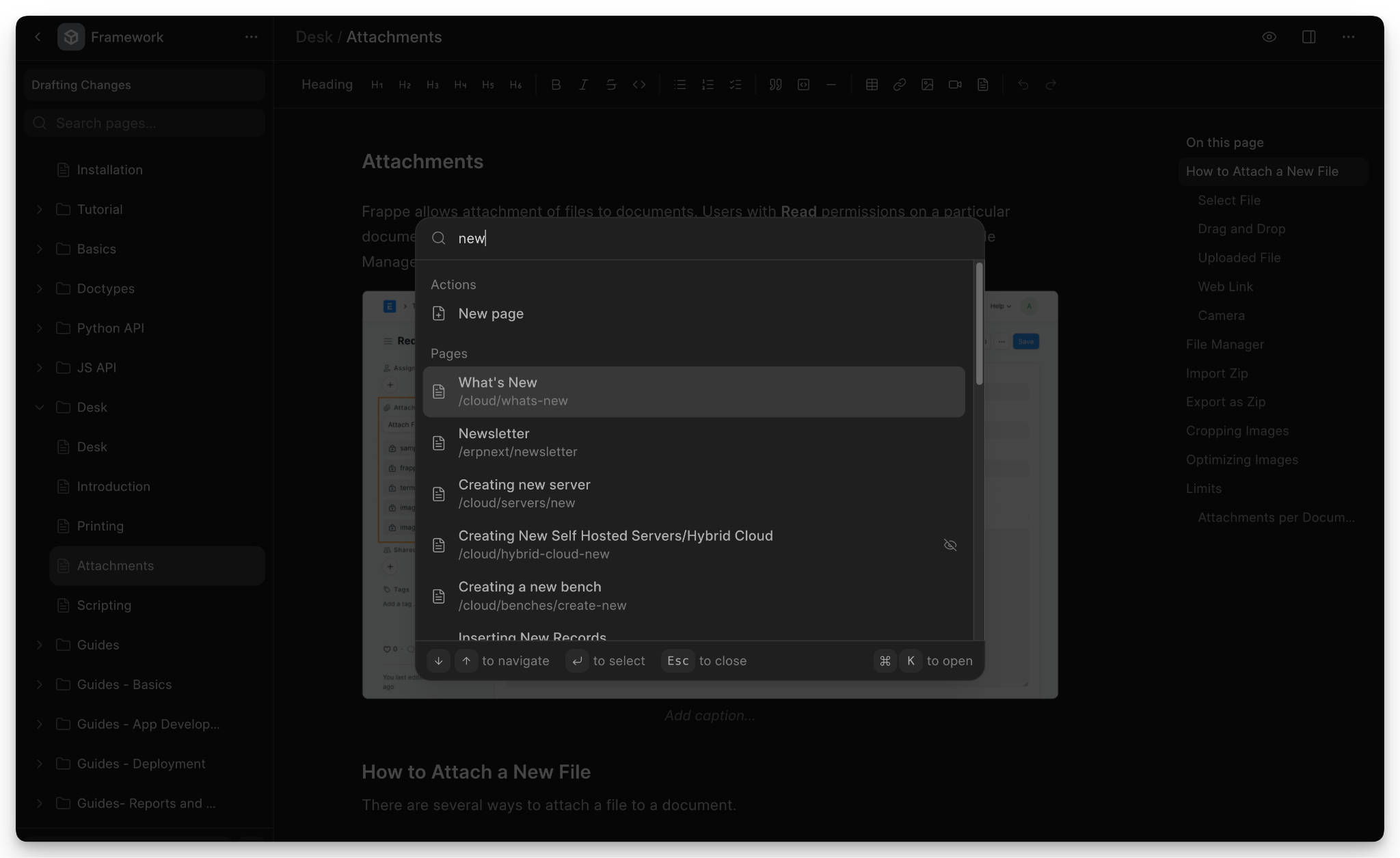
Because.. why not? Quickly get around the Wiki dashboard and carry out actions like creating pages and changing theme.
Internal Links #817
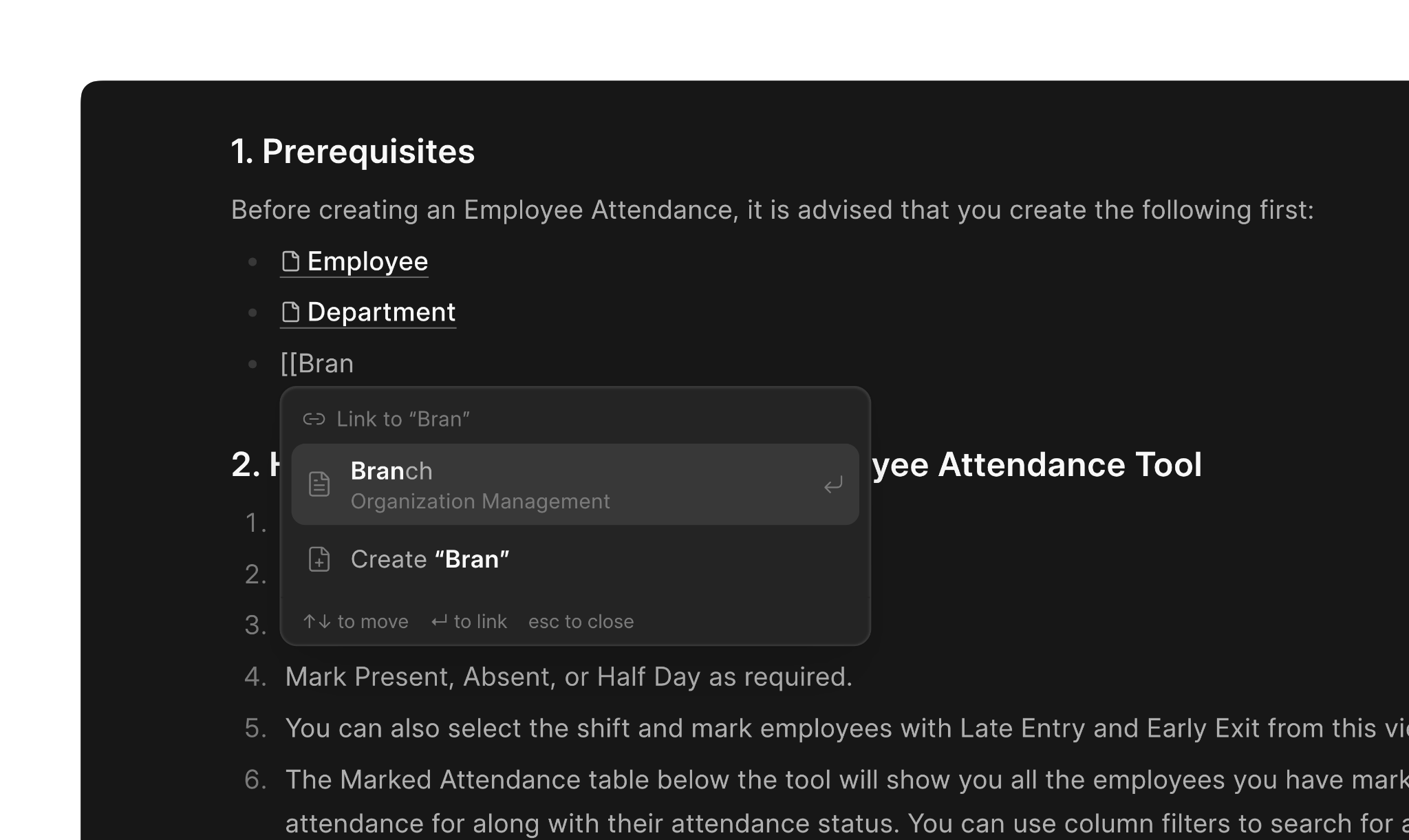
A new way to create an internal link between pages. Even if you change the route of the linked page, the links won't get broken.
Contributed by Gajendra Nishad


Undo Send, Scheduled Send and the Outbox
Every send now waits a few seconds before it actually goes. Spot a typo, hit Undo, and the message is back in Drafts. You pick the window in Settings, anywhere from 5 to 30 seconds.
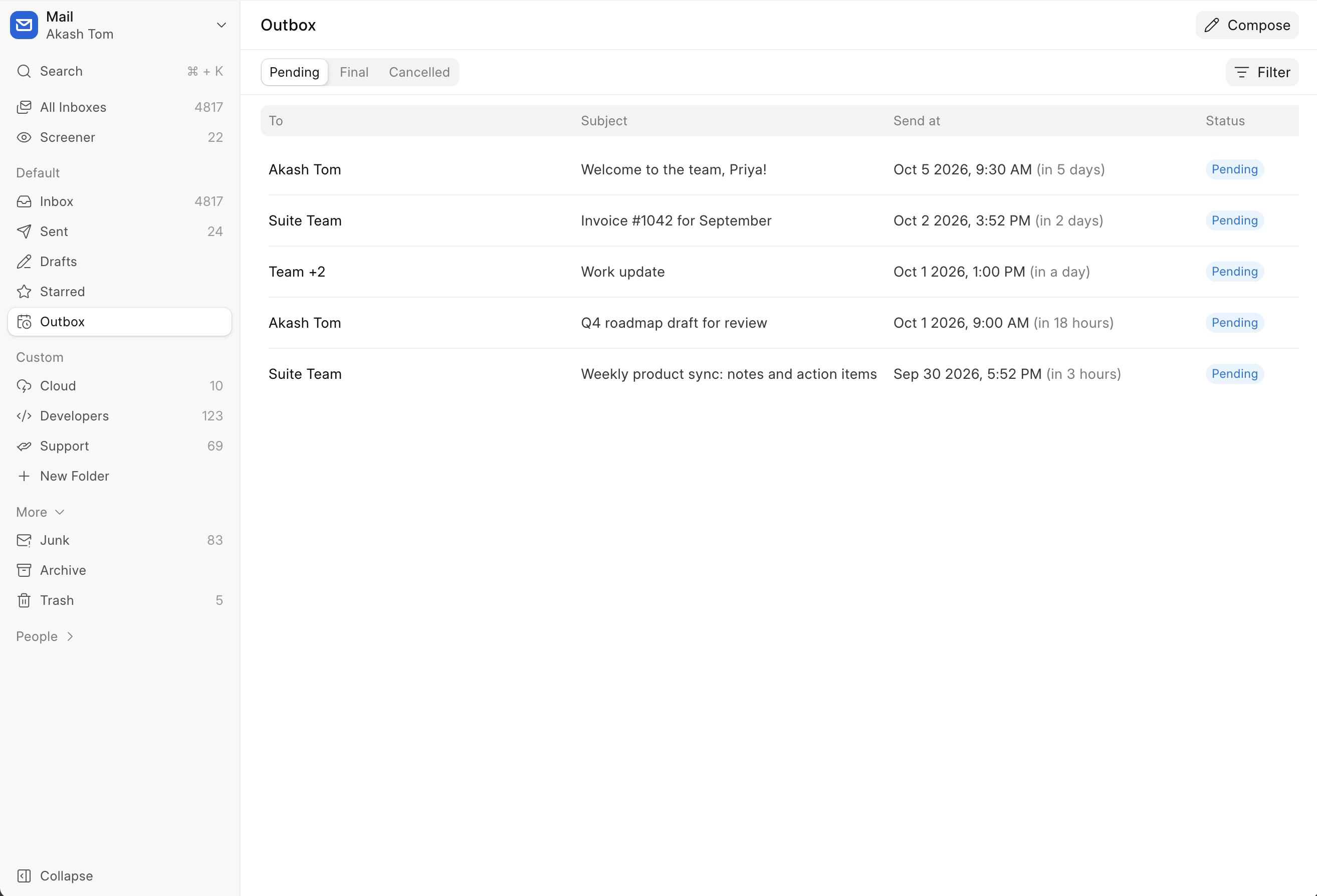
If you would rather it went out on Monday morning, schedule it with Cmd+Shift+Enter. Scheduled and in-flight mail shows up in the Outbox, where you can send it now, push it later or cancel it. Once it leaves, the Outbox shows what happened to each recipient.
A Composer You Can Dock
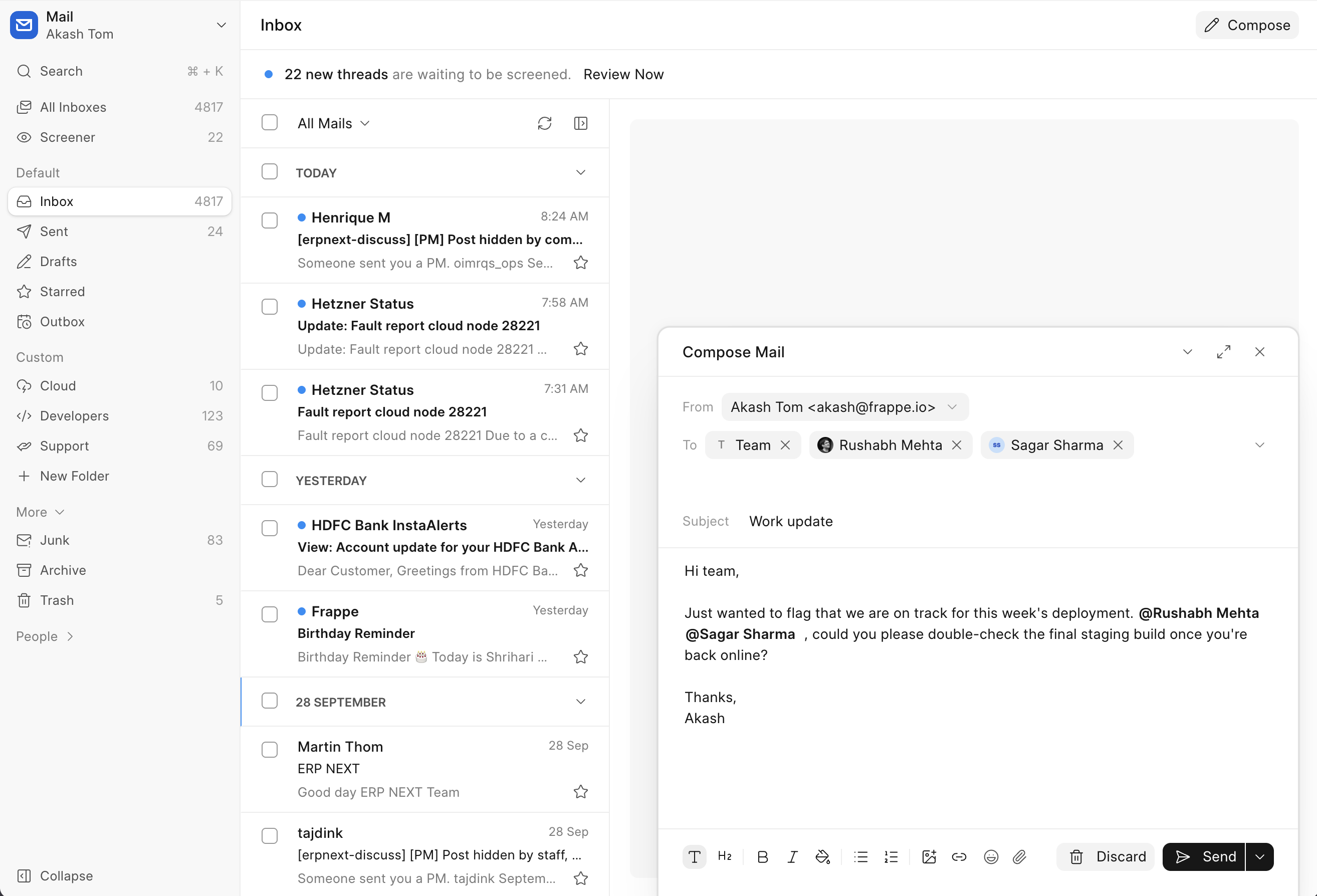
Compose no longer has to be a modal. Dock it in the corner or minimise it to a title bar, go read the thread you wanted to quote, and your draft stays where you left it.
Mentions
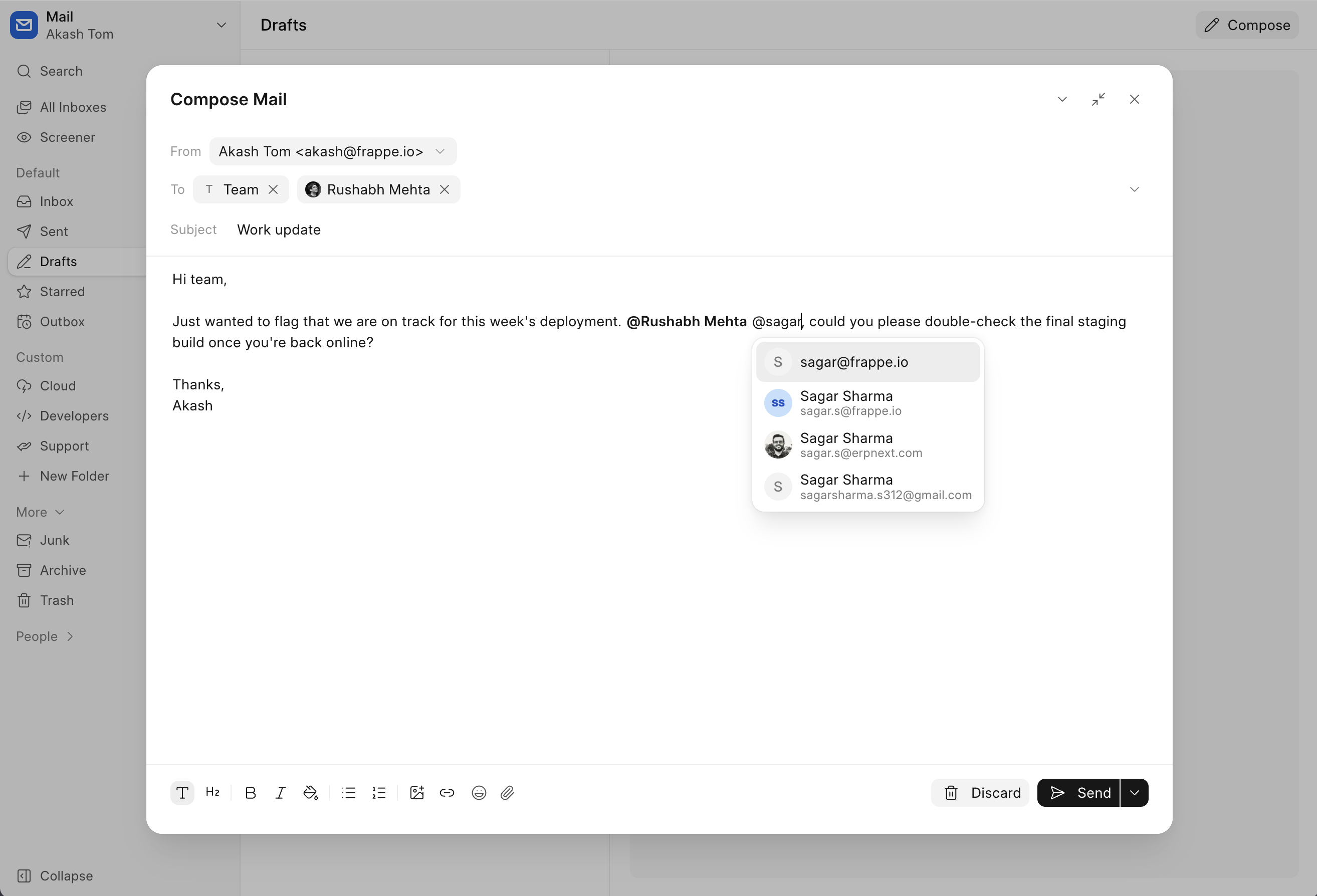
Type @ in the body to mention a colleague. They are added to the recipients as you type, and removed if you delete the mention.
A Tighter Thread View
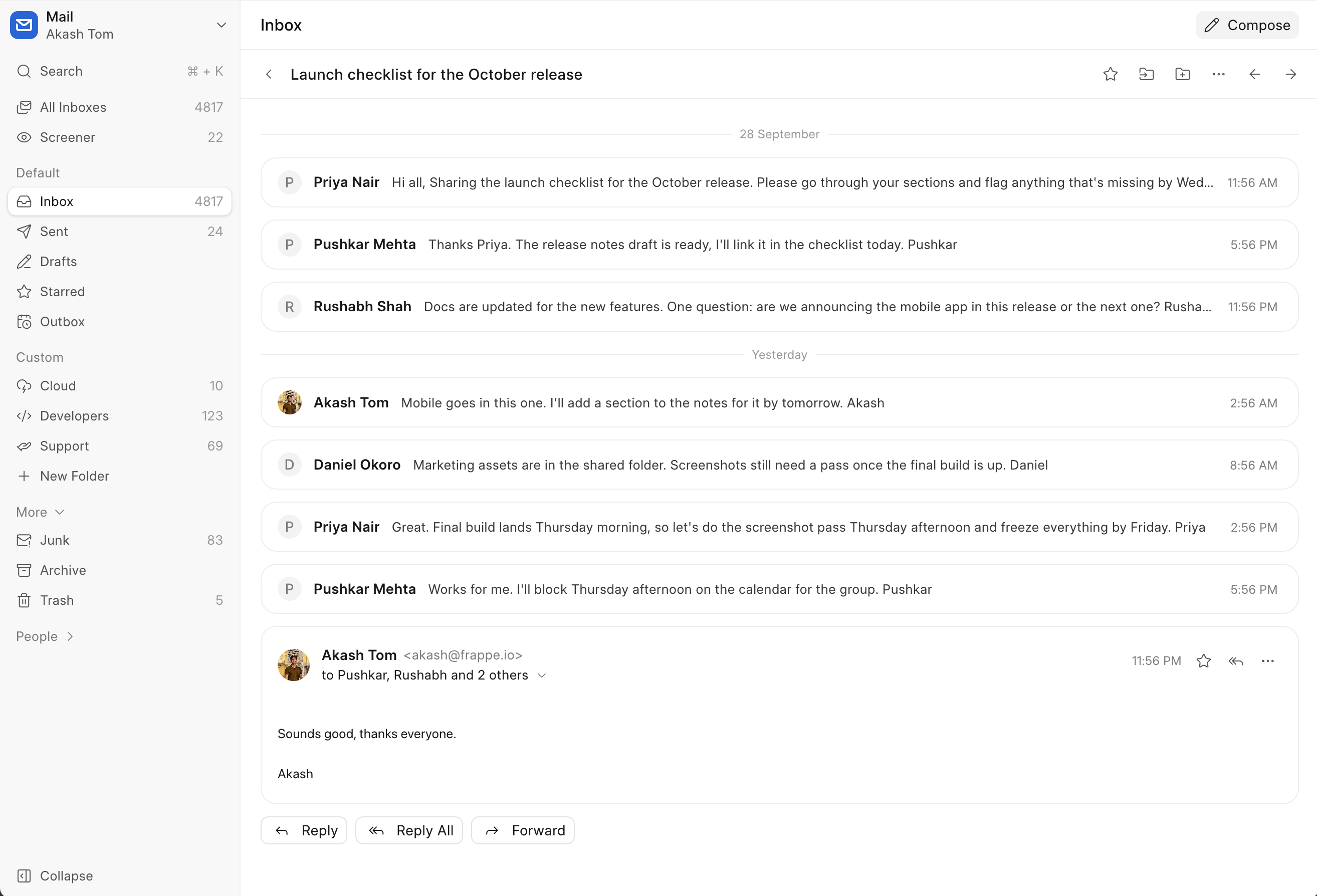
Collapsed messages are one line each, so an eight message thread fits on one screen. The expanded header says "to Pushkar, Rushabh and 2 others" instead of repeating the whole roster.
Calendar Invites in Mail
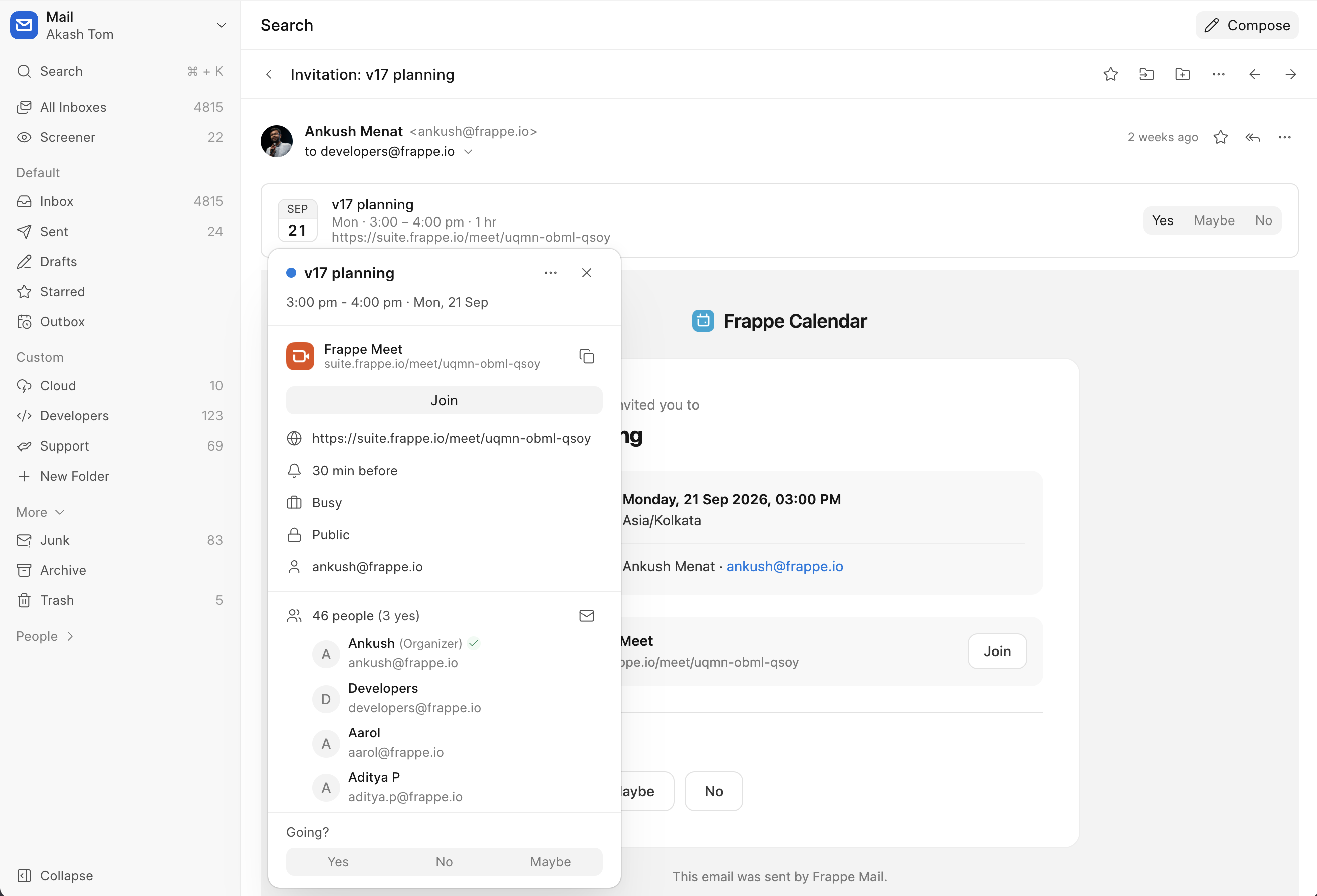
Open an email with a calendar invite and a banner shows the event with Yes, No and Maybe right there. Not a participant? Add it to your calendar in one click.
Drag and Drop to Folders
Drop a thread onto a folder in the sidebar to move it. Select a few and drag them together.
For Admins
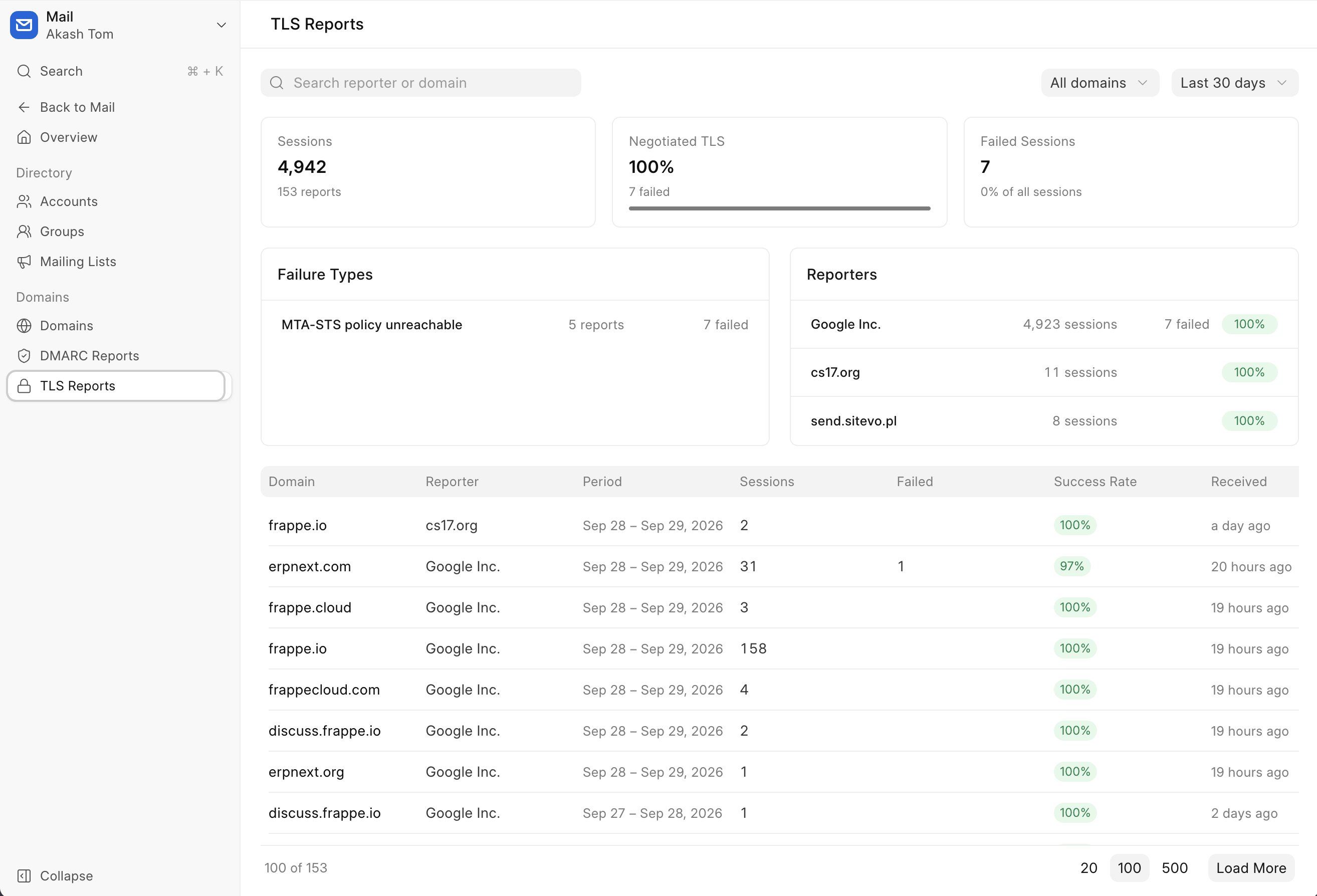
TLS reports sit beside DMARC reports in the dashboard, and the members list shows how much storage each person is using.


A Flatter Look
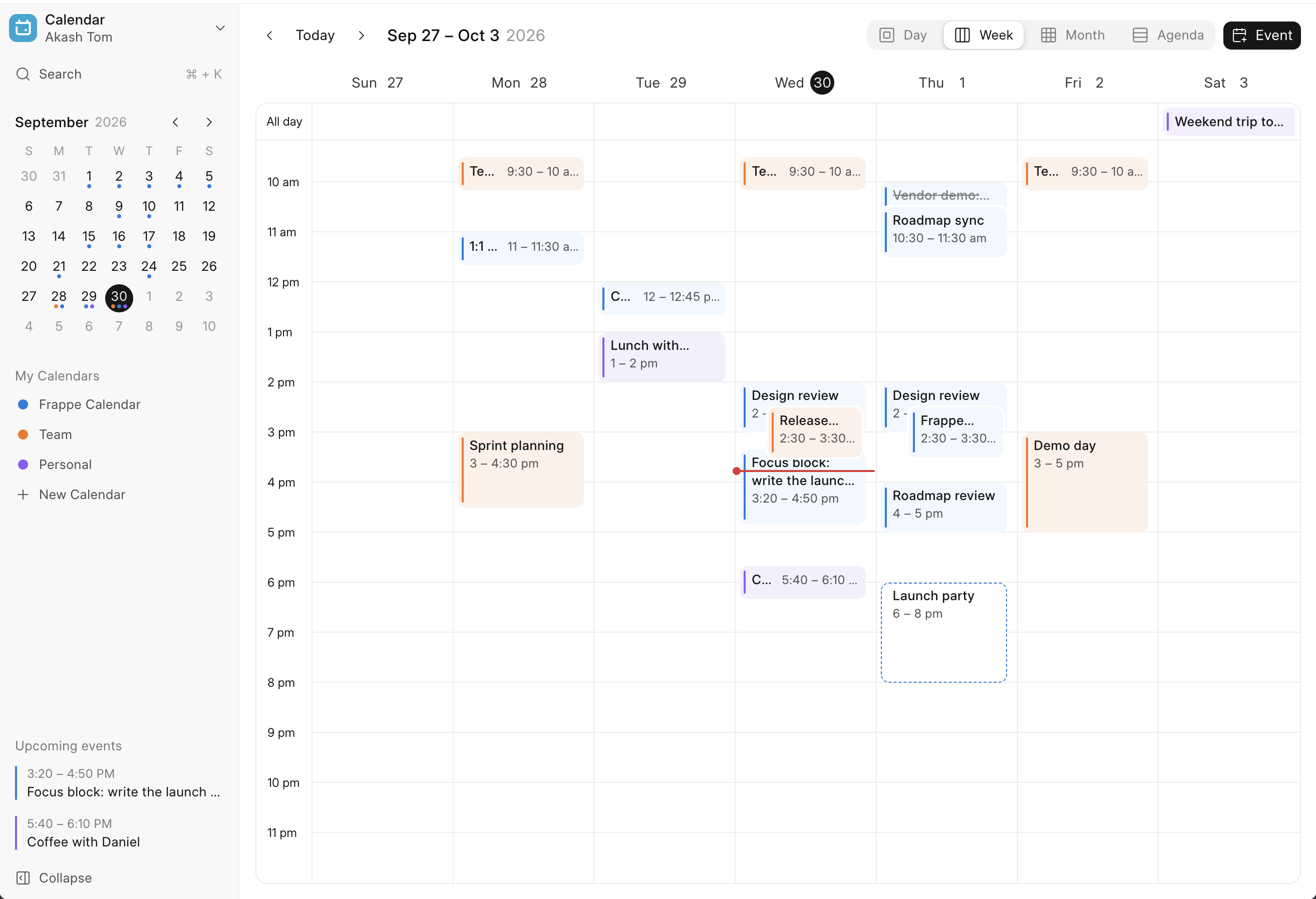
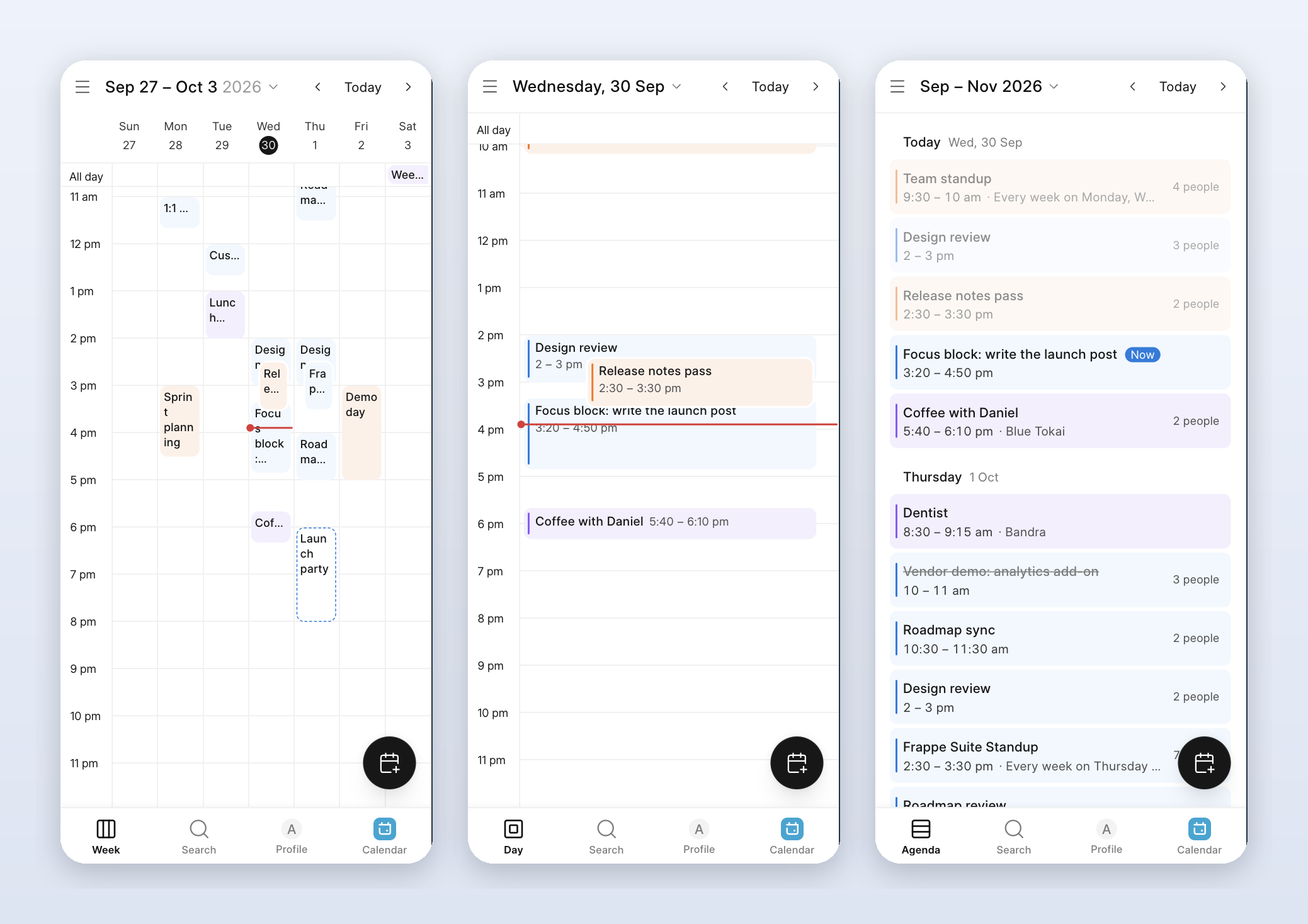
Every view has been redrawn with flat event pills and no shadows. Overlapping events are separated by a thin ring rather than a drop shadow, and titles wrap instead of clipping. The Month grid no longer hides events behind an "n more" button: weeks grow to fit their busiest day.
Agenda View
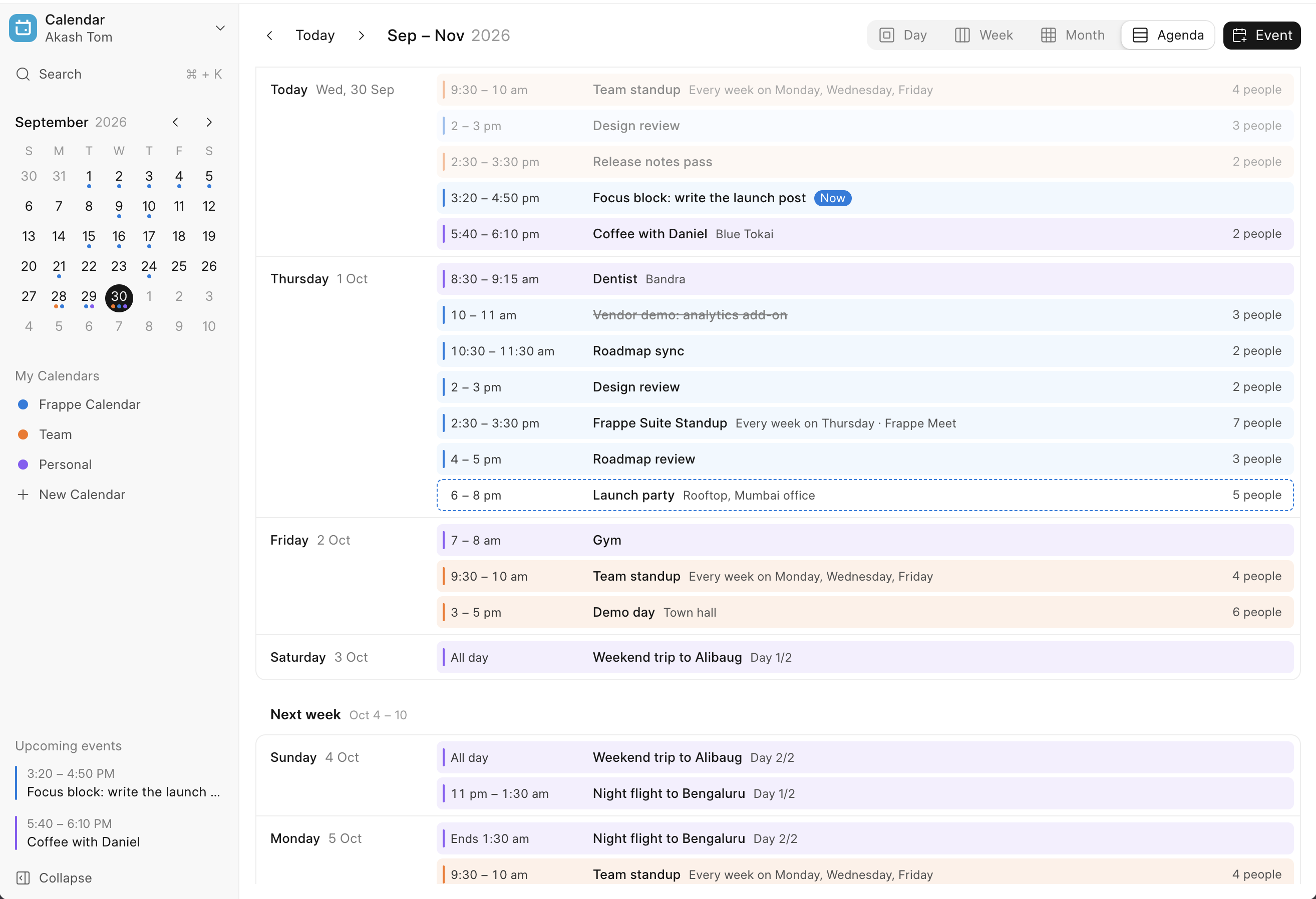
A fourth view alongside Day, Week and Month: the next three months as a list, with empty days left out. Each row says what the event is doing that day, like "From 6 pm" or "Day 2/3", and fades once it has ended. It opens on today.
Calendar on Your Phone
Month, week, day and agenda views built for a phone, with events opening as sheets. Mail and Calendar are now one installable app, with a switcher to move between them.
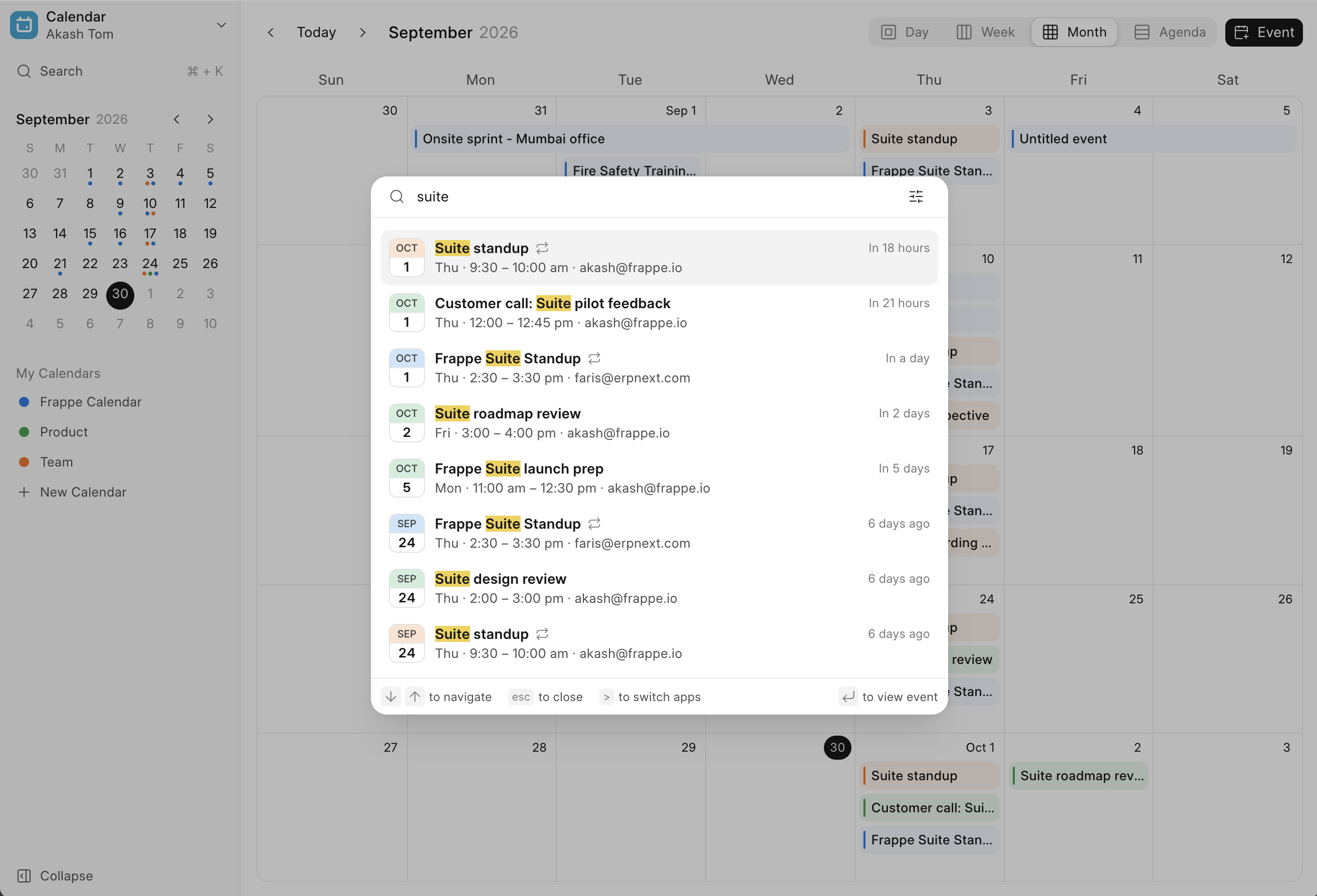
Event Search
Search events from the command palette by title, description, location or attendee, and filter by calendar, organizer or date range. Results are ordered by how close they are to today.
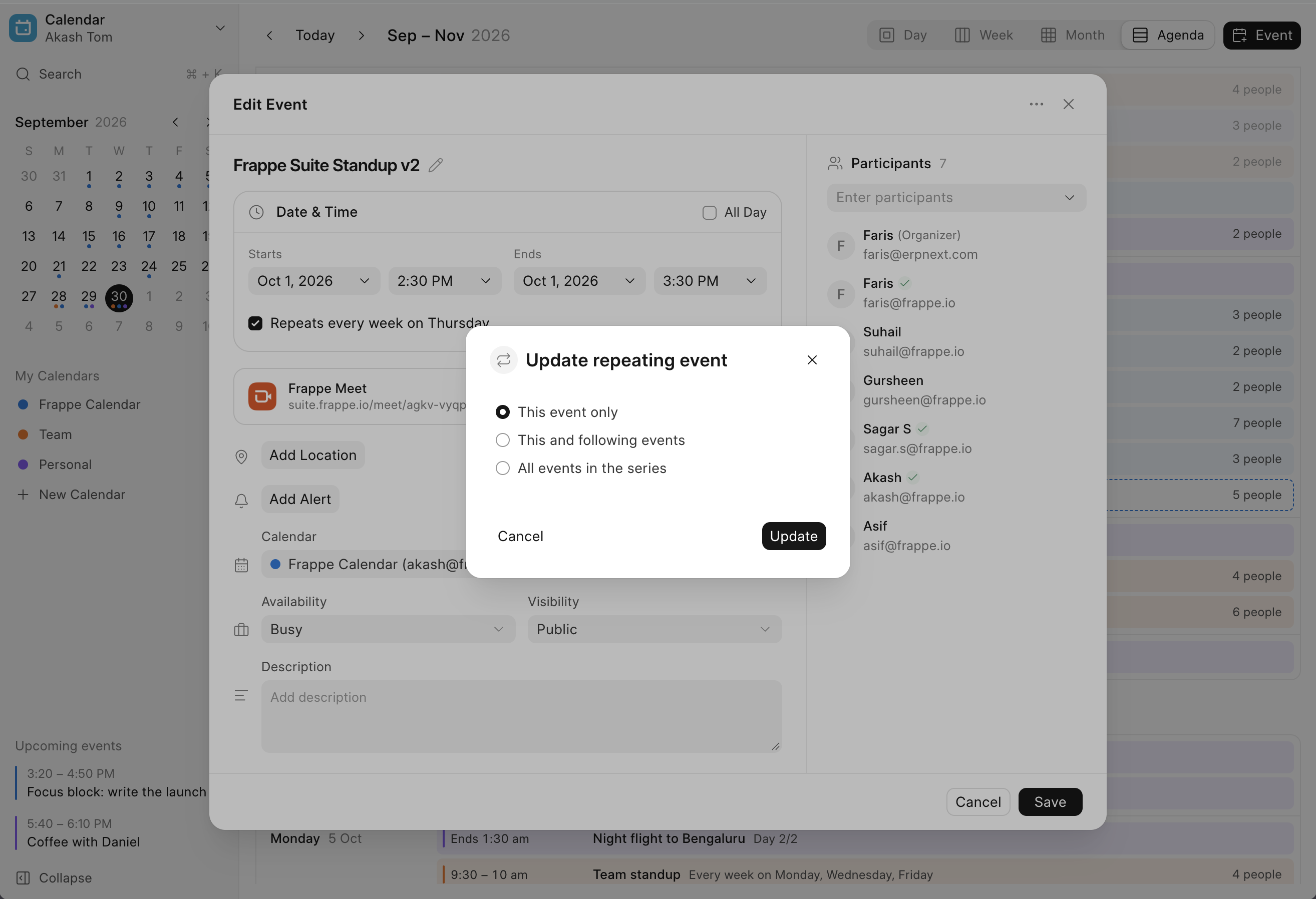
Editing Recurring Events
Change a recurring event and Calendar asks how far the change should reach: just this one, this and following, or the whole series. The same question comes up for moving, deleting and RSVPing.
Draft and Declined Events
Save an event as a draft and nobody gets an invite until you send it. Events you have declined stay visible but stop taking up room in the grid.
Managing Calendars
Create calendars, rename them, pick a colour, set a default, and choose which calendar an event belongs to.
Keyboard Shortcuts
Press ? to see them all. E creates an event, T goes to today, and D, W, M and A switch views.
That's a wrap for September! 👋
Most of this came from someone running into the problem themselves, or sitting with a customer who had. If something here is close to what you need but not quite, the issue tracker is open.
See you next month.


·
Consolidated AP & AR reports are quite intriguing. I specifically like the bits about reposting GL Entries directly from the report, having new quotation versions without cancelling them, and putting customers on hold.