


We’ve been working on improving Projects in ERPNext, starting with how you manage tasks, check progress, and track costs. A lot of this information already existed, but getting to it often meant opening separate lists and reports. With the new Tasks and Overview tabs, and an updated Costing tab, you can now do more from the Project itself.
Here’s a look at what’s changed.
Tasks within Projects
Earlier, if you wanted to see the tasks linked to a project, you had to navigate to the Task List and find them there. Not the most convenient experience when you’re already inside the Project. So we brought them into the Project itself, under a new Tasks tab.
You can search and sort tasks, change their status and priority directly from the list, and assign them to people without opening each task. For changes that need a little more detail, clicking a task opens a quick view. You can edit its status, priority, dates, hours, assignees, and description without leaving the project.
These are small changes individually, but together they make working through a project’s tasks a lot less tedious.
A new project overview
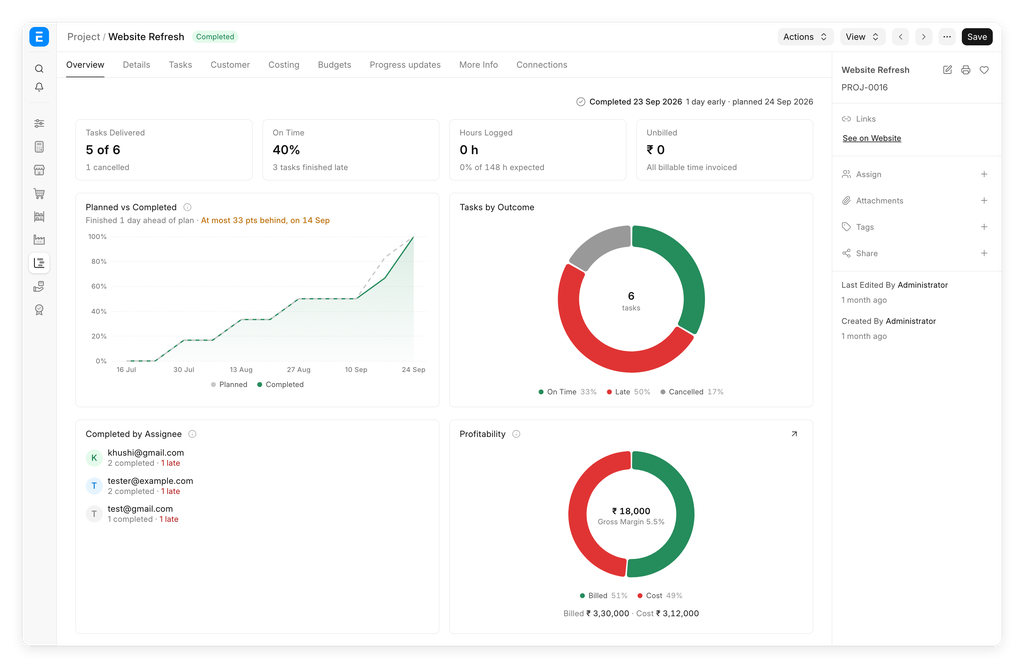
ERPNext holds a lot of information about a project. But putting its tasks, dates, people, and costs together to understand how things were going was still left to you. The new Overview tab brings the important bits into one place, from the progress to the upcoming milestones, task statuses, work distribution, and profitability.
Planned vs Completed
A project might be 60% complete, but is that where you expected it to be today? The Planned vs Completed chart compares expected progress with completed work, with a marker showing the current day. You can see whether the project is keeping up with the plan.
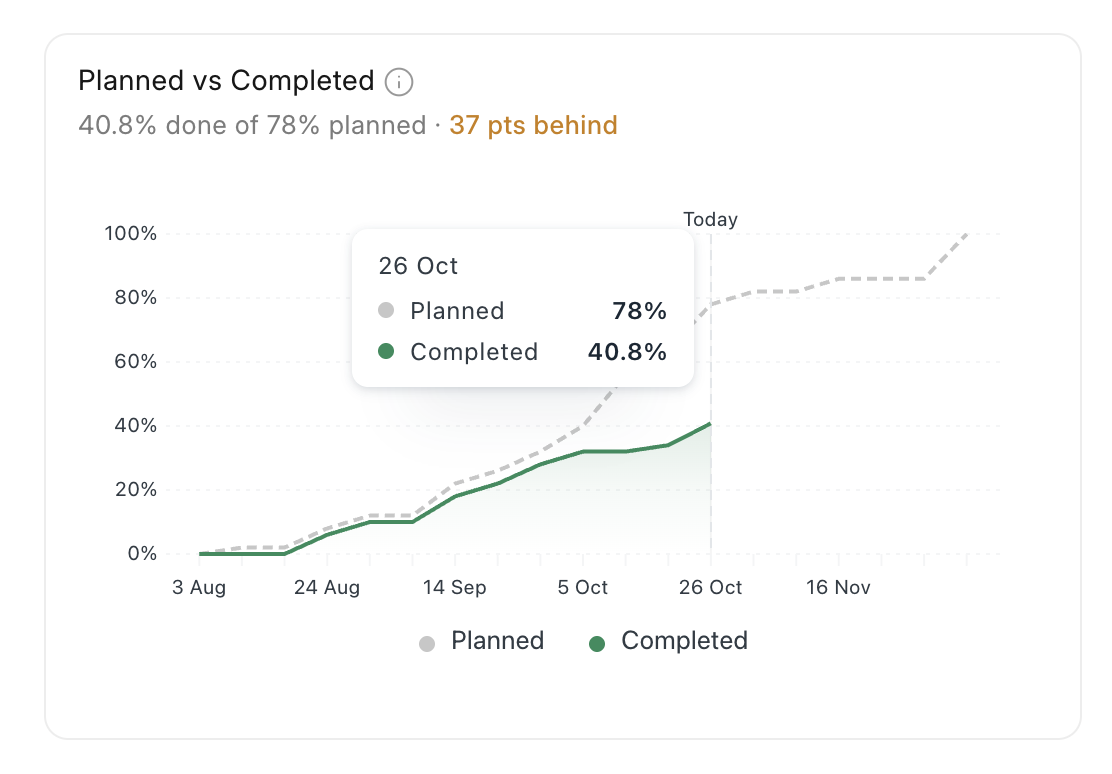
This depends on tasks having due dates. If fewer than half of them do, the chart leaves out the planned line and tells you how many tasks still need dates.
Tasks that need attention
The Needs Attention section brings together tasks that are overdue, blocked, unassigned, or due soon, along with their relevant dates and delays. You can open the corresponding Task List from here.
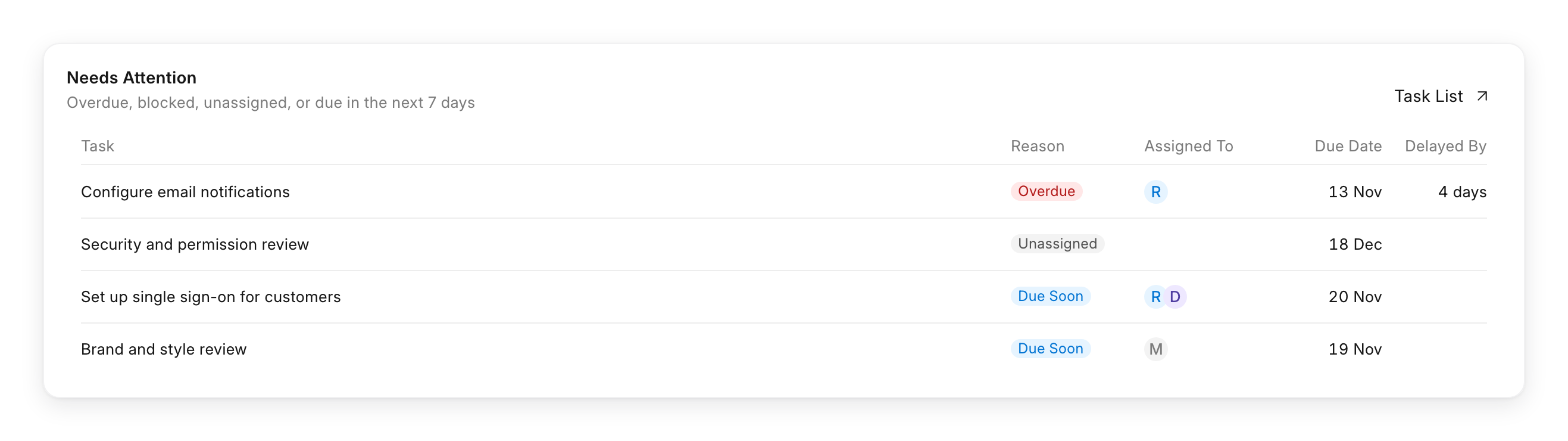
The Tasks by Status chart works similarly; click a section to see the tasks behind that number.
Better project costing
The Costing tab previously showed read-only totals. The updated tab helps you understand where those costs come from, whether spending is on track, and how billing is coming along. Cost, billing, and margin cards give you the headline figures. Below them, you can explore costs from timesheets, purchases, materials used, and expense claims, including which activities, people, suppliers, or items contribute the most.
Spend tracking and forecasts
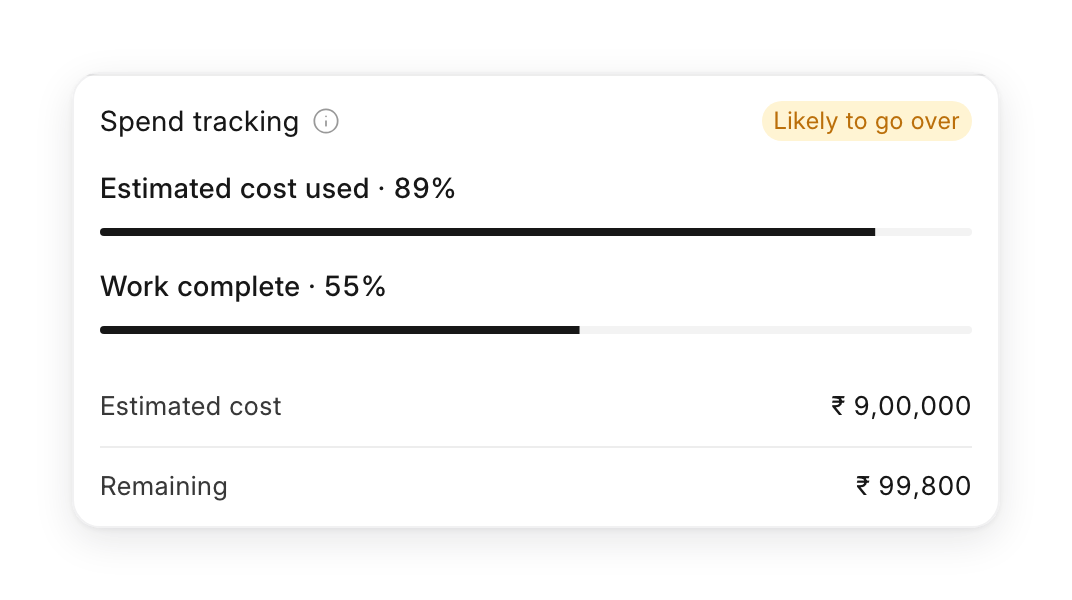
Spend tracking shows the project’s cost against its estimated cost, alongside its percentage complete. If the current spending pace suggests it will exceed the estimate, you’ll see a “Likely to go over” warning. If there’s no estimate yet, you can add one right there.
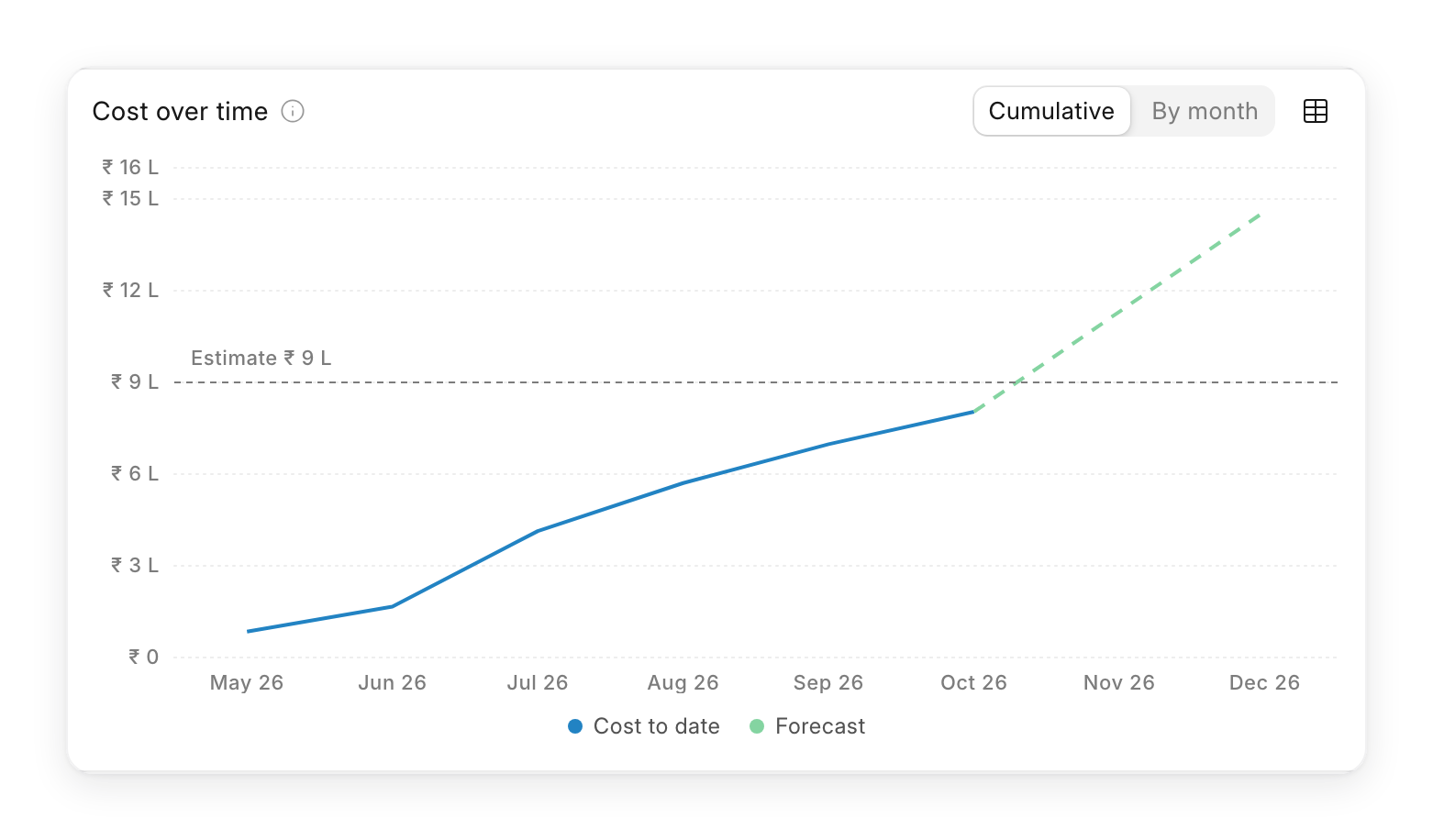
The Cost over time chart shows monthly spending and a forecast through the project’s end date, helping you spot a possible overrun earlier.
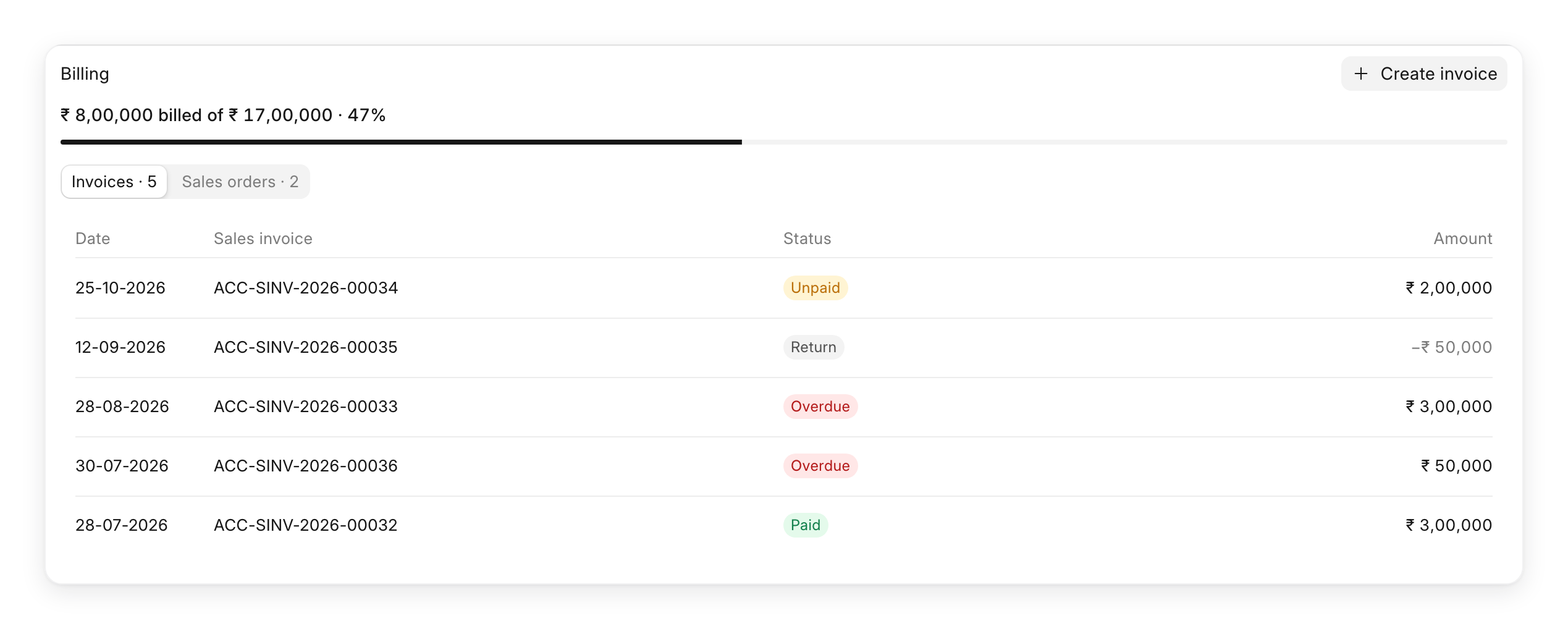
Billing
The Billing section shows how much of the project’s sales orders have been invoiced. It also lists recent orders and invoices with their payment status, so you can check billing alongside the costs recorded so far.
Budgets and Accounting
Finance users also have an Accounts view, showing the project’s budget, spending, and available balance for the fiscal year, based on accounting ledger entries. The account-wise breakdown shows whether spending is on track, over budget, or spending blocked. These statuses follow ERPNext’s budget rules. You can also inspect the entries behind the figures and open the General Ledger for more detail.
The Budgets tab lists the project’s budgets and lets you add one without leaving the Project. Choose the account, amount, fiscal years, and monthly or quarterly distribution, then decide whether ERPNext should warn or stop spending beyond the limit.
The figures are calculated live from submitted documents, and each person sees only what their permissions allow.
Completed Projects
Once a project is finished, the Overview focuses on how it went, when it finished, whether it was early or late, how many tasks were delivered, and how much of the work was completed on time.
What’s next?
I’ve taken ownership of the Projects module, and these changes are a start. There are more improvements and new features planned over the coming months, and I’m looking forward to building on this. If you use Projects, I’d love to hear your feedback and suggestions on what we can improve next. And if you haven’t tried it yet, I hope this gives you a reason to take a look.

