


This edition of updates is very special to me. Not because the year is ending, but because exactly a year ago the Engineering team at Frappe decided to take up a new challenge.
We decided to become more transparent and share our work each month with the community. So yes, this series started exactly a year ago. I was very skeptical about how long it would last. But here we are today, sharing with you the 13th edition of this series!
A big thank you to all our readers. Its because of you that we kept coming back each month.
Table of Contents

With version 16 releasing next month, Framework now has a new design along with tons of improvements right from navigation to list views, forms and much more.
A lot of menu options which were previously a part of the navbar are now inside the sidebar. This was done to make a better use of the screen real estate and also improve the navigation experience.
Awesome Bar
The design of Awesome Bar has been updated. It now resides in the sidebar. You can open it from there or use the shortcut cmd + k. It opens in a popup like a command palette and includes icons to improve the user experience. Here’s a quick demo.
Platform and User Settings
The user profile and settings have moved to the bottom of the sidebar. Notifications now appear in the sidebar with a cleaner list view replacing the old popup. Help and other system related settings can now be accessed at the top of the sidebar.
List Sidebar
Another major update in the List View is the removal of the right sidebar. Again this was done to make better use of screen real estate.
Saved Filters
Saved filters are now on the top of the list view, making it easier to access and allowing users to create new filters quickly.
Customize Filters
Previously, adding a field to quick filters required going through Customize Form or you had to edit the DocType manually.
Now, Users can select quick filters directly from the List View itself, and these settings are user-specific, so other users won’t be affected.

Desktop Updates
We debuted the new desktop page in Frappeverse 2024. Since then it has gone trough a lot of visual updates. See the difference with your own eyes!
How it stated
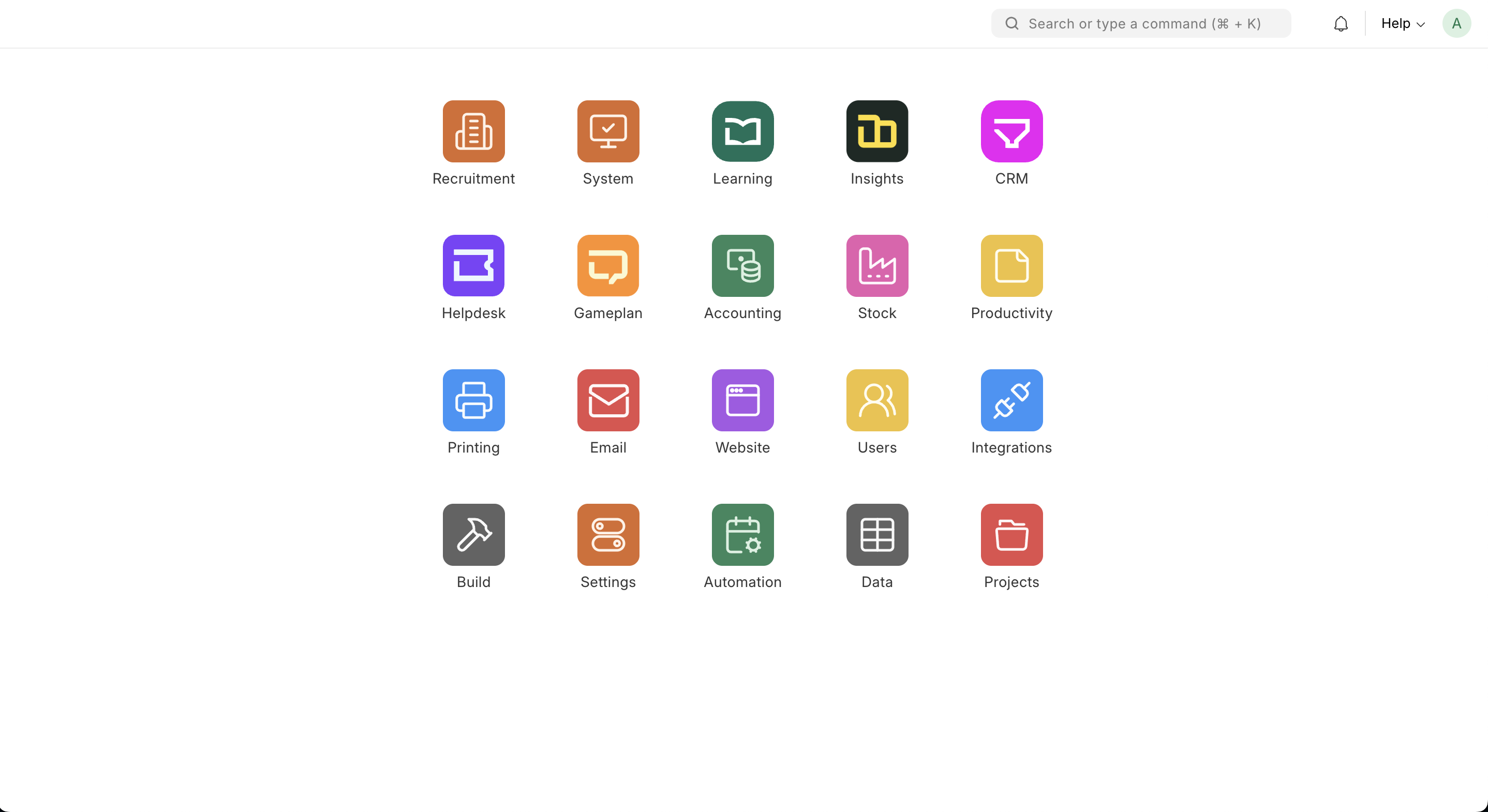
How it looks now

It also includes ability to customize the layout as per your wishes.
Renaming Spiral Continues
In version 12 of the framework the frontend was hosted on the route /desk. In version 13 we renamed it to be /app. In version 16 we are bringing back /desk. This route will host the new Desktop Page.


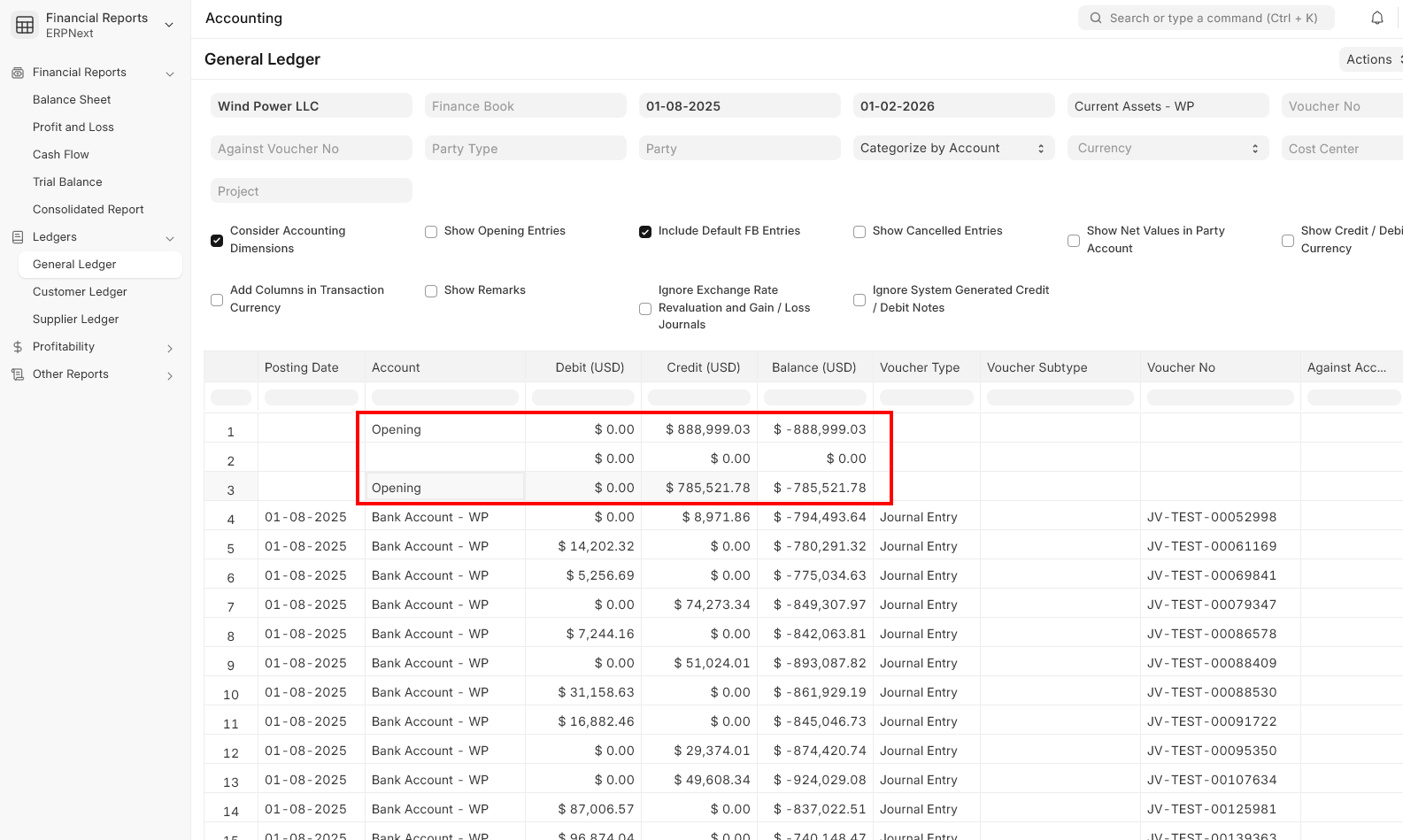
General Ledger: Net Balance as Opening
Our general ledger always reported total opening debit and credit as the first row. Since this was a non-standard practice and didn't serve much purpose, it has been changed.
Contributed by Smit Vora
Better TDS/TCS in Journal Entry
TDS and TCS handling in Journal Entry have got major refactors. TDS will be calculated only if the net amount for a party is positive. It can also handle negative values in Debit/Credit.
Contributed by Lakshit Jain
Bank Transaction
Bank Transaction now capture bank fees that may be included/excluded in the transaction amount. You can checkout the documentation here.
Contributed by 0xD0M1M0


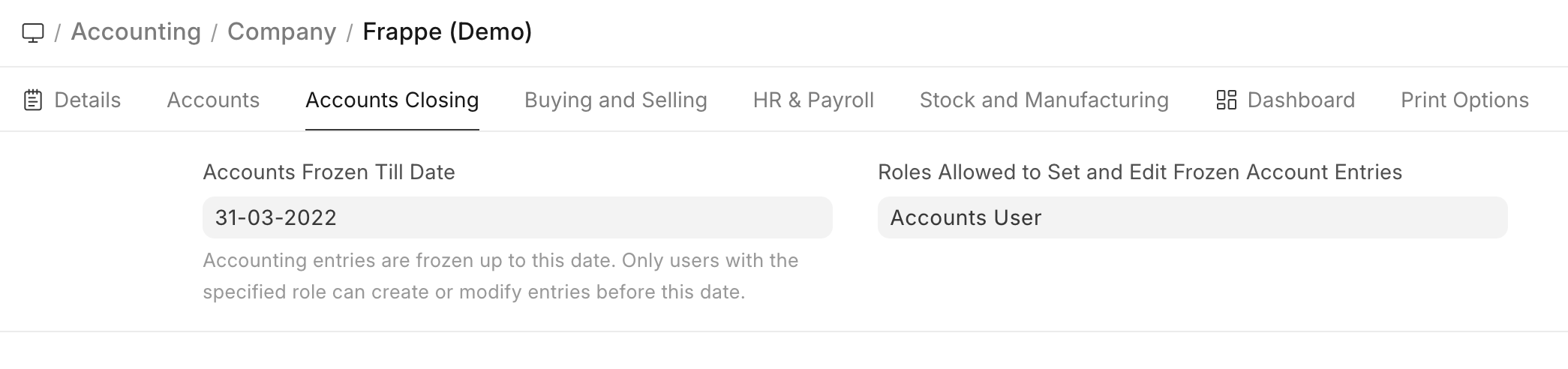
Account Freezing
Account Freezing used to be a system level configuration. It has now been refactored to be company level configuration. This is highly useful for multi-company setup.

Discarding Drafts
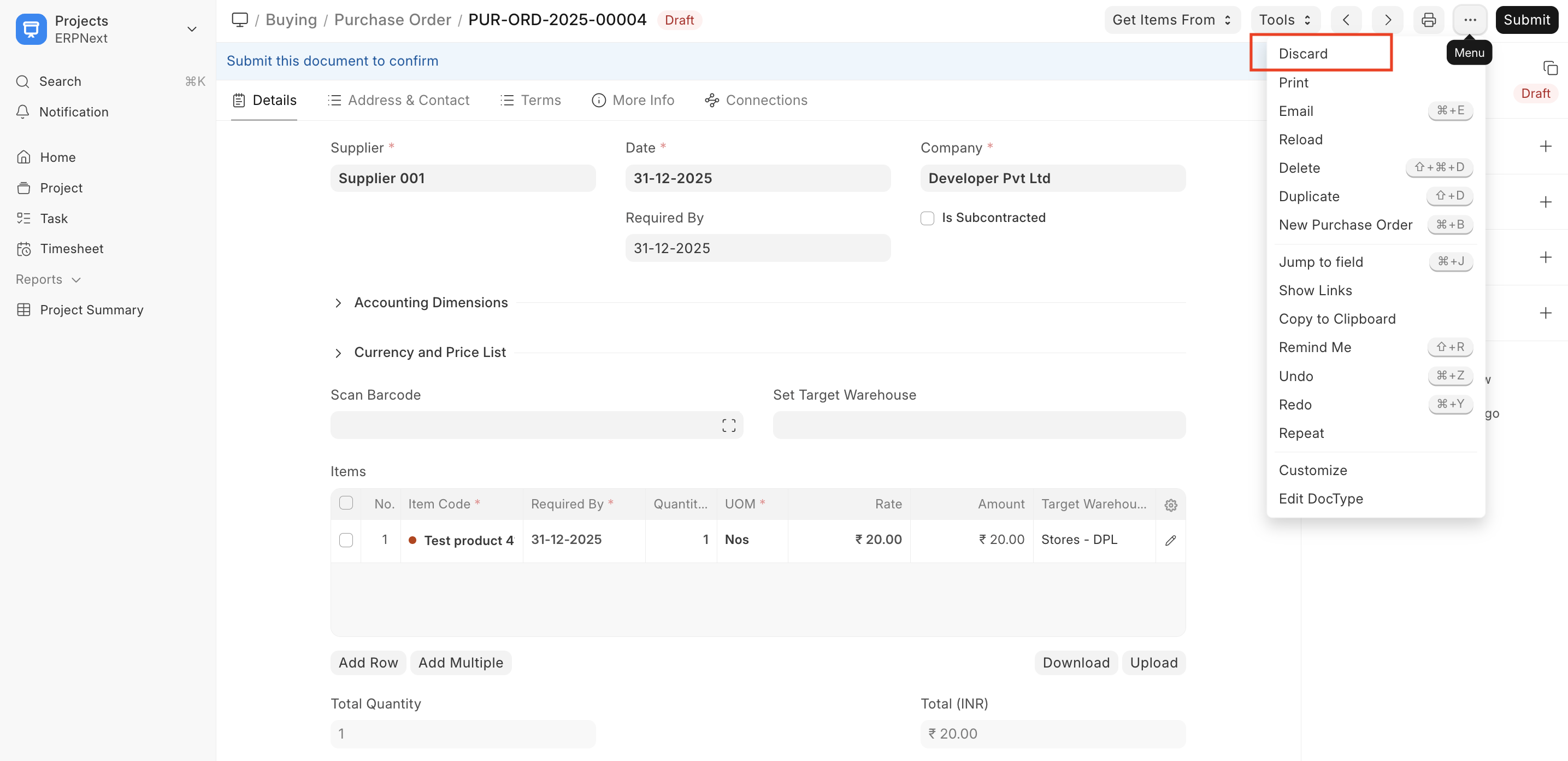
Previously, if a submittable document in Draft state was incorrect, the only option was to delete it, which resulted in the loss of its history. Now, with the new discard option, you can remove a draft document without submitting it or going through the cancellation process, preserving the record while keeping your workflow clean.


Templating Job Opening
Need to create multiple job openings for the same location and the department? Just create a job opening template, select it while creating the Job Opening and have the common fields populated automatically. Contributed by Nareshkanna S
HR Settings split according to workspaces
The single HR Settings doctype has been split into tabs that house settings related to each workspace and are linked inside each workspace sidebar.
Better Auto - Attendance Processing
You could mark attendance manually from Shift Type instead of waiting for the hourly background job. Although if there were large number of check-ins to process, the Shift Type screen would be frozen in place and rarely but possibly fail with a timeout error. Now, the mark attendance button just hands over that task to a background worker instead of keeping the screen frozen.


Better Way to Schedule Evaluations
The previous implementation of evaluation scheduling was done on the assumption that slots will be available on most days. However this has not been the case in reality.
In the previous flow, a calendar was shown to users, they had to select a date and then if no slots were available on that date, they had to move to the next day and keep on doing so till they reach a date with available slots.
This was a bad user experience and left users confused in many cases as it gave an impression that none of the days have slots available.
In the new implementation now, when a user selects a course, they are shown all the available slots that fall within the next 60 days. This automatically checks all the booked slots in this window and also excludes the days on which the instructor is unavailable.
This ensures that students see all available slots within the next 60 days on a single screen. They no more have to roam between dates to find a slot.
Search Courses & Batches Instantly
Users can now search for their courses and batches all in one place. cmd + k opens up a command palette. From here they can navigate to Course, Batch and Jobs list. They can also enter keywords to search for specific courses and batches.
Students will only see the courses and batches that are published on the system. But Admins see all the courses and batches irrespective of their published status.
Open to Opportunities
Users who are also job seekers can now express the same from their profile page. They just have to edit their profile and set the same there. Then anytime someone visits their profile, they will see a green tick besides their Avatar indicating they are looking for work.
This is not just for job seekers. Users who are hiring can also set the same from their profile. This will be indicated with a purple tick next to their Avatar.
This preference will also be shown on the Certified Participants listing. So Hiring Managers in the community can go to this listing and find people who are looking for jobs. Users can also filter this list to find all the people who are open to opportunities or are currently hiring.
Consent to store billing information
Previously, when a user registers for a paid course or batch, all the information they enter in the billing form gets stored in the system. However, this form includes details their personal information and there is not explicit consent taken from the users before storing this information. This can cause compliance and audit issues at the admins end.
So now, the billing form asks users to give this consent explicitly before this data gets stored in the system. Users will have to provide the consent if they wish to proceed.


Bubble Chart
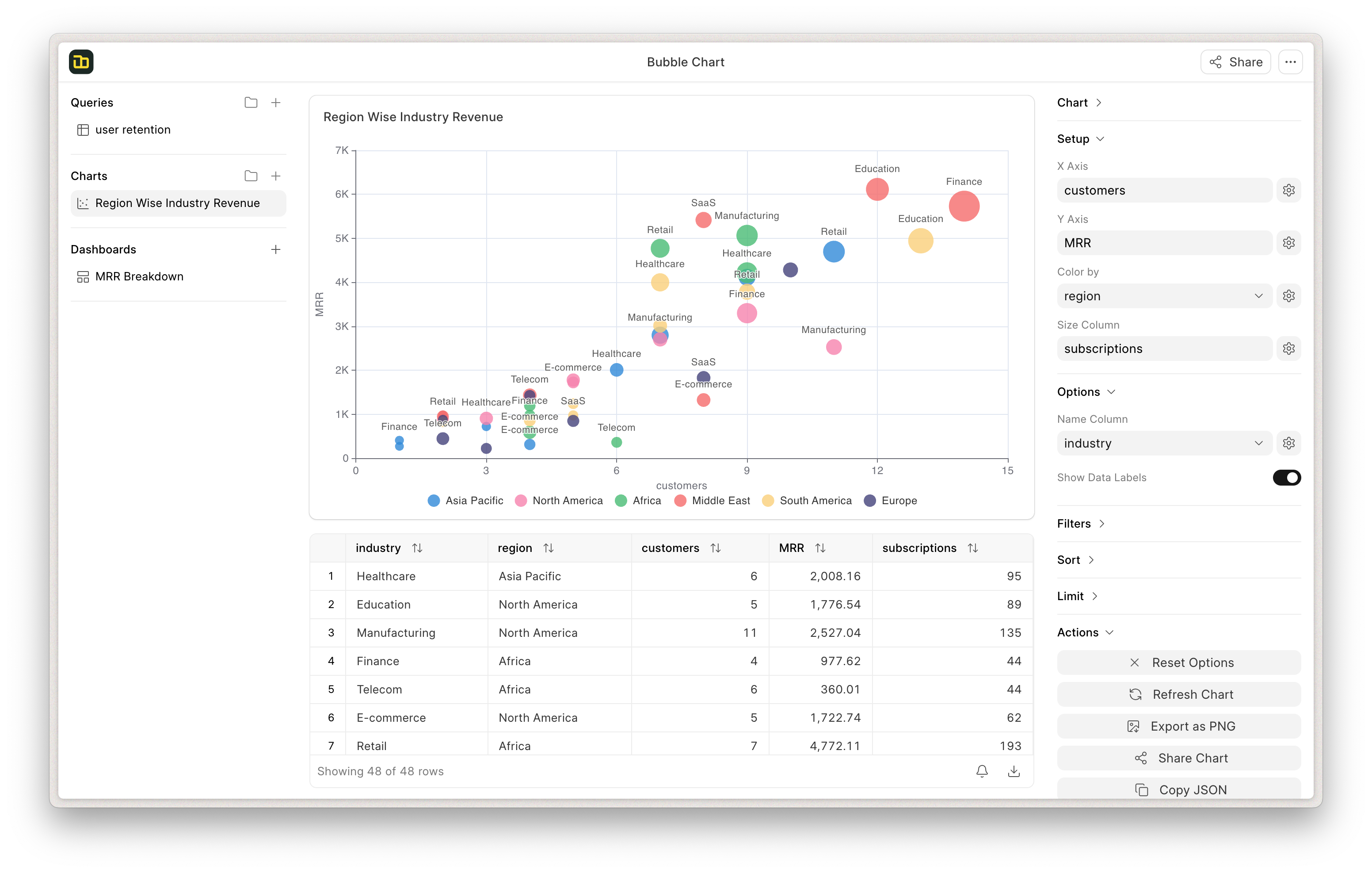
We know sometimes 2 dimensions are not enough to tell the full story. Using bubble chart you can compare Market Share, Revenue and Industry in one chart simultaneously by looking at the clusters and variable bubble sizes. Makes it easier to spot outliers and correlations at a glance.
Resolve Unrecognized Locations
In map chart, sometimes the locations in the data did not exactly match with the map chart locations. Lets say you have USA in your data but in map chart its configured as United States of America then that would not be displayed in the map chart.
Now, clicking on the info icon next to the region column will open a dialog where you can resolve your missing locations with the ones available in the map
Schema Browser for SQL Editor
Now you don’t have to jump between tabs and make it easier for you to avoid SELECT * and prevent unnecessary full table scans. And the best part? clicking on column or table name to directly insert them in your editor


Canned Responses Refactor
Canned responses has now been renamed to Saved Replies. It is now located centrally in the Settings modal. Saved Replies supports Jinja templating for dynamic, personalized messaging and introduces visibility scopes. You can configure whether you need to share a response globally, with a specific team, or keep it for personal use.


Data Import
Data Import functionality is now a part of the frontend. This update allows users to upload data for all core items like Lead, Deal, Organization, Contact, and Task using either using a CSV files or Google Sheets links. So no need to navigate away from the CRM app when importing data.
Service Level Agreement
Another feature that has been added to the frontend is Service Level Agreement (SLA). Users can now create and manage SLAs directly from the settings modal. This includes setting response times and work schedule, ensuring that service standards are maintained.

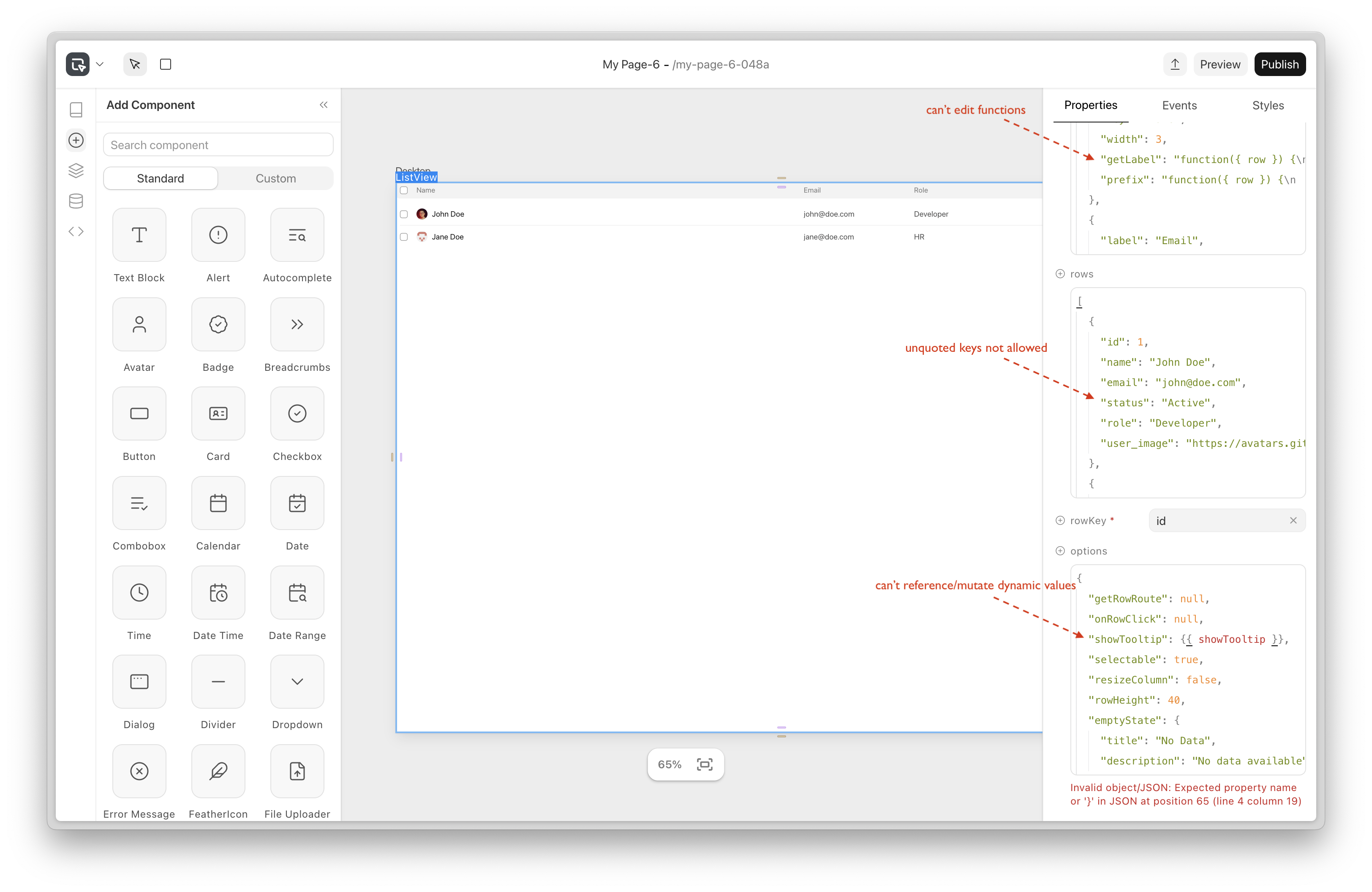
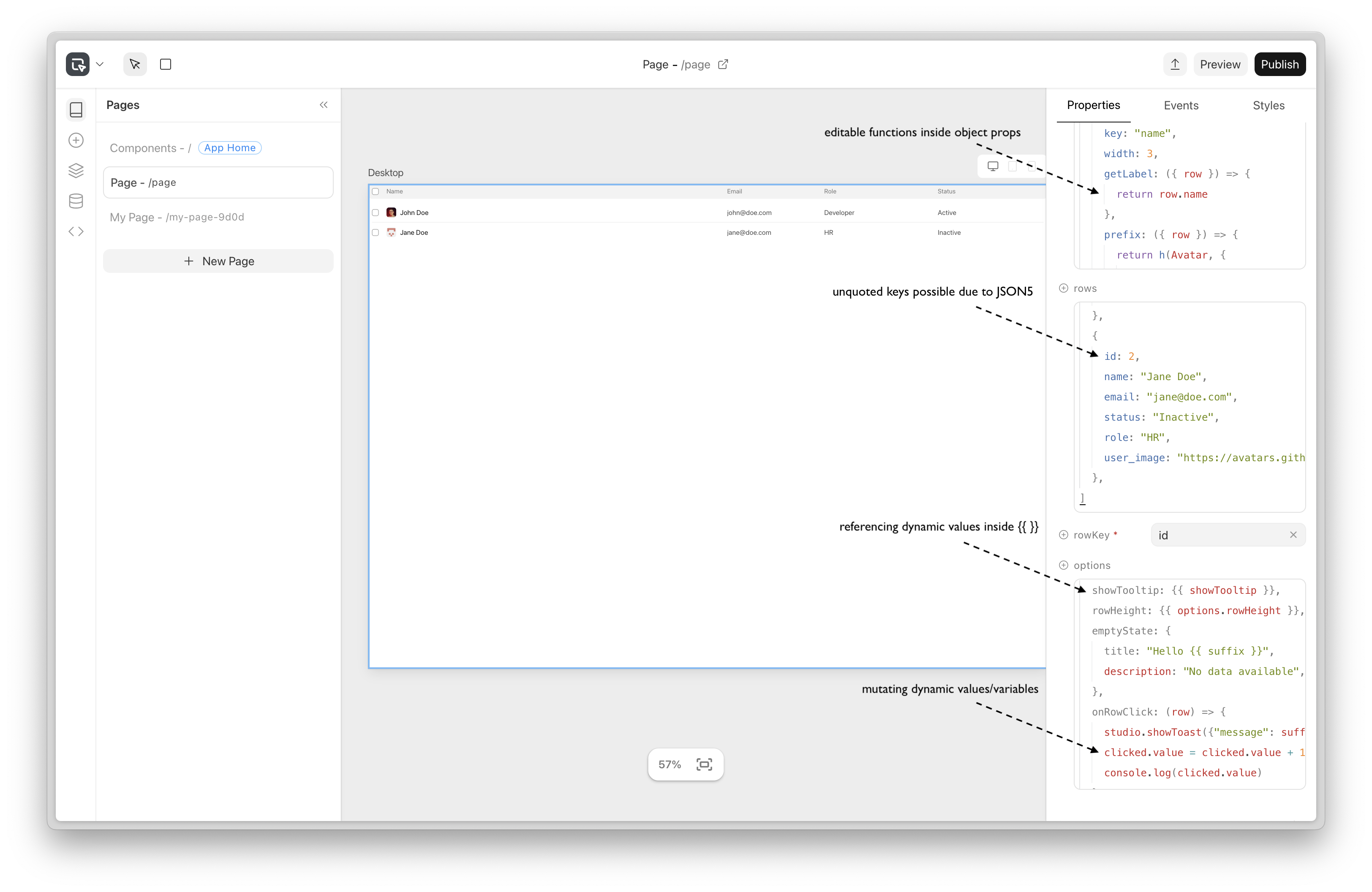
Support functions & dynamic values inside object props (PR 134)
- Support functions in block props
- Allow referencing variables & data sources in functions inside props and changing variable values.
- Display for objects was still not JS friendly, e.g., keys were always double-quoted. Use JSON5 for human-friendly display & editing in code fields.
Before:
After:
studio.call utility function for direct API calls (PR 141)
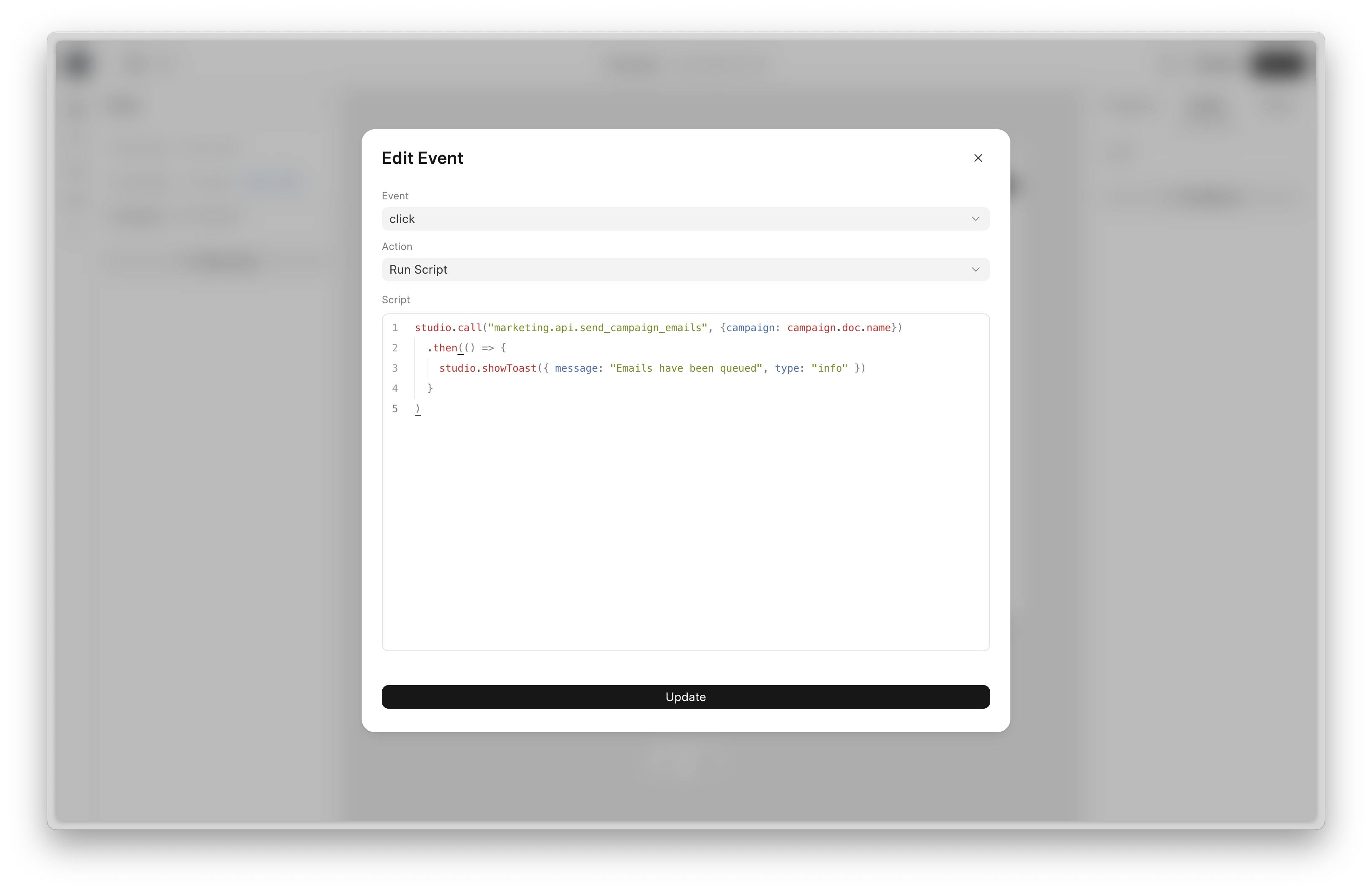
In action:
You’re no longer forced to use data sources for everything.
Use
studio.callwhen you need to call different APIs in scripts that aren’t directly tied to the UI, or when the logic can be handled by reloading existing data sources. For example: fetching settings to map data before inserting/updating a document, or making API calls for pre-/post-processing around CRUD operations.If you’re performing CRUD on a document that’s also mapped to the UI elements, it’s better to create a Document List data source (or a Document data source for doc level changes) and use:
campaigns.insert.submit,campaigns.delete.submit,campaigns.setValue.submit. This keeps the UI in sync whenever changes are made.
frappe-ui upgrade
Month Picker (#477)
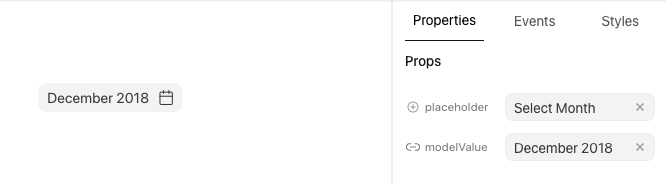
MultiSelect (#448)
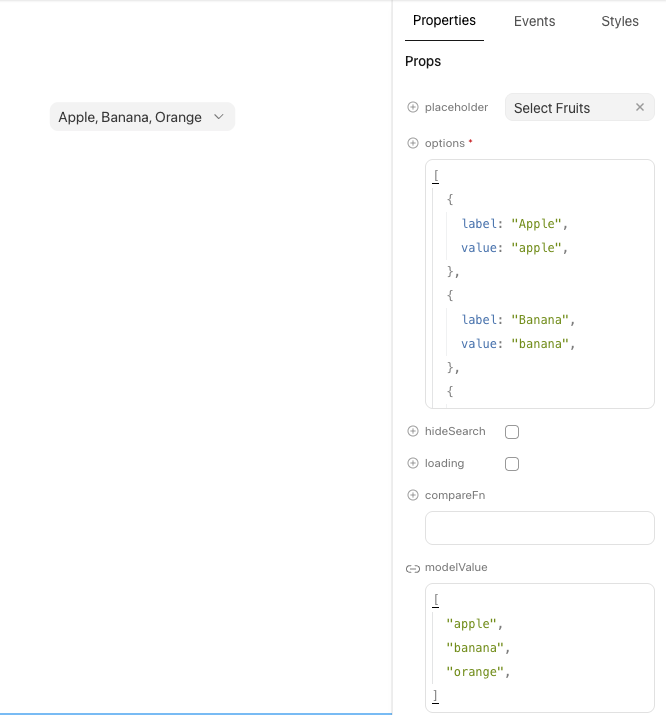
Filter (#433)
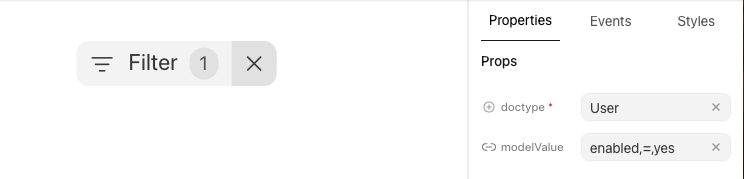
Alert only had a warning type, not it has theme, variant, description, dismissible
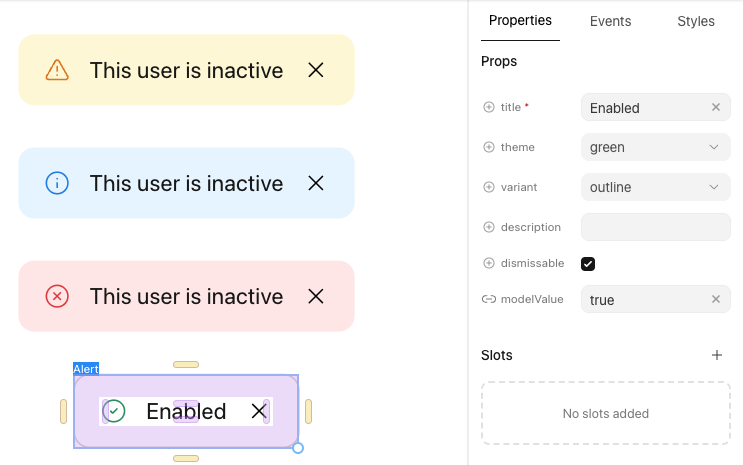
Contributed by Sidhanth Rathod
Individual studio app builds are now very fast and lighter (~4x lighter) thanks to refactor!: tree shaking by adding subpath exports frappe-ui#445 and build: remove static font files frappe-ui#502
You can refer to this PR for more details.


As many of y'all know from Frappeverse 2025, the keynotes given by our team were made and presented using Frappe Slides - a newly added app to our suite of apps. We made it open-source during the conference and took you through a journey of sharing the developer perspective and behind-the-scenes for making it all come together. Watch more on this here.
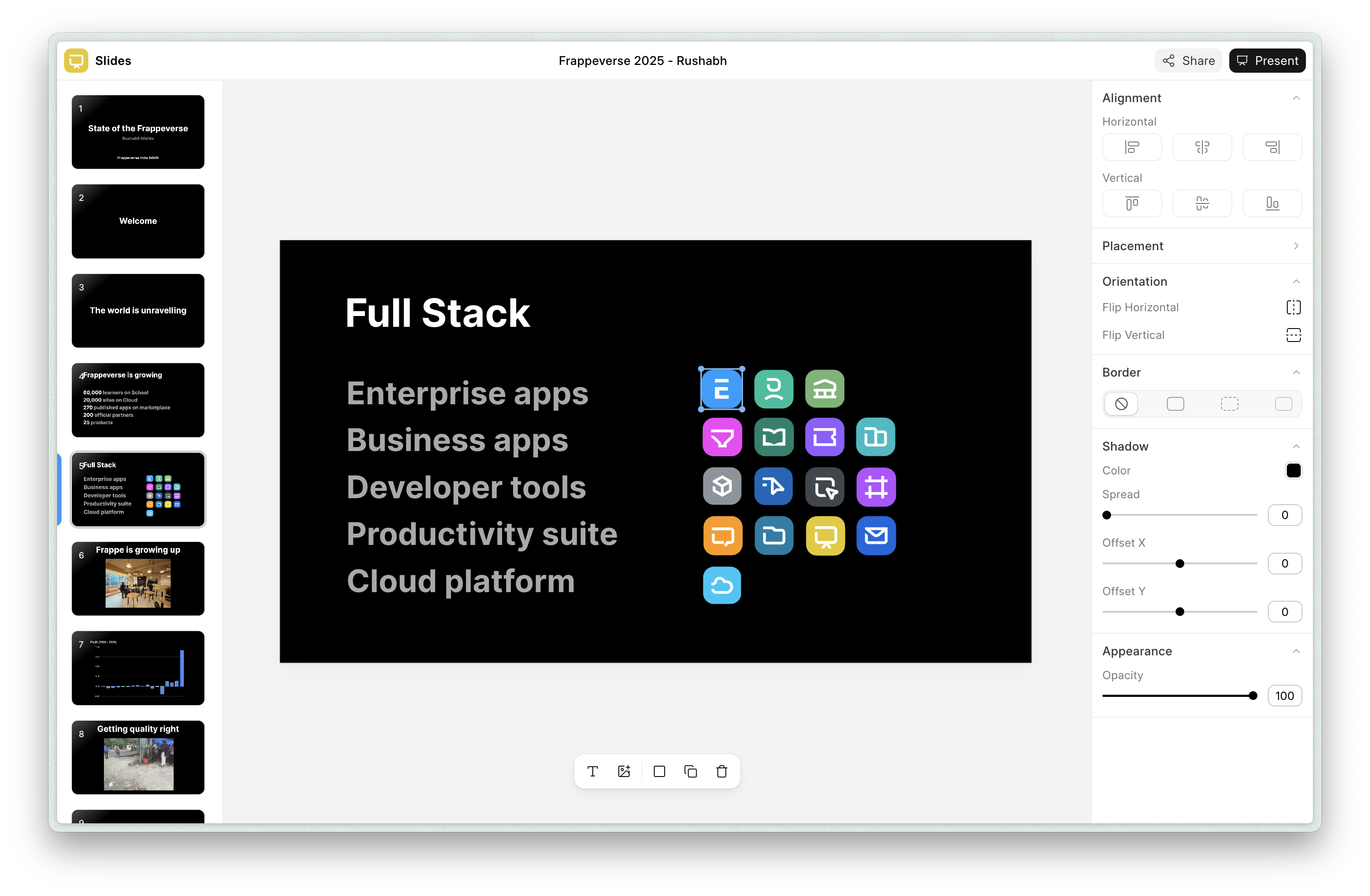
After the conference, there were some improvements and refactors we worked on to make the app a tad bit more stable and polished compared to before. Highlighting some of the features and enhancements made in the past months below.
Slide Transitions - Magic Move (#117)
Adding slide transitions before this was limited to basic ones like fading in. Magic move gives you the option to quickly add smooth transitions for elements repeated across your slides. You just move, change styles or highlight elements across different slides. And magic move will automatically add transitions with a single click.
You can check out this demo to see how it looks!
Resize Snapping (#115)
Matching an element's dimensions with another element on the same slide is easier now. You no longer need to “vibe-resize” until both of the elements look fairly the same. Now, apart from alignment guides, new helper guides show up that let you snap the element with the center and with any other element so everything lines up correctly.
Text Element Improvements (#120, #110)
Consistent Line Height: There were some inconsistencies while going in and out of the editable mode for any text element. There were line collapses, weird height jumps and incorrect whitespaces added in different cases. With these improvements, you can edit text elements without distracting UX issues like these.
Anchoring Text Elements to the Center: You don't need to re-align your text to the center of the slide after updating it's content now. It will be anchored where you align it and you can simply focus on changing the text.
Missing Styles & Cursor Issues: The cursor remained un-styled and hidden for empty lines within text blocks. Sometimes, styles were not preserved even though the block should retain them. Added a new plugin to take care of correctly retaining all styles.
Improved Editor UX
Alt / Option (⌥) + Drag for Quick Duplication - (#129)
A common feature in many editors is holding the option key and dragging the element to duplicate it. If you’ve used similar editors before, this feature should feel very familiar and make duplicating elements much faster.
Better Copy Pasting - (#124)
Although you could duplicate slides (Ctrl / Cmd + D) before, the functionality was fairly limited - duplicating would only insert it after the current slide. With this new feature, you can copy any slide to your clipboard and paste it anywhere in the presentation with the more commonly used shortcut of (Ctrl / Cmd + C → Ctrl / Cmd + V).
Other Fixes


Generic JMAP Client (#233)
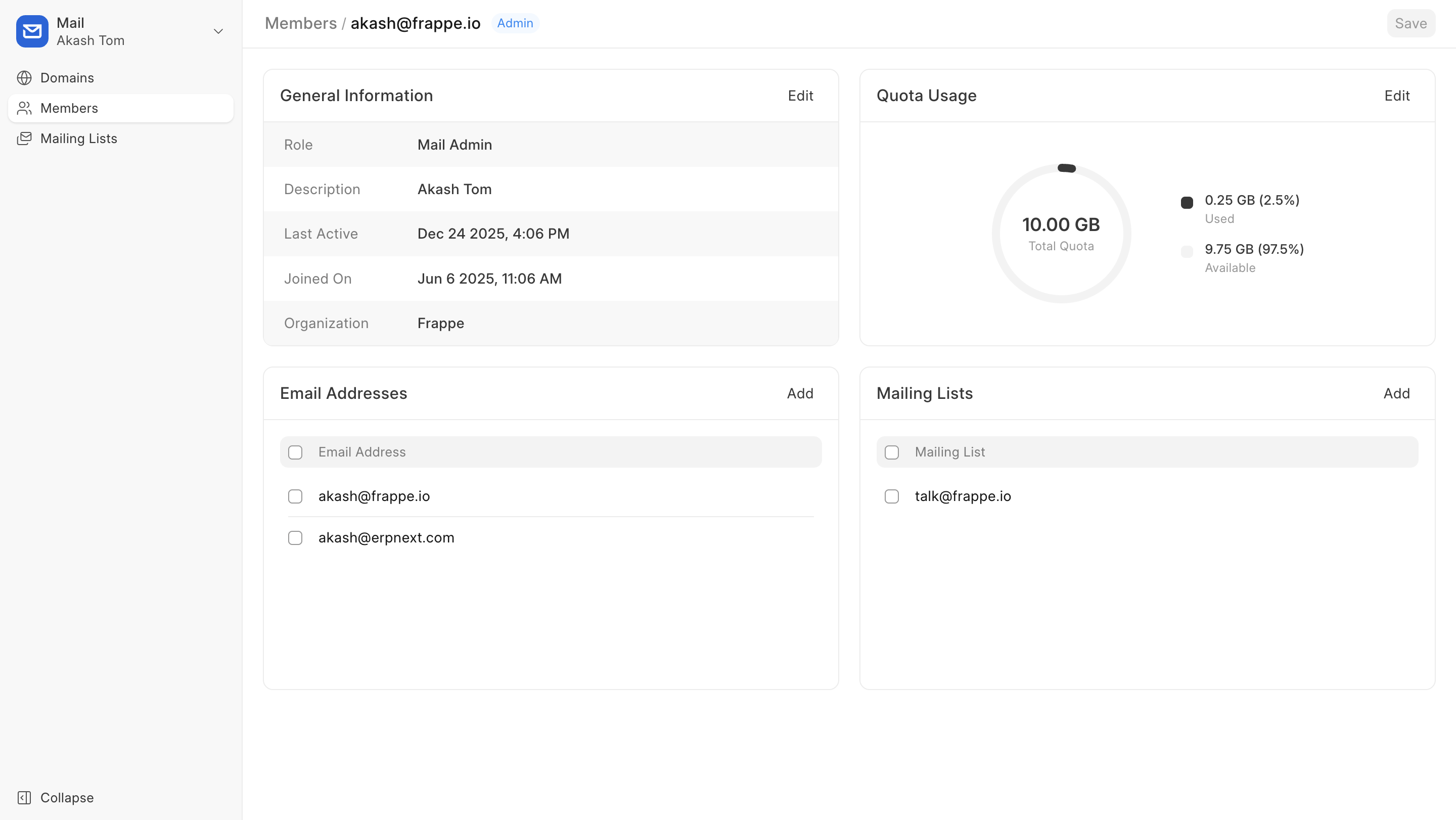
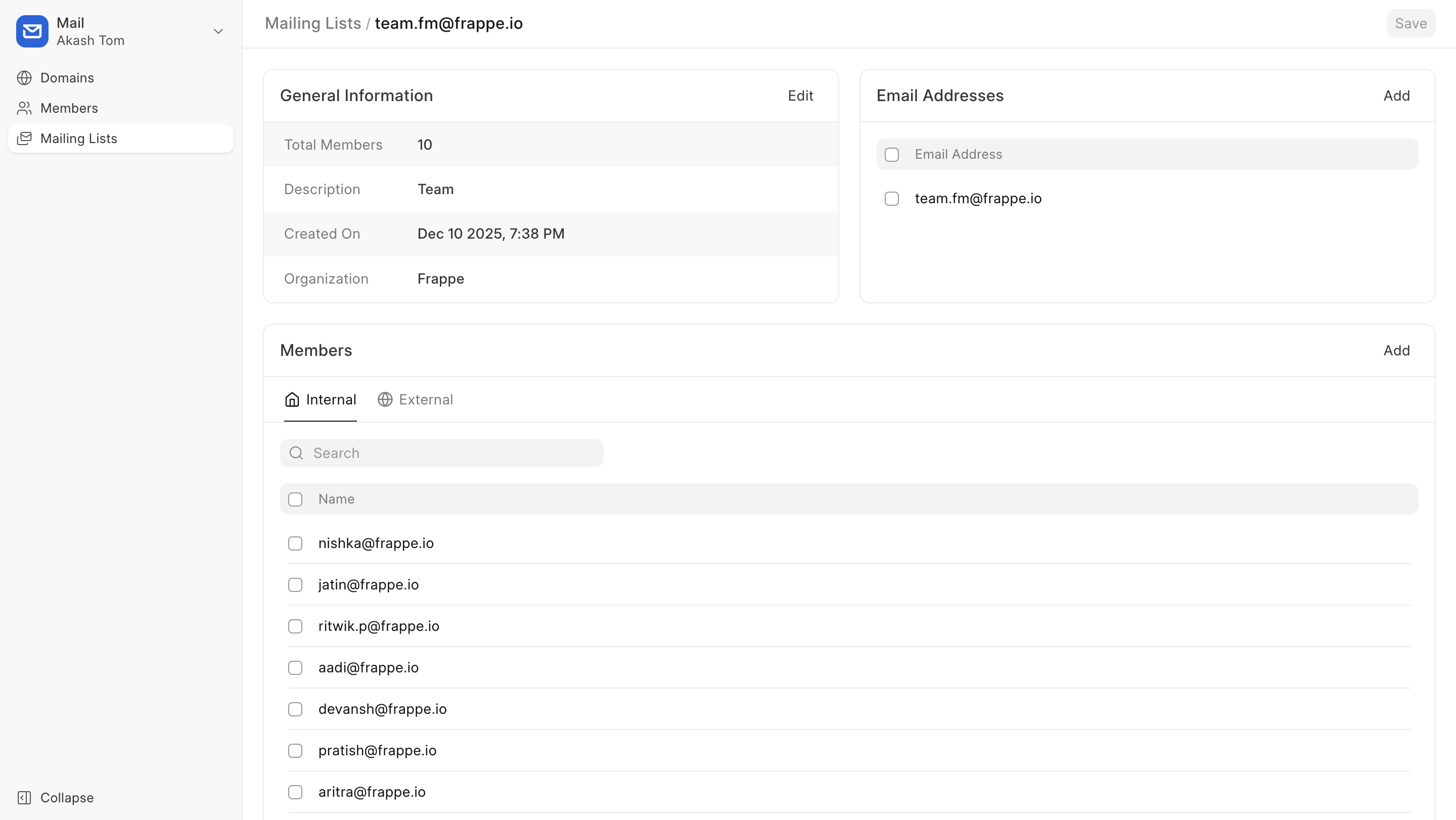
Frappe Mail is now a full-blown JMAP standard compliant generic client. This means that a user could hook up any JMAP-based server (like Stalwart or FastMail) to use Frappe Mail as the client. To make this possible, a lot of the Admin Dashboard APIs had to be re-written, with most of the previous DocTypes being deprecated. The UI was also updated to a large extent to match most of the currently available features.
Contacts (#343)
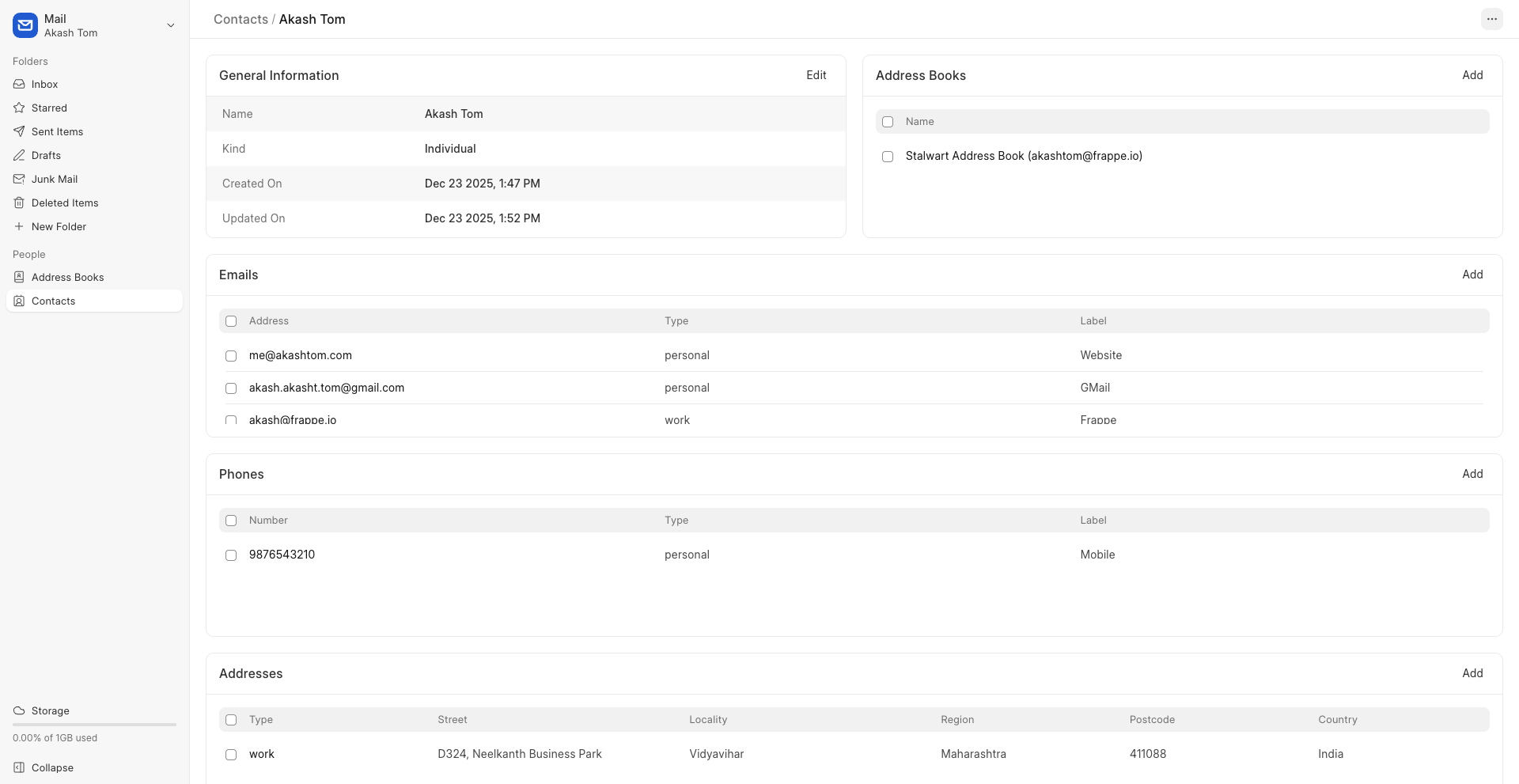
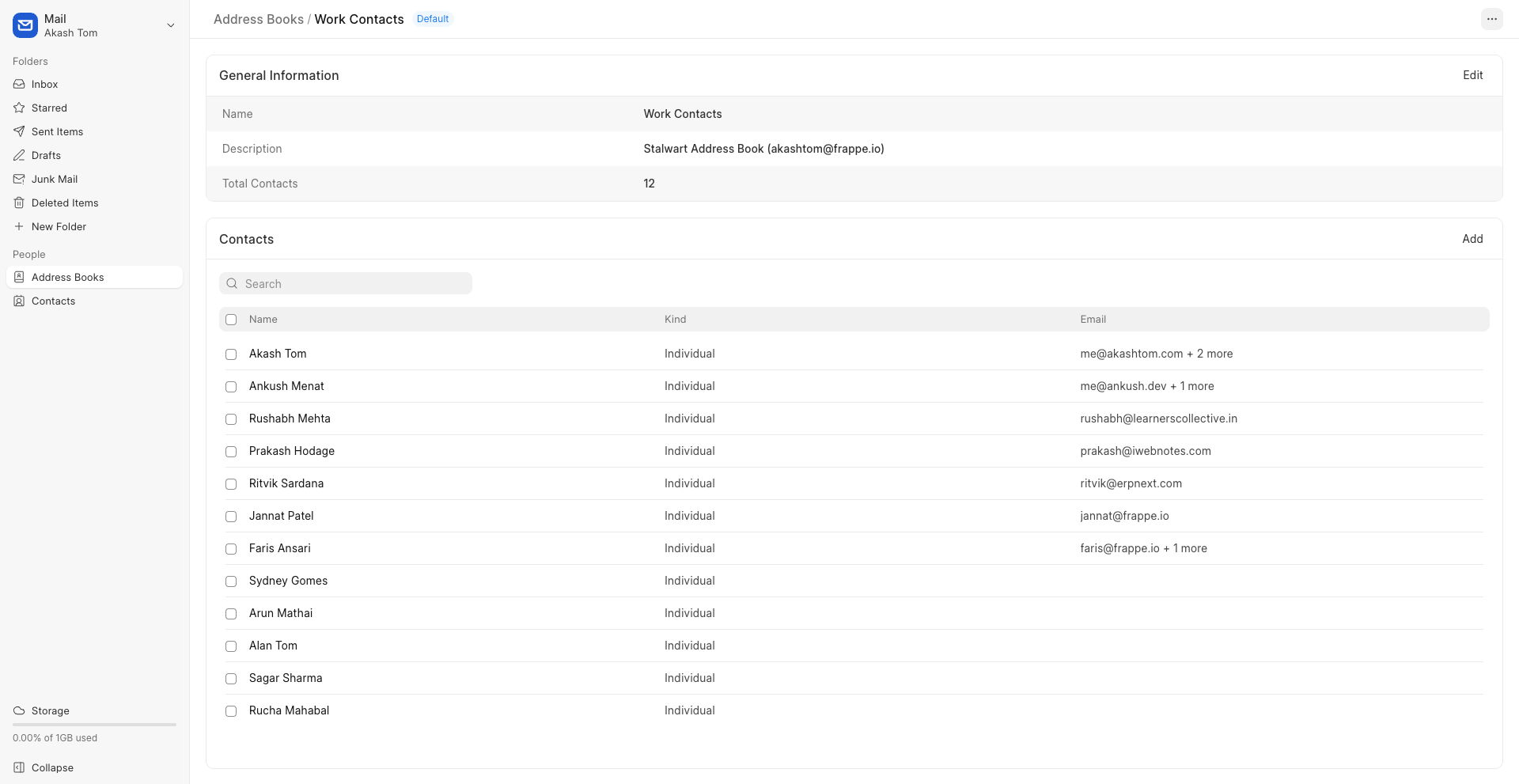
This PR is almost complete and should be merged soon. With this, we add support for JMAP standards: Contact Card and Address Book.
Contact Card
A contact card is used to store information about a user’s contact. It is what is used in autocomplete while selecting recipients for a mail.
Address Book
An address book is a collection of contact cards that can be used for managing similar contacts or for sending mails to a specific group at once.
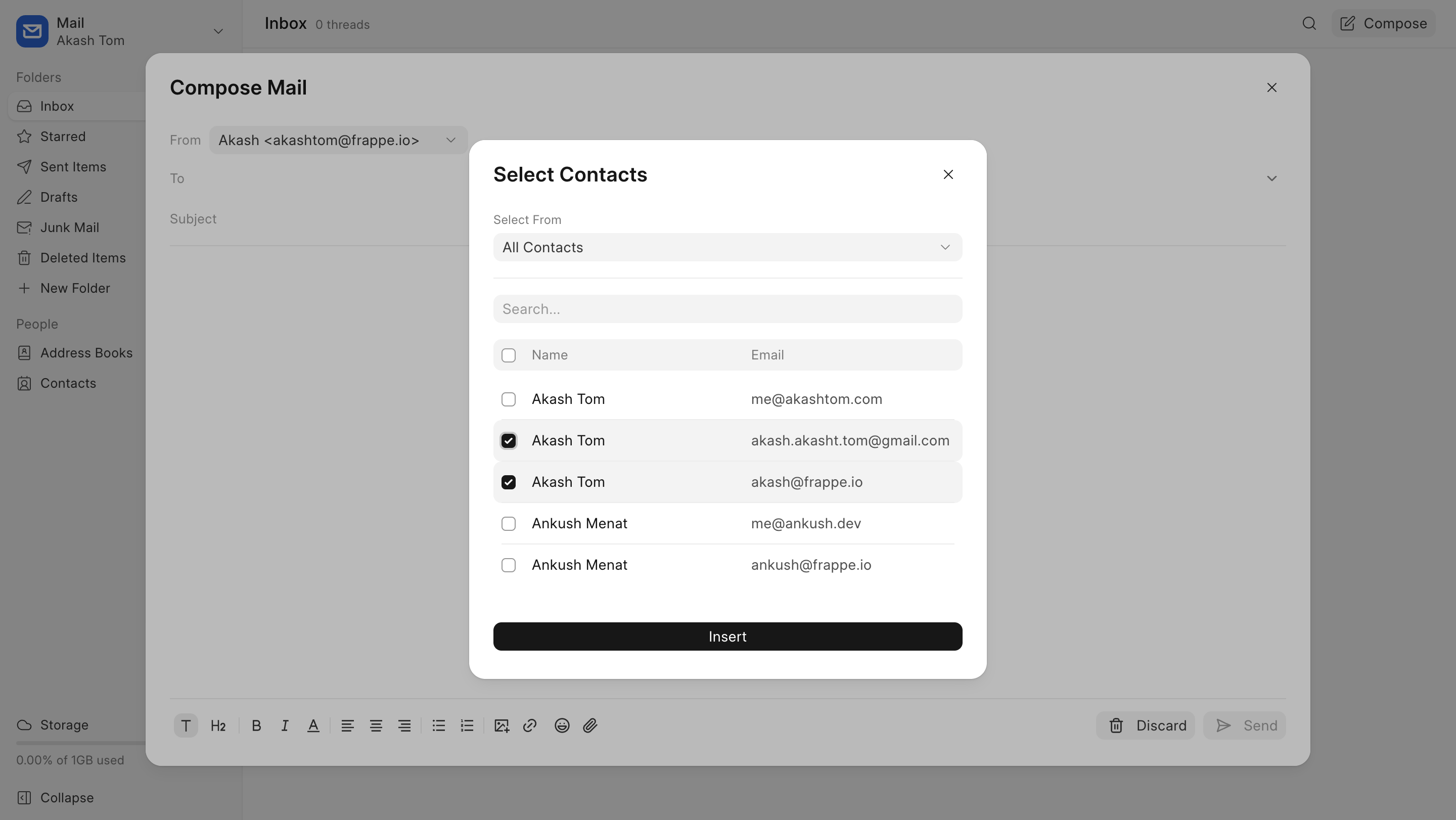
Select Contacts Modal
You can select contacts from your contact card list while drafting mails.
Identity & Signature (#334)
Identity allows you to set different outgoing specifications for each of your aliases. This includes a unique display name, reply to and bcc addresses, and a mail signature.
You can save multiple signatures and select one of them for your alias or while drafting mails. Mail Signature is an in-house doctype and isn’t synced across clients.
Selecting a different identity, before sending a mail, will also apply its respective signature.

And that's it 👋
Version 16 is releasing next month. We hope you are as excited as we are!


·
Nice!